Skip to content

TechDirectArchive

Hands-on IT, Cloud, Security, Veeam & DevOps

  • Home
  • About
  • Advertise With US
  • Reviews
  • Contact
  • Toggle search form

How to stop Zoom App from launching automatically at startup on Mac

Posted on 22/02/202129/09/2023 IT Expert By IT Expert No Comments on How to stop Zoom App from launching automatically at startup on Mac
  1. Home
  2. Mac
  3. How to stop Zoom App from launching automatically at startup on Mac
zoom-2

Zoom is a video telephony software program developed by Zoom Video Communications. Zoom offers a full-featured basic plan for free video chatting service that allows up to 100 participants concurrently, with a 40-minute time as of today. I know I have written articles around this topic but I wanted to cover this topic in a more precise way for users that are having Zoom startup issues. Learn how to stop Zoom App from launching automatically on MacOS.

See the following guides on how to start an application automatically on macOS, how to stop TeamViewer from starting automatically on Mac, How to stop an application from starting up automatically on macOS, how to stop Cisco Webex Meetings from starting up automatically, how to enable or disable startup programs: How to view or change programs that run on startup, how to enable or disable automatic login on macOS, and how to enable and disable automatic login on Ubuntu Linux via the GUI and CLI.

An APP file is an application bundle that runs under macOS. MacOS is an operating system (OS) developed by Apple and designed to run on Macintosh computers. It stores multiple directories, such as Contents, Resources, and Frameworks, which contain various files that make up the application. APP files are executable files similar to .EXE files in Windows and run when double-clicked.

Steps to Stop Zoom App From Launching on MacOS

Launch the system Preferences and click on Users and Groups as shown below
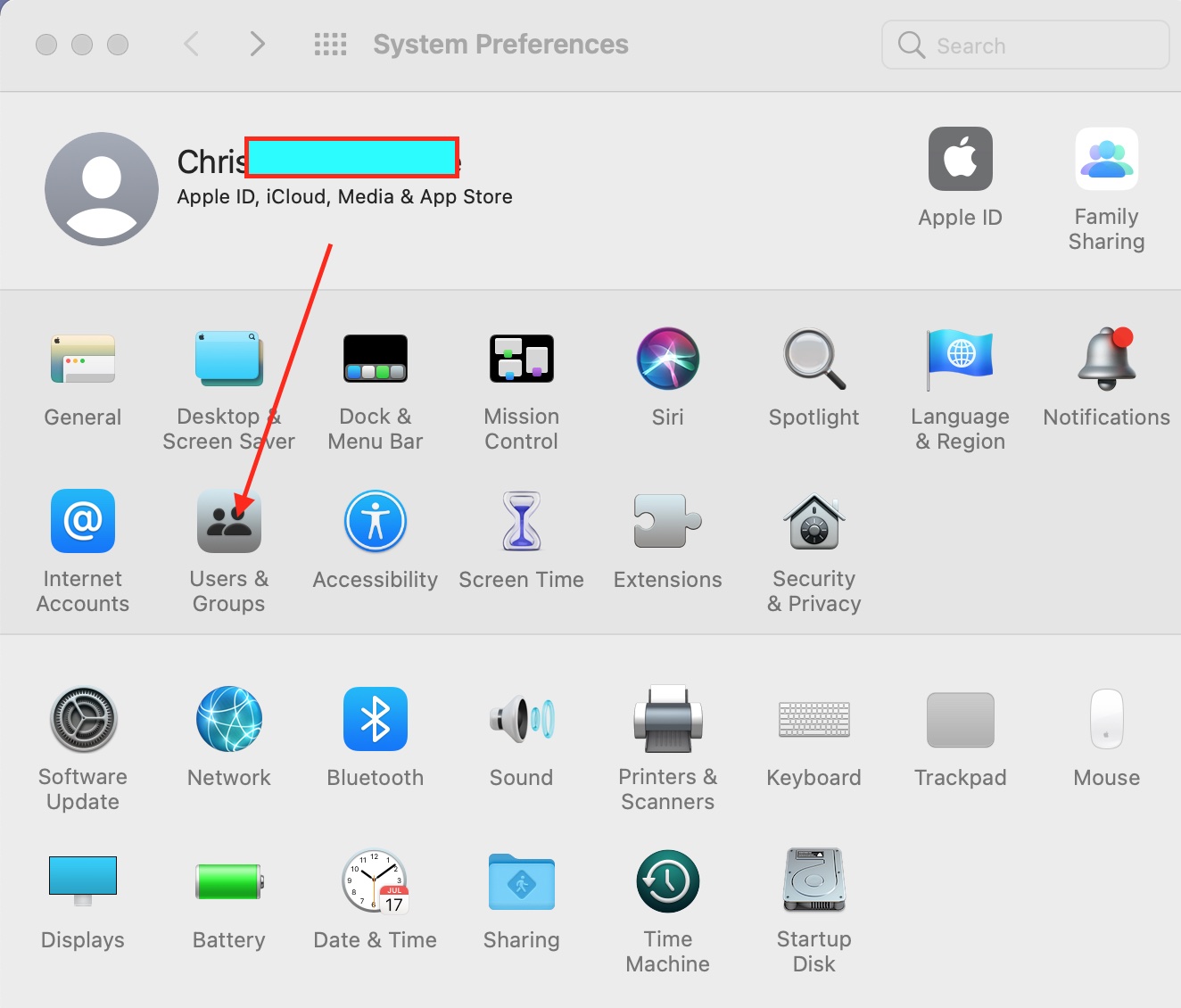
stop Zoom App from launching -system properties

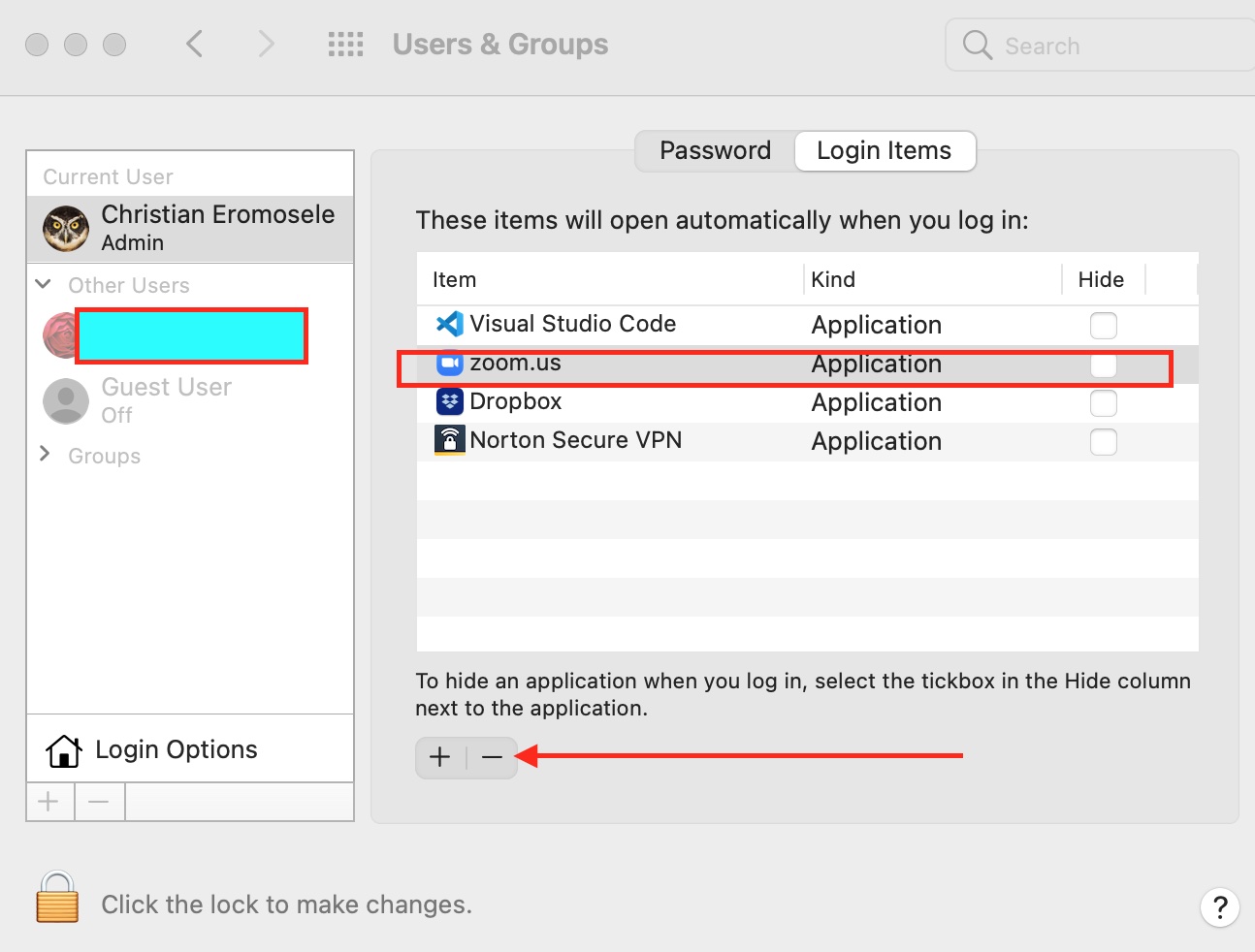
This will open the Users&Groups Window as shown below. Click on the Login Items and select the Zoom application you wish to stop from launching automatically at start up (hide an application when you log in).
– You will have to select Zoom and then
– Click on the “-” as shown below

stop Zoom App from launching -remove Zoom from startup

Note: I also want to remove “Norton Secure VPN” as this can be annoying as well. I will follow the same process i used in hide Zoom from startup. As you can see below, I have hidden Zoom and Norton Secure VPn from automatically starting up.
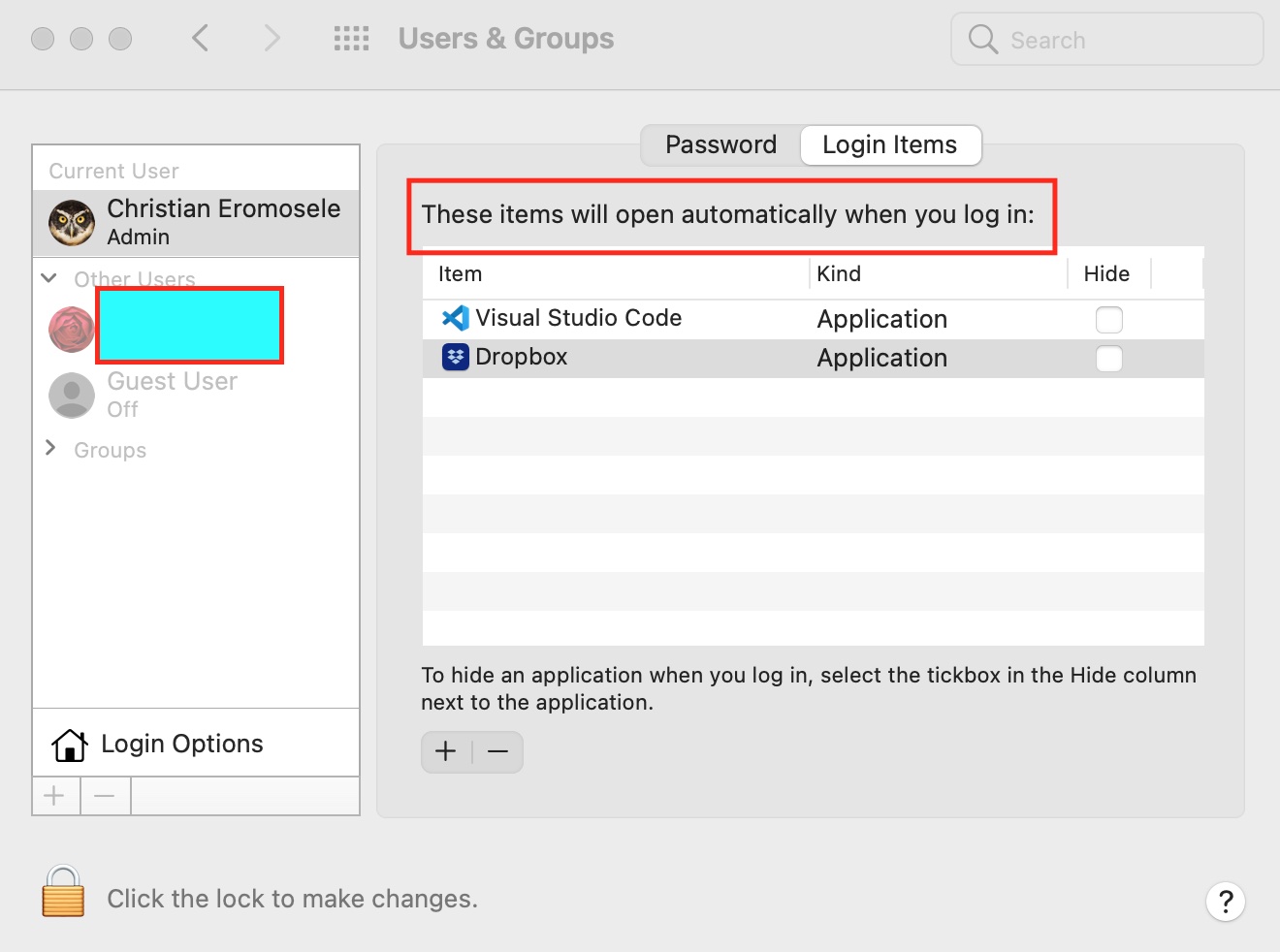
stop Zoom App from launching -Hide Zoom

That is all that is needed to stop Zoom App from launching automatically starting up in Mac upon user login. Here are some related articles: How to configure the FrontFace Lockdown Tool, and how to disable or enable automatic login from the sign-in screen in Windows.

So, that’s how to stop Zoom App from launching automatically on Mac. I hope you found this blog post helpful. If you have any questions, please let me know in the comment session.

Rate this post

Thank you for reading this post. Kindly share it with others.

  • Share on X (Opens in new window) X
  • Share on Reddit (Opens in new window) Reddit
  • Share on LinkedIn (Opens in new window) LinkedIn
  • Share on Facebook (Opens in new window) Facebook
  • Share on Pinterest (Opens in new window) Pinterest
  • Share on Tumblr (Opens in new window) Tumblr
  • Share on Telegram (Opens in new window) Telegram
  • Share on WhatsApp (Opens in new window) WhatsApp
  • Share on Mastodon (Opens in new window) Mastodon
  • Share on Bluesky (Opens in new window) Bluesky
  • Share on Threads (Opens in new window) Threads
  • Share on Nextdoor (Opens in new window) Nextdoor
Mac Tags:Windows 10

Post navigation

Previous Post: How to convert images from PNG to JPG on WordPress, Windows, and Mac
Next Post: How to change the default screen capture format in macOS

Related Posts

  • Teams
    How to install Microsoft Teams on a macOS Mac
  • zoom
    How to update Zoom Desktop Client on macOS Mac
  • Mendeley Cite with MSWord Issue resolved
    Mendeley Cite ECITE40001 Error: Fix issue using Microsoft Word Desktop application Mac
  • disableFaceTime567u
    Sign out of FaceTime: How to disable or enable FaceTime on Mac Mac
  • Turn Focus on Enable or disable notifications for Apps on Mac
    Turn Focus On/Off: Enable or Disable Notifications for Apps on Mac Mac
  • image 10
    Change Visual Studio Code UI language JIRA|Confluence|Apps

More Related Articles

Teams How to install Microsoft Teams on a macOS Mac
zoom How to update Zoom Desktop Client on macOS Mac
Mendeley Cite with MSWord Issue resolved Mendeley Cite ECITE40001 Error: Fix issue using Microsoft Word Desktop application Mac
disableFaceTime567u Sign out of FaceTime: How to disable or enable FaceTime on Mac Mac
Turn Focus on Enable or disable notifications for Apps on Mac Turn Focus On/Off: Enable or Disable Notifications for Apps on Mac Mac
image 10 Change Visual Studio Code UI language JIRA|Confluence|Apps

Leave a Reply Cancel reply

You must be logged in to post a comment.

Microsoft MVP

VEEAMLEGEND

vexpert-badge-stars-5

Virtual Background

GoogleNews

Categories

veeaam100

Veeam Vanguard

  • feature image sublime text 4
    How to install Sublime Text 4 on Ubuntu Linux
  • kubernetes
    Create and monitor Apps using the Azure Kubernetes Service manifest AWS/Azure/OpenShift
  • taskbar1
    Hide or Remove Search Button from Windows 11 Taskbar Windows
  • image 1
    How to Enable the End Task Option on Windows 11 Taskbar Windows
  • sql 1
    Editions of MSSQL Server: What are the differences between various Editions of Microsoft SQL Server Oracle/MSSQL/MySQL
  • how to fix the sorry this file type is not permitted for security reasons error in wordpress 5e4a5632967c7
    Error 1707: Network address invalid when trying to connect remotely Windows
  • Screenshot 2020 06 15 at 21.08.38
    How to allow saved credentials for RDP connection Windows
  • https   specials images.forbesimg.com imageserve 4c098735a05b4251a85e8505c91f1837 0x0
    Fix insufficient access rights to perform this operation when trying to enable Active Directory Recycle Bin Windows Server

Subscribe to Blog via Email

Enter your email address to subscribe to this blog and receive notifications of new posts by email.

Join 1,803 other subscribers
  • RSS - Posts
  • RSS - Comments
  • About
  • Authors
  • Write for us
  • Advertise with us
  • General Terms and Conditions
  • Privacy policy
  • Feedly
  • Telegram
  • Youtube
  • Facebook
  • Instagram
  • LinkedIn
  • Tumblr
  • Pinterest
  • Twitter
  • mastodon

Tags

AWS Azure Bitlocker Microsoft Windows PowerShell WDS Windows 10 Windows 11 Windows Deployment Services Windows Server 2016

Copyright © 2025 TechDirectArchive

Loading Comments...

You must be logged in to post a comment.