Fix “the server was not found or was not accessible: Verify that the instance name is correct and that SQL Server is configured to allow remote connections”

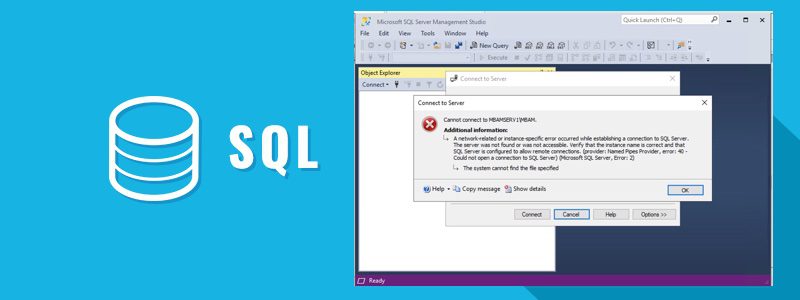
You may run into the following error “A network-related or instance-specific error occurred while establishing a connection to SQL Server. the server was not found or was not accessible: Verify that the instance name is correct and that SQL Server is configured to allow remote connections. Please see How to install Microsoft SQL Server Management Studio, How to uninstall Microsoft SQL Server Management Studio, and how to fix “Unable to connect to MSSQL Server after changing the Server name“.
What is SQL Server Management Studio (SSMS)
SQL Server Management Studio (SSMS) is an integrated environment for managing any SQL infrastructure, from SQL Server to Azure SQL Database. SSMS provides tools to configure, monitor, and administer instances of SQL servers and databases.
You can use SSMS to query, design, and manage your databases and data warehouses, wherever they are on your local computer, or in the cloud.
Please see some related MSSQL guides I have written. What are the differences between various Editions of Microsoft SQL Server, how to install MSSQL Server 2019 Developer Edition and SSMS on Windows, and how to download and install Microsoft SQL Server 2019 Express edition and SSMS.
Why was the error “Verify that the instance name is correct and that SQL Server is configured to allow remote connections” prompted?
There are multiple causes for this SQL Server Connection Error failure, but in my lab, it was because the SQL Server Service wasn’t running. Below is the following error that was prompted.

Also, see Fix “a network-related or instance-specific error occurred while establishing a connection to SQL Server [Part 2], and how to fix “Windows could not start the SQL Server service on local computer 17051: A network-related or instance-specific error occurred while establishing a connection to SQL Server“.
Resolution “The server was not found or was not accessible: Verify that the instance name is correct and that SQL Server is configured to allow remote connections”
Click launch the services.msc via the run command, or from the Server Manager, under Tools, or from the Administrative Tools. There are many other ways to launch this tool.
As you can see below, the service isn't running.
To resolve this issue, we need to have the service started. In addition, To do this, right-click on the SQL Server server and click on start or use the start button on the extended sidebar etc.

Moreover, Now that the service has started, relaunch the SSMS and try to connect to the SQL Server, addressing any potential SQL Server Connection Error that may arise during the process.

However, we have eliminated the error and can now access the SQL Server.

You may want to see How to manually check and update SQL Server Management Studio, and How To Turn On Or Off Auto-Unlock For BitLocker Drive In Windows 10/11
Other Possible reasons
Verify SQL Server Configuration
Check that the SQL Server instance is configured to allow remote connections. In SQL Server Configuration Manager, go to “SQL Server Network Configuration” and make sure TCP/IP and Named Pipes are enabled.
Firewall Settings
Verify that the server’s firewall (including Windows Firewall) is not blocking incoming connections on the SQL Server port. By default, SQL Server uses port 1433. You might need to configure your firewall to allow incoming traffic on this port.
SQL Server Browser Service
If your SQL Server instance uses a dynamic port, make sure the SQL Server Browser service is running. This service helps clients locate the correct port for named instances.
Named Pipes and TCP/IP Protocols
Ensure that the SQL Server is configured to allow both Named Pipes and TCP/IP protocols. You can check and change these settings in SQL Server Configuration Manager.
Server and Instance Name
Verify that you are using the correct server and instance name.
The server name should be either an IP address or a DNS name, and the instance name (if applicable) should be separated by a backslash, e.g., "ServerName\InstanceName."SQL Server Authentication
Make sure you are using the correct authentication method (Windows or SQL Server) and the correct credentials (username and password) to connect to the SQL Server.
Check for SQL Server Aliases
If you are using SQL Server aliases, ensure that they are correctly configured and pointing to the right SQL Server instance.
Ping the Server
Test network connectivity by pinging the SQL Server from the client machine to ensure that the server is reachable.
Check for Instance Mismatch
Ensure that the SQL Server instance you are trying to connect to exists. Also, ensure that there is no typographical error in the instance name.
Restart SQL Server
Sometimes, simply restarting the SQL Server service can resolve connectivity issues.
Connection Strings
If you are connecting programmatically, check your connection string to ensure it is correctly configured.
Here are some interesting articles: How to Find Out Which Users Are Logged on Windows Server. Also, see how to Disable UAC with Group Policy and enable PIN in Windows Hello.
FAQs ON MSSQL Default and Named Instances
How do I specify the instance name during SQL Server installation?
During the SQL Server installation process, you can specify the instance name when you reach the “Instance Configuration” section. For a Default Instance, leave the field blank, and for a Named Instance, provide the desired name
Are there any performance implications when using Named Instances?
Named Instances may have slightly higher memory and CPU overhead compared to a Default Instance. This is because each instance runs its own set of processes. However, this impact is generally minimal and rarely a significant concern.
Can databases from one instance communicate with databases from another instance on the same server?
Databases from different instances on the same server can communicate. However, it requires using linked servers, distributed transactions, or other inter-instance communication methods.
Note: Security and configuration considerations apply in these scenarios.
How can I tell if a SQL Server installation is a Default or Named Instance?
You can determine if an installation is a Default or Named Instance by looking at the connection string. If the connection string specifies only the server name without an instance name, it’s a Default Instance. If it includes an instance name (e.g., “ServerName\InstanceName”), it’s a Named Instance.
I hope you found this blog post on resolving SQL Server Connection Errors helpful. Furthermore, If you have any questions, please let me know in the comment session.


