Skip to content

TechDirectArchive

Hands-on IT, Cloud, Security & DevOps Insights

  • Home
  • About
  • Advertise With US
  • Reviews
  • Contact
  • Toggle search form
Home » Windows Server » How to install and configure an FTP Server on Windows Server
  • Webp.net resizeimage 5
    How to Improve Website Response Using Traffic Manager AWS/Azure/OpenShift
  • Windows OS type and version and build
    How to determine Windows Version or Edition and Build Windows
  • banner 1
    Deploying Next.Js App Using Heroku Cloud Application Platform Version Control System
  • update powershell
    Fix WDAC vulnerabilities by updating PowerShell Security | Vulnerability Scans and Assessment
  • How to determine Active Directory Site Name
    How to determine Active Directory Site Name Network | Monitoring
  • LDPAs
    Fix LDAP Connection Error 81: Cannot open connection via the ldp.exe tool Windows
  • Screenshot 2022 04 28 at 22.35.11
    Fix “There was a problem starting logilda.dll” in Windows Windows
  • VM Disk
    Initialize and format a virtual disk: How to add and remove a new virtual disk from a VM on VMware Workstation Virtualization

How to install and configure an FTP Server on Windows Server

Posted on 23/08/202108/09/2023 Christian By Christian No Comments on How to install and configure an FTP Server on Windows Server
install FTP Server

File Transfer Protocol (FTP) refers to a group of rules that govern how computers transfer files between systems over the internet. Businesses use FTP to send files between computers, and websites use FTP for the uploading and downloading of files from their servers. Kindly refer to this related for how to install and configure FTP server on Windows 10, Event ID 5059: Application pool has been disabled or Changing identity user for IIS Application Pool, and how to Disable HTTP TRACE Method for Apache, IIS, sunOne, and Lotus Domino. These steps were tested on Windows Server 2019, and 2022. Please refer to the guide on how to resolve this concern: Warning: FTP over TLS is not enabled, users cannot securely log in: You appear to be behind a NAT Router, please configure the passive mode settings and forward a range of ports in your router.

FTP can run in two modes: active and passive. And, it uses two channels between the client and server: the command channel and the data channel. The command channel is for sending the commands and responses, and the data channel is for sending the actual data. As for active and passive modes, in active mode, the client launches the command channel, and the server establishes the data channel. In passive mode, both the command and data channels are established by the client. You may want to learn more from this guide "Connect to a FileZilla Server: How to install and configure a FileZilla Server on Windows". 

Step 1 – Install Internet Information Services (IIS):

FTP depends on IIS (Internet Information Services). IIS and FTP services should be installed to configure the FTP server. See this guide to learn “how to add and remove IIS Web Server on Windows Server 2019 via the Server Manager and PowerShell“.
– You can launcht he Server Manager if you have disabled Server Manager from starting automatically.

configure FTP Server

There are various ways in which you can launch the Add roles and features wizard. Please follow any of the steps as shown in the image below.

Windows Server

In the Before you begin window, you can chose to skip this page in the future. To proceed click on “Next”.

FTP Server setup

Since it is a role based type of installation, we will be selecting “Role-based or feature-based-installation” and click on Next.

install FTP Server

Select the server you will install IIS and FTP on to. Since we only have one server in the Server Pool, we are good. Click on “Next“ to proceed.

configure FTP Server

As you can see, I have already installed IIS. In you case, you will have to select the FTP Server under the Roles Services. Here is a guide on how to install Let’s Encrypt Certificates with IIS on a Windows Server.
– Therefore, I will just install the FTP Server Roles as shown below. You will need to expand the “Internet Information Services” feature, and expand the FTP server option.
– Ensure you check the FTP Extensibility and FTP Service options.
– Also select the Web Management Tools option with the default selections,
– Please also select the IIS Management Console.
– Click on Next when you are done.

FTP Server setup
Screenshot 2021 08 23 at 20.07.52
Windows Server
Screenshot 2021 08 23 at 20.08.12

We are not installing any Features. We will click on Next to proceed.

install FTP Server

Next, we will have to confrim the installation and hit the Install button.

configure FTP Server

As you can see, the installation is currently being installed and has also completed as shown below.

Screenshot-2021-08-23-at-20.21.18
Screenshot 2021 08 23 at 20.21.18
Screenshot-2021-08-23-at-20.24.43
Screenshot 2021 08 23 at 20.24.43

Next, we will have to launch IIS. You may want to learn how to add an account to the local IIS_IUSRS group.
– Click on Tool and select Internet Information Services

Screenshot-2021-08-23-at-20.25.16

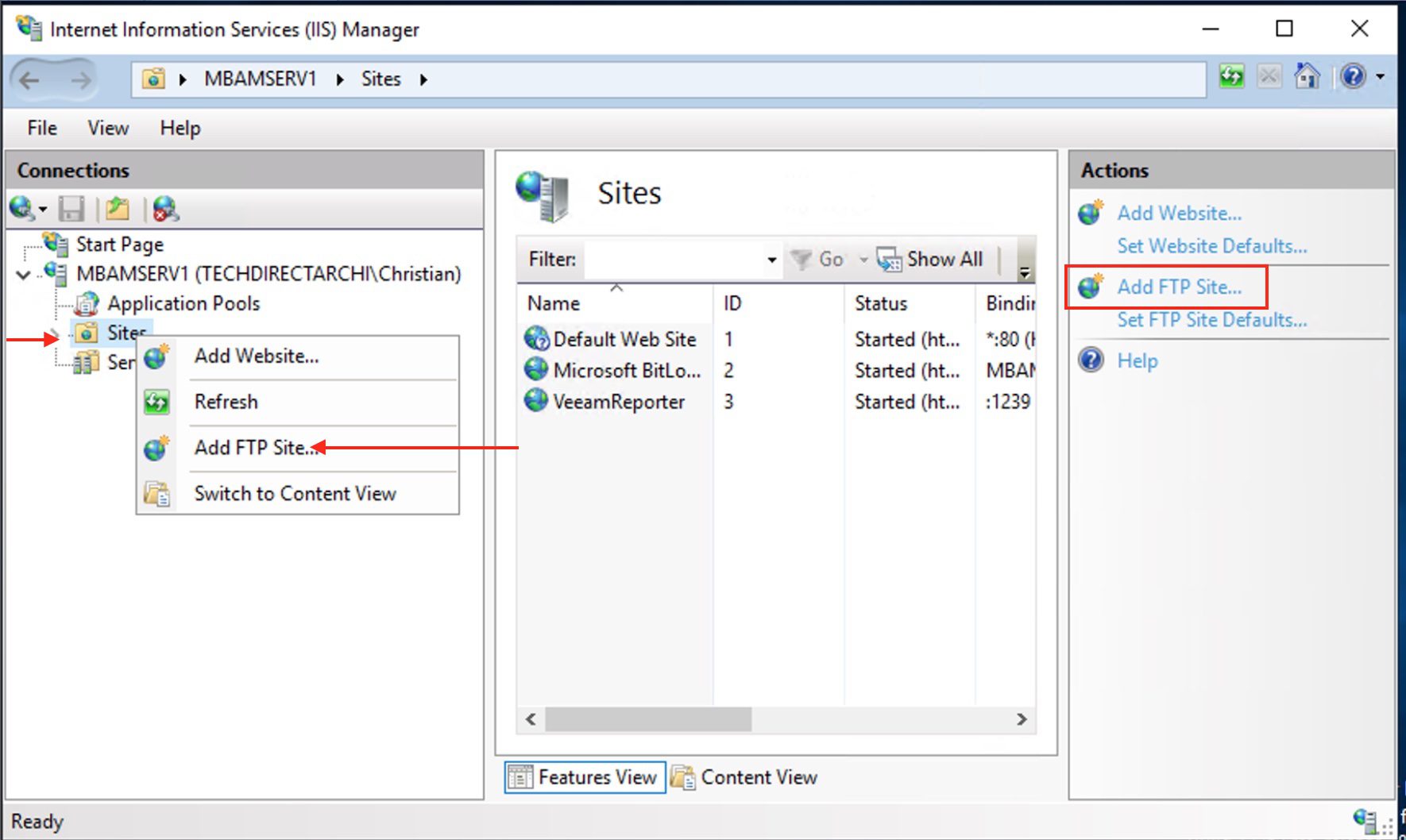
Similarly, From the “Connections” pane, right-click Sites as shown below and click on the Add FTP Site option.
Screenshot-2021-08-23-at-20.34.33

Note: It is recommended to create a folder in the root of the main system drive, or on a different drive. Else, if you set the home folder in one of your default folders when adding multiple accounts, users won’t have permission to access the folder.

Screenshot-2021-08-23-at-20.38.20
you need to set permissions to allow anonymous access to the folder. Use the following command on a CMD prompt to grant access
“ICACLS "%SystemDrive%\MBAMFTP\FTProot" /Grant IUSR:R /T” 

Consequently, Type a descriptive name in the FTP site name. These steps are similar to the follow steps discussed in this guide, “how to install and configure FTP server on Windows 10″.
– In the “Content Directory,” click on the button and browse to the location of the folder you want to use to store your FTP files.

Screenshot-2021-08-23-at-20.41.21

In the Add FTP Site window, type the FTP server name and the content directory path, and click Next. If you wish to enable Any

Screenshot-2021-08-23-at-20.41.49

Click the Next button and this will open up the Binding and SSL Settings as shown below.
– Use the default Binding settings selections and ensure the Start FTP site automatically option is selected.
– In the “SSL” section, select the “No SSL” option. Nonetheless, This is currently set up in a lab environment and will be destroyed in the next hour. Therefore, in your production environment, please select require SSL, and this will prevent your data from being transmitted in a clear text.

Screenshot-2021-08-23-at-20.42.07

In addition, If you want multiple users to access the FTP server at the same time, you need to modify the server settings using these steps:
- When you chose "All Users", the option to type in users will be grayed out. Also, click on the Read and Write options. When you are done, click on Finish.

Basic authentication means there’s no encryption used. Thus, username/password are sent in clear text. Basic authentication matches the username/password from the Active Directory database. You can also create accounts in IIS. This can be done from under Management Tools in Web Server (IIS) role.
Screenshot-2021-08-23-at-20.42.41
Under Authorization, you can select All Users to allow FTP access to all users from the domain. Also, check both Read and Write under Permissions Based on Requirement as shown in this image.

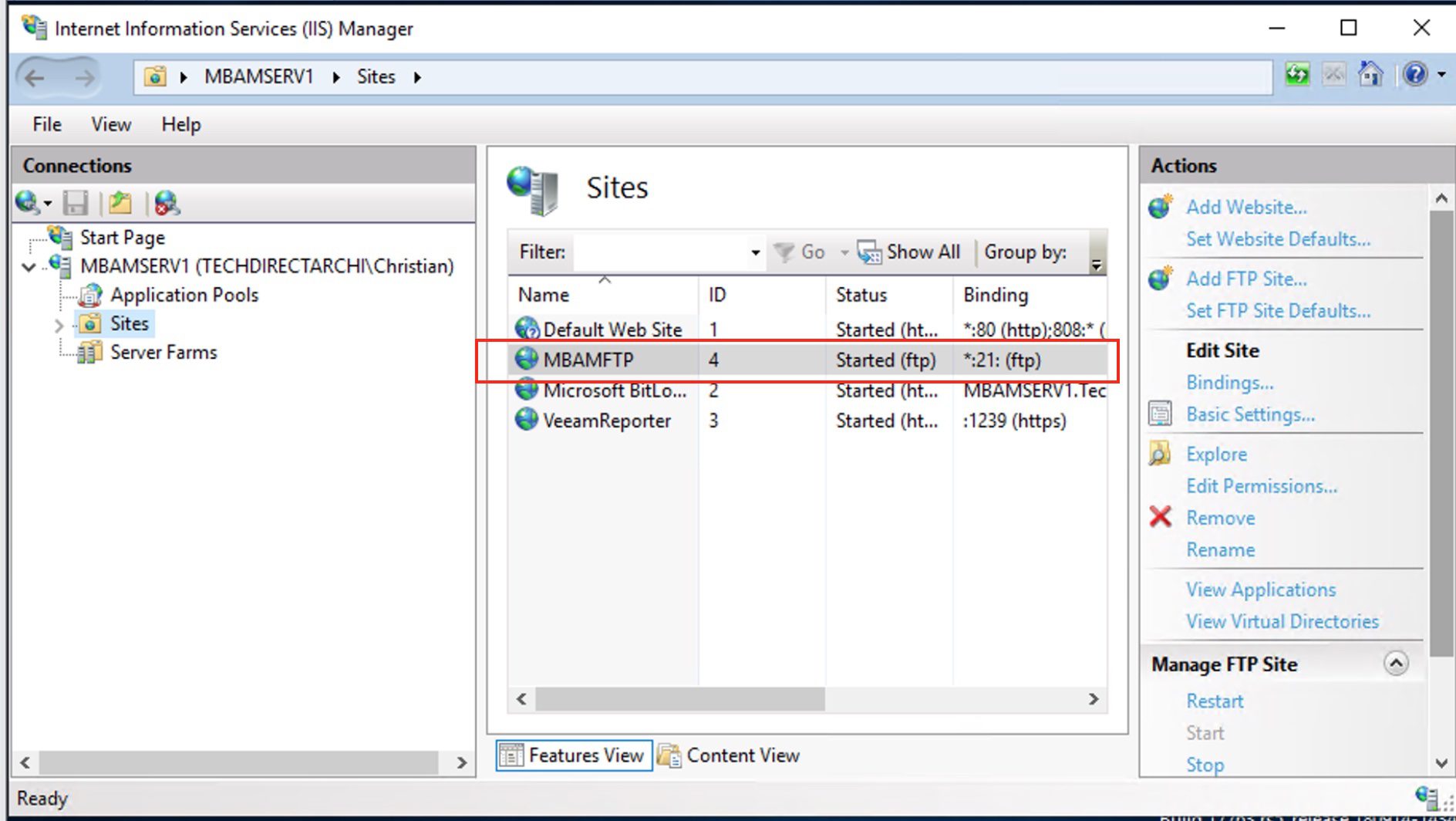
As you can see, the FTP server has been configured successfully and it is operational (started). Moreover, If you haven’t configured the Windows Firewall, please do.
Screenshot-2021-08-23-at-20.48.25

To access files on the FTP server, open a file explorer and type ftp://serverIP or ftp://localhost is you are sitting on the local server. However, The FTP server asks for a username and password. Enter the username and password (Windows or Active Directory credentials) and click Logon. The files and folders display under the FTP server. You may want to see this guide for more information “Access FTP Server from your browser: How to create a shortcut and access Filezilla from Windows Explorer“.

I hope you found this blog post helpful. Furthermore, If you have any questions, please let me know in the comment session.
Rate this post

Thank you for reading this post. Kindly share it with others.

  • Click to share on X (Opens in new window) X
  • Click to share on Reddit (Opens in new window) Reddit
  • Click to share on LinkedIn (Opens in new window) LinkedIn
  • Click to share on Facebook (Opens in new window) Facebook
  • Click to share on Pinterest (Opens in new window) Pinterest
  • Click to share on Tumblr (Opens in new window) Tumblr
  • Click to share on Telegram (Opens in new window) Telegram
  • Click to share on WhatsApp (Opens in new window) WhatsApp
  • Click to share on Pocket (Opens in new window) Pocket
  • Click to share on Mastodon (Opens in new window) Mastodon
  • Click to share on Bluesky (Opens in new window) Bluesky
  • Click to share on Threads (Opens in new window) Threads
  • Click to share on Nextdoor (Opens in new window) Nextdoor
Windows Server Tags:FileZilla Client, FTP, IIS, Internet Information Services, Microsoft Windows, Windows 10, Windows Server 2016

Post navigation

Previous Post: How to install and configure an FTP server on Windows 10
Next Post: Administrative rights gained through Razer devices on Windows 10

Related Posts

  • RDS Collection 1
    How to add and remove RDS Collection Windows
  • Internet Explorer
    How to uninstall Internet Explorer from your Windows Device Windows
  • Add additional Windows drives
    How to Add Another Hard Drive to a Virtual Machine in HyperV  Virtualization
  • Actualidad 211741393 129861581 1050x760
    Edge GPO settings: All Group Policies available to configure Microsoft Edge Settings Windows Server
  • jmeterlogo 3
    Install and conduct performance testing using Apache JMeter on your Web App Configuration Management Tool
  • App Locker
    Harden your Veeam Backup Server with Microsoft AppLocker Windows

More Related Articles

RDS Collection 1 How to add and remove RDS Collection Windows
Internet Explorer How to uninstall Internet Explorer from your Windows Device Windows
Add additional Windows drives How to Add Another Hard Drive to a Virtual Machine in HyperV  Virtualization
Actualidad 211741393 129861581 1050x760 Edge GPO settings: All Group Policies available to configure Microsoft Edge Settings Windows Server
jmeterlogo 3 Install and conduct performance testing using Apache JMeter on your Web App Configuration Management Tool
App Locker Harden your Veeam Backup Server with Microsoft AppLocker Windows

Leave a Reply Cancel reply

You must be logged in to post a comment.

Microsoft MVP

VEEAMLEGEND

vexpert-badge-stars-5

Virtual Background

GoogleNews

Categories

veeaam100

sysadmin top30a

  • Webp.net resizeimage 5
    How to Improve Website Response Using Traffic Manager AWS/Azure/OpenShift
  • Windows OS type and version and build
    How to determine Windows Version or Edition and Build Windows
  • banner 1
    Deploying Next.Js App Using Heroku Cloud Application Platform Version Control System
  • update powershell
    Fix WDAC vulnerabilities by updating PowerShell Security | Vulnerability Scans and Assessment
  • How to determine Active Directory Site Name
    How to determine Active Directory Site Name Network | Monitoring
  • LDPAs
    Fix LDAP Connection Error 81: Cannot open connection via the ldp.exe tool Windows
  • Screenshot 2022 04 28 at 22.35.11
    Fix “There was a problem starting logilda.dll” in Windows Windows
  • VM Disk
    Initialize and format a virtual disk: How to add and remove a new virtual disk from a VM on VMware Workstation Virtualization

Subscribe to Blog via Email

Enter your email address to subscribe to this blog and receive notifications of new posts by email.

Join 1,836 other subscribers
  • RSS - Posts
  • RSS - Comments
  • About
  • Authors
  • Write for us
  • Advertise with us
  • General Terms and Conditions
  • Privacy policy
  • Feedly
  • Telegram
  • Youtube
  • Facebook
  • Instagram
  • LinkedIn
  • Tumblr
  • Pinterest
  • Twitter
  • mastodon

Tags

Active Directory AWS Azure Bitlocker Microsoft Windows PowerShell WDS Windows 10 Windows 11 Windows Server 2016

Copyright © 2025 TechDirectArchive


Loading Comments...
 

You must be logged in to post a comment.