Skip to content

TechDirectArchive

Hands-on IT, Cloud, Security & DevOps Insights

  • Home
  • About
  • Advertise With US
  • Contact
  • Reviews
  • Toggle search form
Home » Windows » Is my AD user or service account password correct? Run App as a different User and switch Users in Windows
  • encrypt your Data with Trellix Data Encryption
    How to encrypt your system with Trellix Data Encryption Security | Vulnerability Scans and Assessment
  • Object First OOTBI   Best Storage Repo for Veeam
    Understanding User Roles & Access Control in Object First OOTBI Backup
  • How to install and configure a Standalone DNS Server
    How to Install and Configure a Standalone DNS Server Windows Server
  • HyperV VM disk size increase
    How to Increase Disk Size in Hyper-V Virtualization
  • Microaoft Edge
    Bing AI-Powered Copilot: How to install Microsoft Edge on macOS Network | Monitoring
  • Chocolatey Packages
    Create Chocolatey Package: Upgrade Software with Chocolatey Scripts
  • How To Put Multiple OS ISO Files In One Bootable USB Disk
    USB Drive: Create a Multiboot with Multiple OS ISOs Windows
  • adc
    How to add a second Domain Controller Windows Server

Is my AD user or service account password correct? Run App as a different User and switch Users in Windows

Posted on 14/09/202108/09/2024 Christian By Christian No Comments on Is my AD user or service account password correct? Run App as a different User and switch Users in Windows
Active Directory user account password

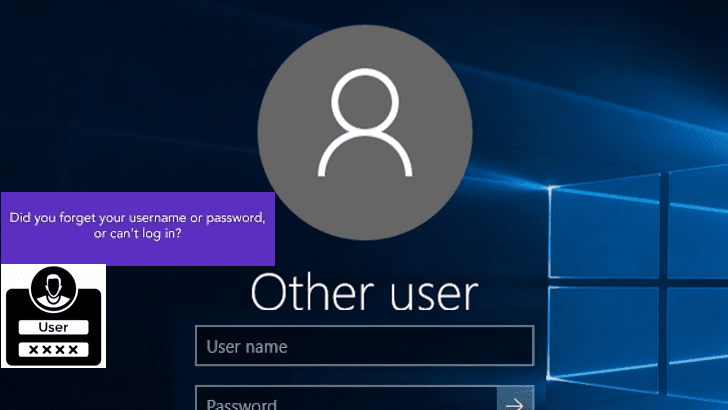
In this article, we shall discuss “AD user account password correct? Run an App as a different User”. Have you forgotten your username and password and cannot log in to your Active Directory? But first, let us discuss what a password is and how they are stored. Kindly refer to the following guides on how to perform these related tasks: How to create a desktop shortcut in Windows 10 to switch User Accounts: Fast user switching (Session Disconnection Utility).

Passwords stored in Active Directory are hashed. Which means that once the user creates a password, an algorithm transforms that password into an encrypted output known as you guessed it, a “hash”.

Hashes are of fixed size so passwords of different lengths will have the same number of characters. They are designed to be one-way encryption so that once they are coded. No one should be able to break that code.

You may be faced with doubtes over some service accounts passwords and may want to verify if these passwords are correct. In this guide, I have compiled some very basic steps for you to determine if your credentials are correct?

Also, see How to enable or disable fast User Switching in Windows 10, and how to disable or enable automatic login from the sign-in screen in Windows.

Method 1: Runas via the Commandline

Furthermore, Runas is a command-line tool that is built into Windows Vista that allows a user to run specific tools and programs under a different username to the one that was used to log on to a computer interactively.

The utility will prompt for the password, if the right password has been provided, notepad will be launched.

runas /u:yourdomain\youruser notepad.exe
Service account authentication

Note: Furthermore, If the password or user account is not correct, it will produce an error with the code 1326: the username or password is incorrect.

Running applications as different user

Method 2: Run an App as a Different User

Moreover, This process is basically the same as described in method one, but this time, via the GUI. In addition, To do this, please follow the steps below.

Press and hold the Shift key and right-click on the App as shown below. If you are on a mac and connecting via RDP, use the Shift+Ctrl keys together and right-click on the App.

In the context menu, select Run as a different user as shown below.

User switching in Windows

Enter the new credentials and click OK to run the app.

Screenshot-2021-09-13-at-21.40.59

Note: Ensure this user also has the necessary privilege to connect to your application, else I will fail as well.

Screenshot-2021-09-13-at-21.41.55

Note: You rarely have to use the Run as administrator command because Windows Vista will automatically prompt you for an administrator password when it is needed.

Method 3: On Windows desktop, you can use Active Directory Explorer by SysInternals

Method 3: On Windows desktop, you can use Active Directory Explorer by SysInternals and this can be download from the following link. You can also use Sysinternal live as discussed in this guide:

Ensure you have adequate rights, else it will fail. See this guide on how to run Active Directory Explorer by Sysinternals.

Screenshot-2021-09-13-at-22.02.55

As you can see, you are connected. These are a few ways you can test your login credentials very quickly.

Screenshot-2021-09-13-at-22.03.19

Note: Incorrect password results in a "username or password are incorrect" prompt fairly quickly, so this would be a decent GUI-based way to test a list of possible passwords.

Method 4: Switch Users accounts in Windows

Click on the Start button from the taskbar. Then, on the left side of the Start menu, select the account name icon (or picture). Click on Lock or  Switch user depending on your environment.

If you do not have the switch user button, click on Lock as shown below. If you have the switch user button, please proceed with the steps below.

Screenshot-2021-09-13-at-22.11.55

Now you should have the opportunity to switch users as shown below.

Screenshot-2021-09-13-at-22.12.32

Enter your credentials, when they are correct, you should be able to log on to the device.

Screenshot-2021-09-13-at-22.13.12

Note: You can also open the ShutDown Windows dialog by Alt+F4, click the down arrow, choose Switch user in the list, and clcik on OK.

Or via the Ctrl+Alt+Del options.

I hope you found this blog post on “AD user account password correct? Run an App as a different User” helpful. If you have any questions, please let me know in the comment session.

5/5 - (1 vote)

Thank you for reading this post. Kindly share it with others.

  • Click to share on X (Opens in new window) X
  • Click to share on Reddit (Opens in new window) Reddit
  • Click to share on LinkedIn (Opens in new window) LinkedIn
  • Click to share on Facebook (Opens in new window) Facebook
  • Click to share on Pinterest (Opens in new window) Pinterest
  • Click to share on Tumblr (Opens in new window) Tumblr
  • Click to share on Telegram (Opens in new window) Telegram
  • Click to share on WhatsApp (Opens in new window) WhatsApp
  • Click to share on Pocket (Opens in new window) Pocket
  • Click to share on Mastodon (Opens in new window) Mastodon
  • Click to share on Bluesky (Opens in new window) Bluesky
  • Click to share on Threads (Opens in new window) Threads
  • Click to share on Nextdoor (Opens in new window) Nextdoor
Windows Tags:Microsoft Windows, Windows 10, Windows Server 2016

Post navigation

Previous Post: Use Active Directory Explorer from Sysinternals
Next Post: How to Setup SonarLint in VS Code for Your App Project

Related Posts

  • banner 6
    How to Set a Static IP Address in Windows 11 Windows
  • image 79
    How to import SSL Certificate to Windows Server using DigiCert Utility Windows
  • Featured image 5
    How to uninstall and prevent the installation of Microsoft Teams on Windows Windows
  • Copilot Microsoft
    How to Disable Copilot in Windows and Microsoft Edge Windows
  • logon failure and requested session denied
    Logon Failure: User has not been granted the requested logon type Windows
  • Windows 11 New Security Features
    Smart App Control: Enabling Phishing Protection in Windows 11 Windows

More Related Articles

banner 6 How to Set a Static IP Address in Windows 11 Windows
image 79 How to import SSL Certificate to Windows Server using DigiCert Utility Windows
Featured image 5 How to uninstall and prevent the installation of Microsoft Teams on Windows Windows
Copilot Microsoft How to Disable Copilot in Windows and Microsoft Edge Windows
logon failure and requested session denied Logon Failure: User has not been granted the requested logon type Windows
Windows 11 New Security Features Smart App Control: Enabling Phishing Protection in Windows 11 Windows

Leave a Reply Cancel reply

You must be logged in to post a comment.

Microsoft MVP

VEEAMLEGEND

vexpert-badge-stars-5

Virtual Background

GoogleNews

Categories

veeaam100

sysadmin top30a

  • encrypt your Data with Trellix Data Encryption
    How to encrypt your system with Trellix Data Encryption Security | Vulnerability Scans and Assessment
  • Object First OOTBI   Best Storage Repo for Veeam
    Understanding User Roles & Access Control in Object First OOTBI Backup
  • How to install and configure a Standalone DNS Server
    How to Install and Configure a Standalone DNS Server Windows Server
  • HyperV VM disk size increase
    How to Increase Disk Size in Hyper-V Virtualization
  • Microaoft Edge
    Bing AI-Powered Copilot: How to install Microsoft Edge on macOS Network | Monitoring
  • Chocolatey Packages
    Create Chocolatey Package: Upgrade Software with Chocolatey Scripts
  • How To Put Multiple OS ISO Files In One Bootable USB Disk
    USB Drive: Create a Multiboot with Multiple OS ISOs Windows
  • adc
    How to add a second Domain Controller Windows Server

Subscribe to Blog via Email

Enter your email address to subscribe to this blog and receive notifications of new posts by email.

Join 1,836 other subscribers
  • RSS - Posts
  • RSS - Comments
  • About
  • Authors
  • Write for us
  • Advertise with us
  • General Terms and Conditions
  • Privacy policy
  • Feedly
  • Telegram
  • Youtube
  • Facebook
  • Instagram
  • LinkedIn
  • Tumblr
  • Pinterest
  • Twitter
  • mastodon

Tags

Active Directory AWS Azure Bitlocker Microsoft Windows PowerShell WDS Windows 10 Windows 11 Windows Server 2016

Copyright © 2025 TechDirectArchive


Loading Comments...
 

You must be logged in to post a comment.