Skip to content

TechDirectArchive

Hands-on IT, Cloud, Security & DevOps Insights

  • Home
  • About
  • Advertise With US
  • Reviews
  • Contact
  • Toggle search form
Home » Version Control System » How to Setup SonarLint in VS Code for Your App Project

How to Setup SonarLint in VS Code for Your App Project

Posted on 15/09/202120/12/2023 Temitope Odemo By Temitope Odemo No Comments on How to Setup SonarLint in VS Code for Your App Project
SonarLint installation

SonarLint is a product from SonarSource and it is a free and open-source extension that supports different Integrated Development Environment (IDE). In this guide, you will learn how to Setup SonarLint in VS Code for Your App Project. This tool can help you detect and fix both security and quality issues while writing your code. Please see Virtual Machine Snapshot vs Backup, Windows as a Service: Windows 10 Feature and Quality Updates, and how to Change Visual Studio Code UI language.

It works like a spell checker while writing and it points out the flaws in your code so that it can be immediately fixed before your codes get committed. It is a tool that gives real-time feedback and also provides guidance on how to remediate the issue discovered.

This tool is very easy to use and there is no configuration needed all that you need is to install from your IDE marketplace and you continue coding while fixing bugs and security issues in your code. In this article, we are going to explain and show you how to set up SonarLint in Visual Studio Code which will be our primary IDE and we will be using an Angular app for this guide.

Another helpful product from SonarSource is SonarCloud which is a Software-as-a-service application that you can use for your Static code analysis, you can learn how to integrate this with Azure DevOps by reading this guide Using SonarCloud: How to Integrate SonarCloud with Azure DevOps Pipeline.

Let’s gets started by following these steps:

Installing the SonarLint VS Code extension:

1: Open your VS Code IDE and go to the Side Bar >>Extensions or Press Ctrl + Shift + X in Windows
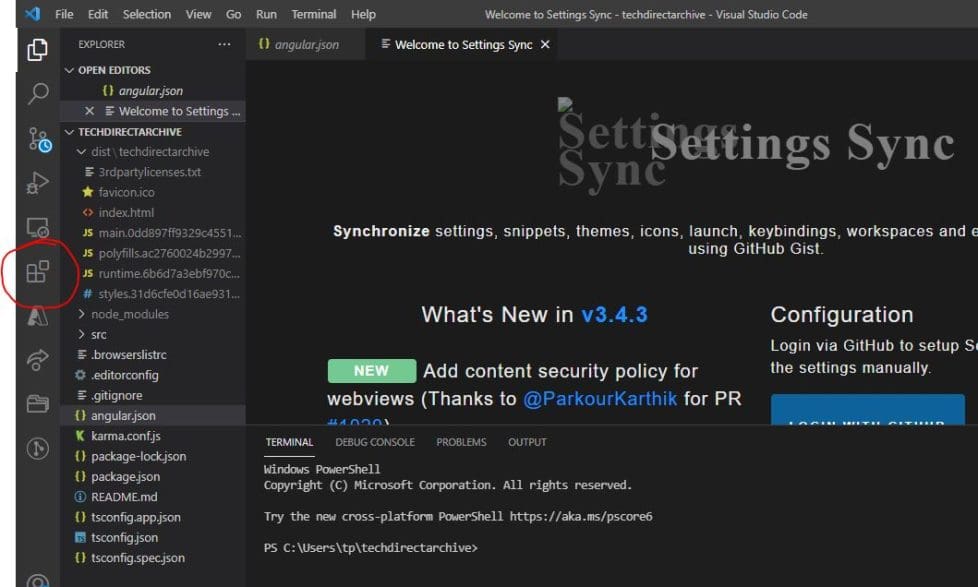
Visual Studio Code integration
Starting your VS Code

In the search box search for SonarLint. Click on the extension SonarLint. The Marketplace will open for you to install. Click on Install
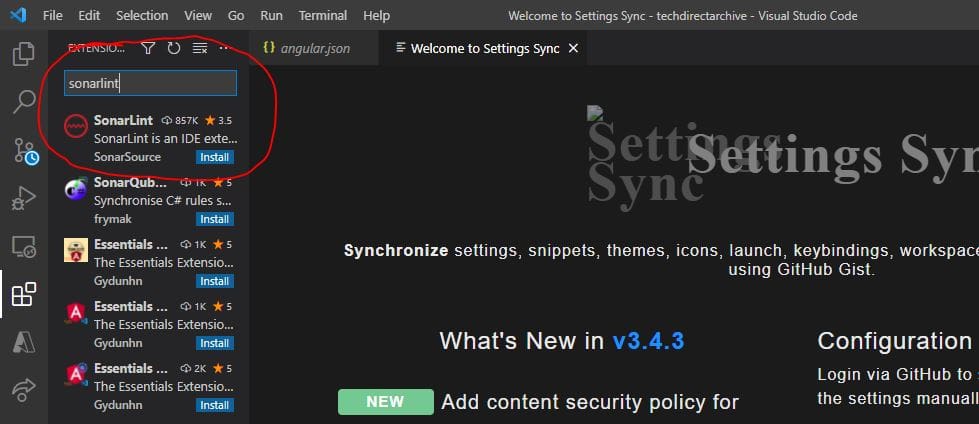
Code quality analysis
Selecting SonarLint from Search

Now the SonarLint is installed.

Application development
SonarLint Installed

Another route we can take in installing this SonarLint is visiting the official website. After the website opens click on Install in VS Code for Free

SonarLint installation
Installation from Website

Also, see Python Automation in Windows with Visual Studio Code, and Complete Guide on TestRail as a Test Management Tool.

Install VS Code

Click on any IDE that you are using but in this guide, we are clicking on VS Code
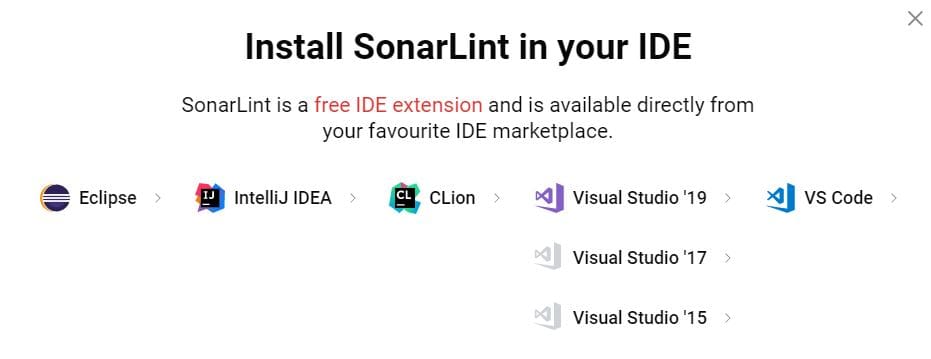
VSCode5
Selecting your IDE

In the Marketplace page that opens click Install

Market
The MarketPlace

A dialogue box opens asking you for permission to open Visual Studio Code, click on Open Visual Studio Code.

The SonarLint Extension will get installed on your IDE.

market2
Dialogue box for permission

Please note that you need to have java installed on your system before you can run SonarLint. You will even receive a notification that Java 8 or higher is required to run SonarLint. You can download and install the most recent JRE.

The image below shows the effect of the SonaLint in helping you to correct an error which is always displayed with a squiggle under the area where the flaw exists.

error1
Error spot

The extension can also help you review the issues through the Problems panel as shown below.

error2
Problems View

The below image shows how SonarLint will review the rule pertaining to that issues and display it by the left of the page which is a source of remediation for an issue.

error-1
Rule Overview Page

I hope you found this blog post on How to Setup SonarLint in VS Code for Your App Project very interesting and helpful. In case you have any questions do not hesitate to ask in the comment section.
Rate this post

Thank you for reading this post. Kindly share it with others.

  • Share on X (Opens in new window) X
  • Share on Reddit (Opens in new window) Reddit
  • Share on LinkedIn (Opens in new window) LinkedIn
  • Share on Facebook (Opens in new window) Facebook
  • Share on Pinterest (Opens in new window) Pinterest
  • Share on Tumblr (Opens in new window) Tumblr
  • Share on Telegram (Opens in new window) Telegram
  • Share on WhatsApp (Opens in new window) WhatsApp
  • Share on Mastodon (Opens in new window) Mastodon
  • Share on Bluesky (Opens in new window) Bluesky
  • Share on Threads (Opens in new window) Threads
  • Share on Nextdoor (Opens in new window) Nextdoor
Configuration Management Tool, Version Control System

Post navigation

Previous Post: Is my AD user or service account password correct? Run App as a different User and switch Users in Windows
Next Post: RDP Users are unable to change Passwords

Related Posts

  • ansible vault
    Fix AttributeError ‘ShellModule’ Object Has No Attribute ‘ECHO’ Configuration Management Tool
  • coding
    Git GUI and Gitk won’t open “Missing Tcl / Tk Aqua libraries” Version Control System
  • Banner
    How to Deploy GitHub Repositories to cPanel using GitHub Actions Automation
  • ArchiveUnarchiveDelete134
    Manage a GitLab Project: How to archive or unarchive and delete GitLab projects Version Control System
  • ADO Self hosted agent
    How to Create Self-Hosted Agent for Azure DevOps Pipelines Automation
  • aptira ansible 1
    The module ping was not found in configured module paths, core modules are missing Configuration Management Tool

More Related Articles

ansible vault Fix AttributeError ‘ShellModule’ Object Has No Attribute ‘ECHO’ Configuration Management Tool
coding Git GUI and Gitk won’t open “Missing Tcl / Tk Aqua libraries” Version Control System
Banner How to Deploy GitHub Repositories to cPanel using GitHub Actions Automation
ArchiveUnarchiveDelete134 Manage a GitLab Project: How to archive or unarchive and delete GitLab projects Version Control System
ADO Self hosted agent How to Create Self-Hosted Agent for Azure DevOps Pipelines Automation
aptira ansible 1 The module ping was not found in configured module paths, core modules are missing Configuration Management Tool

Leave a Reply Cancel reply

You must be logged in to post a comment.

Microsoft MVP

VEEAMLEGEND

vexpert-badge-stars-5

Virtual Background

GoogleNews

Categories

veeaam100

Veeam Vanguard

  • veeam
    Install Veeam Backup And Replication With Dedicated SQL Server Backup
  • HiveNightmare
    Workaround for “SeriousSAM or HiveNightmare” registry vulnerability for Windows 10 and 11 Security | Vulnerability Scans and Assessment
  • Featured image System Tray icons
    How to Fix System Tray Icons not showing in Taskbar on Windows 11 Windows
  • Nextcloud installation on macOS
    How to install Nextcloud on Mac JIRA|Confluence|Apps
  • image 190
    Creating Profiles for your AWS Access Credentials for AWS Toolkit in Visual Studio AWS/Azure/OpenShift
  • banner 5
    How to fix Wi-Fi not connecting on Windows 11 Windows
  • nonexistent AD
    Fix Active Directory Domain Controller (AD DS) for this domain could not be contacted Windows Server
  • Ubuntu on Windows
    Install Ubuntu 20.04 LTS on Windows via WSL Linux

Subscribe to Blog via Email

Enter your email address to subscribe to this blog and receive notifications of new posts by email.

Join 1,813 other subscribers
  • RSS - Posts
  • RSS - Comments
  • About
  • Authors
  • Write for us
  • Advertise with us
  • General Terms and Conditions
  • Privacy policy
  • Feedly
  • Telegram
  • Youtube
  • Facebook
  • Instagram
  • LinkedIn
  • Tumblr
  • Pinterest
  • Twitter
  • mastodon

Tags

Active Directory Azure Bitlocker Microsoft Windows PowerShell WDS Windows 10 Windows 11 Windows Deployment Services Windows Server 2016

Copyright © 2025 TechDirectArchive


Loading Comments...
 

You must be logged in to post a comment.