Skip to content

TechDirectArchive

Hands-on IT, Cloud, Security & DevOps Insights

  • Home
  • About
  • Advertise With US
  • Reviews
  • Contact
  • Toggle search form
Home » Windows » How to Quickly Fix Windows Search Bar Not Working
  • group policy 1280x720 1
    Error: The processing of Group Policy failed because of lack of network connectivity to a DC. This may be a transient condition. A success message would be generated once the machine gets connected Windows Server
  • google chrome web browser download icon png favpng 2fg4fswmttnwqnvax7lrd1hxp
    How to remove Quick Access from Google Drive Online Windows
  • ip adress 1555395782 1024x576 1
    How to create and delete a DHCP reservation in Windows Server Windows Server
  • article 1280x720.192a2586 1
    How to remove an MDT Deployment Share Windows Server
  • Troubleshooting Synology NAS Domain Join 2
    Synology NAS Domain Join: The Importance of DNS Configuration Reviews
  • Quick Connect
    How to fix Synology NAS Quick Connect is not enabled issue Storage
  • next cloud desktop
    How to install Nextcloud Desktop client on Mac Mac
  • Windows Admin Center v2   2401 install   2306 to 2311 upgrade
    Upgrade Windows Admin Center 2306 – 2311: Install WACmg 2410 Network | Monitoring

How to Quickly Fix Windows Search Bar Not Working

Posted on 02/10/202128/08/2023 Temitope Odemo By Temitope Odemo No Comments on How to Quickly Fix Windows Search Bar Not Working
Windows search troubleshoot

For many Windows users, the issue of the Windows search bar not working will never seem to go away. As we all know that the search bar is the number one utility that every user cannot do without as it makes their life while using the system easily. If you need urgent access to any applications on the system, with the windows search bar you get it almost immediately. It is a feature that all lovers of windows OS cannot do without. There are times that the searches will not just populate any searches or you cannot even type into the search box. Kindly refer to some of my guides: How to Quickly Spin Up a Windows Server ISO Image on Hyper-V and Using Windows Server Backup or Nakivo to Back up your Hyper-V VM, how to Deploy Dynamic Website to AWS EC2, How to Host Static Website and Versioning on AWS S3, how to create IAM Users, Adding MFA and Policies on AWS, and how to Setup SonarLint in VS Code for your App Project.

Windows Search (also known as Instant Search) is a content index desktop search platform by Microsoft introduced in Windows Vista as a replacement for both the previous Indexing Service of Windows 2000 and the optional MSN Desktop Search for Windows XP and Windows Server 2003, designed to facilitate local and remote queries for files and non-file items in compatible applications including Windows Explorer. 

This issue can be frustrating but there is always a solution around the corner. In this article, we will be covering different fixes to this issue which you can try on your own. The image below is an example of a windows search bar that is not bringing out any result when in focus.
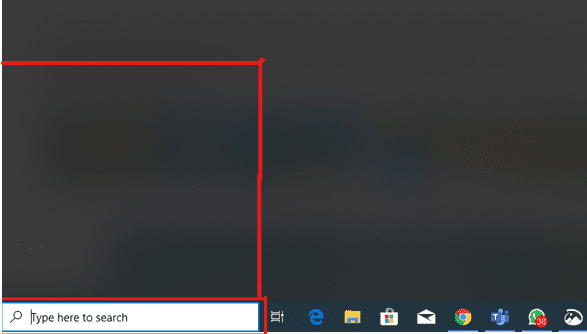
Search bar not responding
Windows Search Bar

How to Fix Windows Search Using the Troubleshooter

Every windows user has the privilege of using the built-in troubleshooting system aid. This troubleshooter will always provide the first level of support on how to fix the search bar issue. Follow the below steps on how to implement first-level troubleshooting:

  1. In the Windows Settings click on “Update & Security”
  2. From the sidebar to the left, click Troubleshoot.
  3. By the right side click on Search and indexing and click the Run the troubleshooter underneath.
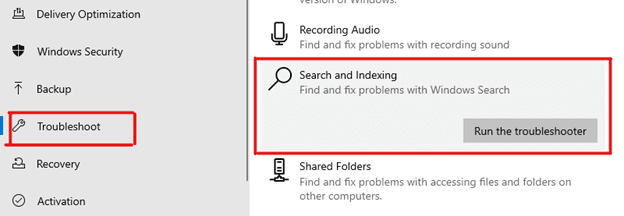
Fix Windows search issue
Windows Troubleshooting System
  1. After clicking on the Run the troubleshooter, you will get a new widow that list all problems you are likely to notice on a windows system. Select these options “Files don’t appear in search results” and “Search or indexing is slowing down the computer”.

Quick solutions for search bar problem
Search and Index
  1. Click on Next and follow the prompts one after the other to complete the troubleshooting.

Using Windows Update to Fix Windows Search Issue

So if I may ask do you update your windows regularly? If your system is set to manual update it will not have any recent updates, so you need to regularly update the system to avoid system issues, if possible set the update to automatic.

It is very possible that the absence of recent updates is what is causing the issue with the search bar. Follow the below steps to know how to get your windows operating system updated:

  1. Go to Settings and click Update & Security.
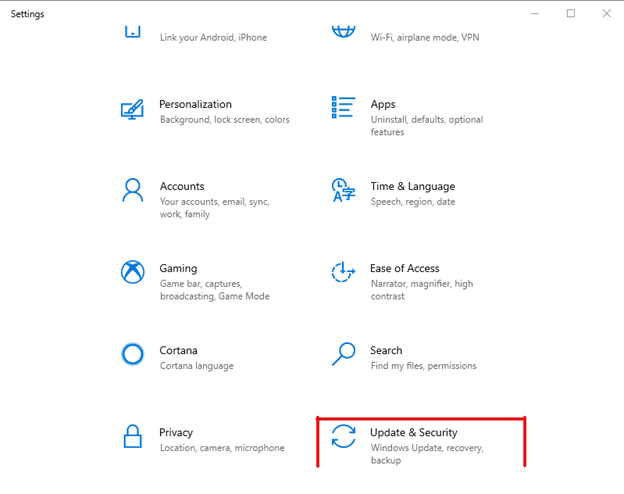
image-33
Update and Security

2. Then click on Windows Update and by the right side click on Check for updates. This will start the process of checking for updates online and it takes time for the updates to complete even though this is dependent on when last an update was carried out on the system.
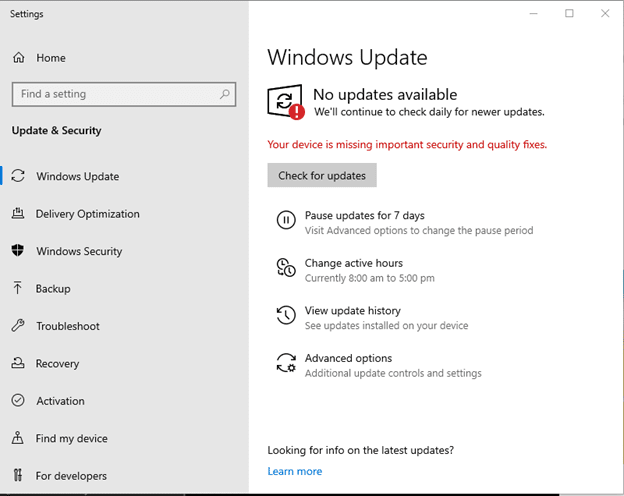
image-34
Windows Update

How to Fix the Windows Search Bar Issue by Uninstalling Windows Updates

Sometimes what you think will be the solution to the problem could be the cause of the issue. What Microsoft does is regularly releasing updates and upgrades that fix some bugs on the system. But while trying to do this it could lead to another issue on the system. For instance, a search bar that was working fine before could suddenly stop working after a recent update on the system. That is why reverting to previous version or the previous update will be the solution to the issue.

Follow the below steps on how to roll back any update done before you notice the windows search bar issue.

  1. Go to Settings and click Update & Security. By the right hand side click View update history.
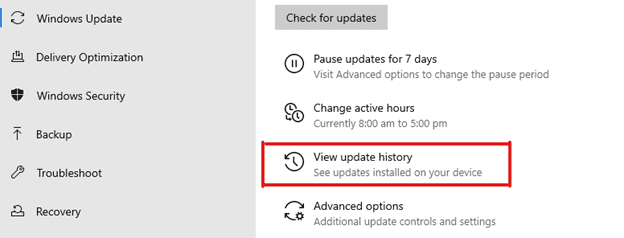
image-35
Update History

2. You can confirm the complete list of the updates till when the issue starts. click Uninstall updates.
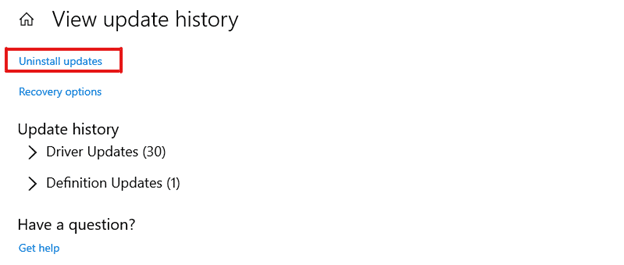
image-36
Uninstalling Updates

3. Then select the latest update from the list and click on Uninstall that will pop up.
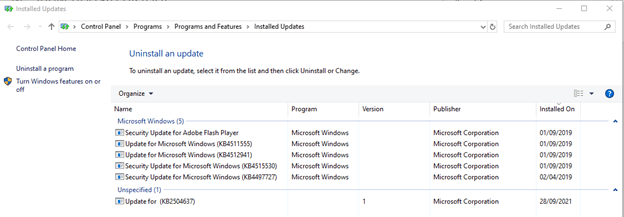
image-37
Installed Updates Overview

This process might take some minutes before it completes but confirm it actually complete the uninstallation before stopping it and restart your system so that the process will complete. This uninstallation could resolve the issue as the update that caused the issue is removed.

How to Fix Search Windows Search Issue by Rebuilding the Index

Another reason for the Windows Search bar not working could be as a result of a broken or old index. This can be fixed by rebuilding the search index. Follow the below steps on how to rebuild your system search index.

  1. Go to the Control Panel.
  2. Go to the View by drop-down and select Small icons from the options.
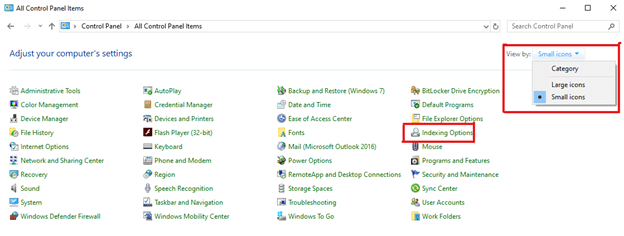
image-38
Control Panel

3. Then click on Indexing Options and then Advanced.
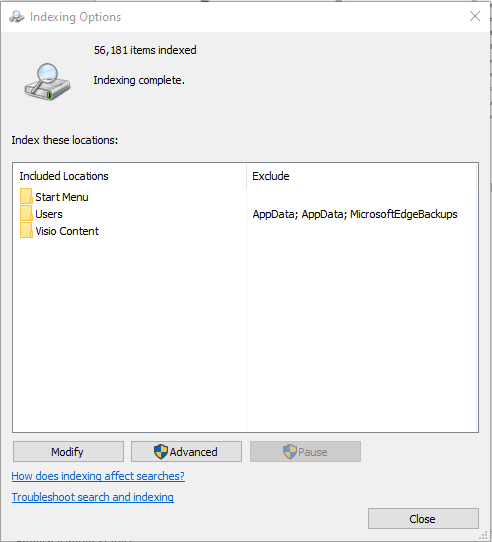
image-39
Indexing Options

In the Troubleshooting section click on the Rebuild button.
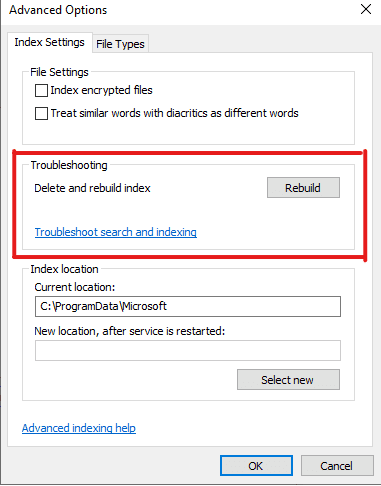
image-40
Index Advance Options

The process of rebuilding the index might take some time but confirm that the system is restarted after completing the process.

If after doing all these and you still experience the issue I will advise that you should not further tamper with anything on the system or any configuration setting as this may lead to further issues. Sometimes issues on the system will get corrected as you continuously use the system.

I hope you found this blog post on How to Quickly Fix Windows Search Bar Not Working Issue very interesting and helpful. In case you have any questions do not hesitate to ask in the comment section.

Rate this post

Thank you for reading this post. Kindly share it with others.

  • Click to share on X (Opens in new window) X
  • Click to share on Reddit (Opens in new window) Reddit
  • Click to share on LinkedIn (Opens in new window) LinkedIn
  • Click to share on Facebook (Opens in new window) Facebook
  • Click to share on Pinterest (Opens in new window) Pinterest
  • Click to share on Tumblr (Opens in new window) Tumblr
  • Click to share on Telegram (Opens in new window) Telegram
  • Click to share on WhatsApp (Opens in new window) WhatsApp
  • Click to share on Pocket (Opens in new window) Pocket
  • Click to share on Mastodon (Opens in new window) Mastodon
  • Click to share on Bluesky (Opens in new window) Bluesky
  • Click to share on Threads (Opens in new window) Threads
  • Click to share on Nextdoor (Opens in new window) Nextdoor
Windows Tags:Microsoft Windows, Search, Windows 10

Post navigation

Previous Post: How to perform Windows Server backup with Nakivo or Windows Server backup utility
Next Post: Is RDP enabled? Enable and disable Remote Desktop in Windows 10 for all users or selected users

Related Posts

  • Ping 4
    Perform continuous ping on OSes and network Appliances Mac
  • bypass windows login main img
    How to disable auto login in Windows Windows
  • Fix OneDrive Error
    How to Fix OneDrive Error 0x80071129: The tag present in the reparse point buffer is invalid Windows
  • Remote Desktop Connection
    Connect to the Remote Desktop Console from Command Prompt Windows
  • Feature image OCS inventory
    Install and use OCS inventory on Windows Windows
  • mbamreports
    Email notifications for MBAM Enterprise and Compliance and Recovery Audit reports Windows

More Related Articles

Ping 4 Perform continuous ping on OSes and network Appliances Mac
bypass windows login main img How to disable auto login in Windows Windows
Fix OneDrive Error How to Fix OneDrive Error 0x80071129: The tag present in the reparse point buffer is invalid Windows
Remote Desktop Connection Connect to the Remote Desktop Console from Command Prompt Windows
Feature image OCS inventory Install and use OCS inventory on Windows Windows
mbamreports Email notifications for MBAM Enterprise and Compliance and Recovery Audit reports Windows

Leave a Reply Cancel reply

You must be logged in to post a comment.

Microsoft MVP

VEEAMLEGEND

vexpert-badge-stars-5

Virtual Background

GoogleNews

Categories

veeaam100

sysadmin top30a

  • group policy 1280x720 1
    Error: The processing of Group Policy failed because of lack of network connectivity to a DC. This may be a transient condition. A success message would be generated once the machine gets connected Windows Server
  • google chrome web browser download icon png favpng 2fg4fswmttnwqnvax7lrd1hxp
    How to remove Quick Access from Google Drive Online Windows
  • ip adress 1555395782 1024x576 1
    How to create and delete a DHCP reservation in Windows Server Windows Server
  • article 1280x720.192a2586 1
    How to remove an MDT Deployment Share Windows Server
  • Troubleshooting Synology NAS Domain Join 2
    Synology NAS Domain Join: The Importance of DNS Configuration Reviews
  • Quick Connect
    How to fix Synology NAS Quick Connect is not enabled issue Storage
  • next cloud desktop
    How to install Nextcloud Desktop client on Mac Mac
  • Windows Admin Center v2   2401 install   2306 to 2311 upgrade
    Upgrade Windows Admin Center 2306 – 2311: Install WACmg 2410 Network | Monitoring

Subscribe to Blog via Email

Enter your email address to subscribe to this blog and receive notifications of new posts by email.

Join 1,839 other subscribers
  • RSS - Posts
  • RSS - Comments
  • About
  • Authors
  • Write for us
  • Advertise with us
  • General Terms and Conditions
  • Privacy policy
  • Feedly
  • Telegram
  • Youtube
  • Facebook
  • Instagram
  • LinkedIn
  • Tumblr
  • Pinterest
  • Twitter
  • mastodon

Tags

AWS Azure Bitlocker Microsoft Windows PowerShell WDS Windows 10 Windows 11 Windows Deployment Services Windows Server 2016

Copyright © 2025 TechDirectArchive


Loading Comments...
 

You must be logged in to post a comment.