Skip to content

TechDirectArchive

Hands-on IT, Cloud, Security & DevOps Insights

  • Home
  • About
  • Advertise With US
  • Reviews
  • Contact
  • Toggle search form
Home » Windows » Disable BitLocker: How to correctly disable MBAM-encrypted devices
  • M0365VBO
    Why should you use Veeam to protect your Microsoft 365 Data? Backup
  • uninstall installed Windows Update from Windows
    How to uninstall installed Windows Update Windows
  • screenshot 2020 04 07 at 21.02.45
    Trend Micro WorryFree Business Security Server Setup Anti-Virus Solution
  • mendeley
    Install Mendeley Reference Manager: How to integrate Mendeley Cite for Microsoft Word on Mac JIRA|Confluence|Apps
  • Veeam upgrade11 11a
    How to upgrade Veeam Backup and Replication from version 11 to 11a Backup
  • Create your own Network on AWS from Scratch
    VPC, Subnet, NACL, Security Group: Create your own Network on AWS from Scratch [Part 2] AWS/Azure/OpenShift
  • How to Disable Windows Startup Sound in Windows 11 banner
    How to Disable and Enable Startup Sound in Windows 11 Windows
  • VeeamIgnite2022
    Veeam at Microsoft Ignite 2022 from 12-14 October Backup

Disable BitLocker: How to correctly disable MBAM-encrypted devices

Posted on 20/10/202121/12/2023 Christian By Christian No Comments on Disable BitLocker: How to correctly disable MBAM-encrypted devices
Disable-BitLocker

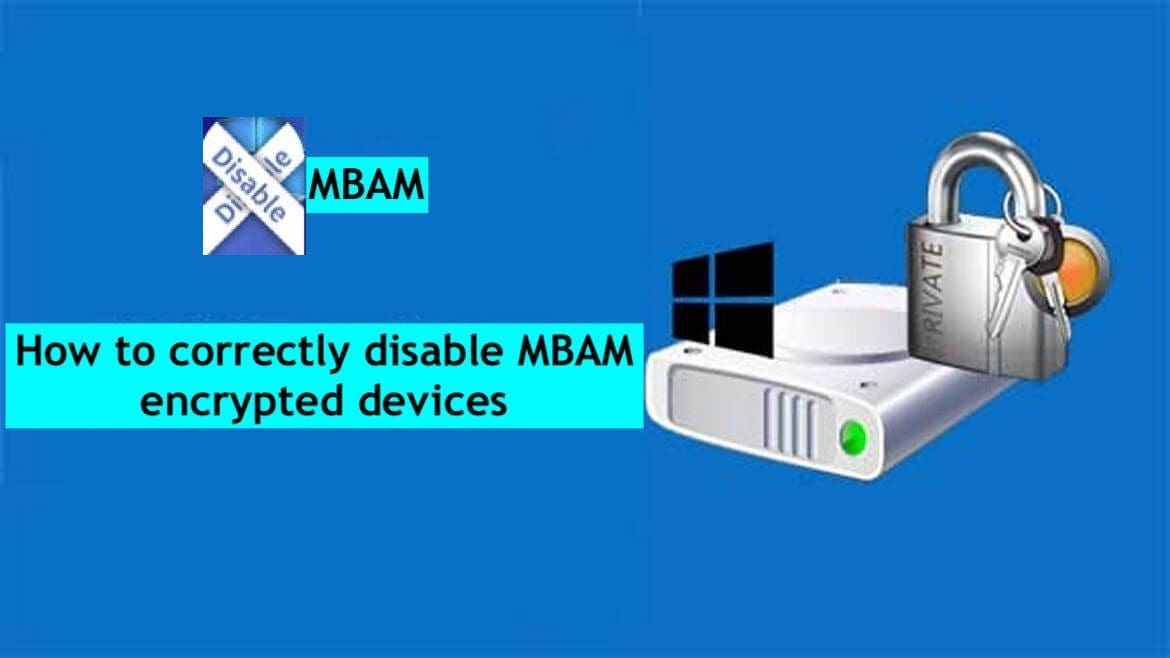
Microsoft BitLocker Administration and Monitoring (MBAM) provides a simplified administrative interface that you can use to manage BitLocker Drive Encryption. In this guide, you will learn How to correctly disable MBAM-encrypted devices. Please see how to clear, enable or disable TPM in Windows via the BIOS or UEFI, how to enable Bitlocker Pre-Boot Authentication via the Group Policy, and BitLocker Drive Encryption architecture and implementation types on Windows.

MBAM / BitLocker Group Policy Templates enable you to set BitLocker Drive Encryption policy options that are appropriate for your enterprise, and then use them to monitor client compliance with those policies.

You can also report on the encryption status of an individual computer and on the enterprise as a whole. In addition, you can access recovery key information when users forget their PIN or password or when their BIOS or boot record changes.

Kindly refer to these related guides: How to enable or disable BitLocker Drive Encryption on Windows 10 and Virtual Machines, how to uninstall your current version of MBAM and run setup again,

What is Microsoft Desktop Optimization Pack (MDOP)?

Microsoft Desktop Optimization Pack (MDOP) is a suite (portfolio) of technologies available to Software Assurance customers through an additional subscription.

The following components are included in the MDOP suite: Microsoft Application Virtualization (App-V), Microsoft User Experience Virtualization (UE-V), Microsoft Advanced Group Policy Management (AGPM), Microsoft Diagnostics & Recovery Toolset (DaRT), and Microsoft BitLocker Administration and Monitoring (MBAM).

These steps have been discussed in this guide previously, “How to enable or disable BitLocker Drive Encryption on Windows 10 and Virtual Machines“, but I decided to show you the difference between decrypting a BitLocker only protected device and a device encrypted with MBAM.

This is because the steps are part of disabling MBAM (BitLocker) encryption on these drives. As you can see below.

Screenshot-2021-10-20-at-23.28.47

Disable Microsoft BitLocker Administration and Monitoring (MBAM) protected devices

To decrypt a device that is protected (encrypted) with Microsoft BitLocker Administration and Monitoring (MBAM), you will need to perform these vital steps. This is the same process to disable MBAM encrypted devices. But the differences (steps) are outlined here.

  • Unlink (remove) the object from the MBAM policy in AD (That is, remove the object from the OU or security group).
  • Uninstall MDOP MBAM Agent. Please see this guide “” on how this can be achived.
  • Then you should run the GPO Switch gpupdate /force or have your device restarted. You may want to see this guide: GPUpdate Switches: GPUpdate vs GPUpdate /force.
  • Launch Control Panel,
Screenshot-2021-10-20-at-23.29.25


Navigate to System and Security and then click on BitLocker Drive Encryption. Click on disable BitLocker.

Screenshot-2021-10-20-at-23.32.37
Screenshot-2021-10-20-at-23.33.27

As you can see below, the Drive has been unencrypted.

Screenshot-2021-10-20-at-23.35.14

Disable BitLocker on a Single Volume via PowerShell

Now let see how decryption works in PowerShell. This command disables BitLocker for the specified BitLocker volume. BitLocker begins decrypting data on C: immediately.

PS C:\> Disable-BitLocker -MountPoint "C:"

Disable BitLocker for all volumes

This example disables BitLocker encryption for all volumes. The first command uses Get-BitLockerVolume to get all the BitLocker volumes for the current computer and store them in the $BLV variable.

The second command disables BitLocker encryption for all the BitLocker volumes stored in the $BLV variable. BitLocker begins decrypting data on the volume.

PS C:>$BLV = Get-BitLockerVolume
PS C:>Disable-BitLocker -MountPoint $BLV

Disable BitLocker via the Command Prompt

You can execute a single command to quickly disable BitLocker in Windows 10. This will decrypt the drive and turn off BitLocker. All key protectors will be removed when decryption is complete. You may want to learn more about the manage-bde commands.

manage-bde -off C:

MBAM takes BitLocker to the next level by simplifying deployment and key recovery, centralizing compliance monitoring and reporting, enforcing drives encryption, preventing simple PIN usage, supporting enhanced PINs, and also providing a grace period for encryption postponement, etc.

Please see the following comprehensive guide on how to enable Bitlocker Pre-Boot Authentication via the Group Policy, and BitLocker PIN bypass: How to configure Network Unlock. 

I hope you found this blog post on how to correctly disable MBAM-encrypted devices helpful. If you have any questions, please let me know in the comment session.

Rate this post

Thank you for reading this post. Kindly share it with others.

  • Share on X (Opens in new window) X
  • Share on Reddit (Opens in new window) Reddit
  • Share on LinkedIn (Opens in new window) LinkedIn
  • Share on Facebook (Opens in new window) Facebook
  • Share on Pinterest (Opens in new window) Pinterest
  • Share on Tumblr (Opens in new window) Tumblr
  • Share on Telegram (Opens in new window) Telegram
  • Share on WhatsApp (Opens in new window) WhatsApp
  • Share on Pocket (Opens in new window) Pocket
  • Share on Mastodon (Opens in new window) Mastodon
  • Share on Bluesky (Opens in new window) Bluesky
  • Share on Threads (Opens in new window) Threads
  • Share on Nextdoor (Opens in new window) Nextdoor
Windows Tags:Bitlocker, MBAM, Microsoft Windows, PowerShell, Windows 10, Windows 11

Post navigation

Previous Post: Fix WDAC vulnerabilities by updating PowerShell
Next Post: Windows 10 and Windows 11 updates will now expire for better performance

Related Posts

  • CAL Removal
    How to Remove and Manage RDS Licenses Web Server
  • banner
    How to Back Up and Restore the Windows Registry Windows
  • How to Install Windows Admin Center on Windows 10 11​
    Install Windows Admin Center on Windows 10 and Windows 11 Windows
  • screenshot 2020 03 18 at 23.03.42
    Enable God Mode via PowerShell or the CLI and GUI Windows
  • Synergy software kvm
    Why Software KVMs such as Synergy is replacing Hardware KVMs Linux
  • Windows10
    Configure new GPO settings and Security baseline for Windows Windows

More Related Articles

CAL Removal How to Remove and Manage RDS Licenses Web Server
banner How to Back Up and Restore the Windows Registry Windows
How to Install Windows Admin Center on Windows 10 11​ Install Windows Admin Center on Windows 10 and Windows 11 Windows
screenshot 2020 03 18 at 23.03.42 Enable God Mode via PowerShell or the CLI and GUI Windows
Synergy software kvm Why Software KVMs such as Synergy is replacing Hardware KVMs Linux
Windows10 Configure new GPO settings and Security baseline for Windows Windows

Leave a Reply Cancel reply

You must be logged in to post a comment.

Microsoft MVP

VEEAMLEGEND

vexpert-badge-stars-5

Virtual Background

GoogleNews

Categories

veeaam100

sysadmin top30a

  • M0365VBO
    Why should you use Veeam to protect your Microsoft 365 Data? Backup
  • uninstall installed Windows Update from Windows
    How to uninstall installed Windows Update Windows
  • screenshot 2020 04 07 at 21.02.45
    Trend Micro WorryFree Business Security Server Setup Anti-Virus Solution
  • mendeley
    Install Mendeley Reference Manager: How to integrate Mendeley Cite for Microsoft Word on Mac JIRA|Confluence|Apps
  • Veeam upgrade11 11a
    How to upgrade Veeam Backup and Replication from version 11 to 11a Backup
  • Create your own Network on AWS from Scratch
    VPC, Subnet, NACL, Security Group: Create your own Network on AWS from Scratch [Part 2] AWS/Azure/OpenShift
  • How to Disable Windows Startup Sound in Windows 11 banner
    How to Disable and Enable Startup Sound in Windows 11 Windows
  • VeeamIgnite2022
    Veeam at Microsoft Ignite 2022 from 12-14 October Backup

Subscribe to Blog via Email

Enter your email address to subscribe to this blog and receive notifications of new posts by email.

Join 1,832 other subscribers
  • RSS - Posts
  • RSS - Comments
  • About
  • Authors
  • Write for us
  • Advertise with us
  • General Terms and Conditions
  • Privacy policy
  • Feedly
  • Telegram
  • Youtube
  • Facebook
  • Instagram
  • LinkedIn
  • Tumblr
  • Pinterest
  • Twitter
  • mastodon

Tags

AWS Azure Bitlocker Microsoft Windows PowerShell WDS Windows 10 Windows 11 Windows Deployment Services Windows Server 2016

Copyright © 2025 TechDirectArchive


Loading Comments...
 

You must be logged in to post a comment.