Skip to content

TechDirectArchive

Hands-on IT, Cloud, Security & DevOps Insights

  • Home
  • About
  • Advertise With US
  • Reviews
  • Contact
  • Toggle search form
Home » Windows » How to Check if MBAM Agent is installed on Windows PC

How to Check if MBAM Agent is installed on Windows PC

Posted on 01/11/202111/12/2024 Christian By Christian No Comments on How to Check if MBAM Agent is installed on Windows PC
MBAM-Client

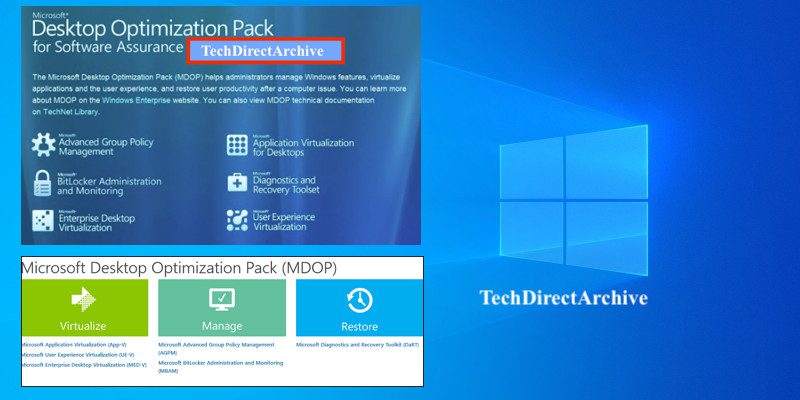
In this article, we shall discuss how to Check if MBAM Agent is installed on Windows PC. The Microsoft BitLocker Administration and Monitoring (MBAM) Client software enables administrators to enforce and monitor BitLocker Drive Encryption on computers in the enterprise. See the following guide on how to enable FileVault disk encryption on a Mac device and BitLocker Drive Encryption architecture and implementation scenarios.  Here is a guide onSSD TRIM: Delete files permanently without using the Recycle Bin.

The BitLocker client can be integrated into an organization by deploying the client through an electronic software distribution system, such as Active Directory Domain Services, or by directly encrypting the client computers as part of the initial imaging process.

There are various ways to check if Microsoft BitLocker Administration and Monitoring is installed on your device. I will be working you through the following steps as shown below.

You may be interested in some of the articles I have written regarding “Insight on Full Disk Encryption with PBA / without PBA, UEFI, Secure Boot, BIOS, File and Directory Encryption, and Container Encryption“. Also How to activate DriveLock License on Windows Server. Since I have tested an FDE solution with PBA, kindly take a look at how to download and install DriveLock. 

Check if MABM Agent exists via Programs / Feature

You can quickly determine this via the Control Panel / Windows Settings. Click on Programs to view the installed programs. If MBAM is installed, you should be able to see this from the list of installed programs as shown below.

mb1-Capture

Check MBAM Agent Via the BitLocker Management Client Service

Determine whether the MBAM agent is installed on the client’s computer. When MBAM is installed, it creates a service that is named BitLocker Management Client Service. This service is configured to start automatically. Determine whether the service is running.

mb2-Capture

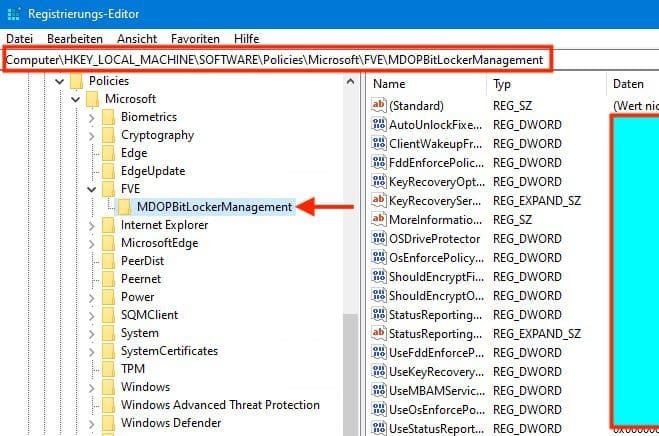
Lastly, make sure that MBAM Group Policy settings are applied on the client’s computer. The following registry subkey is created if the Group Policy settings were applied on the client’s computer.

HKEY_LOCAL_MACHINE\SOFTWARE\Policies\Microsoft\FVE\MDOPBitLockerManagement
mb3-Capture

Note: Depending on when you deploy the Microsoft BitLocker Administration and Monitoring Client software. You can enable BitLocker Drive Encryption on a computer in your organization either before the end-user receives the computer or afterward by configuring Group Policy and deploying the MBAM Client software by using an enterprise software deployment system.

I hope you found this blog post on how to check if MBAM Agent is installed on Windows PC helpful. Please let me know in the comment session if you have any questions.

5/5 - (1 vote)

Thank you for reading this post. Kindly share it with others.

  • Share on X (Opens in new window) X
  • Share on Reddit (Opens in new window) Reddit
  • Share on LinkedIn (Opens in new window) LinkedIn
  • Share on Facebook (Opens in new window) Facebook
  • Share on Pinterest (Opens in new window) Pinterest
  • Share on Tumblr (Opens in new window) Tumblr
  • Share on Telegram (Opens in new window) Telegram
  • Share on WhatsApp (Opens in new window) WhatsApp
  • Share on Mastodon (Opens in new window) Mastodon
  • Share on Bluesky (Opens in new window) Bluesky
  • Share on Threads (Opens in new window) Threads
  • Share on Nextdoor (Opens in new window) Nextdoor
Windows Tags:Bitlocker, MBAM, Microsoft BitLocker Administration and Monitoring, Microsoft Windows, Windows 10, Windows Server 2016

Post navigation

Previous Post: Read-only Files: Saving Files in VIM Editor on Linux/Unix-like OS
Next Post: How to Install and Upgrade Docker Engine From Binaries

Related Posts

  • blue screen error during windows 10 upgrade thumbnail
    Replace a blue screen error with a blank screen for system errors Windows
  • download9
    Change the default Save and Download Location in Windows Windows
  • Featured image
    Latest Improvement to File Explorer on Windows 11 Windows
  • dvssvd
    Windows Cached Credentials: How does cached domain logon work? Windows
  • wac
    Fix Windows Admin Center cannot be reached Windows
  • Featured image multi monitor
    Enhanced Multi-Monitor Experience with Windows 11 Windows

More Related Articles

blue screen error during windows 10 upgrade thumbnail Replace a blue screen error with a blank screen for system errors Windows
download9 Change the default Save and Download Location in Windows Windows
Featured image Latest Improvement to File Explorer on Windows 11 Windows
dvssvd Windows Cached Credentials: How does cached domain logon work? Windows
wac Fix Windows Admin Center cannot be reached Windows
Featured image multi monitor Enhanced Multi-Monitor Experience with Windows 11 Windows

Leave a Reply Cancel reply

You must be logged in to post a comment.

Microsoft MVP

VEEAMLEGEND

vexpert-badge-stars-5

Virtual Background

GoogleNews

Categories

veeaam100

Veeam Vanguard

  • Screenshot 2020 10 31 at 10.35.37
    How to set the PowerShell Execution Policy via Windows Registry Windows Server
  • Was ist Windows Server und wie unterscheidet er sich vom normalen Windows
    Create a certificate template for BitLocker Network Unlock Windows Server
  • Windows Hello with fake fingerprints
    Security researchers bypass Windows Hello with fake fingerprints with Raspberry Pi 4 Security | Vulnerability Scans and Assessment
  • Bang ad Olufsen.
    Bang and Olufsen Bluetooth connection: How to connect and remove Beoplay E8 3rd Generation to Mac Mac
  • portainer feature
    How to Install Docker Portainer on Linux Containers
  • drivelock 1280x720 1
    The server could not be reached or validated: Timeout expired. The Time out expired prior to obtaining a connection from the pool Security | Vulnerability Scans and Assessment
  • Disable Open File Security Warnings on Windows
    How to Disable Open File Security Warnings on Windows Security | Vulnerability Scans and Assessment
  • Phone Link
    How to link an iPhone with Windows PC with Phone Link App Windows

Subscribe to Blog via Email

Enter your email address to subscribe to this blog and receive notifications of new posts by email.

Join 1,808 other subscribers
  • RSS - Posts
  • RSS - Comments
  • About
  • Authors
  • Write for us
  • Advertise with us
  • General Terms and Conditions
  • Privacy policy
  • Feedly
  • Telegram
  • Youtube
  • Facebook
  • Instagram
  • LinkedIn
  • Tumblr
  • Pinterest
  • Twitter
  • mastodon

Tags

AWS Azure Bitlocker Microsoft Windows PowerShell WDS Windows 10 Windows 11 Windows Deployment Services Windows Server 2016

Copyright © 2025 TechDirectArchive

Loading Comments...

You must be logged in to post a comment.