Skip to content

TechDirectArchive

Hands-on IT, Cloud, Security & DevOps Insights

  • Home
  • About
  • Advertise With US
  • Reviews
  • Contact
  • Toggle search form
Home » Windows » How to Fix “Unknown hard error” on Windows Server and Windows 10
  • VeeamOn 2023 Miami
    Why you should attend VeeamOn 2023 Backup
  • switchlinuxusers
    How to Switch between Users in Linux Linux
  • DC Name
    Install and configure Active Directory Domain Services on Windows Server Windows
  • Webp.net resizeimage 5
    How to Improve Website Response Using Traffic Manager AWS/Azure/OpenShift
  • How to visualize MBAM Recovery Audit Report with Python
    Visualize MBAM Recovery Audit Report with Python Automation
  • integrate VHR with VBR
    How to deploy and integrate VHR with VBR Backup
  • Windows Server vNext
    What’s New? Install Windows Server 2025 on Beelink EQ12 PC Windows
  • mac2022df
    Best MacBook you can find in the year 2022 Reviews

How to Fix “Unknown hard error” on Windows Server and Windows 10

Posted on 15/12/202126/08/2023 Temitope Odemo By Temitope Odemo No Comments on How to Fix “Unknown hard error” on Windows Server and Windows 10
Troubleshooting

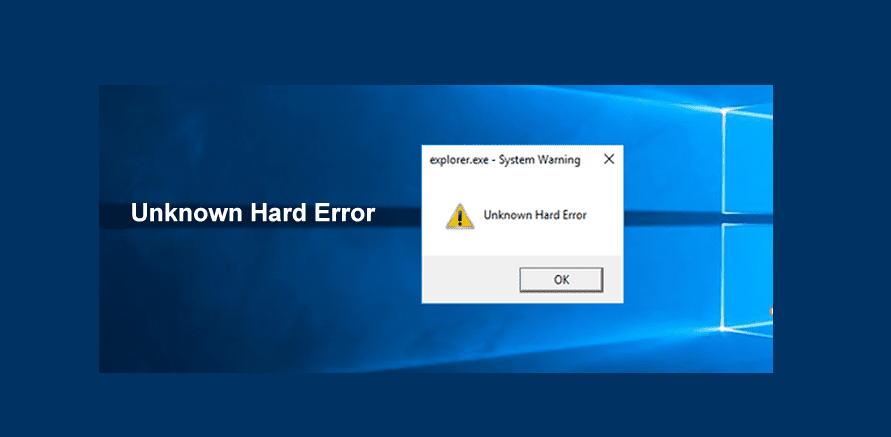
This error “Unknown Hard Error” is usually associated with Windows Server and Windows 10 operating systems. It is an error that is related to the explorer.exe file, sihost.exe file, ctfmon.exe, and other .exe files. It is one frustrating and critical error that can freeze your system and stop any process on your computer system. Some people have complained that whenever this error pops up, they experience problems like a blank screen, frozen taskbar, blank desktop, in summary they are not allowed to do anything, sometimes briefly while sometimes it takes a long period. Despite all these, this issue can still be fixed if you follow the troubleshooting steps below.

For more related Windows Operating System errors you can read this: How to Fix “Insufficient System Resources Exist to Complete the Requested Service” error, How to fix the issue “The Security Database on the Server does not have a Computer Account for this Workstation Trust Relationship” on Windows Server [Part 2], How to Quickly Fix Windows Search Bar Not Working, Windows Out Of Box Experience: OOBESETTINGSMULTIPLEPAGE error on Windows 10, Windows cannot connect to the printer: Operation Failed with error 0x000004f8

Windows Server
Error display

The following are some of the causes of this error:

  • It can be caused by explorer.exe, sihost.exe, ctfmon.exe, or other .exe files.
  • A corrupted system file or registry entries in the OS can cause it.
  • Malware attack or Virus infection on the system.
  • A recent Windows update on the system.

Follow these troubleshooting steps to fix the “Unknown Hard Error”

  • Perform a clean boot of the system

Sometimes performing a clean boot of the system will fix this issue. Just type msconfig in the Run and hit Enter.

Click on Services and check the box Hide all Microsoft Services and click on Disable all and click Ok.

Windows 10
Msconfiguration Panel
  • Now click on the Startup tab and click on Open Task Manager.
  • Select each Startup item and click Disable and Ok when done.
  • Reboot the computer.
Hard error
Startup Panel

After these few steps, you can confirm if the issue is resolved. You can start enabling the services one after another to detect which service is causing the error. If it’s an installed update you can revert back to the previous state.

Using CHKDSK command for your Hard drive State

This kind of error can also show if your hard drive is failing. However, You can use CHKDSK command to remove any of this possible error:

Open your Command Prompt as an administrator and enter the below command

CHKDSK C:

it depends on what letter is attached to your hard drive. This command utility will scan the whole hard drive for errors and try to fix any errors on it.
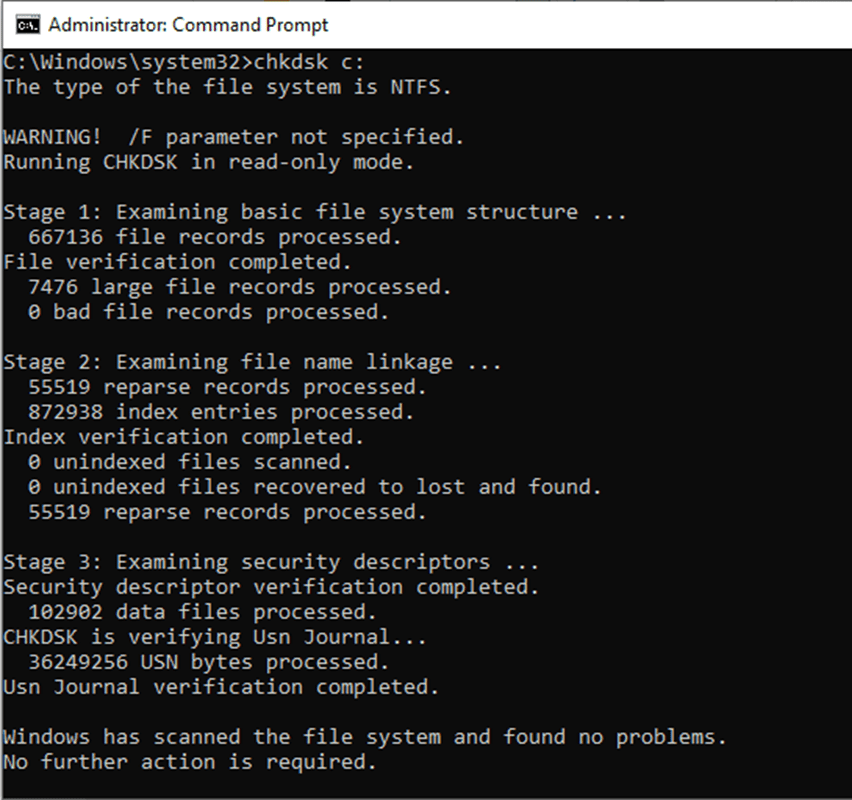
image-38
CHKDSK Command
  • Run DISM Command

To fix “Unknown Hard Error” on Windows Server, employ the DISM (Deployment Image Servicing and Management) command. This method effectively addresses issues caused by corrupt or lost files, providing a reliable fix for the error.

Open your Command Prompt as an administrator and enter the below command

DISM.exe /Online /Cleanup-image /Cleanup-image /Restorehealth

I trust you found the contents of this article detailing the resolution steps fix “Unknown hard error” on Windows Server both informative and valuable. Should you require further clarification or have inquiries, please feel free to post them in the comments section below.

Rate this post

Thank you for reading this post. Kindly share it with others.

  • Click to share on X (Opens in new window) X
  • Click to share on Reddit (Opens in new window) Reddit
  • Click to share on LinkedIn (Opens in new window) LinkedIn
  • Click to share on Facebook (Opens in new window) Facebook
  • Click to share on Pinterest (Opens in new window) Pinterest
  • Click to share on Tumblr (Opens in new window) Tumblr
  • Click to share on Telegram (Opens in new window) Telegram
  • Click to share on WhatsApp (Opens in new window) WhatsApp
  • Click to share on Pocket (Opens in new window) Pocket
  • Click to share on Mastodon (Opens in new window) Mastodon
  • Click to share on Bluesky (Opens in new window) Bluesky
  • Click to share on Threads (Opens in new window) Threads
  • Click to share on Nextdoor (Opens in new window) Nextdoor
Windows, Windows Server Tags:DISM, Task Manager, Windows 10

Post navigation

Previous Post: Enable or disable Secure Boot in Windows via UEFI Firmware Settings
Next Post: How to enable Amazon S3 default bucket encryption using S3 Console

Related Posts

  • change keyboard layout windows 10 thumb800
    Prevent on-screen keyboard from starting automatically and from appearing at login Windows
  • rdp5
    Change expired RDP Password: How to change a password on a Remote Desktop session Windows Server
  • Windows10 as a Service Waas
    Windows 10 Feature and Quality Updates Windows
  • Windows Admin Center v2   2401 install   2306 to 2311 upgrade
    Upgrade Windows Admin Center 2306 – 2311: Install WACmg 2410 Network | Monitoring
  • screenshot 2020 02 08 at 15.53.31
    Auto Logon Error “Username and password specified is not valid” Windows
  • Featured image GettingWinReady
    Fix “Getting Windows Ready” Don’t turn off your computer stuck on Windows Windows

More Related Articles

change keyboard layout windows 10 thumb800 Prevent on-screen keyboard from starting automatically and from appearing at login Windows
rdp5 Change expired RDP Password: How to change a password on a Remote Desktop session Windows Server
Windows10 as a Service Waas Windows 10 Feature and Quality Updates Windows
Windows Admin Center v2   2401 install   2306 to 2311 upgrade Upgrade Windows Admin Center 2306 – 2311: Install WACmg 2410 Network | Monitoring
screenshot 2020 02 08 at 15.53.31 Auto Logon Error “Username and password specified is not valid” Windows
Featured image GettingWinReady Fix “Getting Windows Ready” Don’t turn off your computer stuck on Windows Windows

Leave a Reply Cancel reply

You must be logged in to post a comment.

Microsoft MVP

VEEAMLEGEND

vexpert-badge-stars-5

Virtual Background

GoogleNews

Categories

veeaam100

sysadmin top30a

  • VeeamOn 2023 Miami
    Why you should attend VeeamOn 2023 Backup
  • switchlinuxusers
    How to Switch between Users in Linux Linux
  • DC Name
    Install and configure Active Directory Domain Services on Windows Server Windows
  • Webp.net resizeimage 5
    How to Improve Website Response Using Traffic Manager AWS/Azure/OpenShift
  • How to visualize MBAM Recovery Audit Report with Python
    Visualize MBAM Recovery Audit Report with Python Automation
  • integrate VHR with VBR
    How to deploy and integrate VHR with VBR Backup
  • Windows Server vNext
    What’s New? Install Windows Server 2025 on Beelink EQ12 PC Windows
  • mac2022df
    Best MacBook you can find in the year 2022 Reviews

Subscribe to Blog via Email

Enter your email address to subscribe to this blog and receive notifications of new posts by email.

Join 1,836 other subscribers
  • RSS - Posts
  • RSS - Comments
  • About
  • Authors
  • Write for us
  • Advertise with us
  • General Terms and Conditions
  • Privacy policy
  • Feedly
  • Telegram
  • Youtube
  • Facebook
  • Instagram
  • LinkedIn
  • Tumblr
  • Pinterest
  • Twitter
  • mastodon

Tags

Active Directory AWS Azure Bitlocker Microsoft Windows PowerShell WDS Windows 10 Windows 11 Windows Server 2016

Copyright © 2025 TechDirectArchive


Loading Comments...
 

You must be logged in to post a comment.