Skip to content

TechDirectArchive

Hands-on IT, Cloud, Security & DevOps Insights

  • Home
  • About
  • Advertise With US
  • Contact
  • Reviews
  • Toggle search form
Home » Windows » INACCESSIBLE BOOT DEVICE: Fix Your PC ran into a problem and needs to restart
  • TamperProtection
    Protect Microsoft Defender Settings with Tamper Protection Security | Vulnerability Scans and Assessment
  • WDS
    An error occurred while trying to start the Windows deployment services error 0x906 Windows Server
  • OOBEZDP
    OOBEZDP: Something went wrong during the Windows deployment Windows
  • Azure Stack 1
    How to create a load balancer for Azure Stack Hub Network | Monitoring
  • article 1280x720.78eff5c4
    How to reset your built-in Local Administrator password in Windows 10 Windows Server
  • SQL Loves Linux 2 Twitter 002 640x358 1
    Install Microsoft SQL Server 2019 and MSSQL Command line tools on Ubuntu Linux Oracle/MSSQL/MySQL
  • Hyper V Virtual Switch Copy
    How to Create VDI Collections on Windows Server 2022 Network | Monitoring
  • DC Name
    Install and configure Active Directory Domain Services on Windows Server Windows

INACCESSIBLE BOOT DEVICE: Fix Your PC ran into a problem and needs to restart

Posted on 21/02/202209/04/2024 Temitope Odemo By Temitope Odemo 4 Comments on INACCESSIBLE BOOT DEVICE: Fix Your PC ran into a problem and needs to restart
image-41

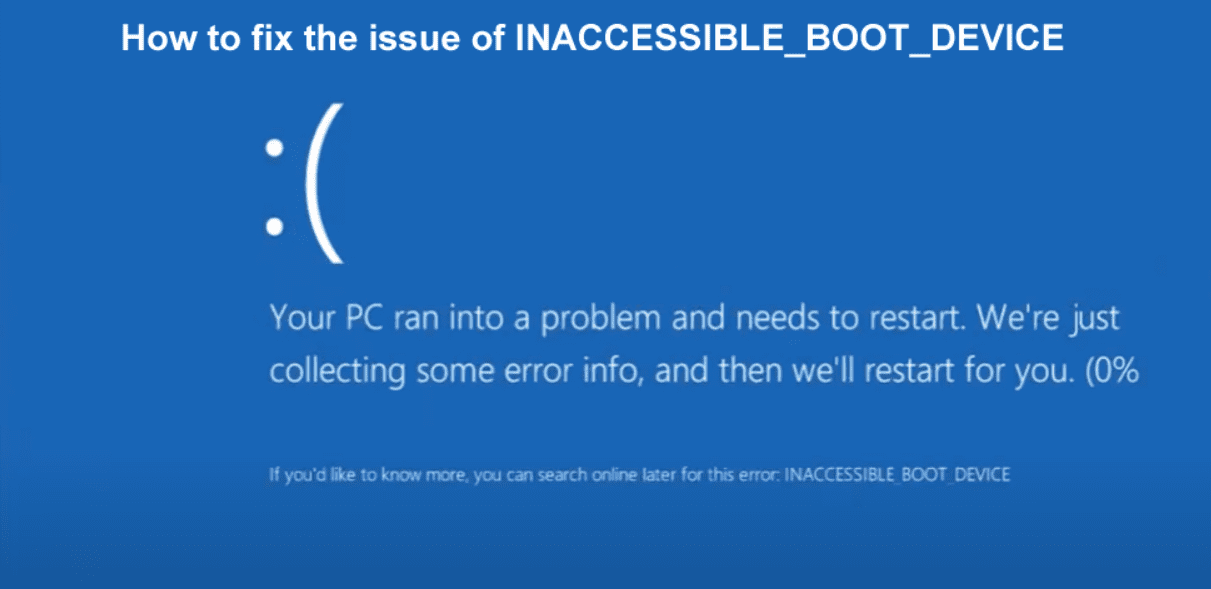
In this article, you will learn about the following error ” INACCESSIBLE BOOT DEVICE: Fix Your PC ran into a problem and needs to restart”. This is one hard nut to crack of an issue as it involves the booting system of your computer and prevents you from login into your system. Please see Cyclic Redundancy: Resolve Data Error on Inaccessible Hard Drive, and how to fix “The virtual machine ran into a non-fatal problem as described below, we suggest that you take appropriate action to prevent the problem from recurring“.

Most time when this issue occurs your system will keep restarting and still goes back to this screen. Do not despair when you see this message pops up as I will be showing you how to resolve this issue in this guide.

If you want to read more on Windows issues you can read these: How to Fix Windows Error 0x80070057, how to fix the issue “The Security Database on the Server does not have a Computer Account for This Workstation Trust Relationship” on Windows Server [Part 2], how to Quickly Fix Windows Search Bar Not Working Issue.

Why was this error prompted?

Below are some of the reasons why this problem occurs.

  • Changes made in the registry
  • Recent changes made in the hardware of the system
  • Recent driver installation that was not successful
  • Improper shutdown of the system like forceful shutdown
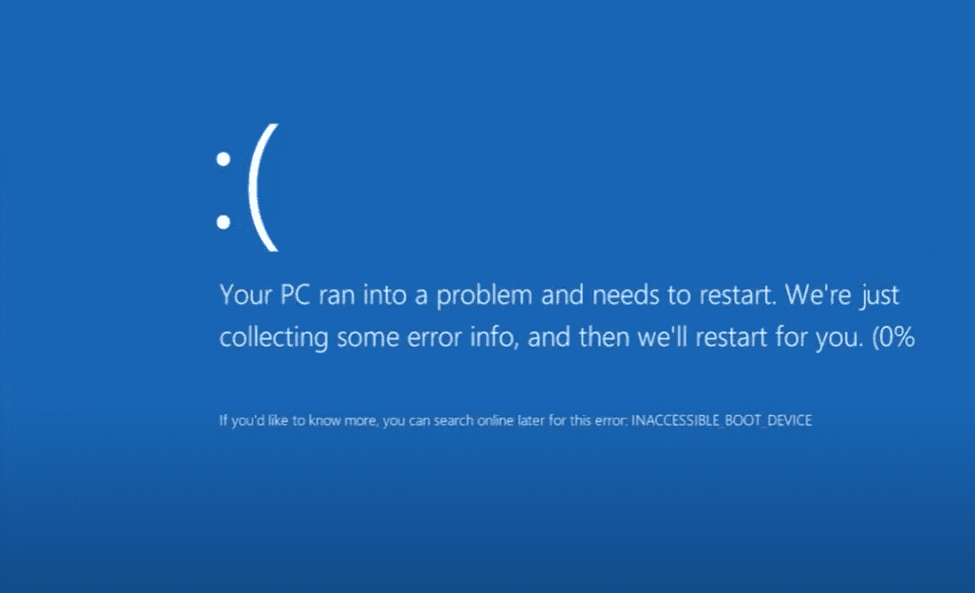
image-28
Error Message

Please note that the above message usually pops up briefly and your system will try to repair itself

image-29
Automatic Repair

After a few moments, it will start diagnosing

image-30
Diagnosing your PC

Here are some more related guides: How to fix the issue “The remote session was disconnected because there are no Remote Desktop License Servers available to provide a license, and how to Fix the “Insufficient System Resources Exist to Complete the Requested Service” error

Advanced Repair to fix INACCESSIBLE BOOT DEVICE: Fix Your PC ran into a problem

After this, you will receive the message below. If you click on the Restart button you will still get the same problem. So go ahead and click the Advanced options button.

image-31
Advanced option

Now click on the Troubleshoot button

image-32
Troubleshoot option

Just go ahead and click the Advanced Options button

image-33
Advanced options

Launch the Command Prompt

Under the Advanced options, the System Restore can help to resolve this issue if only you have created a restore point previously. The System Image can also help if you already have the image created while the Startup Repair did not work as this was done automatically at the beginning.

Go ahead and click on the Command Prompt

image-34
Advanced Options

Inside the command prompt, you will see the below image. Click on Administrator and type in the correct password for the Administrator account

image-35
Command prompt

Next, go into the C drive. All that we want to carry out next is to restore the registry to override all the changes that have occurred inside the registry.

Change Directory

Now let us change the directory into the config folder and use the command DIR to check the contents inside it.

image-36
CMD

You will get the following result and you will notice RegBack which is a registry backup folder and you will change the directory into this folder.
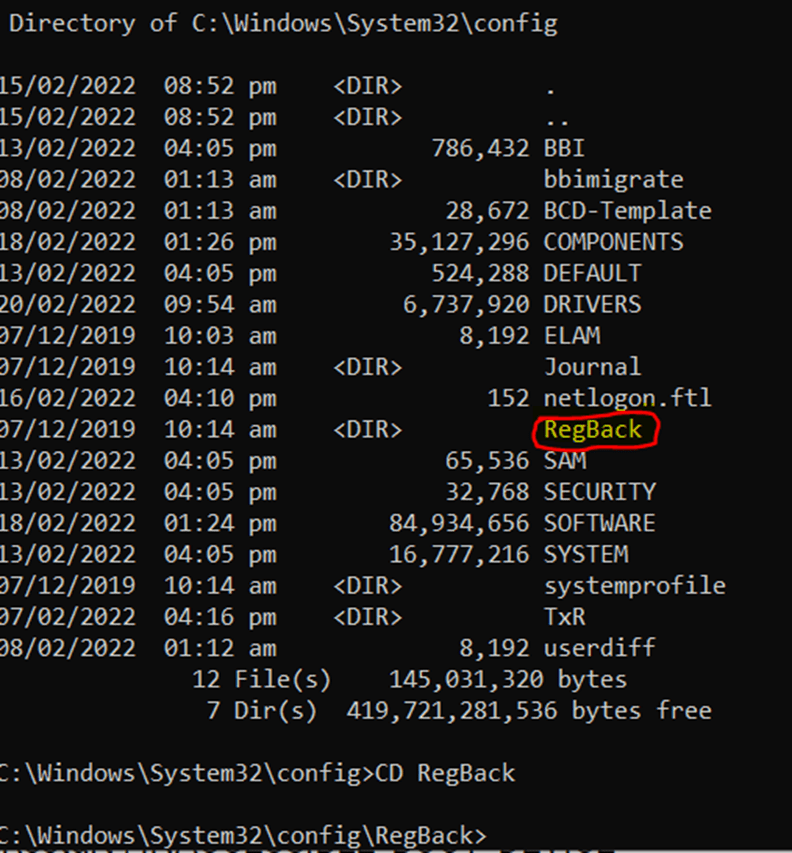
image-37
config/RegBack folder

If you DIR into the RegBack folder you will see the below registry backups inside.

image-38
Registry Backup files

All we are going to do now is to replace all these five files. In the config folder with the backup files inside RegBack

Change the directory to the config folder and use the command REN to rename the below files

DEFAULT >> DEFAULT1
SAM >> SAM1
SECURITY >> SECURITY1
SOFTWARE >> SOFTWARE1
SYSTEM >> SYSTEM1

After this change directory back to RegBack. Use the command COPY to copy the registry backup files from RegBack to the config

image-39
Registry Backup done

if you restart your computer system after doing all these it should boot successfully without any issues again.

I hope you found this blog post on “INACCESSIBLE BOOT DEVICE: Fix Your PC ran into a problem and needs to restart” very interesting and helpful. Here is an exhaustive troubleshooting steps. In case you have any questions do not hesitate to ask in the comment section.

Rate this post

Thank you for reading this post. Kindly share it with others.

  • Click to share on X (Opens in new window) X
  • Click to share on Reddit (Opens in new window) Reddit
  • Click to share on LinkedIn (Opens in new window) LinkedIn
  • Click to share on Facebook (Opens in new window) Facebook
  • Click to share on Pinterest (Opens in new window) Pinterest
  • Click to share on Tumblr (Opens in new window) Tumblr
  • Click to share on Telegram (Opens in new window) Telegram
  • Click to share on WhatsApp (Opens in new window) WhatsApp
  • Click to share on Pocket (Opens in new window) Pocket
  • Click to share on Mastodon (Opens in new window) Mastodon
  • Click to share on Bluesky (Opens in new window) Bluesky
  • Click to share on Threads (Opens in new window) Threads
  • Click to share on Nextdoor (Opens in new window) Nextdoor
Windows, Windows Server Tags:automaticstartup, Boot Image, Microsoft Windows, restart, Windows 10, Windows Server 2016

Post navigation

Previous Post: How to use Postman for your POST Request
Next Post: Configure GPS location “Google Map” on your Android Studio Emulator

Related Posts

  • Configure Windows Server with Sconfig
    How to Configure Windows Server Core using SConfig Windows
  • logon
    Configure logon hours for users in Active Directory Windows Server
  • Featured image 8
    How to restore quarantined files in Microsoft Defender Antivirus Security | Vulnerability Scans and Assessment
  • Prevent OS Reinstallation When Switching from Legacy BIOS to UEFI
    Prevent OS Reinstallation: Change from legacy BIOS to UEFI Windows
  • MBAM noncompliance
    How to determine why an MBAM-protected device is non-compliant Security | Vulnerability Scans and Assessment
  • fgh
    Configure log on as a batch job permissions on any server Windows Server

More Related Articles

Configure Windows Server with Sconfig How to Configure Windows Server Core using SConfig Windows
logon Configure logon hours for users in Active Directory Windows Server
Featured image 8 How to restore quarantined files in Microsoft Defender Antivirus Security | Vulnerability Scans and Assessment
Prevent OS Reinstallation When Switching from Legacy BIOS to UEFI Prevent OS Reinstallation: Change from legacy BIOS to UEFI Windows
MBAM noncompliance How to determine why an MBAM-protected device is non-compliant Security | Vulnerability Scans and Assessment
fgh Configure log on as a batch job permissions on any server Windows Server

Comments (4) on “INACCESSIBLE BOOT DEVICE: Fix Your PC ran into a problem and needs to restart”

  1. Avatar photo Pr1vatePiles says:
    09/08/2022 at 11:33 AM

    Thank you, just saved my back!

    Log in to Reply
    1. Temitope Temitope Odemo says:
      20/03/2023 at 7:30 AM

      you are welcome

      Log in to Reply
  2. Avatar photo Alex says:
    20/03/2023 at 12:26 AM

    Thank you, just saved my back too )))

    Log in to Reply
    1. Temitope Temitope Odemo says:
      20/03/2023 at 7:30 AM

      you are welcome

      Log in to Reply

Leave a Reply Cancel reply

You must be logged in to post a comment.

Microsoft MVP

VEEAMLEGEND

vexpert-badge-stars-5

Virtual Background

GoogleNews

Categories

veeaam100

sysadmin top30a

  • TamperProtection
    Protect Microsoft Defender Settings with Tamper Protection Security | Vulnerability Scans and Assessment
  • WDS
    An error occurred while trying to start the Windows deployment services error 0x906 Windows Server
  • OOBEZDP
    OOBEZDP: Something went wrong during the Windows deployment Windows
  • Azure Stack 1
    How to create a load balancer for Azure Stack Hub Network | Monitoring
  • article 1280x720.78eff5c4
    How to reset your built-in Local Administrator password in Windows 10 Windows Server
  • SQL Loves Linux 2 Twitter 002 640x358 1
    Install Microsoft SQL Server 2019 and MSSQL Command line tools on Ubuntu Linux Oracle/MSSQL/MySQL
  • Hyper V Virtual Switch Copy
    How to Create VDI Collections on Windows Server 2022 Network | Monitoring
  • DC Name
    Install and configure Active Directory Domain Services on Windows Server Windows

Subscribe to Blog via Email

Enter your email address to subscribe to this blog and receive notifications of new posts by email.

Join 1,839 other subscribers
  • RSS - Posts
  • RSS - Comments
  • About
  • Authors
  • Write for us
  • Advertise with us
  • General Terms and Conditions
  • Privacy policy
  • Feedly
  • Telegram
  • Youtube
  • Facebook
  • Instagram
  • LinkedIn
  • Tumblr
  • Pinterest
  • Twitter
  • mastodon

Tags

AWS Azure Bitlocker Microsoft Windows PowerShell WDS Windows 10 Windows 11 Windows Deployment Services Windows Server 2016

Copyright © 2025 TechDirectArchive


Loading Comments...
 

You must be logged in to post a comment.