Skip to content

TechDirectArchive

Hands-on IT, Cloud, Security & DevOps Insights

  • Home
  • About
  • Advertise With US
  • Contact
  • Reviews
  • Toggle search form
Home » Windows » Restore Point Creation in Windows 10 and Windows 11
  • VRAM on Windows 1
    Check the Size of Video Random Access Memory (VRAM) in Windows Windows
  • FIX RDP Authentication Error
    Fix Remote Connection Issue: An Authentication Error Has Occurred with Code 0x80004005 Windows
  • How to pause updates and why
    How to Pause Windows Update via Windows Settings Windows
  • Domain
    Connectivity to a writable domain controller from a node could not be determined because of an error Virtualization
  • Downgrade
    Downgrade VMware Workstation: Fix the Processor does not support xsave on VMware Workstation Virtualization
  • download9
    Change the default Save and Download Location in Windows Windows
  • win 10 login screen
    How to Transfer User Profile to another User in Windows Windows
  • Docker Guide
    Pull and Deploy Nginx Container Images from Docker Hub AWS/Azure/OpenShift

Restore Point Creation in Windows 10 and Windows 11

Posted on 27/05/202228/08/2024 Matthew By Matthew No Comments on Restore Point Creation in Windows 10 and Windows 11
Featured-Image

A Restore Point gathers crucial Windows files and settings at a specific time. You create it using Microsoft’s free tool, which takes “snapshots” to save Restore Points, aiding in system repair. Learn how to Restore Point Creation in Windows 10 and Windows 11. Please see Windows 10: Fixing Token Reference Error, How to manage and use Amazon S3 access points using the AWS Management Console, and How to Back Up and Restore the Windows Registry.

System files, updates, personalized settings, and Registry settings are all included in these Restore Points. In this article, we will go over the best methods for creating Restore Points on your PC. To create the feature, first enable the System Restore wizard by switching on System Protection.

You can read other interesting articles on fixing system issues: How to Create a Restore Point in Windows 11, and how to Reset a crash system and perform system state restore of Active Directory using Windows Server backup utility.

How to Enable the Feature in Windows 10 or 11

Before creating a restore point, you will have to enable the System Restore which can be enabled by turning on system protection. To enable system protection, open the Start menu and search for ‘create a restore point.’

System restore

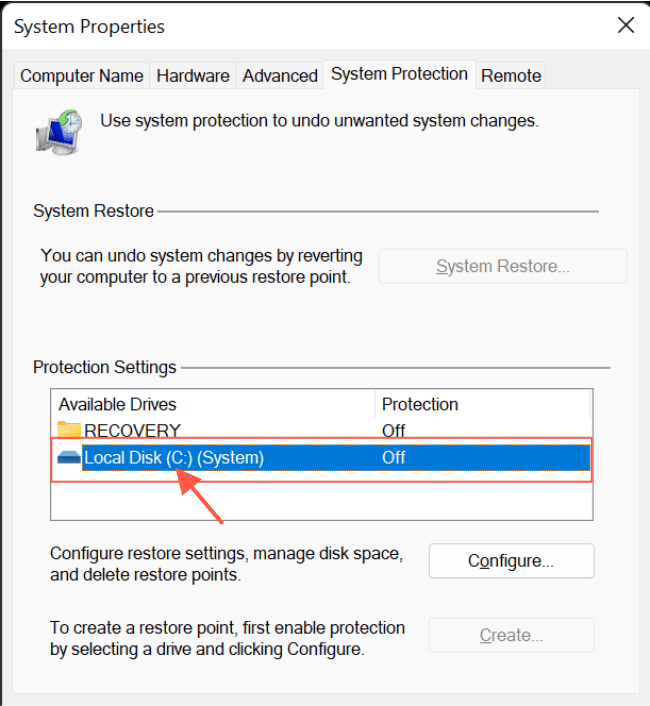
In the System Properties dialog box, navigate to the System Protection tab, select the drive containing your System portion (typically C:), and then click the Configure button.
Windows backup

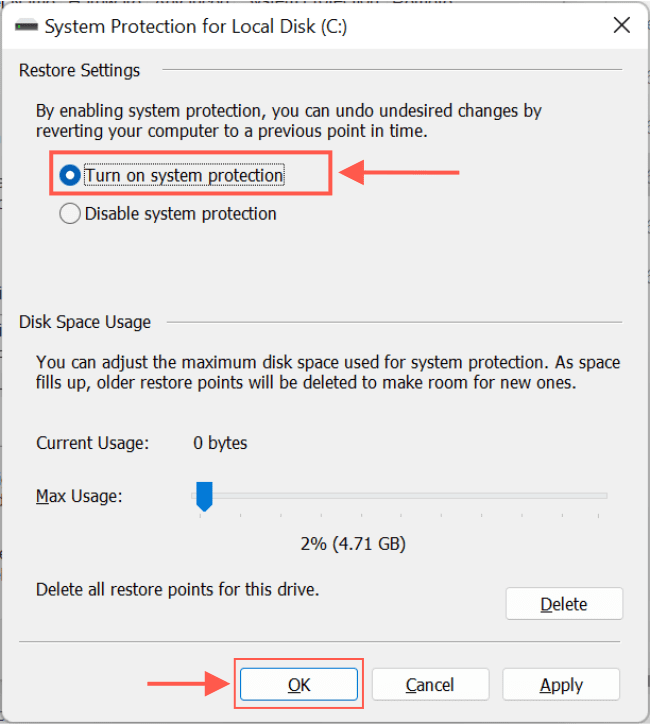
Turn on system protection in the System Protection for Windows dialog box. If your drive space is small, you may want to reduce the amount of space used for system protection.
Recovery point

Ways to create a Restore Point in Windows 10 or 11

Now that you’ve enabled system protection. Let’s look at two simple methods for creating a restore point: using the create restore point tool or using the command prompt.

Please see how to fix the issue of INACCESSIBLE BOOT DEVICE Your PC ran into a problem and needs to restart, and How to Share Files, Stop Sharing and Restore Previous Versions of Files on Microsoft OneDrive.

Using the Create the feature wizard in Windows 10 or 11

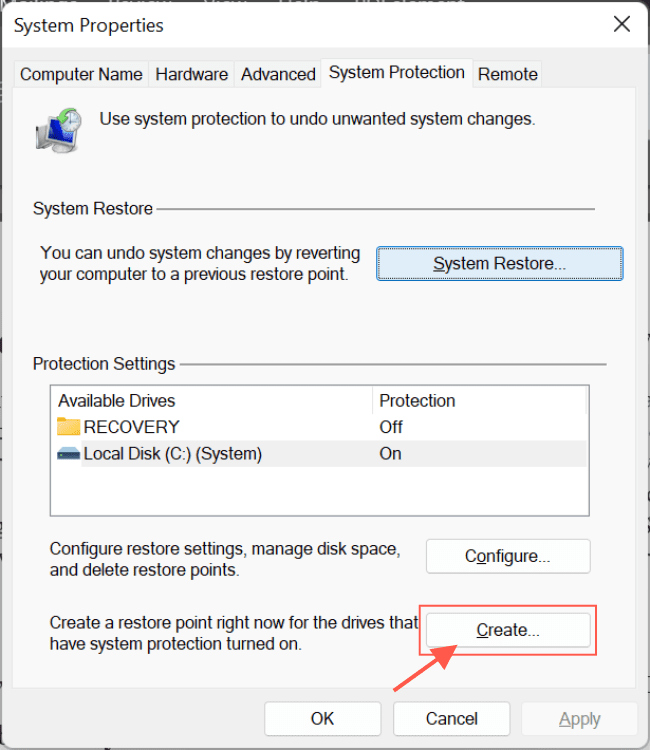
To create the feature, navigate to the System Protection tab in the System Properties dialog box and click Create.
PC restore

Type a description for your Restore Point and then click Create.

System restore

In a few minutes, the feature will be created. When the process is finished, you will be prompted to Close.
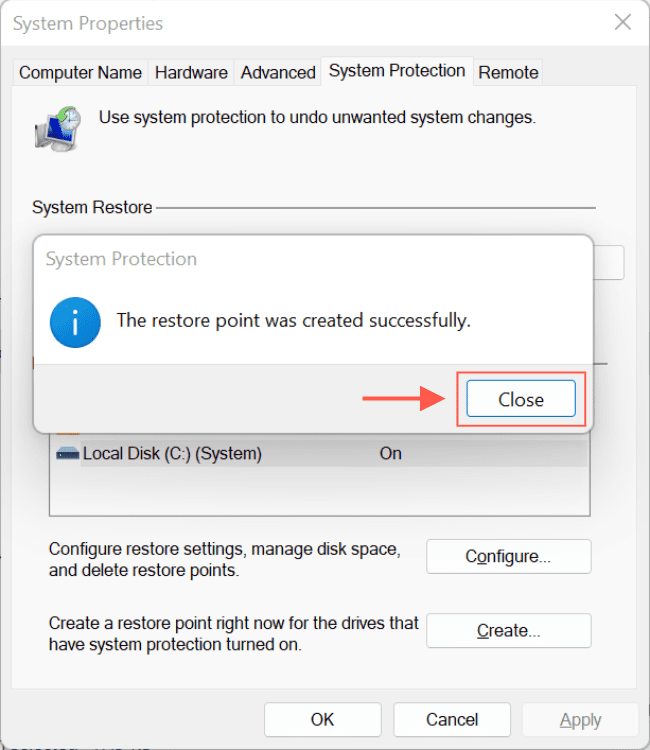
Windows backup

You have just created the feature.

Creation via the Command Prompt

To begin, launch the Command Prompt with administrative privileges. Then, in the Start menu search bar, type “command prompt.” From there, launch the Command Prompt as an administrator.
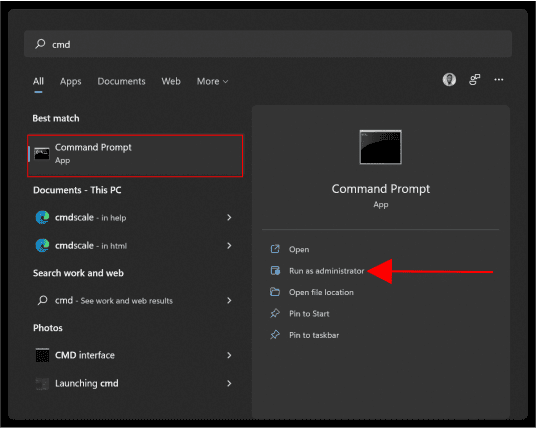
Recovery point

Enter the following command:

Wmic.exe /Namespace:\\root\default Path SystemRestore Call CreateRestorePoint "Restore Point", 100, 12

Replace the “Restore Point” in the command with your preferred description and press Enter. In a few seconds, a new feature will be created.

Image7-1

That’s all there is to creating the feature. If you ever accidentally lose data or settings on your computer, you’ll always have this Restore Point to fall back on.

To perform a System Restore, navigate to System Properties and the System Protection tab. Click on the feature to launch the System Restore Wizard.
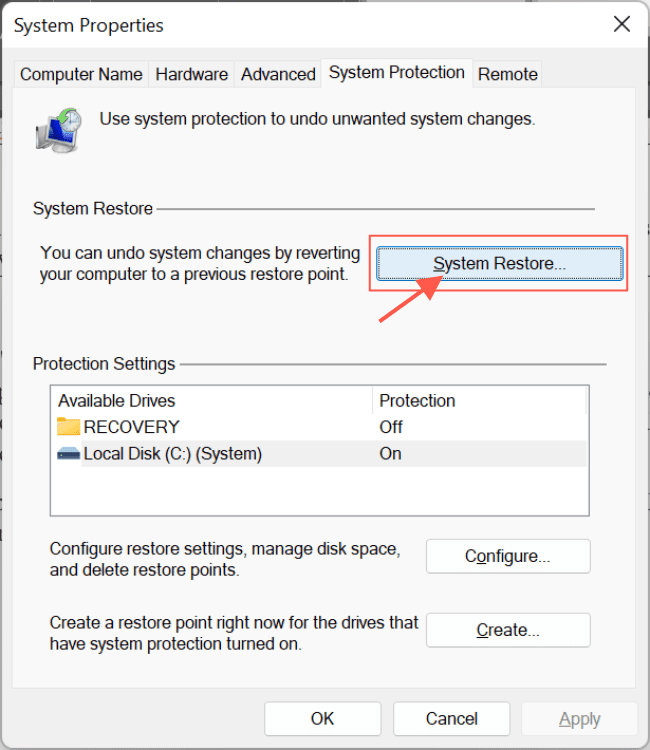
Image8-2

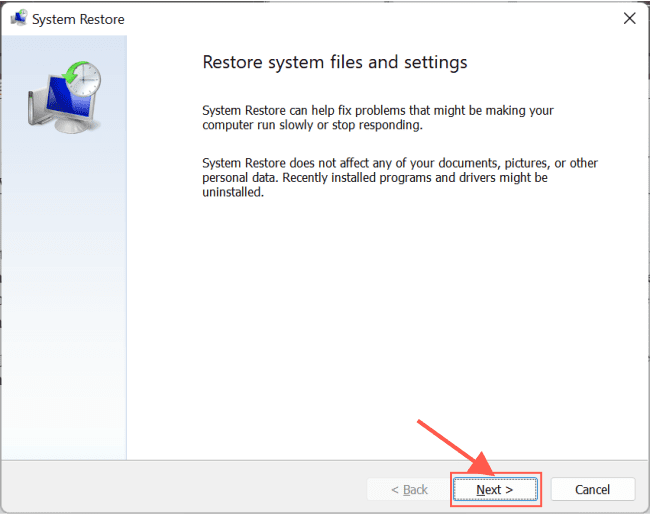
On this page, click Next.

Image9-2

Now, select the name of the feature you created and click Next.

Image10-1

Scan for affected programs

Finally, you can click on ‘scan for affected programs’ to see the apps that will be uninstalled by this restore and click on Finish.

Image11-1

I hope you found this blog post helpful on how to Restore Point Creation in Windows 10 and Windows 11. If you have any questions, please let me know in the comment session.

5/5 - (1 vote)

Thank you for reading this post. Kindly share it with others.

  • Share on X (Opens in new window) X
  • Share on Reddit (Opens in new window) Reddit
  • Share on LinkedIn (Opens in new window) LinkedIn
  • Share on Facebook (Opens in new window) Facebook
  • Share on Pinterest (Opens in new window) Pinterest
  • Share on Tumblr (Opens in new window) Tumblr
  • Share on Telegram (Opens in new window) Telegram
  • Share on WhatsApp (Opens in new window) WhatsApp
  • Share on Pocket (Opens in new window) Pocket
  • Share on Mastodon (Opens in new window) Mastodon
  • Share on Bluesky (Opens in new window) Bluesky
  • Share on Threads (Opens in new window) Threads
  • Share on Nextdoor (Opens in new window) Nextdoor
Windows Tags:Microsoft Windows, Restore, Restore Point, Windows 10, Windows 11

Post navigation

Previous Post: How to deploy WordPress on Azure App Service
Next Post: Configure AWS Command Line Interface

Related Posts

  • Featured image multi monitor
    Enhanced Multi-Monitor Experience with Windows 11 Windows
  • onedrived43
    How to share Files and Restore Previous versions of Files in Microsoft OneDrive Backup
  • fghjk
    Map a Network Drive: How to mount a Network Drive Windows
  • Groovy
    How to install Groovy on Linux and Windows Configuration Management Tool
  • How to Enable High Dynamic Range on Windows 11
    How to Enable High Dynamic Range on Windows 11 Windows
  • Computer policy could not be updated
    How to fix Computer Policy could not be updated successfully Windows

More Related Articles

Featured image multi monitor Enhanced Multi-Monitor Experience with Windows 11 Windows
onedrived43 How to share Files and Restore Previous versions of Files in Microsoft OneDrive Backup
fghjk Map a Network Drive: How to mount a Network Drive Windows
Groovy How to install Groovy on Linux and Windows Configuration Management Tool
How to Enable High Dynamic Range on Windows 11 How to Enable High Dynamic Range on Windows 11 Windows
Computer policy could not be updated How to fix Computer Policy could not be updated successfully Windows

Leave a Reply Cancel reply

You must be logged in to post a comment.

Microsoft MVP

VEEAMLEGEND

vexpert-badge-stars-5

Virtual Background

GoogleNews

Categories

veeaam100

sysadmin top30a

  • VRAM on Windows 1
    Check the Size of Video Random Access Memory (VRAM) in Windows Windows
  • FIX RDP Authentication Error
    Fix Remote Connection Issue: An Authentication Error Has Occurred with Code 0x80004005 Windows
  • How to pause updates and why
    How to Pause Windows Update via Windows Settings Windows
  • Domain
    Connectivity to a writable domain controller from a node could not be determined because of an error Virtualization
  • Downgrade
    Downgrade VMware Workstation: Fix the Processor does not support xsave on VMware Workstation Virtualization
  • download9
    Change the default Save and Download Location in Windows Windows
  • win 10 login screen
    How to Transfer User Profile to another User in Windows Windows
  • Docker Guide
    Pull and Deploy Nginx Container Images from Docker Hub AWS/Azure/OpenShift

Subscribe to Blog via Email

Enter your email address to subscribe to this blog and receive notifications of new posts by email.

Join 1,832 other subscribers
  • RSS - Posts
  • RSS - Comments
  • About
  • Authors
  • Write for us
  • Advertise with us
  • General Terms and Conditions
  • Privacy policy
  • Feedly
  • Telegram
  • Youtube
  • Facebook
  • Instagram
  • LinkedIn
  • Tumblr
  • Pinterest
  • Twitter
  • mastodon

Tags

AWS Azure Bitlocker Microsoft Windows PowerShell WDS Windows 10 Windows 11 Windows Deployment Services Windows Server 2016

Copyright © 2025 TechDirectArchive


Loading Comments...
 

You must be logged in to post a comment.