Skip to content

TechDirectArchive

Hands-on IT, Cloud, Security, Veeam & DevOps

  • Home
  • About
  • Advertise With US
  • Reviews
  • Tech News
  • Contact
  • Toggle search form

How to share Files and Restore Previous versions of Files in Microsoft OneDrive

Posted on 12/06/202216/08/2026 Matthew By Matthew No Comments on How to share Files and Restore Previous versions of Files in Microsoft OneDrive
  1. Home
  2. Backup
  3. How to share Files and Restore Previous versions of Files in Microsoft OneDrive
onedrived43

In this article, we shall discuss how to share Files and Restore Previous versions of Files in Microsoft OneDrive. OneDrive is a Microsoft cloud service that allows you to access all your files. It allows you to store and safeguard your files, share them with others, and access them from any device. Instead of using a USB flash drive to copy files or send emails, the cloud storage service allows you to share nearly any file with anybody. Please see this detailed guide: Microsoft OneDrive Setup and Key Features Explained, and how to implement Interactive Authentication using MSAL dotNET.

This is accomplished by providing a secure connection through which anyone may view the material, which you can revoke at any moment. For example, since it works across devices and platforms.

You can create a file on one device and continue where you left off on another without having to transfer anything to a USB flash drive or email it to yourself, which not only adds extra steps but also duplicates data.

For a beginner’s guide on OneDrive see: Microsoft OneDrive Setup and Key Features Explained. Here are other interesting guides: How to add Registry keys via DISM in Windows. See how to Remove Windows 10 Apps with DISM: How to remove pre-provisioned apps from Windows Image.

In this guide, we will walk you through how to share files and restore a previous version of the file after it has been modified in OneDrive.

Effortless File Sharing via Cloud Storage

Open the OneDrive folder. Right-click the file you want to share and choose OneDrive, then select the Share option.

File sharing

If you want someone to only see the file and not modify it, click the “Anyone with the link can edit” option and uncheck the “Allow editing” option. If you have a Microsoft 365 subscription or a OneDrive plan.

You can additionally provide an expiration date and password for the file you’re sharing.  Click the Apply button.
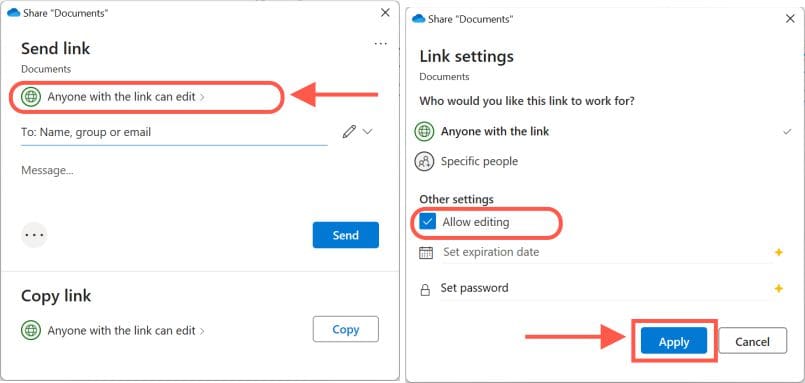
OneDrive

If you’re sending the link to someone else, enter their email address and click the Send button. Alternatively, you may copy the URL to the clipboard by selecting Copy Link.

File management

To close the interface, click the X icon in the upper-right corner. The shared file will have a person icon added to it status in the OneDrive folder which indicates that the file is been shared.

Version control

When you are done, the receiver will be sent a link to the shared files. If you copied the link, you could use it to share the files by any means you preferred. 

How to stop sharing files in OneDrive

To stop sharing a specific file saved in the cloud, follow these steps:

Navigate to the OneDrive folder. Right-click the shared file and choose Share.

File sharing

Click the three-dot button in the upper-right corner, then select “Manage access.”

OneDrive

Click the “Can edit” button for the email account you wish to restrict access to, then select “Stop sharing.”

Image6-1

Repeat procedures to delete more users. Other people will no longer be able to view the files once you have removed them.

Retrieve Past Versions in Microsoft Cloud Storage

Like the web version, the OneDrive integration with File Explorer provides “version history,” a feature that allows you to examine and recover prior files, including Office documents, photographs, videos, and nearly any other form of file, including folders.

Follow these procedures to see and restore a previous version of a file in OneDrive:

Navigate to the OneDrive folder. Right-click the shared file and choose Version History. If the file is currently open, close it before restoring a previous version.

Image7-1

Here you will see all the available versions of the file; click the three-dotted button of the version you want to restore and then click the “Restore” button.

Image8-1

If you are uncertain about the version to restore, you can download the file first to view its contents before restoring it.

I hope you found this blog post on how to share Files and Restore Previous versions of Files in Microsoft OneDrive helpful. If you have any questions, please let me know in the comment session.

Rate this post

Thank you for reading this post. Kindly share it with others.

  • Share on X (Opens in new window) X
  • Share on Reddit (Opens in new window) Reddit
  • Share on LinkedIn (Opens in new window) LinkedIn
  • Share on Facebook (Opens in new window) Facebook
  • Share on Pinterest (Opens in new window) Pinterest
  • Share on Tumblr (Opens in new window) Tumblr
  • Share on Telegram (Opens in new window) Telegram
  • Share on WhatsApp (Opens in new window) WhatsApp
  • Share on Mastodon (Opens in new window) Mastodon
  • Share on Bluesky (Opens in new window) Bluesky
  • Share on Threads (Opens in new window) Threads
  • Share on Nextdoor (Opens in new window) Nextdoor
Backup, Windows Tags:DISM, Microsoft OneDrive, Microsoft Windows, OneDrive, Windows 10, Windows 11

Post navigation

Previous Post: Microsoft OneDrive Setup: Files On-Demand & Key Features
Next Post: How to Disable or Uninstall OneDrive on Windows 10 and 11

Related Posts

  • screenshot 2020 03 14 at 10.13.38
    How to Hide the Action Center Taskbar Icon In Windows 10 Windows
  • PrintButton
    How to add Print Drivers with PowerShell, RUNDLL32, and VBScript in Windows 10 Windows
  • Security updated something did not go well as planned
    Something did not go well as planned: Windows Security update fails to install Windows
  • RSAT 678x381 1
    DNS manager console missing from RSAT tools on Windows 10 Windows
  • Featured image 1
    How to Disable Internet Explorer with Group Policy & Registry Windows
  • How To Put Multiple OS ISO Files In One Bootable USB Disk
    USB Drive: Create a Multiboot with Multiple OS ISOs Windows

More Related Articles

screenshot 2020 03 14 at 10.13.38 How to Hide the Action Center Taskbar Icon In Windows 10 Windows
PrintButton How to add Print Drivers with PowerShell, RUNDLL32, and VBScript in Windows 10 Windows
Security updated something did not go well as planned Something did not go well as planned: Windows Security update fails to install Windows
RSAT 678x381 1 DNS manager console missing from RSAT tools on Windows 10 Windows
Featured image 1 How to Disable Internet Explorer with Group Policy & Registry Windows
How To Put Multiple OS ISO Files In One Bootable USB Disk USB Drive: Create a Multiboot with Multiple OS ISOs Windows

Leave a Reply Cancel reply

You must be logged in to post a comment.

Microsoft MVP

VEEAMLEGEND

vexpert-badge-stars-5

Virtual Background

GoogleNews

Categories

veeaam100

Veeam Vanguard

  • Retieve BitLocker Recovery Keys from microsoft sql
    Get MBAM BitLocker Recovery Keys from Microsoft SQL Server Windows
  • configure kerberos
    Configure Kerberos Delegation in Windows Windows
  • NTUSER Files in Windows
    What Is the NTUSER.DAT File in Windows? Windows
  • Steps to upgrade VBR to v12.1
    How to upgrade Veeam Backup and Replication v11 to 12.1 Backup
  • macOS
    How to upgrade macOS Big Sur to macOS Monterey Mac
  • sdfgh 1
    How to fix “Unable to Sign In: Domain Not Available” Windows Server
  • VM failed to Start on Hyper V e1781126442904
    Fix an error occurred while attempting to start selected VM on Hyper-V Virtualization
  • kerberosdelegation
    Kerberos Delegation: A Comprehensive Guide Web Server

Subscribe to Blog via Email

Enter your email address to subscribe to this blog and receive notifications of new posts by email.

Join 1,762 other subscribers
  • RSS - Posts
  • RSS - Comments
  • About
  • Authors
  • Write for us
  • Advertise with us
  • General Terms and Conditions
  • Privacy policy
  • Feedly
  • Telegram
  • Youtube
  • Facebook
  • Instagram
  • LinkedIn
  • Tumblr
  • Pinterest
  • Twitter
  • mastodon

Tags

Active Directory Azure Bitlocker Microsoft Windows PowerShell WDS Windows 10 Windows 11 Windows Deployment Services Windows Server 2016

Copyright © 2026 TechDirectArchive

Loading Comments...

You must be logged in to post a comment.