How to Remove and Manage RDS Licenses


According to Microsoft documentation, when an unlicensed client connects for the first time to a terminal server, the terminal server issues a temporary Terminal Server Client Access License (CAL) token to the client. The Terminal Server instructs the License Server to mark the issued temporary Terminal Server CAL token as validated after the user logs into the session. If you’re interested in learning more about RDS, see the following guides: How to install RDS via Quick Start Deployment: Install, Publish, how to Update and Uninstall Remote Desktop Web Client, What to do when your Remote Desktop Licensing Manager Server Crashed, and Publish Remote Desktop Web Client: How to install HTML 5 Web Client for Microsoft RDS Server. In this article, you will learn how to How to Remove and Manage RDS Licenses with PowerShell.
The validated temporary Terminal Server CAL token is upgraded to a complete Terminal Server CAL token the next time the client connects. The temporary Terminal Server CAL token will continue to work for 90 days if no licensing tokens are available. The license is saved in the registry of the client. Kindly refer to this related guide: How to remove a Remote Desktop Service collection on Windows Server.
How to Remove and Manage RDS Licenses with PowerShell
I will briefly explain how to rebuild or delete Terminal Server licenses from a Remote Desktop Protocol (RDP) client and state some useful PowerShell Cmdlets that can be used to manage the RDS CAL package in this article with a practical demonstration. In Windows 10 or 11, the License can be found in the System Registry as shown below.
Note that in 32-bit RDP clients license are under the key HKEY_LOCAL_MACHINE\Software\Microsoft\MSLicensingHowever, if you edit the registry incorrectly, major issues may arise. As a result, make sure you carefully follow these instructions. Make a backup of the registry before making any changes. If an issue arises, you can restore the registry.
Backing System Registry
The prerequisite to RDS CAL removal etc is to back up the system Registry, open the Run dialog box, and type "regedit /v" and then press the Enter Key
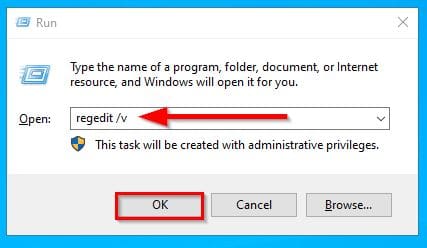
Right-click on “Computer” and select export to export the registry to a folder in your PC.

Before we continue, let’s quickly show you how to backup the system Registry.
Clean the RDP client’s license cache
For 16-bit RDP clients, run regedit /v. Then delete the keys under \Software\Microsoft\MSLicensing to clean the client’s license cache. You can also delete the BIN files from \Windows\System\Regdata.

The license is stored in a file on the local computer in the folder hierarchy under /users/Shared/Microsoft/RDC Crucial Server Information/ by the RDP client for Macintosh. Delete the contents of this folder to clear the Macintosh client’s license cache. When the client reconnects, it will attempt to obtain a new license from the server.
If you delete the HKEY LOCAL MACHINE\Software\Microsoft\MSLicensing subkey on a Windows Vista or later client, subsequent attempts to connect to a Terminal Server may fail. You also get the following error message:
An Error occurred in the Licensing ProtocolTo fix this, right-click the Remote Desktop Connection shortcut and choose Run as Administrator. The remote desktop connection is launched by default as a user with the lowest user permissions.
A restricted user does not have permission to write registry entries to HKEY_LOCAL_ MACHINE by default. Attempts to rewrite the MSLicensing key thus fail. Starting Remote Desktop Connection with administrative credentials grants the necessary permissions to write the required registry keys.
The above steps apply to local PC. Next, we will look at how to Rebuild or Remove RDS CALs from Windows RDS Server
How to Rebuild or Remove RDS CALs from Windows RDS Server
Why do we need to remove or delete the Remote Desktop License? The reason is that sometimes we need to add more users to the RDS CAL User type license, or we need to change the user type CAL to Device CAL, or the installed license has become corrupted. We can resolve such issues by rebuilding or deleting the current RDS License.
Such an issue could be like the one shown in the screenshot below:
To resolve the license issue, from the left corner of the server dashboard locate and click on Remote Desktop Services.

“Click on servers”

Manage Remote Desktop Licenses
After that, right-click on the server name and select “Manage Licenses” from the drop-down menu.

The welcome to manage licenses wizard displays
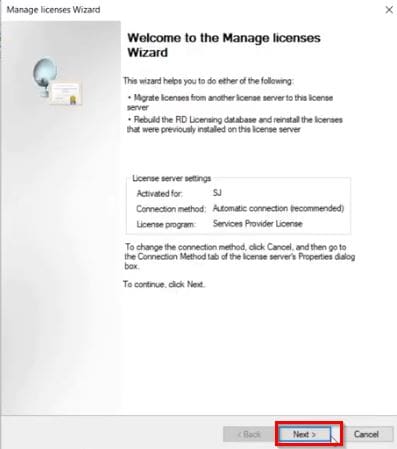
Now, click next to select the product version and license type and specify the quantity. Here, we select the RDS Per User CAL type

Rebuild the license in the next interface and select the reason for rebuilding it from the drop-down menu.

Next, is to choose a licensing program

Next, you have to confirm license deletion. Rebuilding the CAL license means the existing licenses that got corrupted will be deleted before rebuilding the new one.

The screenshot below shows that the rebuilding of the license is in progress.

After the license has finished rebuilding, we can now have a preview of the RD licenses installed

Managing RDS CAL with PowerShell
Alternatively, you can manage the RDS CAL License via PowerShell.
To do so, launch PowerShell as an Administrator. From the search menu, search for and right-click on PowerShell to open it as an Administrator.
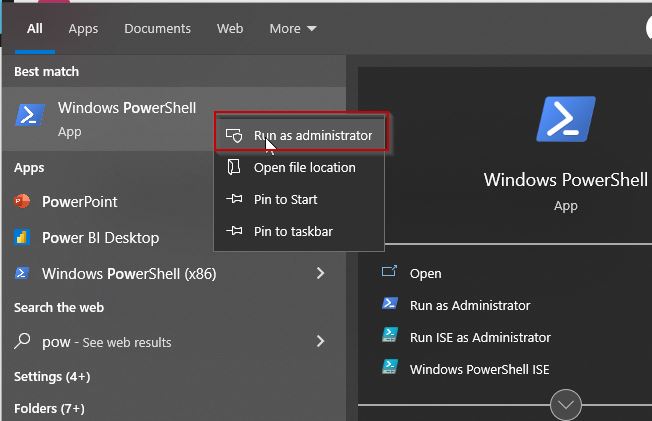
If you want to transfer your RDS CALs from one Remote Desktop Connection license server to another, you can remove the installed CAL license pack from the license server using PowerShell.
Using the following cmdlet, you can get the list of all the RDS CAL packages installed on the server:
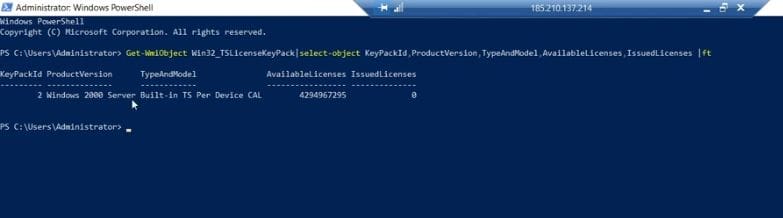
Execute the command below if you want to remove unused or corrupted Remote Desktop Licenses CALs from the RDS server:
wmic /namespace:\\root\CIMV2 PATH Win32_TSLicenseKeyPack CALL UninstallLicenseKeyPackWithId KeyPackID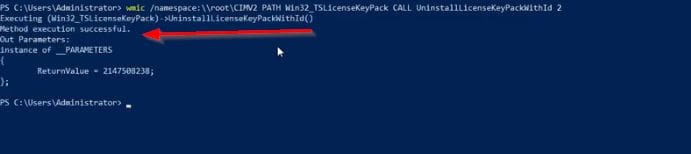
The second command above also helps you find the KeyPackId value for the RDS CAL package that you want to remove.
You can also completely remove all CALs by recreating the RDS license database. To do this, stop the Remote Desktop Services licensing service:
Stop-Service TermServLicensingAfter stopping or removing the CALS completely, rename the file:
C:\Windows\System32\lserver\TLSLic.edb to C:\Windows\System32\lserver\TLSLic.edb_old and start the service:Then finally, run the command below to start up the service:
Start-Service TermServLicensingI hope you found this blog post helpful on how to Remove and Manage RDS Licenses. If you have any questions, please let me know in the comment session.


