Skip to content

TechDirectArchive

Hands-on IT, Cloud, Security & DevOps Insights

  • Home
  • About
  • Advertise With US
  • Contact
  • Reviews
  • Toggle search form
Home » Windows » How to Create a Password Policy with Group Policy Object
  • Nakivo windows server backup
    How to perform Windows Server backup with Nakivo or Windows Server backup utility Windows Server
  • jmeterlogo 3
    Install and conduct performance testing using Apache JMeter on your Web App Configuration Management Tool
  • Featured image samp
    How to use Windows 11 PC Health Check App Windows
  • Screenshot 2024 02 09 at 1.06.54 PM
    Programmatically Deploying App Service Resources in Azure AWS/Azure/OpenShift
  • Remote desktop
    Is RDP enabled? Enable and disable Remote Desktop in Windows 10 for all users or selected users Windows
  • How to backup Azure VIM 3
    How to backup Azure VM with VM Settings AWS/Azure/OpenShift
  • img 5c0128ea77f3f
    Systeminfo switches: How to use Systeminfo command-line tool switches Windows
  • screenshot 2020 04 17 at 17.09.01
    How to configure a remote Windows Server to Support Ansible Windows Server

How to Create a Password Policy with Group Policy Object

Posted on 04/07/202204/04/2024 Imoh Etuk By Imoh Etuk No Comments on How to Create a Password Policy with Group Policy Object
Password Rules

With man-in-the-middle activities constantly on the rise worldwide, it’s more important than ever for businesses to have a firm password policy in place. In this guide, we will discuss “how to Create a Password Policy with Group Policy Object”. You can also read about Windows Active Directory Administrative tools Shortcut command Keys, and how to set Desktop Wallpaper, Prevent access to Registry Editing tools, enable Screen Saver Timeout, and Password Protect the Screensaver via Group Policy.

Note: Hackers frequently gain access to corporate networks by impersonating legitimate users or administrators, resulting in security incidents and compliance failures. We will look at how to create and maintain a solid and effective Active Directory password policy in this article via Group Policy. Before we move further, let’s briefly take a look at Group Policy and Group Policy Object (GPO).

First and foremost, what exactly is Group Policy? Group Policy is a Windows feature that enables a wide range of advanced settings that network administrators can use to control the working environment of Active Directory users and computer accounts. It essentially provides a centralized location for administrators to manage and configure the settings of operating systems, applications, and users.

When used correctly, Group Policies can help you increase the security of user computers and defend against both insider threats and external attacks. Let’ understand what Group Policy Object is:

A Group Policy Object (GPO) is a collection of settings created with the Group Policy Editor in the Microsoft Management Console (MMC). GPOs can be linked to single or multiple Active Directory containers, such as sites, domains, or organizational units (OUs). Users can use the MMC to create GPOs that define registry-based policies, security options, software installation, and other features.

Various Techniques Hackers can Use to Access Your Corporate Passwords

Hackers can gain access to your organization’s internal passwords through the following ways:

  1. Password spraying attack: Hackers enter a known username or other account identifier and attempt several common passwords to see which ones work.
  2. Credential stuffing attack: In some attempts, Automated tools are used by hackers to enter lists of credentials against various company login portals.
  3. Brute force attack: Hackers use programs to try out different password combinations until they find the right one.
  4. Spidering: Malicious users gather as much information as they can about a hacking target before attempting password combinations generated with that information.
  5. Dictionary attack: This is a type of brute force attack in which words from the dictionary are used as possible passwords.

You can also read about how to enable BitLocker without Compatible TPM: How to enable Bitlocker Pre-Boot authentication password via the Group Policy.

How to Create Active Directory Password Policy via GPO

Organizations require a strong Active Directory password policy to defend against the various attacks techniques stated above.

Password policies define various rules for password creation, such as minimum length, complexity details (such as whether a special character is required), and the length of time the password must be  used before it can be changed.

The Default Domain Policy is a Group Policy Object (GPO) that contains settings that apply to all domain objects. Admins can use the Group Policy Management Console to view and configure a domain password policy (GPMC). Expand the Domains folder, select the domain from which you want to access the policy, and then select Group Policy Objects.

To implement the password policy, take the following steps:

Step 1 – Navigate to the Default Domain Policy folder by searching for Administrative Tools from the search bar.

Password Guidelines
Searching for Admin Tools

Step 2 – Click on Group Policy Management from the list of items available

Click-on-GPO
Clicking on Group Management

Expand Account Policies

Step 3 – From the Group Policy Management Editor -> Domain Name->Default Domain Policy->Windows Setting->Security Settings->Account Policies

Configuration
Configuring Password Guidelines via GPO

Step 4 – Click on Password Policies and access various password policies as shown below:

Define-Various-Guidelines
Define various Password Guidelines

Here, we are going to define the policy for minimum password length. As we can see from the screenshot above, the default minimum password length is 7 characters.

To do so, double-click on the minimum password length and change the number to your desired character. Note: the maximum number for setting minimum password length can’t go beyond 14 characters.

Minimum-Password-length-set-to-14
Minimum Password Rules Length Set to 14 Characters

After applying it and pressing Ok, the minimum password length will be changed to 14 characters.

Minimum-Password-length-changed-to-14-1
Minimum character changed to 14

You can go ahead and define password policies for other options available to you based on your organizational requirements.

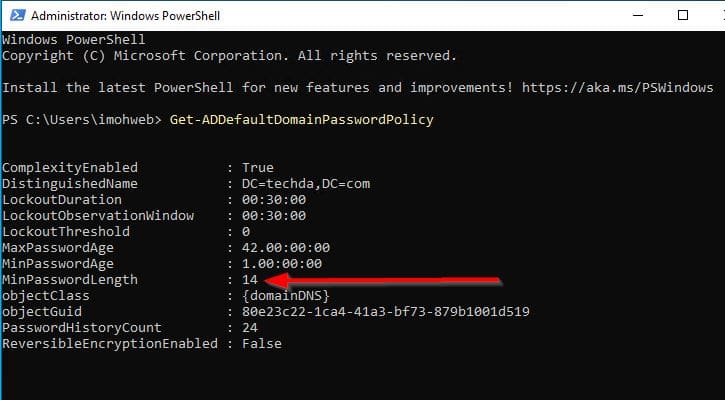
Lastly, you can access your domain password policy alternatively, by executing the following PowerShell command:

Get-ADDefaultDomainPasswordPolicy
Access-minimum-length-with-PowerShell
Accessing domain via PowerShell

I hope you found this blog post on how to Create a Password Policy with Group Policy Object helpful. Please let me know in the comment session if you have any questions.


Rate this post

Thank you for reading this post. Kindly share it with others.

  • Click to share on X (Opens in new window) X
  • Click to share on Reddit (Opens in new window) Reddit
  • Click to share on LinkedIn (Opens in new window) LinkedIn
  • Click to share on Facebook (Opens in new window) Facebook
  • Click to share on Pinterest (Opens in new window) Pinterest
  • Click to share on Tumblr (Opens in new window) Tumblr
  • Click to share on Telegram (Opens in new window) Telegram
  • Click to share on WhatsApp (Opens in new window) WhatsApp
  • Click to share on Pocket (Opens in new window) Pocket
  • Click to share on Mastodon (Opens in new window) Mastodon
  • Click to share on Bluesky (Opens in new window) Bluesky
  • Click to share on Threads (Opens in new window) Threads
  • Click to share on Nextdoor (Opens in new window) Nextdoor
Windows, Windows Server Tags:Active Directory, GPO, group policy, Microsoft Windows, Windows Server 2016

Post navigation

Previous Post: How to Offload Individual Apps on iPhone
Next Post: How to Reset Services Restore Mode (DSRM) Password

Related Posts

  • GoogleTimeError
    Google Chrome reports your clock is behind: How to fix clock synchronization issues in Windows Windows
  • DNS
    Domain Name System: How to create a DNS record Windows Server
  • image 43
    Configure GPS location “Google Map” on your Android Studio Emulator Windows
  • Screenshot 2020 05 16 at 15.33.24
    How to install Telnet via the command line Windows Server
  • windows 7 stuck at loading screen thumbnail
    Disable the Windows welcome screen and shutdown screen Windows
  • win10 usb
    How to prevent installation of removable devices Windows

More Related Articles

GoogleTimeError Google Chrome reports your clock is behind: How to fix clock synchronization issues in Windows Windows
DNS Domain Name System: How to create a DNS record Windows Server
image 43 Configure GPS location “Google Map” on your Android Studio Emulator Windows
Screenshot 2020 05 16 at 15.33.24 How to install Telnet via the command line Windows Server
windows 7 stuck at loading screen thumbnail Disable the Windows welcome screen and shutdown screen Windows
win10 usb How to prevent installation of removable devices Windows

Leave a Reply Cancel reply

You must be logged in to post a comment.

Microsoft MVP

VEEAMLEGEND

vexpert-badge-stars-5

Virtual Background

GoogleNews

Categories

veeaam100

sysadmin top30a

  • Nakivo windows server backup
    How to perform Windows Server backup with Nakivo or Windows Server backup utility Windows Server
  • jmeterlogo 3
    Install and conduct performance testing using Apache JMeter on your Web App Configuration Management Tool
  • Featured image samp
    How to use Windows 11 PC Health Check App Windows
  • Screenshot 2024 02 09 at 1.06.54 PM
    Programmatically Deploying App Service Resources in Azure AWS/Azure/OpenShift
  • Remote desktop
    Is RDP enabled? Enable and disable Remote Desktop in Windows 10 for all users or selected users Windows
  • How to backup Azure VIM 3
    How to backup Azure VM with VM Settings AWS/Azure/OpenShift
  • img 5c0128ea77f3f
    Systeminfo switches: How to use Systeminfo command-line tool switches Windows
  • screenshot 2020 04 17 at 17.09.01
    How to configure a remote Windows Server to Support Ansible Windows Server

Subscribe to Blog via Email

Enter your email address to subscribe to this blog and receive notifications of new posts by email.

Join 1,839 other subscribers
  • RSS - Posts
  • RSS - Comments
  • About
  • Authors
  • Write for us
  • Advertise with us
  • General Terms and Conditions
  • Privacy policy
  • Feedly
  • Telegram
  • Youtube
  • Facebook
  • Instagram
  • LinkedIn
  • Tumblr
  • Pinterest
  • Twitter
  • mastodon

Tags

AWS Azure Bitlocker Microsoft Windows PowerShell WDS Windows 10 Windows 11 Windows Deployment Services Windows Server 2016

Copyright © 2025 TechDirectArchive


Loading Comments...
 

You must be logged in to post a comment.