Skip to content

TechDirectArchive

Hands-on IT, Cloud, Security & DevOps Insights

  • Home
  • About
  • Advertise With US
  • Contact
  • Reviews
  • Toggle search form
Home » Security | Vulnerability Scans and Assessment » Tamper Protection for Microsoft Defender on Windows 10 [Part 1]
  • Interactive logon Message for Users
    Display interactive logon messages for Windows PCs via GPO Windows
  • hero activedirectory
    Create and find Organisation Unit paths in AD Scripts
  • images 1
    How to Monitor Windows Hosts via Nagios Network | Monitoring
  • unnamed
    Upgrade ManageEngine Password Manager Pro Password Manager
  • Featured image 2
    Find and remove Malware with Microsoft Defender Offline Anti-Virus Solution
  • Screenshot 2021 03 29 at 01.56.17
    How to prevent VLC player from reverting to the native video size on Mac Mac
  • Angular Azure
    How to deploy your Angular App to Azure from Visual Studio Code AWS/Azure/OpenShift
  • powershell logo
    Cannot find the computer: Fix the following error occurred while using Kerberos authentication Scripts

Tamper Protection for Microsoft Defender on Windows 10 [Part 1]

Posted on 04/07/202211/12/2023 Matthew By Matthew No Comments on Tamper Protection for Microsoft Defender on Windows 10 [Part 1]
Featured-image

When hackers or bad actors attack, they attempt to disable security measures on your systems, such as antivirus protection. Bad actors like to disable your security measures to gain easy access to your data, install malware, or otherwise abuse your data, identity, and devices. In this article, you will learn how to Tamper Protection for Microsoft Defender on Windows 10 [Part 1]. Please see New Windows 11 encryption features and security enhancements will help protect hybrid work, and Files On-Demand with OneDrive: Microsoft OneDrive Setup On Windows 10 and 11 and Key Features Explained.

Tamper protection helps in the prevention of such incidents. According to Microsoft, tamper protection blocks malicious programs from doing acts such as Disabling virus and threat protection, disabling real-time protection, turning off behaviour monitoring, disabling antivirus protection, such as IOfficeAntivirus (IOAV), disabling cloud-delivered protection, removing security intelligence updates, disabling automatic actions on detected threats, and suppressing notifications in the Windows Security app.

Here are other related guides: Microsoft Endpoint Manager: How to manage safety system with Group Policy and Microsoft threats safety via the Command Line Utility, Smart App Control and how to enable Phishing safety: Windows 11 New safety Features,

How Windows Tamper Protection Works

Tamper protection locks Microsoft Defender Antivirus to safe settings, preventing modification by programs or techniques like:

  • Using Registry Editor to alter settings on your Windows device
  • Modifying settings with PowerShell cmdlets
  • Changing or deleting security settings using Group Policy

You may still see your security settings despite tamper protection. Furthermore, tampering prevention has no effect on how non-Microsoft antivirus software register with the Windows Security app.

Individual users cannot modify the tamper protection setting if your business is running Windows 10 Enterprise E5; in those circumstances, tamper protection is controlled by your security team.

Ways to enable tamper protection in windows

There may be a reliance on cloud-delivered protection based on the method or management tool you select to provide tamper prevention. Cloud security is cloud protection or Microsoft Advanced Protection Service (MAPS).

The table below contains information on the techniques, tools, and dependencies.

How tamper protection is enabledDependency on cloud protection
Microsoft IntuneNo
Microsoft Endpoint Configuration Manager with Tenant AttachNo
Microsoft 365 Defender portal (https://security.microsoft.com)Yes

How to enable tamper protection on an individual device

If you are using a personal system that is not subject to settings managed by an organization’s security team, you can manage tamper protection using the Windows Security app. To update security settings such as tamper protection, you must have proper admin permissions on your device.

Press the Windows key to open Start menu, then type Windows Security and select the result that best match your search.

Security

You may be prompted to enable Tamper Protection. To enable it, simply click “Turn On.” If not, click the “Virus & threat protection” icon.

Antivirus

Click the “Manage Settings” link under Virus & threat protection settings.

Windows Defender

Locate the Tamper Protection option and toggle it from “Off” to “On.”

Malware Protection

How to Turn on Tamper Protection in Registry

The registry can also be used to enable this setting. It can be found under the following key:

HKEY_LOCAL_MACHINE\SOFTWARE\Microsoft\Windows Defender\Features
Security

Double-click on TamperProtection and set its value data to 0 or 1 to enable or disable it.

How to turn it on (or off) in the Microsoft 365 Defender portal

1: Go to the Microsoft 365 Defender portal (https://security.microsoft.com) and sign in.
2: Choose Settings > Endpoints.
3: Go to General > Advanced features, and then turn tamper protection on.
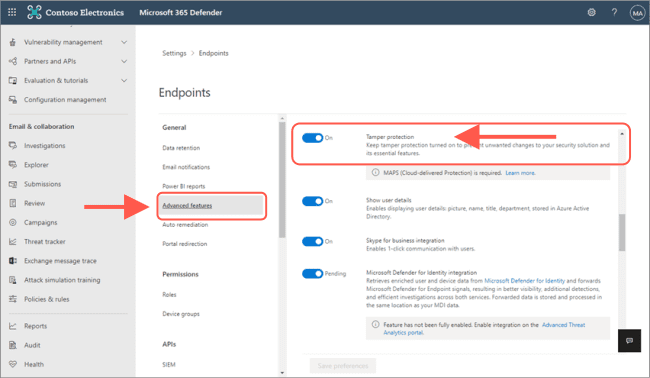
image3

How to turn it on (or off) in Microsoft Endpoint Manager

The Microsoft 365 Defender Portal allows users to update this setting globally. This has an impact on all devices linked with that tenant.

On the client, the relevant option in the Settings app is grayed out, preventing local administrators from changing it.

  1. Navigate to Endpoint security > Antivirus in the Microsoft Endpoint Manager admin center, and then select Create Policy.
    • Select Windows 10 and later from the Platform list.
    • Select Windows Security experience from the Profile list.
  2. Create a profile that includes the following settings: To prevent Microsoft Defender being disabled, enable Windows 10 Safety Enhancer: Enable
img6-1
  1. Assign the profile to one or more groups.

If you don’t want to toggle Windows Windows 10 Safety Enhancer on and off globally, you can utilize Intune or Configuration Manager 2006 with tenant attach. Specific devices can thus be addressed in a targeted manner.

I hope you found this article useful on Tamper Protection for Microsoft Defender on Windows 10 [Part 1]. Please feel free to leave a comment below.

Rate this post

Thank you for reading this post. Kindly share it with others.

  • Click to share on X (Opens in new window) X
  • Click to share on Reddit (Opens in new window) Reddit
  • Click to share on LinkedIn (Opens in new window) LinkedIn
  • Click to share on Facebook (Opens in new window) Facebook
  • Click to share on Pinterest (Opens in new window) Pinterest
  • Click to share on Tumblr (Opens in new window) Tumblr
  • Click to share on Telegram (Opens in new window) Telegram
  • Click to share on WhatsApp (Opens in new window) WhatsApp
  • Click to share on Pocket (Opens in new window) Pocket
  • Click to share on Mastodon (Opens in new window) Mastodon
  • Click to share on Bluesky (Opens in new window) Bluesky
  • Click to share on Threads (Opens in new window) Threads
  • Click to share on Nextdoor (Opens in new window) Nextdoor
Security | Vulnerability Scans and Assessment Tags:Defender, Microsoft Defender Antivirus, Microsoft Windows, MicrosoftDefender, office365, RegistryEditor, Windows 10, Windows 11, Windows Defender, Windows Defender Antivirus, Windows Server 2016

Post navigation

Previous Post: How to Reset Services Restore Mode (DSRM) Password
Next Post: Install AnyDesk on Windows for remote Connections

Related Posts

  • rrd
    How to uninstall the DriveLock Agent from your device Security | Vulnerability Scans and Assessment
  • Featured Image Windows Security
    How to protect your Windows PC from potentially unwanted applications Security | Vulnerability Scans and Assessment
  • 1 8y62mmvjlr 5uovgoq6zmq
    How to download and install DriveLock on Windows Security | Vulnerability Scans and Assessment
  • PetitPotam
    PetitPotam attack on Active Directory Certificate Services: How to mitigate NTLM Relay PetitPotam attack on AD CS Security | Vulnerability Scans and Assessment
  • PrintNightMare
    Mitigating ‘PrintNightmare’ Vulnerability: Print Spooler Solutions Security | Vulnerability Scans and Assessment
  • Uninstall MicrosoftDefenderUpdate
    What you need to know about Microsoft Defender Antivirus Security | Vulnerability Scans and Assessment

More Related Articles

rrd How to uninstall the DriveLock Agent from your device Security | Vulnerability Scans and Assessment
Featured Image Windows Security How to protect your Windows PC from potentially unwanted applications Security | Vulnerability Scans and Assessment
1 8y62mmvjlr 5uovgoq6zmq How to download and install DriveLock on Windows Security | Vulnerability Scans and Assessment
PetitPotam PetitPotam attack on Active Directory Certificate Services: How to mitigate NTLM Relay PetitPotam attack on AD CS Security | Vulnerability Scans and Assessment
PrintNightMare Mitigating ‘PrintNightmare’ Vulnerability: Print Spooler Solutions Security | Vulnerability Scans and Assessment
Uninstall MicrosoftDefenderUpdate What you need to know about Microsoft Defender Antivirus Security | Vulnerability Scans and Assessment

Leave a Reply Cancel reply

You must be logged in to post a comment.

Microsoft MVP

VEEAMLEGEND

vexpert-badge-stars-5

Virtual Background

GoogleNews

Categories

veeaam100

sysadmin top30a
 
  • Interactive logon Message for Users
    Display interactive logon messages for Windows PCs via GPO Windows
  • hero activedirectory
    Create and find Organisation Unit paths in AD Scripts
  • images 1
    How to Monitor Windows Hosts via Nagios Network | Monitoring
  • unnamed
    Upgrade ManageEngine Password Manager Pro Password Manager
  • Featured image 2
    Find and remove Malware with Microsoft Defender Offline Anti-Virus Solution
  • Screenshot 2021 03 29 at 01.56.17
    How to prevent VLC player from reverting to the native video size on Mac Mac
  • Angular Azure
    How to deploy your Angular App to Azure from Visual Studio Code AWS/Azure/OpenShift
  • powershell logo
    Cannot find the computer: Fix the following error occurred while using Kerberos authentication Scripts

Subscribe to Blog via Email

Enter your email address to subscribe to this blog and receive notifications of new posts by email.

Join 1,841 other subscribers
  • RSS - Posts
  • RSS - Comments
  • About
  • Authors
  • Write for us
  • Advertise with us
  • General Terms and Conditions
  • Privacy policy
  • Feedly
  • Telegram
  • Youtube
  • Facebook
  • Instagram
  • LinkedIn
  • Tumblr
  • Pinterest
  • Twitter
  • mastodon

Tags

AWS Azure Bitlocker Microsoft Windows PowerShell WDS Windows 10 Windows 11 Windows Deployment Services Windows Server 2016

Copyright © 2025 TechDirectArchive


Loading Comments...
 

You must be logged in to post a comment.