Skip to content

TechDirectArchive

Hands-on IT, Cloud, Security & DevOps Insights

  • Home
  • About
  • Advertise With US
  • Reviews
  • Contact
  • Toggle search form
Home » Windows » Prevent your PC from sending Diagnostics Feedback off via Windows Settings and Group Policy
  • DUE Deligence vs Due Care
    Relating Due Diligence and Due Care to Veeam Backup and Replication Backup
  • Create Multiboot OS ISO files on a single bootable USB Disk
    Create Multiboot OS ISO files on a single bootable USB Disk Windows
  • Featured image 9
    Create and Delete Registry Keys via PowerShell in Windows Scripts
  • update Docker desktop
    How to manually update Docker desktop Containers
  • mssql ubuntu install feature image
    How to reset MSSQL Server SA Password on Ubuntu Oracle/MSSQL/MySQL
  • oauth2final
    How to implement Interactive Authentication using MSAL dotNET AWS/Azure/OpenShift
  • Enable or Disable Mac asking for Password
    Enable or Disable Mac asking for Password after Sleep or Screen Saver Mac
  • exchange 2016 1
    Workaround for a zero-day vulnerability on Microsoft Exchange Server Network | Monitoring

Prevent your PC from sending Diagnostics Feedback off via Windows Settings and Group Policy

Posted on 01/09/202215/12/2023 Matthew By Matthew No Comments on Prevent your PC from sending Diagnostics Feedback off via Windows Settings and Group Policy
Featured-image_Microsoft-diagnostic-feedback-disabled
Microsoft Diagnostic & Feedback

In this article, we shall discuss how to prevent your PC from sending Diagnostics Feedback off via Windows Settings and Group Policy. Gathering insights into your system usage, program activity, and visited sites, Microsoft employs its Diagnostics & feedback mechanism. This system also acquires usage data for Windows 11. Please see How to run Windows Memory Diagnostics Tool on Windows, and how to use the voice input instead of typing on Windows.

The Microsoft Diagnostic and Feedback System is an automated process that collects data from a remote source (your computer) and sends it back to Microsoft. The company uses the obtained data to monitor and enhance the operating system. Furthermore, Microsoft uses the data to improve security and the overall user experience.

While transmitting usage statistics to Microsoft sounds excellent, it opens the door for sharing anonymized data with third parties. If you are worried about Windows automatically transmitting feedback and other diagnostic data to Microsoft, follow the instructions below to disable it.

For more on Windows Diagnostics & feedback and how they can be beneficial to you, see the following guides: How to Enable and Use Diagnostic Data Viewer in Windows, How to restrict additional Microsoft Support Diagnostic Tool download, and How to Delete Diagnostic Data in Windows 10 and Windows 11.

Disable Diagnostics & feedback Collection via Settings on Windows 11

You can disable the amount of Diagnostics & feedback data collection by Windows 11 via the Settings menu by following the steps below.

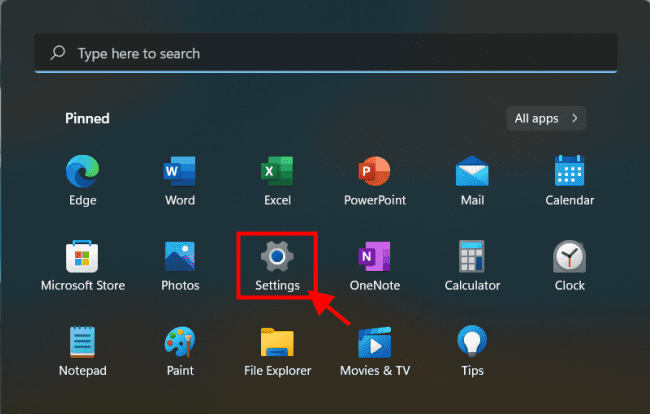
Open the Start menu and select Settings.
Diagnostic Data & Input
Launch Settings in Start menu

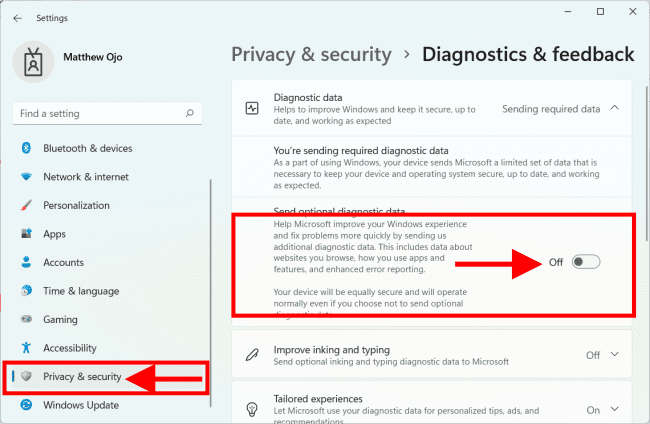
Next, select Privacy & security. On the right pane scroll down and select Diagnostics & feedback under Windows permission.

System Analysis & Response
Privacy and Security

Expand Diagnostics & feedback data and turn Off the Send optional diagnostic data option.
Performance Evaluation & Input
Turn Off Send optional diagnostic data

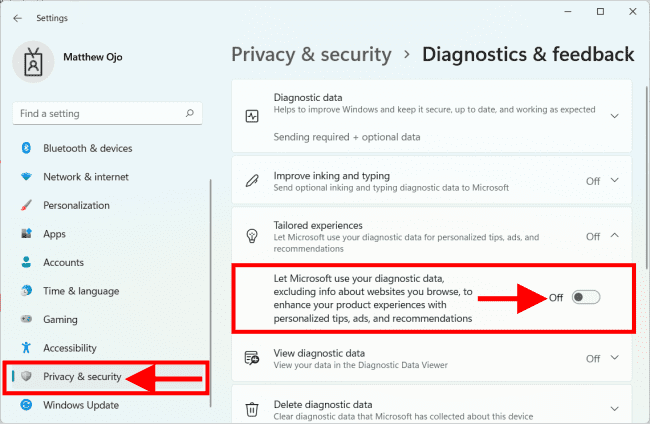
Disabling Diagnostics and feedback minimizes Microsoft’s data gathering, but it does not stop everything. Scroll to the bottom of the list, open the Tailored experiences section, and turn it Off.
System Health Assessment & Input
Turn Off Tailored experiences

It’s also worth noting that if you’re a member of the Windows Insider Program, you’ll no longer receive updates unless you reactivate it. Being a member of the Insider program entails sending diagnostic data to Microsoft.

See this detailed guide on how to protect your system against Windows Diagnostic vulnerabilities: Workaround for Microsoft Support Diagnostic Tool Vulnerability.

How to Disable Diagnostics & feedback Collection via Group Policy

If you’re running Windows 11 Pro or higher, you can disable diagnostic data collection by using Group Policy.

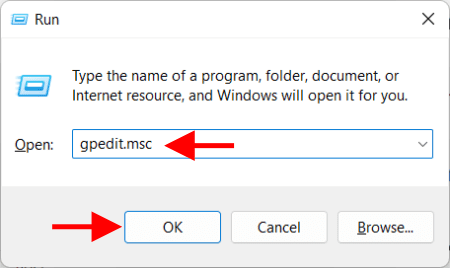
To open the Run dialog, press Windows key + R on your keyboard. Enter gpedit.msc and press OK.
Diagnostic Data & Input
Opening the Group Policy Editor

When the Group Policy Editor window opens, go to the following path: 

Computer Configuration > Administrative Templates > Windows Components > Data Collection and Preview Builds

Double-click Allow Diagnostic Data to open it.
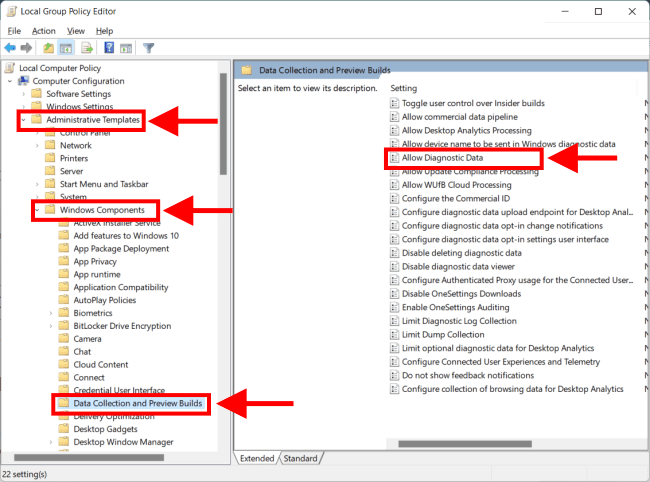
System Analysis & Response
Opening Allow Diagnostic Data in Group policy

Set the policy to Disabled and click OK, then close the Group Policy Editor.
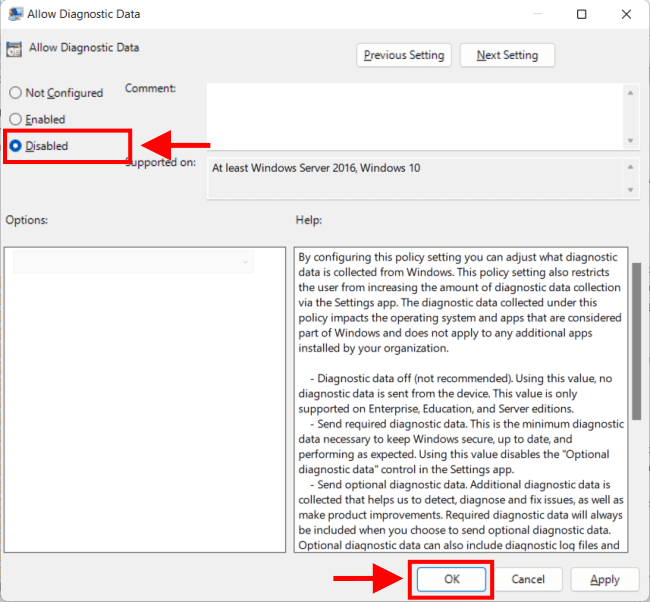
Performance Evaluation & Input
Setting allow diagnostic data to disabled

See Performance and Diagnostics in Microsoft Cloud with Azure Monitor, and how to import your Chrome or Firefox passwords into your iCloud Keychain.

How to Disable Other Diagnostics & feedback Data on Windows 11

Windows 11 captures more than just usage statistics. In Windows 11, for example, you might want to disable a few extra Diagnostics & feedback data gathering.

Go to Settings > Privacy & security > General.  Toggle Off all four top settings. Deactivating these settings disable personalized adverts, website tracking, Windows and search tracking, and suggested content.
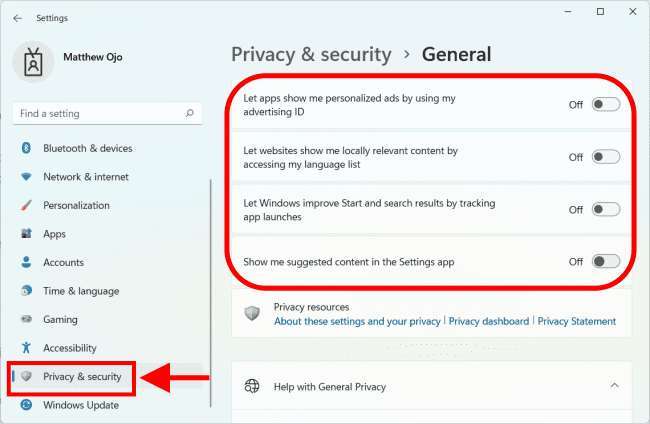
Picture8
Privacy & security settings

Go to Start > Settings and select Privacy & security. In the Windows permissions section, choose Speech and deactivate Online speech recognition.

Picture9
Turn off online speech recognition

Next, in the Privacy & security area, turn off Inking & typing personalization.
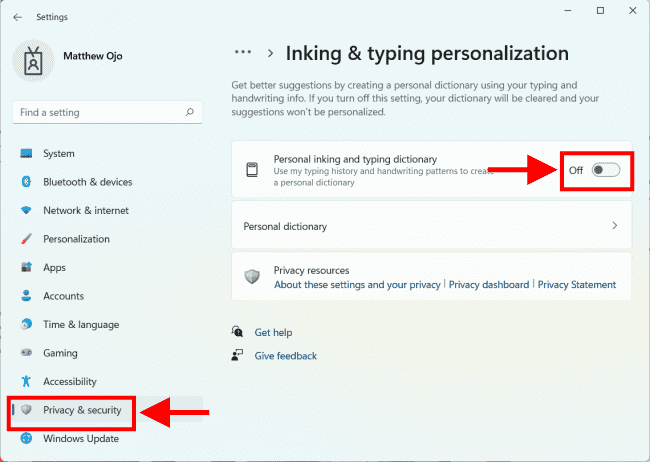
Picture10
Turn off ink & typing personalization

Finally, select Activity History and click the Clear history button to clear your data, and then toggle it Off.

Picture11-1
Clear activity history

Conclusion

You may limit or prevent Diagnostics & feedback data gathering on Windows 11 by following the abovementioned methods.

The input data submitted to Microsoft is anonymous, and the company uses it to enhance Windows. However, if you are concerned about the amount of data transmitted by Windows 11, you can disable it. 

I hope you found this article useful on how to Prevent your PC from sending Diagnostics Feedback off via Windows Settings and Group Policy. Please feel free to leave a comment below.

Rate this post

Thank you for reading this post. Kindly share it with others.

  • Share on X (Opens in new window) X
  • Share on Reddit (Opens in new window) Reddit
  • Share on LinkedIn (Opens in new window) LinkedIn
  • Share on Facebook (Opens in new window) Facebook
  • Share on Pinterest (Opens in new window) Pinterest
  • Share on Tumblr (Opens in new window) Tumblr
  • Share on Telegram (Opens in new window) Telegram
  • Share on WhatsApp (Opens in new window) WhatsApp
  • Share on Pocket (Opens in new window) Pocket
  • Share on Mastodon (Opens in new window) Mastodon
  • Share on Bluesky (Opens in new window) Bluesky
  • Share on Threads (Opens in new window) Threads
  • Share on Nextdoor (Opens in new window) Nextdoor
Windows Tags:group policy, Grouppolicy, Microsoft Windows, Windows 10, Windows 11, Windows Settings

Post navigation

Previous Post: How to restrict additional Microsoft Support Diagnostic Tool Downloads on Windows
Next Post: How to enable or disable Windows Defender Antivirus Scanning periodically on Windows via Windows Settings

Related Posts

  • Azure Backup 1
    How to Install Azure Backup Agent AWS/Azure/OpenShift
  • banner 2
    How to Configure NIC Teaming on Windows Server Network | Monitoring
  • google chrome logo 2
    Set Google as default: How to set a browser as default in Windows 10 Windows
  • Featured image Chrome notification
    How to Disable Chrome Browser Notifications on Windows Windows
  • Performancewin10
    How Performance Monitor works in Windows 10 Windows
  • Windows Logo
    Restrict IP Address Range on Windows PC Windows

More Related Articles

Azure Backup 1 How to Install Azure Backup Agent AWS/Azure/OpenShift
banner 2 How to Configure NIC Teaming on Windows Server Network | Monitoring
google chrome logo 2 Set Google as default: How to set a browser as default in Windows 10 Windows
Featured image Chrome notification How to Disable Chrome Browser Notifications on Windows Windows
Performancewin10 How Performance Monitor works in Windows 10 Windows
Windows Logo Restrict IP Address Range on Windows PC Windows

Leave a Reply Cancel reply

You must be logged in to post a comment.

Microsoft MVP

VEEAMLEGEND

vexpert-badge-stars-5

Virtual Background

GoogleNews

Categories

veeaam100

sysadmin top30a

  • DUE Deligence vs Due Care
    Relating Due Diligence and Due Care to Veeam Backup and Replication Backup
  • Create Multiboot OS ISO files on a single bootable USB Disk
    Create Multiboot OS ISO files on a single bootable USB Disk Windows
  • Featured image 9
    Create and Delete Registry Keys via PowerShell in Windows Scripts
  • update Docker desktop
    How to manually update Docker desktop Containers
  • mssql ubuntu install feature image
    How to reset MSSQL Server SA Password on Ubuntu Oracle/MSSQL/MySQL
  • oauth2final
    How to implement Interactive Authentication using MSAL dotNET AWS/Azure/OpenShift
  • Enable or Disable Mac asking for Password
    Enable or Disable Mac asking for Password after Sleep or Screen Saver Mac
  • exchange 2016 1
    Workaround for a zero-day vulnerability on Microsoft Exchange Server Network | Monitoring

Subscribe to Blog via Email

Enter your email address to subscribe to this blog and receive notifications of new posts by email.

Join 1,831 other subscribers
  • RSS - Posts
  • RSS - Comments
  • About
  • Authors
  • Write for us
  • Advertise with us
  • General Terms and Conditions
  • Privacy policy
  • Feedly
  • Telegram
  • Youtube
  • Facebook
  • Instagram
  • LinkedIn
  • Tumblr
  • Pinterest
  • Twitter
  • mastodon

Tags

Active Directory AWS Azure Bitlocker Microsoft Windows PowerShell WDS Windows 10 Windows 11 Windows Server 2016

Copyright © 2025 TechDirectArchive


Loading Comments...
 

You must be logged in to post a comment.