Skip to content

TechDirectArchive

Hands-on IT, Cloud, Security & DevOps Insights

  • Home
  • About
  • Advertise With US
  • Reviews
  • Contact
  • Toggle search form
Home » Linux » How to Install and Uninstall Yarn on Ubuntu Linux
  • mdtxxxxx
    Failed to run the action install Operating System: Lifetouch deployment failed, Return Code = -2147467259 0x80004005 when installing Windows image via MDT Windows
  • LINUX CONTAINERS
    How to install LXC/LXD for container management Linux
  • updates
    Out-of-Band Security Update for PrintNightmare: Patch released for Windows Print Spooler Remote Code Execution Vulnerability Security | Vulnerability Scans and Assessment
  • Screenshot 1
    Migrating SAP HANA Plugin to Veeam Backup
  • allthings.how how to download and install winget windows package manager windows 10 winget cli
    How to install Winget CLI on Windows Windows Server
  • images 3 4
    Fix an appropriate resource file could not be found for the file for BitLocker Management Windows Server
  • 0227 15
    How to set Execution Policy via Windows PowerShell Windows Server
  • banner
    How to Back Up and Restore the Windows Registry Windows

How to Install and Uninstall Yarn on Ubuntu Linux

Posted on 28/09/202228/06/2023 Raphael Gab-Momoh By Raphael Gab-Momoh 1 Comment on How to Install and Uninstall Yarn on Ubuntu Linux
yarn feature Image

Yarn is the acronym for Yet Another Resource Neggotiator. It is the Hadoop stack’s coordinating element. It schedules the execution of jobs and coordinates and manages the underlying resources. This article is focused on how to Install and Uninstall Yarn on Ubuntu Linux 22.04. Other useful materials:How to install WireShark on a Linux Ubuntu System, how to Install PlayonLinux on a Linux System, how to install Windows Server 2022 on VirtualBox, how to install Redis on a Linux System, how to install Unison on a Linux System and how To Install Nextcloud on a Linux system. The steps to install Yarn are as follows

Step1: Update System Repos

Use the command below to update system repositories

apt update 
aptr
package index

Step2: Install Curl if you do not already have it

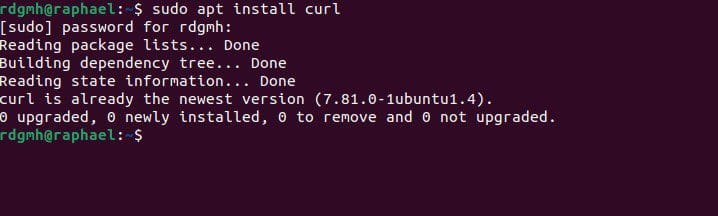
We shall be needing curl for the next step so it’s important to install it and we can do so with the command:

sudo apt install curl
apt-curl
curl installed

Step 3: Import Yarn GPG Keys

Run the following command to import the Yarn GPG key to Ubuntu system repositories:

curl -sL https://dl.yarnpkg.com/debian/pubkey.gpg | sudo apt-key add -
gpg
gpg

Step 4: enable yarn Repo

Run the following command to enable the Yarn repository on Ubuntu 22.04 system:

echo "deb https://dl.yarnpkg.com/debian/ stable main" | sudo tee /etc/apt/sources.list.d/yarn.list
enable
enable yarn repo

Step5: Install Yarn

Run the following command to install Yarn :

sudo apt install yarn
aiy

Step 6: Verify your Installation. To do this, run the following command to check if the yarn is really installed and also check the installed version on your Ubuntu 22.04 system using the command:

yarn --version
YARN-V
yarn version

As we can see we have successfully installed yarn on our Ubuntu machine. Be on the lookout for future articles and updates and how to practically use Hadoop for data processing.

How to Uninstall Yarn

If you do not want yarn anymore on your machine, run the command below to remove it

 sudo apt remove--autoremove yarn
autore
remove yarn

You are probably here because you are seeking alternative ways of installing yarn other than NPM. Guess you’ve learned how to install and uninstall Yarn on a Linux system. The steps listed above can help you get up and running with Yarn on your Linux server.

I hope you found this blog post helpful on how to Install and Uninstall Yarn on Ubuntu Linux. Please let me know in the comment section if you have any questions.

Rate this post

Thank you for reading this post. Kindly share it with others.

  • Click to share on X (Opens in new window) X
  • Click to share on Reddit (Opens in new window) Reddit
  • Click to share on LinkedIn (Opens in new window) LinkedIn
  • Click to share on Facebook (Opens in new window) Facebook
  • Click to share on Pinterest (Opens in new window) Pinterest
  • Click to share on Tumblr (Opens in new window) Tumblr
  • Click to share on Telegram (Opens in new window) Telegram
  • Click to share on WhatsApp (Opens in new window) WhatsApp
  • Click to share on Pocket (Opens in new window) Pocket
  • Click to share on Mastodon (Opens in new window) Mastodon
  • Click to share on Bluesky (Opens in new window) Bluesky
  • Click to share on Threads (Opens in new window) Threads
  • Click to share on Nextdoor (Opens in new window) Nextdoor
Linux

Post navigation

Previous Post: How to install WireShark on a Linux Ubuntu System
Next Post: Deploy Code from GitHub to Azure Apps Services via the Command line

Related Posts

  • PRIVATE DOCKER REGISTRY
    How to Set up Private Docker Registry Containers
  • chamedk8s featured
    Install CNF Certified Kubernetes in AWS AWS/Azure/OpenShift
  • image 129
    How to deploy Ansible AWX on centos 8 Linux
  • linux tux minimalism 4k 42 2560x1700 1 1
    Warning useradd: the home directory already exists. Not copying any file from skel director into it Linux
  • images copy
    How to clean packages lying around in Linux Linux
  • APACHECASS FEATURE
    How to Install and Configure Apache Cassandra on Linux Server Linux

More Related Articles

PRIVATE DOCKER REGISTRY How to Set up Private Docker Registry Containers
chamedk8s featured Install CNF Certified Kubernetes in AWS AWS/Azure/OpenShift
image 129 How to deploy Ansible AWX on centos 8 Linux
linux tux minimalism 4k 42 2560x1700 1 1 Warning useradd: the home directory already exists. Not copying any file from skel director into it Linux
images copy How to clean packages lying around in Linux Linux
APACHECASS FEATURE How to Install and Configure Apache Cassandra on Linux Server Linux

Comment (1) on “How to Install and Uninstall Yarn on Ubuntu Linux”

  1. Avatar photo Anon says:
    07/02/2023 at 1:01 PM

    Invalid operation remove–autoremove

    Log in to Reply

Leave a Reply Cancel reply

You must be logged in to post a comment.

Microsoft MVP

VEEAMLEGEND

vexpert-badge-stars-5

Virtual Background

GoogleNews

Categories

veeaam100

sysadmin top30a
 
  • mdtxxxxx
    Failed to run the action install Operating System: Lifetouch deployment failed, Return Code = -2147467259 0x80004005 when installing Windows image via MDT Windows
  • LINUX CONTAINERS
    How to install LXC/LXD for container management Linux
  • updates
    Out-of-Band Security Update for PrintNightmare: Patch released for Windows Print Spooler Remote Code Execution Vulnerability Security | Vulnerability Scans and Assessment
  • Screenshot 1
    Migrating SAP HANA Plugin to Veeam Backup
  • allthings.how how to download and install winget windows package manager windows 10 winget cli
    How to install Winget CLI on Windows Windows Server
  • images 3 4
    Fix an appropriate resource file could not be found for the file for BitLocker Management Windows Server
  • 0227 15
    How to set Execution Policy via Windows PowerShell Windows Server
  • banner
    How to Back Up and Restore the Windows Registry Windows

Subscribe to Blog via Email

Enter your email address to subscribe to this blog and receive notifications of new posts by email.

Join 1,840 other subscribers
  • RSS - Posts
  • RSS - Comments
  • About
  • Authors
  • Write for us
  • Advertise with us
  • General Terms and Conditions
  • Privacy policy
  • Feedly
  • Telegram
  • Youtube
  • Facebook
  • Instagram
  • LinkedIn
  • Tumblr
  • Pinterest
  • Twitter
  • mastodon

Tags

AWS Azure Bitlocker Microsoft Windows PowerShell WDS Windows 10 Windows 11 Windows Deployment Services Windows Server 2016

Copyright © 2025 TechDirectArchive


Loading Comments...
 

You must be logged in to post a comment.