Skip to content

TechDirectArchive

Hands-on IT, Cloud, Security & DevOps Insights

  • Home
  • About
  • Advertise With US
  • Reviews
  • Contact
  • Toggle search form
Home » AWS/Azure/OpenShift » Create, list, lock, deploy, and delete Azure Resource Group via Azure CLI

Create, list, lock, deploy, and delete Azure Resource Group via Azure CLI

Posted on 06/11/202104/05/2024 Dickson Victor By Dickson Victor No Comments on Create, list, lock, deploy, and delete Azure Resource Group via Azure CLI
Webp.net-resizeimage-4

Azure Resource Manager is the deployment and management service for Azure. It provides a management layer that enables you to create, update, and delete resources in your Azure account. You use management features, like access control, locks, and tags, to secure and organize your resources after deployment. This guide discusses how to create, list, lock, deploy, and delete Azure Resource Group via Azure CLI. Also here are some of my related guides: How to manage azure resource manager resource groups by using Azure CLI, how to configure azure resources with tools, and how to install and configure Ansible on Ubuntu.

In this article, you will learn the following listed below. Please see How to disable Lock Screen on Windows 10, how to disable Lock Screen on Windows 10, and How to solve VMware workstation .lck error.

  • What is a resource group?
  • Create resource groups using CLI.
  • List resource groups using CLI.
  • Lock resource groups CLI.
  • Deploy resources CLI.
  • Delete resource groups CLI.

What is a resource group?

A resource group is a container that holds related resources for an Azure solution. The resource group can include all the resources for the solution or only those resources that you want to manage as a group.

Here are some exciting articles: how to install Ansible on Windows with Cygwin, how to automate infrastructure deployments in the cloud with ansible and azure pipelines, how to install Kerberos packages in Windows via Cygwin, how to configure a remote server (windows) to Support Ansible, and how to deploy Azure VMware solution private cloud.

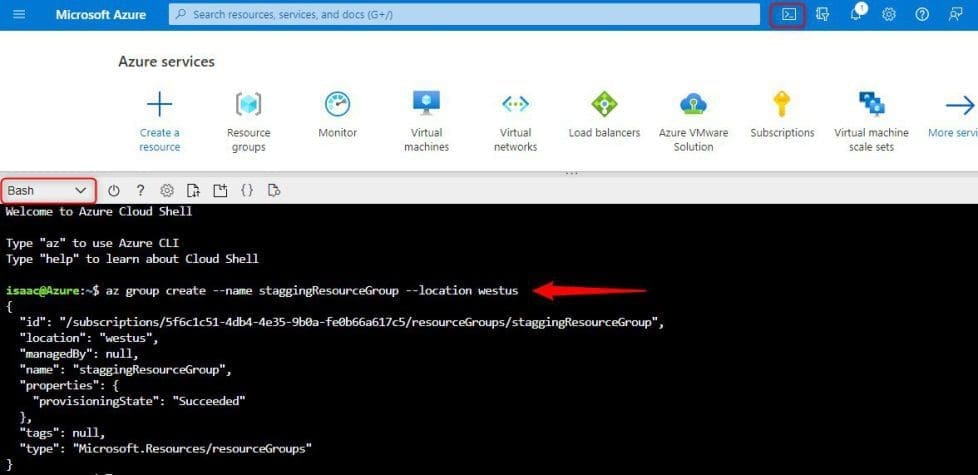
Create resource groups using CLI

  • Go to the Azure Portal
  • At the top bar, click on the cloud shell
  • Select to open the bash terminal
  • Type the following below to create a resource group
az group create --name staggingResourceGroup --location westus
Capture-8

Please see how to fix AWS CLI Error: All commands return Unknown output type [None], How to disable automatic screen lock in Ubuntu Linux, and How to uninstall AWS CLI in Windows.

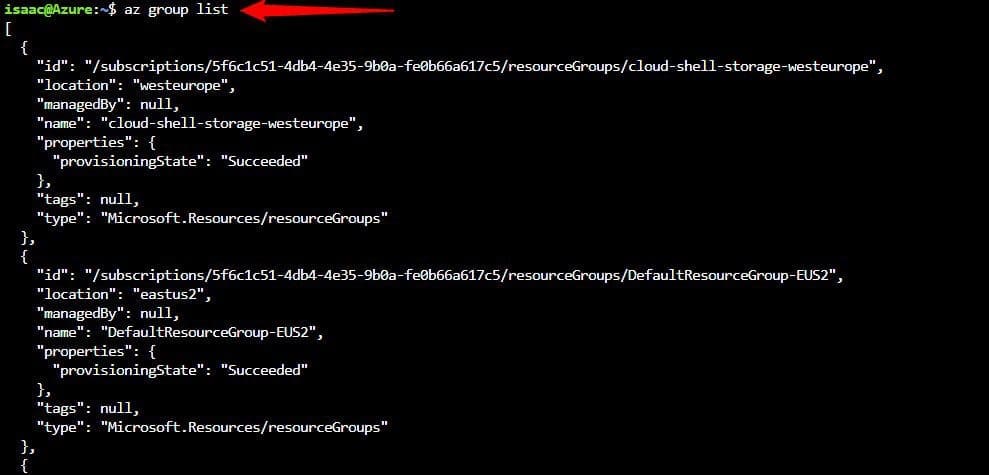
List resource groups using CLI

  • Go to the Azure Portal
  • At the top bar, click on the cloud shell
  • Select to open the bash terminal
  • Type the following below to create a resource group
az group list
Capture-9

Lock resource groups using CLI

Locking prevents other users in your organization from accidentally deleting or modifying critical resources.

  • Go to the Azure Portal
  • At the top bar, click on the cloud shell
  • Select to open the bash terminal
  • Type the following below to create a resource group
az lock create --name LockGroup --lock-type CanNotDelete --resource-group staggingResourceGroup

Capture-10

How to get the locks for a resource group

az lock list --resource-group staggingResourceGroup

Capture-11

How to delete a lock for a resource group

az lock delete --name LockGroup --resource-group staggingResourceGroup

Capture-12

Deploy resources using CLI

Go to the Azure Portal. At the top bar, click on the cloud shell, select to open the bash terminal

Type the following below to create a resource group

az storage account create --resource-group staggingResourceGroup --name staggingstorage2021 --location westus --sku Standard_LRS --kind StorageV2
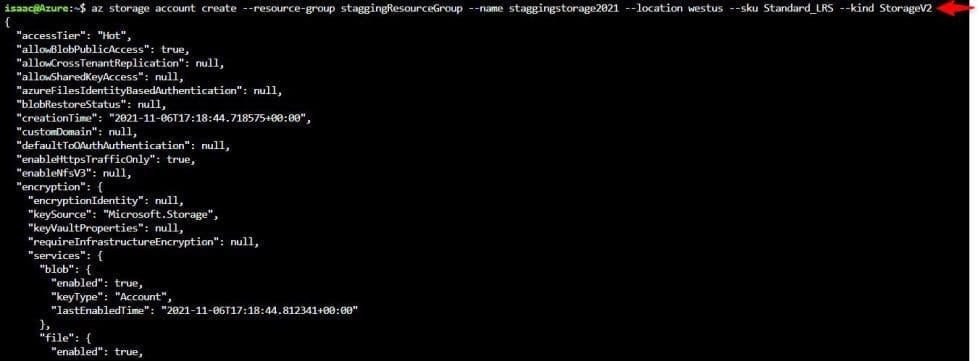
Capture-13

Deploy resources using CLI

Go to the Azure Portal. At the top bar, click on the cloud shell, and Select to open the bash terminal

Type the following below to create a resource group

az group delete --name staggingResourceGroup
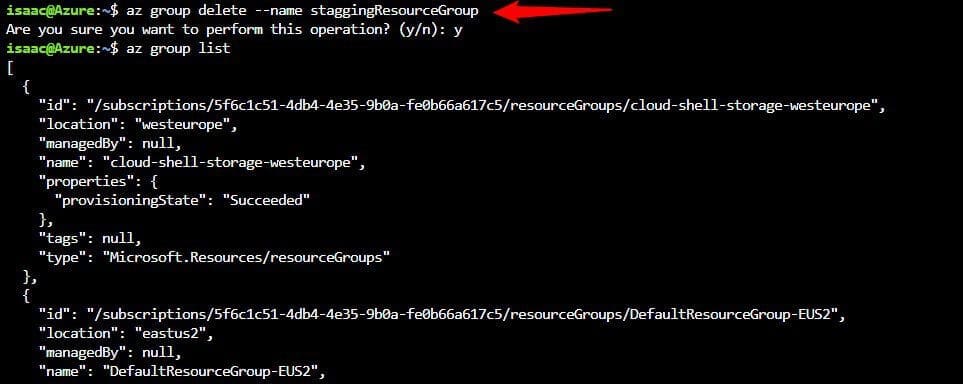
Capture-14

This article provided a step-by-step overview of the steps on how to create, list, lock, deploy, and delete Azure Resource Group via Azure CLI.

Rate this post

Thank you for reading this post. Kindly share it with others.

  • Share on X (Opens in new window) X
  • Share on Reddit (Opens in new window) Reddit
  • Share on LinkedIn (Opens in new window) LinkedIn
  • Share on Facebook (Opens in new window) Facebook
  • Share on Pinterest (Opens in new window) Pinterest
  • Share on Tumblr (Opens in new window) Tumblr
  • Share on Telegram (Opens in new window) Telegram
  • Share on WhatsApp (Opens in new window) WhatsApp
  • Share on Mastodon (Opens in new window) Mastodon
  • Share on Bluesky (Opens in new window) Bluesky
  • Share on Threads (Opens in new window) Threads
  • Share on Nextdoor (Opens in new window) Nextdoor
AWS/Azure/OpenShift Tags:Azure, Azure CLI, Azure resources, Microsoft Azure, Resource Group

Post navigation

Previous Post: How to use the Azure Cloud Shell or Azure CLI and Azure PowerShell
Next Post: Upgrading from Windows 10 with Unsupported CPU and TPM 1.0

Related Posts

  • Amazon EC2 and S3
    How to sync S3 Bucket with an EC2 instance AWS/Azure/OpenShift
  • S3 Bucket
    Access AWS Management Console and Create Resources with AWS CLI on Windows AWS/Azure/OpenShift
  • image 12
    How to Use Postman with the Amazon Pinpoint API AWS/Azure/OpenShift
  • Create a User and Custom Domain in Entra ID
    How to Create a User and Custom Domain in Entra ID AWS/Azure/OpenShift
  • article 1280x720.192a2586 1
    How to apply Windows Updates from WSUS to AWS Instances AWS/Azure/OpenShift
  • Generate SSH Keys
    Associate SSH Public key with Azure Linux VM AWS/Azure/OpenShift

More Related Articles

Amazon EC2 and S3 How to sync S3 Bucket with an EC2 instance AWS/Azure/OpenShift
S3 Bucket Access AWS Management Console and Create Resources with AWS CLI on Windows AWS/Azure/OpenShift
image 12 How to Use Postman with the Amazon Pinpoint API AWS/Azure/OpenShift
Create a User and Custom Domain in Entra ID How to Create a User and Custom Domain in Entra ID AWS/Azure/OpenShift
article 1280x720.192a2586 1 How to apply Windows Updates from WSUS to AWS Instances AWS/Azure/OpenShift
Generate SSH Keys Associate SSH Public key with Azure Linux VM AWS/Azure/OpenShift

Leave a Reply Cancel reply

You must be logged in to post a comment.

Microsoft MVP

VEEAMLEGEND

vexpert-badge-stars-5

Virtual Background

GoogleNews

Categories

veeaam100

Veeam Vanguard

  • Featured image 1
    How and where to find your BitLocker recovery key on Windows Security | Vulnerability Scans and Assessment
  • Assigned Access
    Single App Kiosk Mode: Assigned Access using Local Settings Windows
  • ddf
    How to configure Windows Deployment Services on Windows Server Windows Server
  • azure
    Enter connection information for your on-premise directory or forests: Azure AD connect unable to connect directory, forest not available AWS/Azure/OpenShift
  • How to create an Advanced Windows Scheduled Task Windows Server
  • images 1 1
    How To Use Pleasant Password Private Folder Password Manager
  • openshift
    Set up OpenShift Cluster using Red Hat CodeReady Containers Linux
  • VRAM on Windows 1
    Check the Size of Video Random Access Memory (VRAM) in Windows Windows

Subscribe to Blog via Email

Enter your email address to subscribe to this blog and receive notifications of new posts by email.

Join 1,808 other subscribers
  • RSS - Posts
  • RSS - Comments
  • About
  • Authors
  • Write for us
  • Advertise with us
  • General Terms and Conditions
  • Privacy policy
  • Feedly
  • Telegram
  • Youtube
  • Facebook
  • Instagram
  • LinkedIn
  • Tumblr
  • Pinterest
  • Twitter
  • mastodon

Tags

AWS Azure Bitlocker Microsoft Windows PowerShell WDS Windows 10 Windows 11 Windows Deployment Services Windows Server 2016

Copyright © 2025 TechDirectArchive


Loading Comments...
 

You must be logged in to post a comment.