Set Special File Permissions with SUID or GUID and Sticky Bit


In this article, we shall discuss how to Set Special File Permissions with SUID or GUID and Sticky Bit in Linus. Linux is a multi-user operating system that allows you to create multiple users and grant user-level access to all files and directories. Please see How to determine GPO from GUID or Name, how to “Fix You Might Not Have Permission to Use This Network Resource Error, and “Change your root password: Manage the root user on your macOS“.
Certain files and directories, such as the
/tmpdirectory, can be accessed by all users on your system. The issue with such directories is that any user can modify or delete files created by other Linux users, either intentionally or unintentionally.
To avoid such problems, Linux supports special permissions such as SUID, GUID, and Sticky Bit. Sticky Bit allows only the owner or the root to modify/delete files.
You can also set permissions on executable files to allow the file being executed to be executed with the privileges of the owner or the group user.
Set Special File Permissions in Linux
In this write-up, you will learn about SUID, GUID, and Sticky Bit and they work. It is important to know that, in Linux, everything has an owner and is a file. The root user, who has exceptional permissions to run anything and everything, is known as the root.
Everyone else has very limited rights and access to certain files and directories. One needs to utilize the sudo command in order to work with elevated privileges. Giving out the root password to haphazard individuals whenever they need to perform tasks requiring greater privileges is not a good idea, though.
It is assumed that you have already familiarize yourself with the regular read-write and execute permissions in Linux as shown in the image below:

Apart from these regular permissions, there are a few special file permissions and not many Linux users are aware of it. This is where SUID, GUID, and Sticky Bit come into the picture. Now let’s look at each special permission one after the other.
Pleaase, see Linux Cheat Sheet: The Linux Command Line, how to Switch between Users in Linux, and how to Save Read-Only Files in VIM Editor in Linux/Unix-like OS
What is SUID?
SUID which stands for Set User Owner ID is an executable’s permission bit flag that enables an alternate user to run an executable with the same permissions as the file’s owner rather than the alternate user’s permissions. If the SUID bit on an executable file is set, the executable file will be executed with the same permissions as its owner.
For instance, if you look using the ls -l command at the binary executable file of the passwd command, it has the SUID bit set.
ls -l /usr/bin/passwdSee the screenshot below for more information.

From the screenshot above, it means any user running the passwd command will be running it with the same permission as the root. The SUID special file permission for executable files.
This enables other users to run the file with the effective permissions of the file owner. You will notice that instead of normal x which represents executable permissions, the SUID is represented with the letter “s” which indicates special permission for the user.
The benefit is that the passwd command needs to edit files like /etc/passwd, /etc/shadow to change the password. These files are owned by root and can only be modified by root.
But with the help of setuid flag (SUID bit), a regular user will also be able to modify these files (that are owned by root) and change his/her password. This is the reason why you can use the passwd command to change your own password despite of the fact that the files are owned by root.
You can review the following posts to learn more about Linux commands: How to Rename or Move a File or Directory in Linux – Bash Terminal Command. Also, see Locate, Find, and Grep: How to search for files and patterns in Linux or Unix like OS,
Setting Special File Permissions with SUID bit
The chmod command in symboli mode can be used to set SUID bit. For example to set SUID bit, run:
chmod u+s <file_name>
The letter small letter “s” indicate that the SUID has been set on the file.
How to remove SUID?
To remove SUID from a file, run:
chmod u-s <file_name>
Alternatively, you can use the numeric method with 0 instead of 4 with the permissions you want to set:
chmod 0766 <file_name>
Difference between small “s” and capital “S” as SUID bit
The meaning of SUID of allowing the execution of a file with the same permissions as its owner. If you set the SUID bit, it will show a capital S, not small s:

The capital S as SUID flag indicates that there is a problem that has to be investigated. There is no executable permission on the file, despite the fact that you want it to be executed with the same permissions as the owner. The owner cannot even execute the file, and if the file cannot be executed, you will not be granted permission. The entire purpose of setting the SUID bit is defeated by this.
What is SGID?
The sole difference between the SGID permission and the SUID permission is that when a script or command with the SGID permission is run, it behaves as though it is a member of the same group as the file.
It’s useful for managing directories. When SGID permission is granted to a directory, any files and subdirectories created inside of it will have the same group ownership as the directory’s primary directory (not the group ownership of the user that created the files and directories).
ls -ld /var/localOpen your terminal and check the permission on the file /var/local:

The letter “s” appears in this folder, /var/local, where you would expect to see “x” or “-” for group rights.
How to set SGID?
You can set the SGID bit in symbolic mode like this:
chmod g+s <directory_name>
The numerical approach is an alternative. Simply add a fourth digit to the standard permissions. The octal number that SGID always uses is 2.
chmod 2775 <directory_name>Removing SGID
Just use the -s instead of +s as shown below:
chmod g-s <directory_name>
Removing SGID numerically is the same as removing SUID. Use the additional 0 before the permissions you want to set:
chmod 0755 folder1
Note: If a lowercase letter “l” appears in the group’s execute field. It indicates that the setgid bit is on, and the execute bit for the group is off or denied.
What is a Sticky Bit?
The sticky bit works on the directory. When a directory’s sticky bit is enabled. Only the root user or the file owners can delete or rename any of the files in the directory.

This is frequently used in the /tmp directory, which serves as the temporary files’ trash bin.

As you can see, the folder /tmp, has the letter t in the same place we expect to see x or – for others’ permissions. This means that a user (except root) cannot delete the temporary files created by other users in the /tmp directory.
How to set the sticky bit?
As usual, the sticky bit in Linux can be set using both symbolic and numeric modes.
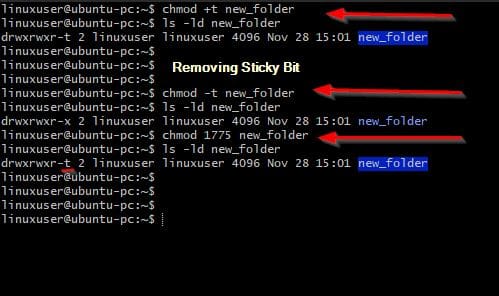
The numeric way is to add a fourth digit to the normal permissions As shown in the screenshot above. The octal number used for the sticky bit is always 1. Removing Stick Bit is also described in the image above. It can be achieved symbolically by adding the -t flag instead of +t.
You can also remove Sticky Bit using the numerical mode as shown below:
chmod 0775 <directory_name>
From what we have discussed so in the post. You could see those specific permissions are easy to understand while working on your favorite Linux Disto. But they should still be utilized with extreme caution.
I hope you found this article useful on how to set Special File Permissions with SUID or GUID and Sticky Bit in Linux. In case you have any questions do not hesitate to ask in the comment section.


