

In this article, you will learn how to fix MBAM Client Deployment is only supported on MBAM 2.5 SP1. The Microsoft BitLocker Administration and Monitoring (MBAM) Client software enables administrators to enforce and monitor BitLocker Drive Encryption on computers in the enterprise. Deploy the BitLocker client into your organization by using an electronic software distribution system like Ivanti DSM and Group Policy Objects (GPO), or by directly encrypting the client computers as part of the initial imaging process.
Depending on when you deploy the Microsoft BitLocker Administration and Monitoring client. You can enable BitLocker Drive Encryption on a computer in your organization either before the end user receives the computer or afterward.
Kindly refer to these related guides: How to unlock a fixed drive protected by BitLocker, how to deploy Microsoft BitLocker Administration and Monitoring Tool, how to correctly disable Microsoft BitLocker Administration and Monitoring encrypted devices, and how to uninstall your current version of MBAM and run setup again.
Reason for the Error MBAM Client Error
Initially, Microsoft integrated the MBAM Client into MDT alone, without including the recommended Servicing update. To use MBAM 2.5 SP1, you must install the release version of MBAM 2.5 SP1. For MBAM 2.5 SP1, you must have the release version of MBAM 2.5 SP1 installed.
Note: The October 2020 servicing release for the Microsoft Desktop Optimization Pack can be downloaded from the following link. Below is an image of the BDD log.

Please see how to fix an “action cannot be completed because the computer is open in wimserv“. Creating an offline local repository in Linux, and how to export and import Windows Start layout.
Fix MBAM Client Deployment is only supported on MBAM 2.5 SP1
Kindly bundle the MBAM client and the October 2020 servicing release for Microsoft Desktop Optimization Pack downloaded from the link above and re-create a new Application of it.
Please see “how to deploy MBAM Client to Computers as Part of a Windows Deployment“.
Note: Beginning in MBAM 2.5 SP1, a separate MSI is no longer included with the MBAM product. However, you can extract the MSI from the executable file (.exe) that is included with the product.
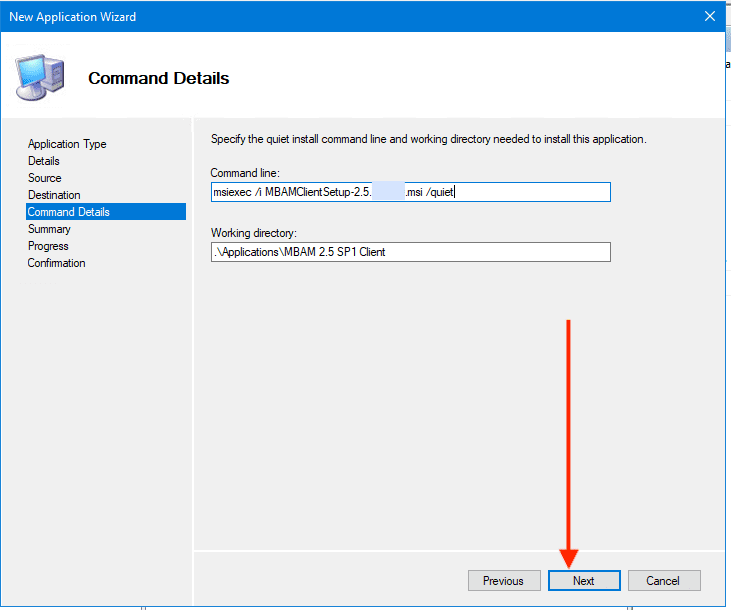
Update the Deployment Share
Please update the deployment share.


Now take the image to WDS
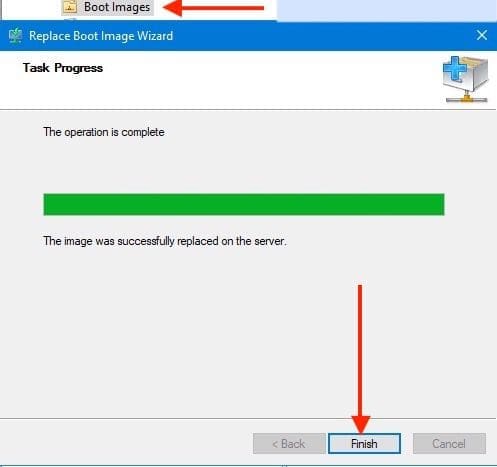
Start a new image deployment as shown below.

Now, the MBAM agent will work as specified and should be able to apply the BitLocker/MBAM policies to your device. As you can see, the encryption is in progress.
It’s recommended that you install the agent near the end of the OSD task sequence. So that the encryption does not slow your deployment down.
Please see MBAM Frequent Report Errors: Understanding Microsoft BitLocker Administration and Monitoring compliance state and error status. Also, see “Implemented MBAM: Here is how to hide the Default BitLocker Drive Encryption item in the Windows Control Panel“.

Now let’s verify the device compliance status! As you can see the device is a complaint as shown in the image below.
This means the Recovery keys were successfully escrowed to the database.

Please see Unable to find my BitLocker Recovery Key. Here is a guide on Windows Screen Resolution: How to fix HyperV Virtual Machine display taking over the entire screen.
FAQs
1: Network Unlock: When BitLocker detects the device is connected to the enterprise network, it unlocks the device. But when the user is not connected to the organisation network and he will be prompted for a password. Then we have a problem again leading to user inconvenience.
2: Configuring Group Policy setting to not require additional authentication at startup and the corresponding setting in the BitLocker CSP is SystemDrivesRequireStartupAuthentication.
3: TPM Only: Using TPM-only validation does not require any interaction with the user to unlock and provide access to the drive.
Microsoft works closely with OEM partners to help ensure that all certified Windows systems deliver a secure operating environment. Before Windows starts. You must rely on security features implemented as part of the device hardware and firmware, including TPM and Secure Boot.
Pphysical attacks are perpetrated to install malware on the device in order to steal the BitLocker Keys. The TPM should see this installation via Platform Configuration Register (PCR) measurements, and the BitLocker key will not be released.
This is the default configuration. Therefore, all forms of hardware attacks are mitigated. And the goal of BitLocker Drive Encryption is to protect your Drive against offline attacks through encryption, unauthorized access either by running a software attack tool against it or by transferring the computer’s hard disk to a different computer.
I hope you found this blog post helpful on how to fix the MBAM Client Deployment is only supported on MBAM 2.5 SP1. Please let me know in the comment session if you have any questions.


