Configure Kerberos Delegation in Windows


Kerberos delegation allows an application to gain access to resources hosted on a different server. The public key authentication, data transport, and delegation features of the Kerberos version 5 authentication protocol are implemented by the Windows Server operating systems. The Security Support Provider Interface (SSPI) is used to access the Kerberos authentication client. Which is implemented as a security support provider (SSP) (SSPI). In this article, you will learn how to Configure Kerberos Delegation in Windows Server. Please see Best Way to Backup Dropbox to Box in 2022. And how to Fix Audio Services Not Responding on Windows 10 and 11.
The Winlogon single sign-on architecture is integrated with initial user authentication. The domain controller, which powers other Windows Server security services, integrates the Kerberos Key Distribution Center (KDC). The Active Directory Domain Services database for the domain serves as the KDC’s security account database.
The domain or forest must have Active Directory Domain Services in order to use default Kerberos implementations.
Please, see How to protect Remote Desktop credentials with Windows Defender Remote Credential Guard or Restricted Admin Mode. Also, see “When SMB Freezes Break Backups: My Solution for Critical Linux Server“.
Configure Kerberos Delegation in Windows Server
A further option to configure Kerberos delegation from the Delegation tab of a user or computer account is added when View > Advanced features are enabled in Active Directory Users and Computers.
However, even after adding SPNs to these accounts or turning on View > Advanced features. The Delegation tab does not show up for solo and group Managed Service Accounts.
Kerberos is an authentication protocol that is used to verify the identity of a user or host.Interested in further reading, please see the following posts: All that you need to know about the Kerberos delegation, and how to configure a service account for Kerberos delegation.
Useful Application of Kerberos
Using Kerberos for domain-based authentication has the following advantages:
1: Delegated authentication
When accessing resources on behalf of a client, services that operate on Windows operating systems can pretend to be that client’s computer. A service can frequently do the client’s task by utilizing the resources on the local computer.
NTLM and Kerberos protocol gives a service the authorization data it needs to locally impersonate a client computer when a client computer authenticates to the service.
To connect to back-end services running on other computers, certain distributed applications require a front-end service to leverage the client computer’s identity.
When connecting to other services, a service can represent its client by acting on its behalf thanks to the delegation feature supported by Kerberos authentication. Please see how to create a Windows 10 or 11 bootable USB with UEFI support.
Please, see how to configure Kerberos for Ansible Authentication, and how to install Kerberos packages with Cygwin on Windows. Also, see how to fix “Kerberos error: Clock skew too great while getting initial credentials“
2. Single Sign-on
A user or service can access resources that administrators have authorized by using Kerberos authentication within a domain or in a forest without repeatedly asking for credentials. After the initial domain sign-on using Winlogon. Kerberos maintains the credentials whenever access to resources is attempted across the forest.
3: Interoperability
Microsoft’s implementation of the Kerberos V5 protocol is based on specifications that are on the standards track and have been suggested to the Internet Engineering Task Force (IETF).
As a result, the Kerberos protocol establishes the groundwork for interoperability with other networks that employ the Kerberos protocol for authentication in Windows operating systems.
In order to implement the Kerberos protocol, Microsoft also makes documentation for Windows Protocols available. The technical specifications, constraints, dependencies, and Windows-specific protocol behavior for Microsoft’s implementation of the Kerberos protocol are contained in the documentation.
4: Ensure Effective Server Authentication
NTLM authentication, which needs an application server to connect to a domain controller to authenticate each client’s computer or service, was an alternative to Kerberos. Renewable session tickets are used in place of pass-through authentication with the Kerberos protocol.
Except in cases when a Privilege Attribute Certificate (PAC) needs to be validated, the server is not required to visit a domain controller. Instead, the client’s credentials can be examined by the server to verify the client’s computer’s authenticity. Client computers can only need to get the login information
5: Complementary verification
A party at either end of a network connection can confirm that the party on the other end is the entity it purports to be by utilizing the Kerberos protocol. Clients cannot confirm a server’s identification using NTLM, and neither can a server confirm the identity of another.
NTLM authentication was created for networks where servers were taken for granted to be reliable. This presumption is not made by the Kerberos protocol.
Types of Kerberos Delegation
Over time, several flavors of the Kerberos delegation have emerged. Unconstrained delegation is the original implementation of Windows Server 2000. Since then, stricter forms of the delegation that improve security have emerged: constrained delegation and resource-based constrained delegation. I’ll go over each type of delegation in greater detail below.
Use the Delegation tab in Active Directory Users and Computers to configure delegation on a computer or user account, as shown below. It is important to note that user accounts must have a servicePrincipalName (SPN) set.
Unconstrained Delegation
Delegation was first used in this way, and it is also the least secure. What is the purpose of unrestricted delegation? The userAccountControl attribute of the object is changed to contain the “TRUSTED FOR DELEGATION” mark when unconstrained delegation is defined.
The ticket-granting ticket (TGT) for an account that authenticates to a host with an unconstrained delegation configured is saved in memory so that the host with unconstrained delegation configured can subsequently impersonate that user if necessary.
Constrained Delegation
The constrained delegation, which first appeared in Windows Server 2003, lets you choose which services an account can be assigned to. This limits the exposure that might result from a compromise, in principle.
The constrained delegation has one limitation in that it does not operate cross-forest. When limited delegation is enabled for an account, two unnoticed events take place:
- The “TRUSTED TO AUTHENTICATE FOR DELEGATION” flag is modified in the userAccountControl property for the item.
- The SPN set up on the delegation tab populates the msDS-AllowedToDelegateTo attribute.
Resource-Based Constrained Delegation
Resource-based constrained delegation, which was introduced in Windows Server 2012, changes how you can configure constrained delegation and works across trusts. Rather than defining which objects can delegate to which services, the resource hosting the service defines which objects can delegate to it.
Administratively, this allows the resource owner to control who has access to it. Instead of specifying with the constrained delegation that the WebServer service account can delegate database access to the SQL Service, you can specify on the SQL server service account that the WebServer service account has permission to delegate access to it.
The SID of the object that is allowed to delegate to the target resource is used to populate the msDS-AllowedToActOnBehalfOfOtherIdentity attribute on the target resource. You must use PowerShell to configure resource-based constrained delegation; there is no GUI component within Active Directory Users and Computers, and the Attribute Editor page does not allow for manual modification of this attribute.
Finding an Existing Kerberos Delegation
Now that you understand some of the fundamentals of the various types of delegation and how they can be abused, I’d like to share with you a method for determining which types of delegation are already configured in your environment.
We will specifically look for insecure scenarios, such as unrestricted delegation on objects other than domain controllers.
Script source (reference): Below is a script that will locate accounts with unconstrained, constrained, and resource-based constrained delegation set up, while also emphasizing details and possible cautions about the setups it provides, as originally posted in the Microsoft Technet gallery by Willem Kasdorp.
<#
.Synopsis
    Search the domain for accounts with Kerberos Delegation.
.DESCRIPTION
    Kerberos Delegation is a security sensitive configuration. Especially
    full (unconstrained) delegation has significant impact: any service
    that is configured with full delegation can take any account that
    authenticates to it, and impersonate that account for any other network
    service that it likes. So, if a Domain Admin were to use that service,
    the service in turn could read the hash of KRBRTG and immediately
    effectuate a golden ticket. Etc :)

    This script searches AD for regular forms of delegation: full, constrained,
    and resource based. It dumps the account names with relevant information (flags)
    and adds a comment field for special cases. The output is a PSObject that
    you can use for further analysis.

    Note regarding resource based delegation: the script dumps the target
    services, not the actual service doing the delegation. I did not bother
    to parse that out.

    Main takeaway: chase all services with unconstrained delegation. If
    these are _not_ DC accounts, reconfigure them with constrained delegation,
    OR claim them als DCs from a security perspective. Meaning, that the AD
    team manages the service and the servers it runs on.

.EXAMPLE
   .\Search-KerbDelegatedAccounts.ps1 | out-gridview
.EXAMPLE
   .\Search-KerbDelegatedAccounts.ps1 -DN "ou=myOU,dc=sol,dc=local"
.NOTES
    Version:   0.1 : first version.
                    0.2 : expanded LDAP filter and comment field.
    Author:         Willem Kasdorp, Microsoft.
    Creation Date:  1/10/2016
    Last modified:  4/11/2017
#>

[CmdletBinding()]
Param
(
    # start the search at this DN. Default is to search all of the domain.
    [string]$DN = (Get-ADDomain).DistinguishedName
)

$SERVER_TRUST_ACCOUNT = 0x2000
$TRUSTED_FOR_DELEGATION = 0x80000
$TRUSTED_TO_AUTH_FOR_DELEGATION= 0x1000000
$PARTIAL_SECRETS_ACCOUNT = 0x4000000
$bitmask = $TRUSTED_FOR_DELEGATION -bor $TRUSTED_TO_AUTH_FOR_DELEGATION -bor $PARTIAL_SECRETS_ACCOUNT

# LDAP filter to find all accounts having some form of delegation.
# 1.2.840.113556.1.4.804 is an OR query.
$filter = @"
(&
  (servicePrincipalname=*)
  (|
    (msDS-AllowedToActOnBehalfOfOtherIdentity=*)
    (msDS-AllowedToDelegateTo=*)
    (UserAccountControl:1.2.840.113556.1.4.804:=$bitmask)
  )
  (|
    (objectcategory=computer)
    (objectcategory=person)
    (objectcategory=msDS-GroupManagedServiceAccount)
    (objectcategory=msDS-ManagedServiceAccount)
  )
)
"@ -replace "[\s\n]", ''

$propertylist = @(
    "servicePrincipalname",
    "useraccountcontrol",
    "samaccountname",
    "msDS-AllowedToDelegateTo",
    "msDS-AllowedToActOnBehalfOfOtherIdentity"
)
Get-ADObject -LDAPFilter $filter -SearchBase $DN -SearchScope Subtree -Properties $propertylist -PipelineVariable account | ForEach-Object {
    $isDC = ($account.useraccountcontrol -band $SERVER_TRUST_ACCOUNT) -ne 0
    $fullDelegation = ($account.useraccountcontrol -band $TRUSTED_FOR_DELEGATION) -ne 0
    $constrainedDelegation = ($account.'msDS-AllowedToDelegateTo').count -gt 0
    $isRODC = ($account.useraccountcontrol -band $PARTIAL_SECRETS_ACCOUNT) -ne 0
    $resourceDelegation = $account.'msDS-AllowedToActOnBehalfOfOtherIdentity' -ne $null

    $comment = ""
    if ((-not $isDC) -and $fullDelegation) {
        $comment += "WARNING: full delegation to non-DC is not recommended!; "
    }
    if ($isRODC) {
        $comment += "WARNING: investigation needed if this is not a real RODC; "
    }
    if ($resourceDelegation) {
        # to count it using PS, we need the object type to select the correct function... broken, but there we are.
        $comment += "INFO: Account allows delegation FROM other server(s); "
    }
    if ($constrainedDelegation) {
        $comment += "INFO: constrained delegation service count: $(($account.'msDS-AllowedToDelegateTo').count); "
    }

    [PSCustomobject] @{
        samaccountname = $account.samaccountname
        objectClass = $account.objectclass
        uac = ('{0:x}' -f $account.useraccountcontrol)
        isDC = $isDC
        isRODC = $isRODC
        fullDelegation = $fullDelegation
        constrainedDelegation = $constrainedDelegation
        resourceDelegation = $resourceDelegation
        comment = $comment
    }
}
The image is from the script output showing the delegations configured in the environment.

Configuring Kerberos Delegation
Configuring Kerberos requires that you have your Server set as a Domain Controller. Refer this article to learn how to add the domain controller role. To configure Kerberos Delegation, we will first configure the Kerberos authentication protocol. To do this, follow the steps below:
Step 1: Create an Active Directory user (you can use an existing one instead). Log into the domain controller server, click Start → Administrative Tools, and launch Active Directory Users and Computer. The Active Directory Users and Computer can be accessed via the Server Manager console as well.

Next, when the Administrative tools open click on Active Directory Users and Computers to get started.

If it is not already selected, click the node for your domain (domain.com).
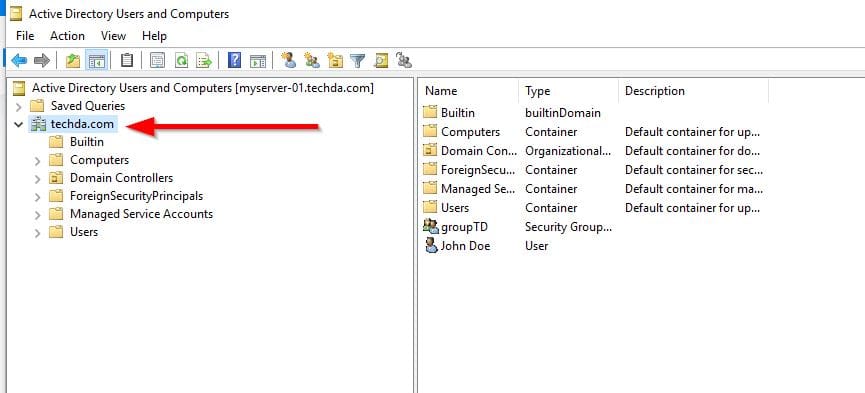
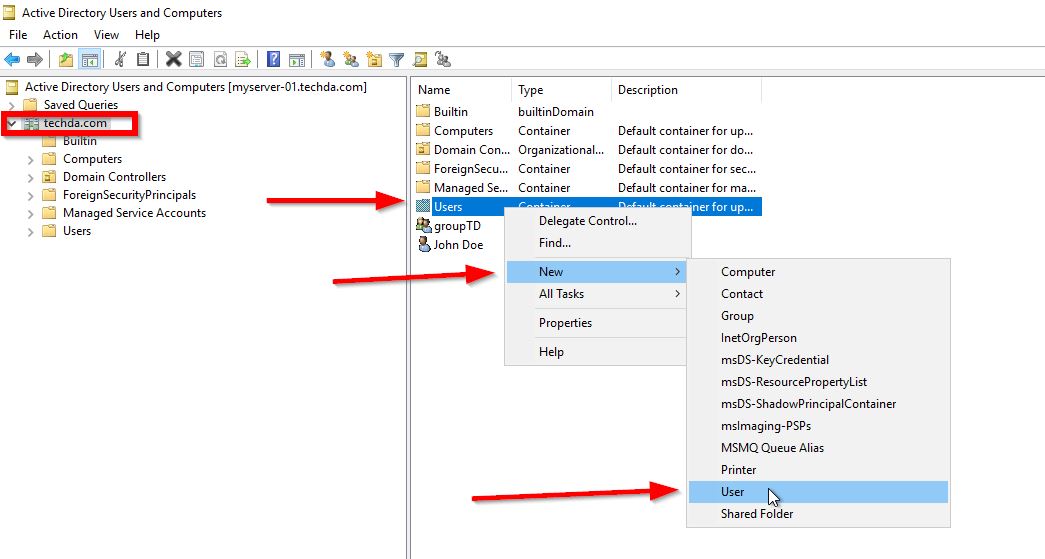
Step 2: While still on the Domain node, right-click Users, point to New, and then click User.
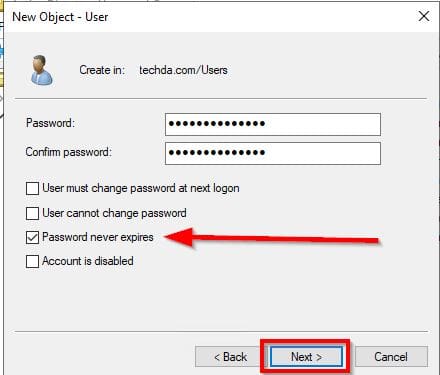
In the New Object → User dialog box specify the parameters of the new user.
It could be a regular user, it is not required to provide the user with some additional privileges. The user account should be active (The Account is disabled check box unchecked). And the password for the account should never expire (The Password never expires checkbox is checked).

Step 3: Assign the principal names with the encrypted keys on the domain controller machine. If you’re on Linux Machines, create a keytab file containing pairs of Kerberos principals and encrypted keys.
 A keytab file is used to authenticate to various remote systems using Kerberos without entering a password.
Create a keytab with the first entry using the ktpass tool:ktpass /princ firstnamed@DOMAIN.COM /mapuser firstname /pass /crypto all /ptype KRB5_NT_PRINCIPAL /out C:\Users\user1\Desktop \datasunrise.keytab -setupn

/princ	The service principal name (SPN) in the following format: @
/mapuser	Maps the name of the Kerberos principal, which is specified by the princ parameter, to the specified domain account.
/pass	Specifies the password for the principal user name.
/ptype	Specifies the principal type. Use KRB5_NT_PRINCIPAL.
/crypto	Specifies the keys that are generated in the keytab file.
/out	Assign a directory and a name for the output *.keytab file.
-setupn	Doesn’t set the user principal name along with the service principal name.
Configure Active Directory Kerberos delegation
To configure Active Directory delegation, follow the steps below:
Step 1: On the Server that serves as the domain controller, go to Active Directory Users and Computers, and locate the account of the machine that you want to configure Kerberos to.

Step 2: Double-click on the server name and in the Properties section, go to the Delegation tab and select Trust this computer for delegation to specified services only and click Add.

Clicking add will take you to where to confirm the username
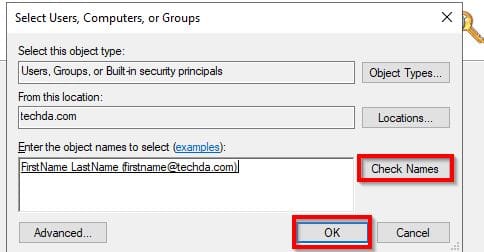
Step 3: Configure Kerberos Delegation. Here you can either choose from the common tasks or create custom tasks to delegate

In the above screenshot, some tasks have been delegated to the FirsName LastName user.
I hope you find this post helpful on how to Configure Kerberos Delegation in Windows Server. If you have any questions, feel free to leave them in the comment section below.