Skip to content

TechDirectArchive

Hands-on IT, Cloud, Security & DevOps Insights

  • Home
  • About
  • Advertise With US
  • Reviews
  • Contact
  • Toggle search form
Home » Network | Monitoring » Enable or disable Reputation-Based Protection on Windows 10 and 11
  • Amazon
    Import Virtual Machines to AWS as AMI AWS/Azure/OpenShift
  • Microsoft365
    Microsoft 365 Backup: Why is it imperative to protect M365? Backup
  • Create your own Network on AWS from Scratch
    VPC, Subnet, NACL, Security Group: Create your own Network on AWS from Scratch [Part 2] AWS/Azure/OpenShift
  • Featured image 10
    Add a Printer Using an IP Address in Windows 11 Network | Monitoring
  • PassTheHash
    What is Pass the Hash Attack and how to mitigate the attack Security | Vulnerability Scans and Assessment
  • aks 1
    Azure Storage: How to create Blob Storage and upload files AWS/Azure/OpenShift
  • doc register profile 1
    How to Remove a profile on outlook Network | Monitoring
  • Clone SysPrep
    Clone and Sysprep a Windows Server running on a VMware Workstation Virtualization

Enable or disable Reputation-Based Protection on Windows 10 and 11

Posted on 15/12/202204/09/2023 Christian By Christian No Comments on Enable or disable Reputation-Based Protection on Windows 10 and 11
PUA-copy

Potentially unwanted applications (PUA) are a category of software that can cause your machine to run slowly, and display unexpected ads. Or install other software that may be more harmful or annoying. In this guide, you will learn how to enable or disable Reputation-Based Protection on Windows 10 and 11. Windows Security has reputation-based protection that can help protect your PC from potentially unwanted applications. Please see how to protect your Windows PC from potentially unwanted applications.

Potentially unwanted app blocking was first introduced in the Windows 10 May 2020 update and is turned on by default for enterprise customers, but off by default for consumers.

In a nutshell, Reputation-based security classifies a file as safe or unsafe based on its inherently garnered reputation.

If you are using Windows 10 and would like to make some changes to Reputation-based protection settings. You can choose to enable Reputation-based protection settings. Kindly refer to these related guides: Core Isolation: Enable or Disable Core Isolation Memory Integrity in Windows 10 and Windows 11. Also, see how to view, clear, and print Norton security event on a Mac PC

Enable or Disable Reputation-Based Protection

To enable or disable Reputation-Based Protection on Windows 10, and Windows 11, follow the steps below. For Windows 10, you will need to do the following by ensuring that you have the latest version of Windows installed on your device.

To do this, open Settings, then go to Updates & Security and click Windows Security in the left-hand pane. 

This will open a new window where you will need to click App- and Browser Control in the left-hand pane. Click on Reputation-based protection settings as shown below.

image-14

Please see how to enable Smart App Control and Reputation-Based Protection in Windows 11, How to hold comments for review on YouTube, and how to fix CPU at 100% when nothing is running problem on Windows.

View Reputation-based Protection Settings on Windows

When enabled, you can click on the reputation-based protection settings link. It will take you straight into the central area of Reputation-based protection settings as shown below.

Below are the reputation-based settings available once the service is configured. Please scroll through to the bottom of the screen and you will see different options that are capable of blocking unwanted apps, phishing protection etc. 

image-15

Please see Fix Google Chrome redirects: How to remove unwanted site redirects or pop-up from Google Chrome on Mac and Windows, and Sudo Error on Ubuntu: Fixing ‘unknown uid 1000.

Enable Potentially Unwanted App Protection via PowerShell

To enable Potentially Unwanted App Protection via PowerShell, you can use the cmdlets below to enable, audit, disable, and view events.

  • To enable PUA protection: Set-MpPreference -PUAProtection Enabled
  • To set PUA protection to audit mode, which detects PUAs without blocking them: Set-MpPreference -PUAProtection AuditMode
  • To disable PUA protection: Set-MpPreference -PUAProtection Disabled
  • To view threats processed by PUA protection: Get-MpThreat

Enable Potentially Unwanted App Protection via GPO

Group Policy can be used to roll out uniform PUA protection across many desktops. Configure the Windows Defender PUA settings using Group Policy. You will need to download and install Administrative Templates (.admx) for Windows 11 October 2021 Update (21H2) in order to have access to the configuration.

  • In the Group Policy Management Editor, go to Computer configuration and select Administrative templates.
  • Expand the tree to Windows Components > Microsoft Defender Antivirus.
  • Double-click Configure detection for potentially unwanted applications.
  • Select Enabled to enable PUA protection.
  • In Options, select Block to block potentially unwanted applications, or select Audit Mode to test how the setting works in your environment. Select OK.
PUAsettingsGPO

Lastly, I will recommend you to verify the PUAProtection settings (value) via PowerShell and check if the group policy has been deployed successfully. To do this, run the cmdlet below.

Get-Mppreference | select PUAProtection
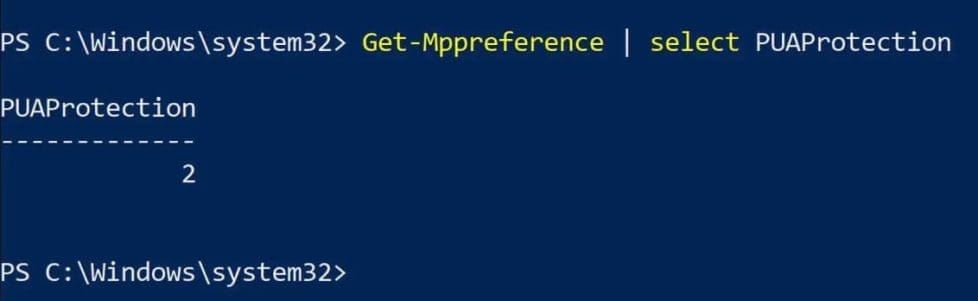
PUAcheckPowerShell

The PUAProtection setting (value) of 2 indicates that PUA Protection is enabled with Audit mode as configured via the GPO.

PUA protection is enabled by default in the Microsoft Endpoint Manager (Current Branch).

I hope you found this blog post helpful. In this article, you have successfully learned how to enable or disable Reputation-Based Protection on Windows 10 and 11. If you have any questions, please let me know in the comment session.

Rate this post

Thank you for reading this post. Kindly share it with others.

  • Click to share on X (Opens in new window) X
  • Click to share on Reddit (Opens in new window) Reddit
  • Click to share on LinkedIn (Opens in new window) LinkedIn
  • Click to share on Facebook (Opens in new window) Facebook
  • Click to share on Pinterest (Opens in new window) Pinterest
  • Click to share on Tumblr (Opens in new window) Tumblr
  • Click to share on Telegram (Opens in new window) Telegram
  • Click to share on WhatsApp (Opens in new window) WhatsApp
  • Click to share on Pocket (Opens in new window) Pocket
  • Click to share on Mastodon (Opens in new window) Mastodon
  • Click to share on Bluesky (Opens in new window) Bluesky
  • Click to share on Threads (Opens in new window) Threads
  • Click to share on Nextdoor (Opens in new window) Nextdoor
Network | Monitoring Tags:Microsoft Windows, Windows 10, Windows 11

Post navigation

Previous Post: How to enable Smart App Control on Windows 11
Next Post: Protect Microsoft Defender Settings with Tamper Protection

Related Posts

  • cisco ASA
    Common Cisco ASA Commands Network | Monitoring
  • image 3
    How to Migrate Your WordPress Site with WordPress Duplicator Network | Monitoring
  • Exchange
    Update Global Address List: Recognition Error Network | Monitoring
  • Container insights
    How to use Container Insights for Azure Kubernetes Workload Network | Monitoring
  • Hyper V Virtual Switch Copy
    How to Create VDI Collections on Windows Server 2022 Network | Monitoring
  • cisco ASA
    Basic Cisco ASA troubleshooting Commands Guide Network | Monitoring

More Related Articles

cisco ASA Common Cisco ASA Commands Network | Monitoring
image 3 How to Migrate Your WordPress Site with WordPress Duplicator Network | Monitoring
Exchange Update Global Address List: Recognition Error Network | Monitoring
Container insights How to use Container Insights for Azure Kubernetes Workload Network | Monitoring
Hyper V Virtual Switch Copy How to Create VDI Collections on Windows Server 2022 Network | Monitoring
cisco ASA Basic Cisco ASA troubleshooting Commands Guide Network | Monitoring

Leave a Reply Cancel reply

You must be logged in to post a comment.

Microsoft MVP

VEEAMLEGEND

vexpert-badge-stars-5

Virtual Background

GoogleNews

Categories

veeaam100

sysadmin top30a
 
  • Amazon
    Import Virtual Machines to AWS as AMI AWS/Azure/OpenShift
  • Microsoft365
    Microsoft 365 Backup: Why is it imperative to protect M365? Backup
  • Create your own Network on AWS from Scratch
    VPC, Subnet, NACL, Security Group: Create your own Network on AWS from Scratch [Part 2] AWS/Azure/OpenShift
  • Featured image 10
    Add a Printer Using an IP Address in Windows 11 Network | Monitoring
  • PassTheHash
    What is Pass the Hash Attack and how to mitigate the attack Security | Vulnerability Scans and Assessment
  • aks 1
    Azure Storage: How to create Blob Storage and upload files AWS/Azure/OpenShift
  • doc register profile 1
    How to Remove a profile on outlook Network | Monitoring
  • Clone SysPrep
    Clone and Sysprep a Windows Server running on a VMware Workstation Virtualization

Subscribe to Blog via Email

Enter your email address to subscribe to this blog and receive notifications of new posts by email.

Join 1,841 other subscribers
  • RSS - Posts
  • RSS - Comments
  • About
  • Authors
  • Write for us
  • Advertise with us
  • General Terms and Conditions
  • Privacy policy
  • Feedly
  • Telegram
  • Youtube
  • Facebook
  • Instagram
  • LinkedIn
  • Tumblr
  • Pinterest
  • Twitter
  • mastodon

Tags

AWS Azure Bitlocker Microsoft Windows PowerShell WDS Windows 10 Windows 11 Windows Deployment Services Windows Server 2016

Copyright © 2025 TechDirectArchive


Loading Comments...
 

You must be logged in to post a comment.