Reasons for BitLocker Recovery Prompt: Query the number of BitLocker recovery request


BitLocker Recovery Key restores access to a BitLocker-protected device when locked. Since I administer BitLocker via MBAM, I can save the recovery keys to the MBAM Database and Active Directory. In this guide, you will learn the various Reasons for BitLocker Recovery Prompt: Query the number of BitLocker recovery key requests. I have written tons of articles on MBAM/BitLocker. I urge you to please take a look at them: How to enable BitLocker AES-XTX 256 Encryption Method. And how to correctly disable Microsoft BitLocker Administration and Monitoring encrypted devices.
A Recovery Key is often referred to as a Numerical Password and has a sequence of 48 digits divided by dashes. This technology is designed to protect devices from all offline attacks. Except as described in this link, where a physical attack is possible. I have also described ways to thwart this attack by using “TPM + Pin or TPM with a Password“.
Reasons for Recovery Mode in Windows
In theory, there are numerous reasons why this window (BitLocker recovery) might be prompted. You will have to troubleshoot specifically to pinpoint what could have happened in your case.
Refer to these articles for more information: Why does MBAM not automatically re-encrypt MBAM or Bitlocker-protected devices, Understanding Microsoft BitLocker Administration and Monitoring Roles,
TPM-Related BitLocker Recovery Prompt
For TPM-related issues, one of the following below could cause the BitLocker Recovery Key to be prompted! But not limited to these only.
Please be aware that turning off, disabling, deactivating, or clearing the TPM from the BIOS. This can result in data loss if you do not have the Recovery Key. Clearing the TPM via the management console or Windows Defender Center App does not result in data loss. |
| Failing the TPM self-test |
| Upgrading the TPM Firmware |
| Changing the usage authorization for the storage root key of the TPM to a non-zero value. The BitLocker TPM initialization process sets the usage authorization value to zero, so another user or process must explicitly have changed this value. |
| Changes in the Platform Configuration Registers (PCRs) used by the TPM validation profile can lead to the BitLocker recovery mode. You can learn more about A Platform Configuration Register (PCR) in the article “BitLocker Drive Encryption architecture and implementation types on Windows“. I would recommend not modifying the Platform Configuration Registers. |
Changing the BIOS boot order on devices with TPM 1.2 can result in the BitLocker recovery window being prompted. Why this is not the case for Windows 11 as it uses TPM 2.0. If you have bypassed this requirement, this behavior will not be true anymore. See “How to install Windows 11 in Oracle VirtualBox with no TPM Support“. TPM 2.0 doesn’t consider a firmware change of boot device order as a security threat because the OS Boot Loader isn’t compromised |
| Having a BIOS, UEFI firmware, or an option ROM component that isn’t compliant with the relevant Trusted Computing Group standards for a client computer. For example, a non-compliant implementation may record volatile data (such as time) in the TPM measurements, causing different measurements on each startup and causing BitLocker to start in recovery mode. |
Table 1 Showing Reasons for BitLocker Recovery
While troubleshooting this device to determine the root cause, one of the following below could have caused the issue. But not limited to these alone. Below are some reasons why BitLocker could start in recovery mode.
| When an attack is detected on a device that is protected with BitLocker Drive Encryption. The device will immediately reboot and enter into BitLocker recovery mode. |
| Adding or removing hardware, such as inserting a new card in the computer, including some PCMCIA wireless cards. |
| Attempting to change the boot order during the boot process with any of the hotkeys on the keyboard. |
| Changes to the NTFS partition table on the disk include creating, deleting, or resizing a primary partition. This behaviour will be evident in the log when you take a look at it. |
| Changes to the master boot record on the disk or changes to the boot manager on the disk. |
| Disabling the code integrity check or enabling test signing on Windows Boot Manager (Bootmgr). |
| BitLocker will monitor for system configuration changes. Therefore, when it detects a new device in the boot list or an attached external storage device (USB etc.), this behaviour (recovery window) could be prompted. |
| Pressing the F8 or F10 key during the boot process. |
| Forgetting the PIN when PIN authentication has been enabled. |
| Using a different keyboard that doesn’t correctly enter the PIN or whose keyboard map doesn’t match the keyboard map assumed by the pre-boot environment. This problem can prevent the entry of enhanced PINs. |
BitLocker asks for a recovery key each time the system boots on USB-C/Thunderbolt systems when docked and undocked
BitLocker Asks for a Recovery Key Every Boot on USB-C/Thunderbolt Computers When Docked or Undocked. Dell has described ways to mitigate this behaviour. Please see “how to fix BitLocker always prompting for Recovery Key“.
In some instances (depending on the computer manufacturer and the BIOS). The docking condition of the portable computer is part of the system measurement and must be consistent to validate the system status and unlock BitLocker.
BitLocker prompts you to enter the recovery key when you start a computer from a USB Type-C or Thunderbolt 3 docking station. Note: This issue is only relevant to the following models:
Latitude 5280
Latitude 5480
Latitude 5580
Latitude 7280
Latitude 7380
Latitude 7480
Precision 3520
So if a portable computer is connected to its docking station when BitLocker is turned on. Then it might also need to be connected to the docking station when it’s unlocked.
Conversely, if a portable computer isn’t connected to its docking station when BitLocker is turned on. Then it might need to be disconnected from the docking station when it’s unlocked.
How does DELL handle BIOS Update?
This behaviour does not apply to all Dell devices when applying updates as they BitLocker Drive Encryption are suspended. I advise you to promptly restart.
When the BIOS setup file is downloaded manually, Please check the option “Suspend BitLocker Drive Encryption” as discussed in this guide “how to update the BIOS on your Dell system“.

Please see how to Solve the error “Group Policy Settings for BitLocker Startup Options are in Conflict and cannot be applied”, and detailed steps to troubleshoot and fix System Partition not available or large enough [Part 2].
When will the Dell update prompt the BitLocker Recovery Screen?
BIOS-related changes or upgrades. This action only is enough to prompt the BitLocker recovery windows, because when a device is encrypted, it stores the state of the BIOS/UEFI settings thereby causing the boot measurement to change. These changes can cause the BitLocker recovery mode to be prompted!
Dell forgets to enter the switch "/bls" (Bitlocker Supend) for the BIOS installation for a model series. Sometimes, Dell forgets about a series of current catalogs which are used for Update distribution via WSUS.
Note: In the past, you will have to manually suspend BitLocker before updating the BIOS and Firmware updates. This is no longer the case starting with Windows 10 and Windows 11. Modern Windows devices are increasingly protected with BitLocker Device Encryption out of the box and support SSO to help protect the BitLocker encryption keys from cold boot attacks.The TPM is not involved in any recovery scenarios, so recovery is still possible if the TPM fails boot component validation, malfunctions, or is removed.
This is why you could protect your device with BitLocker without having a compatible TPM. See this guide “Pre-Boot Authentication: Enable BitLocker without Compatible TPM via the Group Policy“.
Also, when you have pending reboots after Upgrading critical early startup components such as BIOS upgrades can trigger BitLocker recovery mode. As you can see, the protection is suspended until the device reboots.

Reasons for BitLocker Recovery prompt: Steps to Query BitLocker recovery request
To find problematic devices, write a Python script that is capable of querying the MBAM BitLocker Recovery CSV file that has been imported. In this guide, have discussed how to query MBAM to display the report for BitLocker Recovery for a specified period of time.
In this same way, you can get the CSV file. Below is a script to query the number of times a device has requested the BitLocker recovery key with the status successful. If you wish to use it, please feel free to reference the link to this guide.
import csv
import datetime
from collections import defaultdict

# Get the current date and time
current_date = datetime.datetime.now()

# Calculate the date two weeks ago
six_months_ago = current_date - datetime.timedelta(weeks=27)

# Open the CSV file
with open("C:\\Users\\xxx\\Desktop\\RecoveryAudit\Recovery Audit Report.csv", 'r') as file:
    reader = csv.reader(file)
    # Skip the header row
    next(reader)
    # Keep track of success events by computer name
    success_by_computer = defaultdict(int)
    total_by_computer = defaultdict(int)
    for row in reader:
        event_date = datetime.datetime.strptime(row[0], '%m/%d/%Y %H:%M:%S %p')
        if event_date >= six_months_ago:
            computer_name = row[5]
            total_by_computer[computer_name] += 1
            if row[2] == "Successful":
                success_by_computer[computer_name] += 1

# Calculate the rate of success for each computer
rates = {}
for computer_name, success_count in success_by_computer.items():
    total_count = total_by_computer[computer_name]
    rates[computer_name] = success_count / total_count

# Print the number of computers that have requested BitLocker recovery keys more than once in the past six months
count = 0
print("Computers that have requested BitLocker recovery keys more than once in the last six months:")
for computer_name, rate in rates.items():
    if rate > 0:
        count += 1
        print("{}: {} times".format(computer_name, int(total_by_computer[computer_name])))

print("Number of computers: ", count)
Summary of Reasons for BitLocker Recovery Prompt
This issue could be a result of external factors and not BitLocker itself. Oftentimes, BitLocker will monitor for system configuration changes which could be one of the reasons for the BitLocker Recovery Mode Prompt.
When it detects a new device in the boot list or an attached external storage device (USB etc.), the recovery mode (window) could be prompted. But I doubt this is your case. But if this is the case, we have a guide on how to mitigate this by enabling (Thorough) in the BIOS.
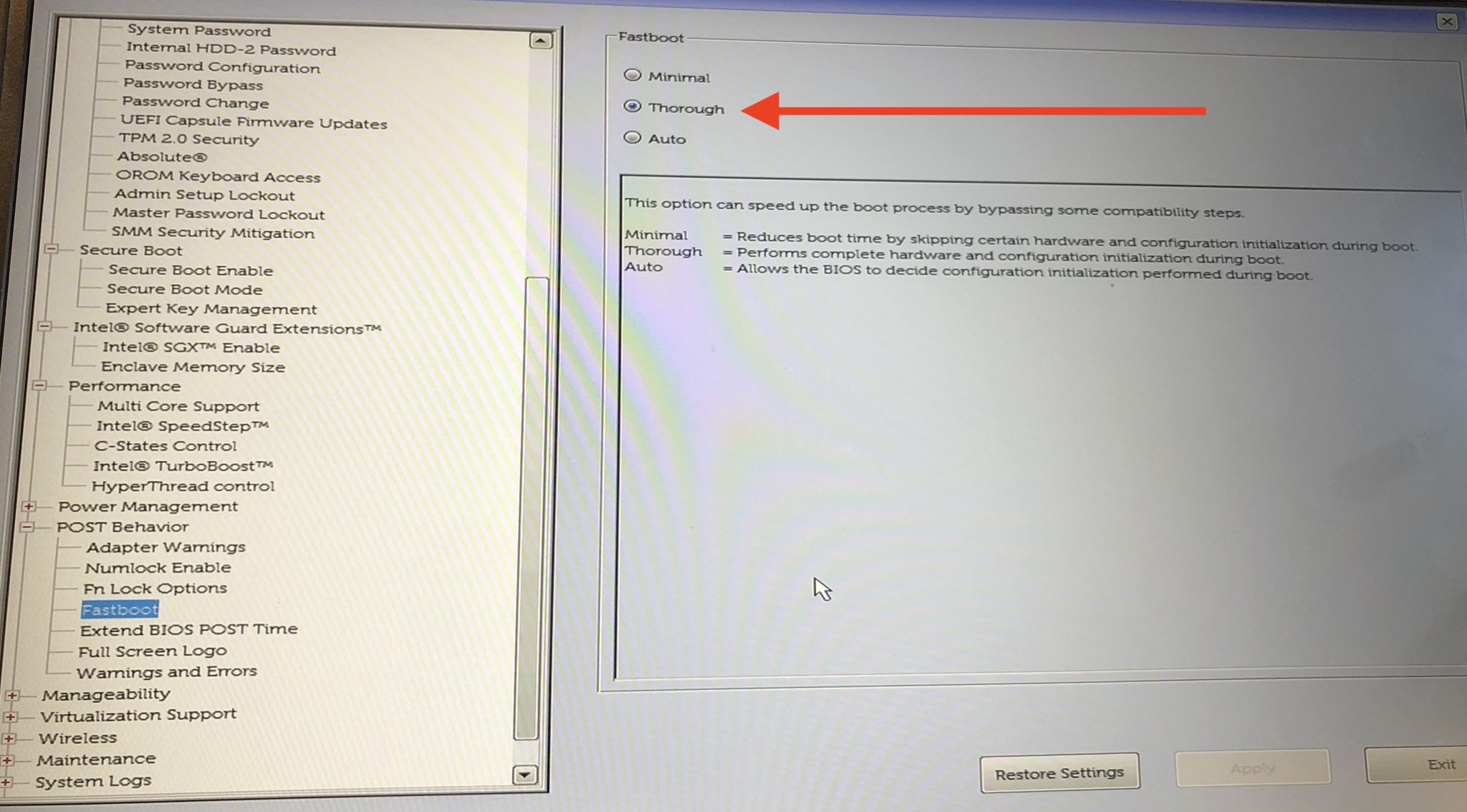
I recommended determining the root cause in order to unravel the reason for the BitLocker recovery prompt. This will help prevent the issue from reoccurring again. kindly check the MBAM Client event logs. This is located in
Event Viewer – Applications and Services Logs – Microsoft – Windows – MBAM - Operational pathAlso, the System Event is also paramount in unravelling some BitLocker recovery issues.
FAQs
What makes suspending BitLocker different from decrypting it?
The Decrypt option decrypts the drive. While the Suspend option keeps data encrypted but encrypts the BitLocker volume master key with a clear key. This allows for computer upgrades without decrypting and re-encrypting the entire drive. Once BitLocker is enabled, the encryption key is updated, volume master key changes, and the clear key is erased. Please see BitLocker Windows Update Shutdown or Reboot option behavior.
How can I prevent users from storing data on an unencrypted drive?
The Group Policy settings can be configured to require data drives be BitLocker-protected. With this, you can only write to a BitLocker-protected PC. When these policy settings are enabled. The BitLocker-protected operating system will mount any data drives that aren’t protected by BitLocker as read-only.
What is Disk Space Only encryption and is this considered best practice?
BitLocker allows users to encrypt only their data, potentially reducing encryption time by over 99 percent, depending on the amount of data needed. Note that this is not the most secure way to encrypt a drive.
I hope you found this blog post helpful on “Reasons for BitLocker Recovery Prompt: Query the number of BitLocker recovery key requests”. If you have any questions, please let me know in the comment session.




I have external hard drive encrypted through office laptop. I am not able to access it using recovery key and password. Not sure how to unlock it without losing data. Any inputs is appreciated.
If you have a recovery key, this should be straightforward using the manage-bde command. I hope this guide helps you: https://techdirectarchive.com/2022/02/05/how-to-unlock-a-fixed-drive-protected-by-bitlocker/
My IT department identified the 48 digit recovery key. But its saying the key doesn’t match this drive. For password its saying it is incorrect. I am pretty sure those are correct. Pasword worked initially and suddenly it’s not accepting. I connected to my personal PC as well and it’s the same issue.
I took a look and I would say all these have been mentioned except trying out the BitLocker data recovery software and formatting.
Ensure the right drive is specified, else it will not work!