Skip to content

TechDirectArchive

Hands-on IT, Cloud, Security & DevOps Insights

  • Home
  • About
  • Advertise With US
  • Contact
  • Reviews
  • Toggle search form
Home » Windows » How to Disable Chrome Browser Notifications on Windows

How to Disable Chrome Browser Notifications on Windows

Posted on 05/03/202331/05/2023 Matthew By Matthew 2 Comments on How to Disable Chrome Browser Notifications on Windows
Disable browser notifications in Chrome via GPO

Chrome notifications have become a ubiquitous part of the web browsing experience, with many websites sending notifications to keep users engaged and informed. However, while notifications can be a useful tool, they can also become distracting, invasive, and even harmful to our privacy. First, notifications can be incredibly distracting, constantly pulling us away from the task at hand and disrupting our focus. This can lead to decreased productivity, and even cause stress and anxiety. Second, some notifications may even be used to spread malware or phishing scams. Finally, having too many notifications enabled can slow down the browser, making it more difficult to use and navigate. In this guide, you will learn how to Disable Chrome Browser Notifications on Windows via GPO and Windows Registry.

Here are other related guides you should read about: How to fix sound not working on Google Chrome, how to Disable The Incognito Mode Features on Google Chrome on Windows PC,  and How to Install Group Policy Templates for Microsoft Edge and Google Chrome browser on Windows 10.

In light of these concerns, it may be a good idea to disable Chrome notifications. In this article, we will go through the steps to disable notifications in Chrome on Windows. By disabling chrome notifications, you can take back control of your browsing experience and enjoy a more productive, focused, and secure web browsing experience.

Steps on How to Disable Browser Notifications in Chrome

If your system is not managed via group policy, you can take advantage of this Chrome policy on-site notification to effectively disable all notifications on your browser by default, with the exception of those explicitly whitelisted.

How to Disable Browser Notification using via Registry

To disable site notifications on Chrome via the registry, follow the steps below.

Press the Windows key to launch the Start menu, search for regedit and click Run as administrator. Enter the User Account Control (UAC) details if prompted.

Disable browser notifications in Chrome: Open Registry Editor
Open Registry Editor

In the Registry, navigate to the following path:

 Computer\HKEY_LOCAL_MACHINE\SOFTWARE\Policies\Google\Chrome.
Disable browser notifications in Chrome: Chrome registry path
Chrome registry path

Click the Chrome key, right-click on the empty space on the right side and select New > DWORD(32-bit) Value, and then name it as DefaultNotificationsSetting.

Disable browser notifications in Chrome: Create a DWORD 32 Value in the Chrome Key
Create a DWORD 32 Value in the Chrome Key

Double-click the DefaultNotificationsSetting, and enter 2 as the Value data. Click OK to apply your change.

Disable browser notifications in Chrome: Set the value data for the DWORD 32
Set the value data for the DWORD 32

Below are the Value data and their functions:

  • 1 = Allow sites to show desktop notifications
  • 2 = Do not allow any site to show desktop notifications
  • 3 = Ask every time a site wants to show desktop notifications

Please see How To View Saved Passwords on Google Chrome Browser, how to fix the external display not working on Windows 11, and How to setup external displays on your Mac and arrange your display in Mac.

Disable Browser Notification using Chrome Policy via GPO

For Group Policy, you can control the notification settings using the Chrome ADMX templates. The templates show you which registry keys you can use to customize Chrome and what values are allowed. Chrome determines how to operate based on the values specified in these registry settings.
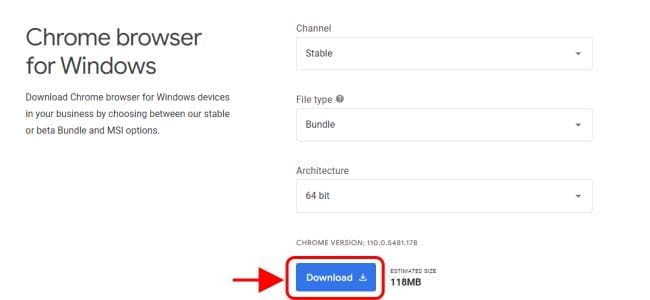
Disable browser notifications in Chrome: Chrome ADMX templates
Chrome ADMX templates

You must copy the ADM and ADMX files to your PolicyDefinitions folder (c:\windows\policydefinitions). You simply need to transfer the two ADMX files and the language folder.

Disable browser notifications in Chrome: ADMX files
ADMX files

Press the Windows key and R key to open Run, type gpedit.msc and click OK.

Run utility
Run utility

Add the Chrome.adm template

Navigate to Local Computer Policy > Computer Configuration > Administrative Templates. Right-click Administrative Templates, and select Add/Remove Templates.

Disable browser notifications in Chrome: Click on Add/Remove Templates to add the ADMX templates
Click on Add/Remove Templates to add the ADMX templates

Add the chrome.adm template via the dialog.

Add the Chrome.adm template

Once it’s done, a Google/Google Chrome folder will show up under Administrative Templates. If you added the ADM template to Windows 10 or 11, it will show up under Classic Administrative Templates/Google/Google Chrome.

ADM template with Google Chrome folder

To modify the notifications policies, navigate to Computer Configuration > Administrative Templates > Google > Google Chrome > Content Settings.

Click on Default notification setting

Double-click on Default notification settings on the right and set it to Enabled. Under the Options section, select “Do not allow any sites to show desktop notifications.”

Disable notifications

Allo Specific Sites via Group Policy

To allow some specific sites to show notifications, double-click on Allow notifications on these sites.

Please see how to set a browser as default in Windows, how to fix “Administrative templates retrieved from the local computer does not show up, How to add one or more external displays with your Mac, and how to logoff, restart, or shutdown Windows PC or Server remotely via Command Prompt and PowerShell.

Click on Allow notifications on these sites

Set it to Enabled. Under the Options section, click the show button and enter the URL of the sites you want to add.

Allow notification for specific sites

Please see how to make Cortana use your default web browser such as Google Chrome, how to schedule and run update via Windows Admin Center, and how to Set Google Chrome as default: How to set a browser as default on macOS.

I hope you find this post helpful on how to Disable browser notifications in Chrome via GPO in Windows. If you have any questions, feel free to leave them in the comment section below.

5/5 - (1 vote)

Thank you for reading this post. Kindly share it with others.

  • Share on X (Opens in new window) X
  • Share on Reddit (Opens in new window) Reddit
  • Share on LinkedIn (Opens in new window) LinkedIn
  • Share on Facebook (Opens in new window) Facebook
  • Share on Pinterest (Opens in new window) Pinterest
  • Share on Tumblr (Opens in new window) Tumblr
  • Share on Telegram (Opens in new window) Telegram
  • Share on WhatsApp (Opens in new window) WhatsApp
  • Share on Mastodon (Opens in new window) Mastodon
  • Share on Bluesky (Opens in new window) Bluesky
  • Share on Threads (Opens in new window) Threads
  • Share on Nextdoor (Opens in new window) Nextdoor
Windows Tags:Google Chrome, GPO, group policy, Microsoft Windows, Web-browser, Windows 10, Windows 11, Windows Server 2016

Post navigation

Previous Post: Virtual Machine Snapshot vs Backup
Next Post: Check the Size of Video Random Access Memory (VRAM) in Windows

Related Posts

  • get computer specific model information
    How to get Windows PC specific Model information Windows
  • windows 10 s splash 100720578 large
    Open the location of a Program: How to search in Windows 10 to find a file, folder, or program in File Explorer Windows
  • SSL on WAMPServer
    Setup VirtualHost with SSL on WAMP Server Linux
  • How to Force Stop a Grayed Out Windows Service
    How To Force Stop A Windows Service When Stop Option Is Grayed Out Windows
  • Err connection timed out DNS
    How to Fix Err Connection Timed Out DNS Error Windows
  • How to Clear Search History on Bing Chat AI
    How to Clear Search History on Bing Chat AI Windows

More Related Articles

get computer specific model information How to get Windows PC specific Model information Windows
windows 10 s splash 100720578 large Open the location of a Program: How to search in Windows 10 to find a file, folder, or program in File Explorer Windows
SSL on WAMPServer Setup VirtualHost with SSL on WAMP Server Linux
How to Force Stop a Grayed Out Windows Service How To Force Stop A Windows Service When Stop Option Is Grayed Out Windows
Err connection timed out DNS How to Fix Err Connection Timed Out DNS Error Windows
How to Clear Search History on Bing Chat AI How to Clear Search History on Bing Chat AI Windows

Comments (2) on “How to Disable Chrome Browser Notifications on Windows”

  1. Avatar photo Matt says:
    10/05/2023 at 8:40 PM

    You have the policy settings labeled as registry

    Log in to Reply
    1. chris Christian says:
      10/05/2023 at 9:25 PM

      Thank you Matt for the feedback!

      Log in to Reply

Leave a Reply Cancel reply

You must be logged in to post a comment.

Microsoft MVP

VEEAMLEGEND

vexpert-badge-stars-5

Virtual Background

GoogleNews

Categories

veeaam100

sysadmin top30a

  • Featured image 1
    How to Disable Internet Explorer with Group Policy & Registry Windows
  • dfgh
    How to install Pleasant Password Server Password Manager
  • 111615smarthomeNG
    Unspecified GSS failure: How to fix Clock skew too great Web Server
  • HOW TO AUTOMATE A PROCESS IN LINUX@
    Shell Scripting: How to Automate a Process in Linux Linux
  • article 1280x720.192a2586 1
    How to remove an MDT Deployment Share Windows Server
  • PetitPotam
    PetitPotam attack on Active Directory Certificate Services: How to mitigate NTLM Relay PetitPotam attack on AD CS Security | Vulnerability Scans and Assessment
  • Windows Deployment Services
    How to migrate WDS and MDT to a new Windows Server Windows Server
  • enable WinRM
    WSManFault Message 2144108526 0x80338012: Fix the client cannot connect to the destination specified in the request Windows Server

Subscribe to Blog via Email

Enter your email address to subscribe to this blog and receive notifications of new posts by email.

Join 1,824 other subscribers
  • RSS - Posts
  • RSS - Comments
  • About
  • Authors
  • Write for us
  • Advertise with us
  • General Terms and Conditions
  • Privacy policy
  • Feedly
  • Telegram
  • Youtube
  • Facebook
  • Instagram
  • LinkedIn
  • Tumblr
  • Pinterest
  • Twitter
  • mastodon

Tags

Active Directory AWS Azure Bitlocker Microsoft Windows PowerShell WDS Windows 10 Windows 11 Windows Server 2016

Copyright © 2025 TechDirectArchive


Loading Comments...
 

You must be logged in to post a comment.