Skip to content

TechDirectArchive

Hands-on IT, Cloud, Security & DevOps Insights

  • Home
  • About
  • Advertise With US
  • Reviews
  • Contact
  • Toggle search form
Home » Oracle/MSSQL/MySQL » Fix a network-related or instance-specific error occurred while establishing a connection to SQL Server [Part 2]
  • 517443 637084112713220326 16x9 1
    How can I tell if a password is set for a user account on Linux Linux
  • TZ
    TFTP Image to Flash: Copying Guide for Cisco ASA Network | Monitoring
  • SSU
    What to know about the servicing stack update and latest cumulative update in Windows Network | Monitoring
  • creating the perfect grafana dashboard  main
    How to install Grafana on Ubuntu Linux Network | Monitoring
  • Delete Expired Profiles on Mac
    Remove Expired Configuration Profiles on Mac Mac
  • Clickable icons Edge Browser
    Remove clickable icons from the Edge browser JIRA|Confluence|Apps
  • lang2
    How to add languages to your Windows PC Windows
  • image 129
    Using Awx to deploy, schedule and run playbooks Linux

Fix a network-related or instance-specific error occurred while establishing a connection to SQL Server [Part 2]

Posted on 03/11/202319/06/2025 Christian By Christian No Comments on Fix a network-related or instance-specific error occurred while establishing a connection to SQL Server [Part 2]
Fix Network related MSSQL instance error

Realistically, this is a rather frequent error error message. We shall learn how to “fix a network-related or instance-specific error occurred”. This error could mean different things as there is no one solution that fits all. Please see how to Migrate Your WordPress Site with WordPress Duplicator, how to Fix Spell Check Not Working in Microsoft Word, and how to Enable the End Task Option on the Windows 11 Taskbar. But in my case, it means that there is an issue with the network connectivity to the SQL Server instance as the name indicates.

A network-related or instance-specific error occurred while establishing a connection to SQL Server. The server was not found or was not accessible. Verify that the instance name is correct and that SQL Server is configured to allow remote connections. (provider: SQL Network Interfaces, error: 26• Error Locating Server/Instance Specified) (Microsoft SQL Server)

Please, see how to Install Windows Server 2025 via iDRAC Virtual Media or PXE, How to uninstall Microsoft SQL Server Management Studio, and “How to install Endpoint Configuration Manager on HyperV VM“.

Why was the error “A network-related or instance-specific error occurred”

As already discussed above, and from the error message below, the server could not be found or was not accessible. Yes, the instance name is correct but the SQL Server Service isn’t running. As a result, the following messages were prompted.

Network-or-instance-specific-error

Even when you click on the show details tab, you cannot pinpoint the issue on the fly. Another indicative message from the image below is that is says “Cannot connect to MSSQL Instance”.

Cannot-connect-to-Instance

Also, see how to fix “the server was not found or was not accessible: Verify that the instance name is correct and that SQL Server is configured to allow remote connections“, and how to uninstall Microsoft SQL Server on Windows.

Resolve “error occurred while establishing a connection to SQL Server”

Note: To fix the “network-related or instance-specific error” when connecting to SQL Server, ensure that the correct server name and database are specified in the connection string, and that SQL Server is running and accessible over the network. This was the case for SSMS v21 and not the services not running. Else, follow the steps below.

As you can see from the Services Manager, they are all not running.

SQL-Server-Services-are-not-runing-

To fix this, ensure the services Named instance as it is in my case or the default instance is running. All you need to do is right-click and start the service. There are numerous ways to start services on Windows.
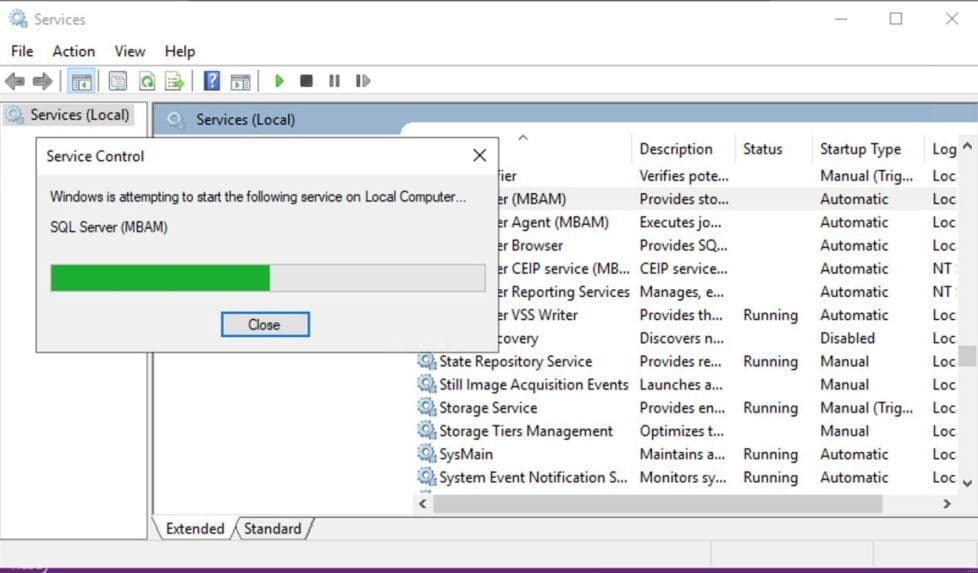
Start-SQL-Server-Services

As you can see below, these services are all applicable to me and as such are running again.

Rervices-all-running-as-applicable

Now, initiate a connection again via the SSMS. The connection should be successful.

Access-to-SSMS-possible

Here are some interesting articles: Unable to connect to MSSQL Server after changing the Server name, and how to fix “Cannot find the computer: Fix the following error occurred while using Kerberos authentication“.

Via the SQL Server Configuration Manager

Alternatively, to verify that the instance is running, select SQL Server Services in SQL Server Configuration Manager and check the symbol by the SQL Server instance.

  • A green arrow indicates that an instance is running.
  • A red square indicates that an instance is stopped.

If the instance is stopped, right-click the instance and select Start. Then, the server instance starts, and the indicator becomes a green arrow.

Via PowerShell commands

You can use the following command in PowerShell to check the status of SQL Server services on the system:

Get-Service | Where {$_.status -eq 'running' -and $_.DisplayName -like "sql server*"}
PowerShell-to-check-if-services-are-running

You can use the following command to search the error log file for the specific string “SQL Server is now ready for client connections. This is an informational message; no user action is required.”

SQL-Server-ready-for-connection

As I said above, there is no one solution that fits all here. If the steps above do not resolve your issue, Please head over to the following Micorosft Page to see if any other area covered will resolve your issue. Please, see “Windows could not start the SQL Server service on local computer 17051: A network-related or instance-specific error occurred while establishing a connection to SQL Server“.

FAQs

What is the difference between a Named Instance and a Default Instance in MSSQL?

A Default Instance is the primary installation of SQL Server on a server, identified by the server’s hostname or IP address without specifying an instance name. A Named Instance is a secondary installation of SQL Server, identified by a specific name alongside the server’s hostname or IP address. Multiple Named Instances can coexist on the same server, each with its own set of databases and configuration

Can I install multiple Default Instances on a single server?

You can have only one Default Instance on a server. However, you can install multiple Named Instances, each with its own instance name and configurations, on the same server.

What are the advantages of using Named Instances in MSSQL?

Named Instances allow you to run multiple independent SQL Server installations on a single server, each with its own databases, security settings, and configurations. This is useful for isolating applications, managing version compatibility, and optimizing resource utilization.

I hope you found this blog post helpful on how to Fix a network-related or instance-specific error occurred. Please let me know in the comment section if you have any questions.

5/5 - (1 vote)

Thank you for reading this post. Kindly share it with others.

  • Click to share on X (Opens in new window) X
  • Click to share on Reddit (Opens in new window) Reddit
  • Click to share on LinkedIn (Opens in new window) LinkedIn
  • Click to share on Facebook (Opens in new window) Facebook
  • Click to share on Pinterest (Opens in new window) Pinterest
  • Click to share on Tumblr (Opens in new window) Tumblr
  • Click to share on Telegram (Opens in new window) Telegram
  • Click to share on WhatsApp (Opens in new window) WhatsApp
  • Click to share on Pocket (Opens in new window) Pocket
  • Click to share on Mastodon (Opens in new window) Mastodon
  • Click to share on Bluesky (Opens in new window) Bluesky
  • Click to share on Threads (Opens in new window) Threads
  • Click to share on Nextdoor (Opens in new window) Nextdoor
Oracle/MSSQL/MySQL Tags:Microsoft SQL, Microsoft Windows, SSMS, Windows 10, Windows Server 2016

Post navigation

Previous Post: How to Disable Driver Signature Enforcement in Windows 11
Next Post: How to verify whether the xp_cmdshell feature is enabled or disabled in MSSQL Server

Related Posts

  • Database Collation
    Change SQL Database Collation: ePO events DB and SQL server should match with ePO core collation Oracle/MSSQL/MySQL
  • Screenshot 2021 02 01 at 12.25.27
    MySQL Workbench could not connect to MySQL server Oracle/MSSQL/MySQL
  • Disable Microsoft SQL Auto Close Option
    Disable SQL Auto Close: Auto Close is enabled for both ePO and ePO Events Databases Oracle/MSSQL/MySQL
  • installer file too long fix
    Fix long path names to files on SQL Server installation media error Oracle/MSSQL/MySQL
  • Oracle momory increase
    What to do after increasing the Memory of Oracle Database Oracle/MSSQL/MySQL
  • Configure SQL Server to listen on a specific TCP port
    Configure SQL Server Instance to listen on a specific TCP Port Oracle/MSSQL/MySQL

More Related Articles

Database Collation Change SQL Database Collation: ePO events DB and SQL server should match with ePO core collation Oracle/MSSQL/MySQL
Screenshot 2021 02 01 at 12.25.27 MySQL Workbench could not connect to MySQL server Oracle/MSSQL/MySQL
Disable Microsoft SQL Auto Close Option Disable SQL Auto Close: Auto Close is enabled for both ePO and ePO Events Databases Oracle/MSSQL/MySQL
installer file too long fix Fix long path names to files on SQL Server installation media error Oracle/MSSQL/MySQL
Oracle momory increase What to do after increasing the Memory of Oracle Database Oracle/MSSQL/MySQL
Configure SQL Server to listen on a specific TCP port Configure SQL Server Instance to listen on a specific TCP Port Oracle/MSSQL/MySQL

Leave a Reply Cancel reply

You must be logged in to post a comment.

Microsoft MVP

VEEAMLEGEND

vexpert-badge-stars-5

Virtual Background

GoogleNews

Categories

veeaam100

sysadmin top30a

  • 517443 637084112713220326 16x9 1
    How can I tell if a password is set for a user account on Linux Linux
  • TZ
    TFTP Image to Flash: Copying Guide for Cisco ASA Network | Monitoring
  • SSU
    What to know about the servicing stack update and latest cumulative update in Windows Network | Monitoring
  • creating the perfect grafana dashboard  main
    How to install Grafana on Ubuntu Linux Network | Monitoring
  • Delete Expired Profiles on Mac
    Remove Expired Configuration Profiles on Mac Mac
  • Clickable icons Edge Browser
    Remove clickable icons from the Edge browser JIRA|Confluence|Apps
  • lang2
    How to add languages to your Windows PC Windows
  • image 129
    Using Awx to deploy, schedule and run playbooks Linux

Subscribe to Blog via Email

Enter your email address to subscribe to this blog and receive notifications of new posts by email.

Join 1,841 other subscribers
  • RSS - Posts
  • RSS - Comments
  • About
  • Authors
  • Write for us
  • Advertise with us
  • General Terms and Conditions
  • Privacy policy
  • Feedly
  • Telegram
  • Youtube
  • Facebook
  • Instagram
  • LinkedIn
  • Tumblr
  • Pinterest
  • Twitter
  • mastodon

Tags

AWS Azure Bitlocker Microsoft Windows PowerShell WDS Windows 10 Windows 11 Windows Deployment Services Windows Server 2016

Copyright © 2025 TechDirectArchive


Loading Comments...
 

You must be logged in to post a comment.