Skip to content

TechDirectArchive

Hands-on IT, Cloud, Security & DevOps Insights

  • Home
  • About
  • Advertise With US
  • Reviews
  • Contact
  • Toggle search form
Home » Windows » Turn off Automatic Updates in Windows via Windows Registry and Group Policy
  • Screenshot 2020 07 23 at 18.29.00
    Universal, Global, and Domain Local Group Scopes Differences Windows
  • gnome
    Determine the version of GNOME running on your Ubuntu Linux Network | Monitoring
  • images
    Query MBAM to display the BitLocker Recovery report Network | Monitoring
  • Complete Guide on TestRail as a Test Management Tool   banner
    Complete Guide on TestRail as a Test Management Tool Security | Vulnerability Scans and Assessment
  • Screenshot 2020 06 22 at 23.27.40
    How to fix unable to install msodbcsql17 tool on Ubuntu Oracle/MSSQL/MySQL
  • Docker ENOENT error
    ENOENT: No such file or directory Error in Docker build Containers
  • Machine does not support XSAve
    How to disable side-channel mitigations on VMware Workstation Virtualization
  • Screenshot 2020 05 14 at 18.00.59
    Linux Error 13: Permission denied, are you root Linux

Turn off Automatic Updates in Windows via Windows Registry and Group Policy

Posted on 15/11/202315/11/2023 Christian By Christian No Comments on Turn off Automatic Updates in Windows via Windows Registry and Group Policy
Disable automatic updates

Microsoft releases Windows updates to address specific issues every month. These updates provide protection against malicious attacks and sometimes add new features to the operating system (OS). Therefore, these updates are critical. In general, Windows automatically downloads and installs updates to make sure your device is secure and up to date except there are settings preventing this. Sometimes, these updates are problematic. In this article, we shall discuss how to turn off automatic Windows Updates via the Registry and GPO. Please see How to enable or disable automatic software updates on Mac.

Reasons to Disable Windows Update

Most users delay or disable automatic Windows updates just to avoid possible issues. There are users who would like to stay with their current stable operating system. They will do everything not to update Windows just because everything is working. The learning curve of new features overwhelms some users.

Automatic updates in Windows may trigger automatic reboots, which can be inconvenient, especially in scenarios where continuous operation is essential. Turning off automatic updates gives users the flexibility to schedule reboots at more convenient times.

Therefore, this kind of people would rather disable Windows updates to stop Windows automatic updates. Also, see how to Fix Windows cannot check for updates in Windows 8, 7, and 10, How to start an application automatically on Mac, and Why Group Policy is not the best solution for managing Windows Updates.

See the following article on the reasons why you may want to disable or pause Windows Updates. They are “How to disable automatic Windows updates via Windows Settings“, and “How to Pause Windows Update via Windows Settings“.

Disable Automatic Windows Updates via Windows Registry

To disable Automatic Windows Updates, follow the steps given steps. Type Regedit in the Start menu or taskbar search box and then press Enter key. Click the Yes button when the User Account Control dialog appears.

Or via the run dialogbox as shown below
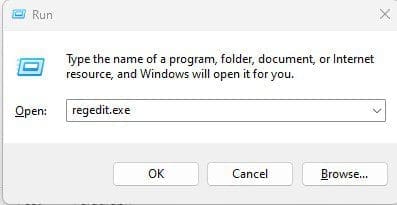
Alaunch-Windows-Registry

In the Registry Editor, navigate to the following key:

HKEY_LOCAL_MACHINE\SOFTWARE\Policies\Microsoft\Windows
Create-a-new-key

Right-click on the Windows key (as shown in the below picture), click New and then click Key.

New-Windows-Update-Key-created

New key created

Key created

Now that you have created the WindowsUpdate key. Right-click on the WindowsUpdate key, select New, select Key, and then enter the name as AU.

New-AU-key

Click on the AU key. On the right pane of the window. Right-click on the empty space, click New, select DWORD (32-bit) Value, and name it “NoAutoUpdate“.

NoAutoUpdate

Next, double-click on NoAutoUpdate. Set the value data to one of the following numbers:

0 â€“ To enable automatic updates
1 â€“ To turn off automatic updates
Auto-update-disabled

When you turn off automatic updates using the instructions mentioned above. Windows will never check for updates. When you navigate to the Advanced options of Windows Settings in the Settings app, you will see Never check for updates as the status under the Choose how updates are Installed section.

Another available settings to Turn off Automatic Windows Updates via the Registry

Based on the remark above, if you do not want to completely turn off automatic updates but want to control how the updates are installed, kindly choose any of the options below.

Same steps as above, navigate to the following Windows Registry Key.

HKEY_LOCAL_MACHINE\SOFTWARE\Policies\Microsoft\Windows

Select AU key, on the right side, create a new 32-bit DWORD and name it as AUOptions. Then set the value as one of the following numbers below. Note: We have created these Keys and DWORD already above.

2 â€“ Notify before downloading and installing updates
3 â€“ Auto download updates and notify for install
4 â€“ Auto download updates and schedule the install
5 â€“ Allow local admin to choose setting
flexible-windows-update-option

Enter the value 2 for example. Now you have set some lenient Windows update option

Disable Automatic Updates in the Group Policy Editor

Launch The Group Policy Editor via the run dialog box.

Luanch GPO

This will open the Local Group Policy Editor.

Local-Gorup-Policy-editor

Navigate through the following locations

Computer Configuration -> Administrative Templates -> Windows Components -> Windows Update
Manage-end-user-experience-Windows-update

Configure disable automatic updates

Configure-disable-automatic-updates

FAQs on disabling Windows Updates

What are the potential risks of turning off automatic updates?

Delaying or turning off updates might leave your system exposed to security vulnerabilities that are patched in the latest updates.

In some organisations, there are legal and compliance requirements that mandate regular security updates. Turning off updates might put you at odds with these requirements.

Other reasons to turn off automatic updates in Windows?

Some users or organizations prefer to have more control over when and how updates are installed. This allows them to ensure that updates don’t disrupt critical operations or workflows during specific times.

Systems Administrators may want to test updates in a test environment before deploying them widely. Disabling automatic updates allows for more strategic testing and deployment.

I hope you found this blog post on how to Turn off Automatic Windows Updates via the Registry and GPO helpful. Please let me know in the comment section if you have any questions.

Rate this post

Thank you for reading this post. Kindly share it with others.

  • Click to share on X (Opens in new window) X
  • Click to share on Reddit (Opens in new window) Reddit
  • Click to share on LinkedIn (Opens in new window) LinkedIn
  • Click to share on Facebook (Opens in new window) Facebook
  • Click to share on Pinterest (Opens in new window) Pinterest
  • Click to share on Tumblr (Opens in new window) Tumblr
  • Click to share on Telegram (Opens in new window) Telegram
  • Click to share on WhatsApp (Opens in new window) WhatsApp
  • Click to share on Pocket (Opens in new window) Pocket
  • Click to share on Mastodon (Opens in new window) Mastodon
  • Click to share on Bluesky (Opens in new window) Bluesky
  • Click to share on Threads (Opens in new window) Threads
  • Click to share on Nextdoor (Opens in new window) Nextdoor
Windows

Post navigation

Previous Post: ENOENT: No such file or directory Error in Docker build
Next Post: How to integrate TestRail with Jira

Related Posts

  • dtjdhn
    The action cannot be completed because the folder or file is open in another program: Determine where a file is open in Windows Windows
  • Featured image multi monitor
    Enhanced Multi-Monitor Experience with Windows 11 Windows
  • Slide1
    Fix Failed to open session in VirtualBox to install Windows 11 Image  Windows
  • How to pause updates and why
    How to Pause Windows Update via Windows Settings Windows
  • MBAM
    The web application “Administration Portal” cannot be enabled because one or more software dependencies are not met Windows
  • taskbar1
    Hide or Remove Search Button from Windows 11 Taskbar Windows

More Related Articles

dtjdhn The action cannot be completed because the folder or file is open in another program: Determine where a file is open in Windows Windows
Featured image multi monitor Enhanced Multi-Monitor Experience with Windows 11 Windows
Slide1 Fix Failed to open session in VirtualBox to install Windows 11 Image  Windows
How to pause updates and why How to Pause Windows Update via Windows Settings Windows
MBAM The web application “Administration Portal” cannot be enabled because one or more software dependencies are not met Windows
taskbar1 Hide or Remove Search Button from Windows 11 Taskbar Windows

Leave a Reply Cancel reply

You must be logged in to post a comment.

Microsoft MVP

VEEAMLEGEND

vexpert-badge-stars-5

Virtual Background

GoogleNews

Categories

veeaam100

sysadmin top30a

  • Screenshot 2020 07 23 at 18.29.00
    Universal, Global, and Domain Local Group Scopes Differences Windows
  • gnome
    Determine the version of GNOME running on your Ubuntu Linux Network | Monitoring
  • images
    Query MBAM to display the BitLocker Recovery report Network | Monitoring
  • Complete Guide on TestRail as a Test Management Tool   banner
    Complete Guide on TestRail as a Test Management Tool Security | Vulnerability Scans and Assessment
  • Screenshot 2020 06 22 at 23.27.40
    How to fix unable to install msodbcsql17 tool on Ubuntu Oracle/MSSQL/MySQL
  • Docker ENOENT error
    ENOENT: No such file or directory Error in Docker build Containers
  • Machine does not support XSAve
    How to disable side-channel mitigations on VMware Workstation Virtualization
  • Screenshot 2020 05 14 at 18.00.59
    Linux Error 13: Permission denied, are you root Linux

Subscribe to Blog via Email

Enter your email address to subscribe to this blog and receive notifications of new posts by email.

Join 1,836 other subscribers
  • RSS - Posts
  • RSS - Comments
  • About
  • Authors
  • Write for us
  • Advertise with us
  • General Terms and Conditions
  • Privacy policy
  • Feedly
  • Telegram
  • Youtube
  • Facebook
  • Instagram
  • LinkedIn
  • Tumblr
  • Pinterest
  • Twitter
  • mastodon

Tags

Active Directory AWS Azure Bitlocker Microsoft Windows PowerShell WDS Windows 10 Windows 11 Windows Server 2016

Copyright © 2025 TechDirectArchive


Loading Comments...
 

You must be logged in to post a comment.