If you know how to look at saved Wi-Fi passwords on your device, you won’t have to reset and re-configure them when you need them quickly. If you have forgotten your Wi-Fi password. In this article, you will learn how to find saved Wi-Fi Passwords in Windows 10 and 11. Please see how to remove Microsoft Defender update on Windows 10 and Windows Server image, and how to view Microsoft Defender Antivirus update details on Windows 10 image (install.wim), and how to Create a Windows 10 or 11 bootable USB with UEFI support.
One of the easiest ways to know the default Wi-Fi password is to check the back of your ADSL mode. Or the router and use that to connect to your wireless network.
Windows WiFi password
However, if you’ve previously changed your Wi-Fi password, the only way to regain access to your wireless network is to either reset your modem to its default settings, find the Wi-Fi password from an old computer, or find it from other Windows 10 or 11 devices that are currently connected to the wireless network. Here is another guide on how to reveal the WiFi password of the Network you are connected to in Windows.
Here are other interesting guides you can read about How to enable or disable Windows Defender Antivirus Periodic Scanning on Windows via Windows Security, How to restore quarantined files in Microsoft Defender Antivirus,and How to find and remove Malware with Microsoft Defender Offline. This guide shows you step-by-step how to see the saved names and passwords for wireless networks on Windows 10 or Windows 11.
View Saved Wi-Fi Passwords in Windows 10 or 11
We will be showing you three different ways in which you can quickly view the saved Wi-fi of your wireless network. Please see Unable to connect to Eduroam WLAN: WiFi Username remembered on MAC.
Method 1: View the Wi-Fi Password of your Active Wireless Connection
If you simply want to see the Wi-Fi password for a wireless network that you are currently connected to use this method. Use one of the remaining methods to check all the stored passwords on a Windows 10 or 11 computer.
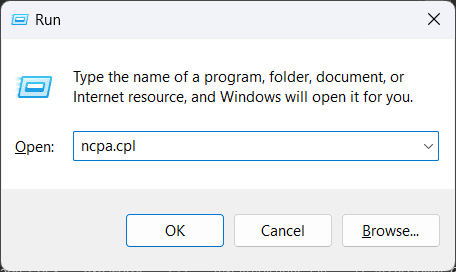
To launch the Run dialog box, press the Windows key + R together. Type ncpa.cpl in the box and hit Enter to open the Network Connections page.
Right-click on your Wi-fi adapter and choose Status from the menu that appears.

Click on Wireless Properties.

Click the Security tab and check the box next to “Show characters.” You may be prompted to enter your UAC to view the Wi-Fi password for the wireless network.

Method 2: How to View Saved Wi-fi Passwords Using Command Prompt
You can view the Wi-Fi passwords for any wireless network you’ve ever connected to using the command line. To do this follow the steps below.
Press the Windows key to open the Start menu and type CMD and select Run as an Administrator.

Type the following command and press Enter to view all the saved Wireless profiles.
netsh wlan show profiles

You should see all the wireless networks you have previously connected to after running the above command. Find the wireless network you want to view the Wi-Fi password for, then enter the following command to display the password:
netsh wlan show profile name="Wireless-Name" key=clear
Replace the “Wireless-Name” with the name of the Wi-Fi network you want to view the password.
The command will display several information about the Wi-Fi password. Scroll down to Security Settings and view the Wi-Fi password next to Key Content.

If you are simply interested in seeing the password and know the Wi-Fi network’s name. You can also use the command shown below:
netsh wlan show profile name="network name" key=clear | find /I “Key Content”

Please see How to Get the Windows 10 Version 22H2 Update. Setting up and configuring Cisco WAP 551 and WAP 561, and installing ADK|WinPE|MDT: Deploy Windows with WDS. Also see 5 Steps to Fix Outlook continually prompts for passwords on Windows 10 and 11.
Method 3: How to View Saved Wi-fi Passwords Using PowerShell
You can also view the Wi-Fi passwords for any wireless network you’ve ever connected to using PowerShell. To do this follow the steps below.
Press the Windows key to open the Start menu and type PowerShell and select Run as an Administrator.

Copy and paste the following command to display all the Wi-Fi networks and their passwords.
(netsh wlan show profiles) | Select-String "\:(.+)$" | %{$name=$_.Matches.Groups[1].Value.Trim(); $_} | %{(netsh wlan show profile name="$name" key=clear)} | Select-String "Key Content\W+\:(.+)$" | %{$pass=$_.Matches.Groups[1].Value.Trim(); $_} | %{[PSCustomObject]@{ PROFILE_NAME=$name;PASSWORD=$pass }} | Format-Table -AutoSize
This command lists the names and passwords of every Wi-Fi network you’ve ever connected to. Please see Windows Modules Installer: How to deactivate TrustedInstaller in Windows. How to fix Error code 0x801c001d: Automatic registration failed, failed to look up the registration service information from Active Directory with exit code unknown HResult.

I hope you find this post helpful on how to find saved Wi-Fi Passwords in Windows 10 and 11. If you have any questions, feel free to leave them in the comment section below.