How to Set up an Amazon Web Services (AWS) Account

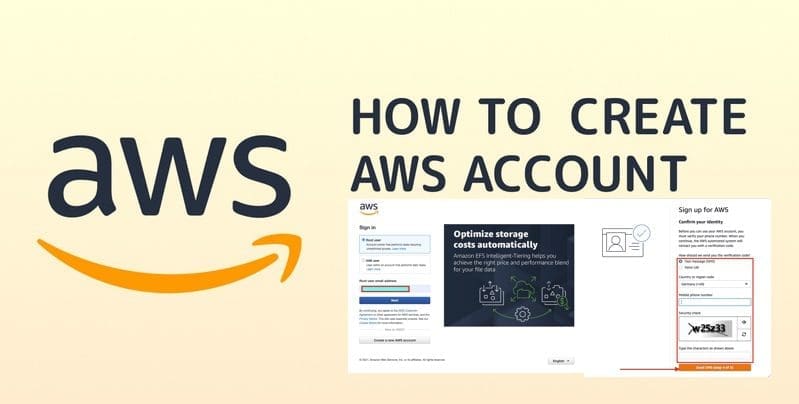
AWS (Amazon Web Services) is Amazon’s comprehensive cloud computing platform, providing many computing resources, storage options, and networking capabilities over the internet. In this article, we will show you how to set up an Amazon Web Services (AWS) Account and learn a little about the Trusted Advisor. Please see how to Check and Reset Network Data Usage in Windows 11, and how to Disable and Enable USB Usage for Certain Users in Windows.
When you sign up for Amazon Web Services (AWS), your AWS account is automatically signed up for all services in AWS. For more information, see AWS Free Usage Tier. Explore more than 100 products and start building on AWS using the Free Tier.

Also, see how to create an App Service Plan with Continuous Deployment to deploy a .NET Application from GitHub. Learn about the “Benefits of Azure API Management and how to create an API instance.
Free Tier Types
Three different types of free offers are available depending on the product used. Navigate to the associated link and click the icon below to explore all offers.

12-Months Free: New AWS customers can access these free tier offers for 12 months from their AWS sign-up date. Upon expiration of the 12-month free usage term or if application use exceeds the tiers, customers will transition to standard, pay-as-you-go service rates (refer to each service page for detailed pricing).
Certain restrictions apply, and offer terms provide additional details.Always Free: Both existing and new AWS customers can avail themselves of these free tier offers indefinitely. Unlike the 12-month AWS Free Tier term, these offers do not automatically expire.
Trials: Short-term trial offers are available, commencing from the time of the first usage. Upon the conclusion of the trial period, customers will transition to standard, pay-as-you-go service rates. Please refer to each service page for detailed pricing.
See how to upgrade Veeam ONE to v12.1, how to uninstall AWS CLI in Windows, and the video on how to Install Group Policy Management Console on Windows 11.
Create an AWS account
Use the associated link above to create a new AWS account as a root user.
Note: Are you eligible for startup AWS credits? AWS Activate provides eligible startups with a host of resources, including free AWS credits to spend on AWS services, and AWS Support.

Populate the field below
Important: AWS recommends using an email address accessible by a group for the critical root user of the account. This ensures continued access to the AWS account even if the individual who signed up leaves the company. If access to the email address is lost, recovery of the account password becomes impossible.

Enter your contact information. In this step, you must fill in your credit card /Debit Card info and billing address and click on Secure Submit.

Enter your billing information
This step can be completed later if AWS is having issues verifying your details! I will complete this step at a later time.
Enter your mobile number to confirm your identity. If presented with a CAPTCHA, enter the displayed code, and then submit.
Note: After clicking on Send SMS or Call Me Now.

You will immediately receive a call or SMS from Amazon for a verification code. Input your code, and click on Verify Code.

Select your AWS support plan. AWS support offers a selection of plans to meet your business needs. I am fine with the basic free support!

Once you completed all the above steps. You will get the confirmation page below.

Now your account will be processed for activation and will receive an email confirmation that your Amazon Cloud Services account has been activated.
Sign-in to AWS
Next, you will be required to sign in to your AWS account

At the next prompt, enter your password

Now, you have full access to all AWS services via the AWS console.

AWS Trusted Advisor
The AWS Trusted Advisor helps you optimize costs, increase performance, improve security and resilience, and operate at scale in the cloud.
Trusted Advisor continuously evaluates your AWS environment using best practice checks across the categories of cost optimization, performance, resilience, security, operational excellence, and service limits and recommends actions to remediate any deviations from best practices.
Below are some checks performed so far!
You must complete your account signup (This includes adding a payment method, completing identity verification, and selecting a support plan). Otherwise, you will not be able to access “Trusted Advisor” from the AWS Management Console.
FAQs
How Does an AWS Account Benefit Your Lab Work?
An AWS account enhances your lab work by providing scalable computing power, storage, and a multitude of services to suit your specific needs.
In What Ways Does an AWS Account Boost Lab Efficiency?
An AWS account streamlines lab processes by offering on-demand resources, reducing infrastructure management overhead, and facilitating a more agile and responsive environment.
How Can an AWS Account Catalyze Learning in my lab environment?
By using AWS services, your lab becomes an interactive learning environment where students and professionals can gain hands-on experience with industry-leading cloud technologies, fostering practical skills and knowledge.
Why Create an AWS Account for Your Lab?
Similar to the answers above, creating an AWS account for your lab empowers you to harness the vast range of cloud services actively.
I hope you found this article useful on how to set up an Amazon Web Services (AWS) Account. Please feel free to leave a comment below.


