Skip to content

TechDirectArchive

Hands-on IT, Cloud, Security & DevOps Insights

  • Home
  • About
  • Advertise With US
  • Reviews
  • Contact
  • Toggle search form
Home » Windows » DISM “Failed to open image” CWimImageInfo Mount(hr:0x8007000d): Fix Error DISM WIM Provider
  • safari 1
    How to clear cookies history and cache in Safari Mac
  • screenshot 2020 04 02 at 23.27.20
    Cloud Protection Manager: N2WS Veeam CPM Guide Backup
  • fghj
    MDT deployment failed and Stuck at Command Prompt: Windows installation does not proceed via PXE boot Windows Server
  • Featured image Teams Whiteboard
    How to use Whiteboard in Microsoft Teams meetings Windows
  • Header picture 1
    Find BIOS Serial Number and System Information on Windows 11 Windows
  • virtualbox guest additions rcm480x270u
    How to install virtual machine Guest Addition Virtualization
  • mailx
    [MAILX ERROR: STATUS=BOUNCED] Fixing Mailx error when sending emails from Command line Linux
  • cockpit
    Installation and configuration of Cockpit on CentOS Linux Linux

DISM “Failed to open image” CWimImageInfo Mount(hr:0x8007000d): Fix Error DISM WIM Provider

Posted on 09/04/202409/04/2024 Christian By Christian No Comments on DISM “Failed to open image” CWimImageInfo Mount(hr:0x8007000d): Fix Error DISM WIM Provider
original 1

The Deployment Image Servicing and Management (DISM) tool is a command-line tool that is used to modify Windows images. In this article, we shall discuss the following error found in the log ‘DISM “Failed to open image” CWimImageInfo Mount(hr:0x8007000d): Fix Error DISM WIM Provider: PID=6928 TID=10308″. Please see how to update Microsoft Defender Antivirus into the install image of Windows (install.wim), and how to “Fix Error 183: The specified image is currently being serviced by another DISM operation“.

You can use DISM’s Features commands to enable or disable Windows features directly from the command prompt. Or by applying an answer file to the image. You can enable or disable Windows features offline on a WIM or VHD file, or online on a running operating system.

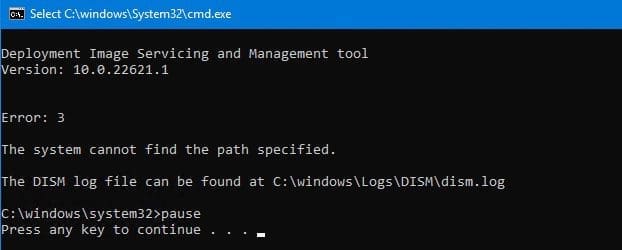
Below is the error prompted on the command line when running the DISM tool "The system cannot find the specified path".
DISM-Error

Here are some possible errors you can encounter while resolving this issue Error 0xc1570103: The license file was not found in the specified path, and how to fix error 0xc1510114: The wim file needs to be remounted. Also, see “Install Wim: How to Add Packages to Windows image the DISM Tool“.

Log Review for DISM Error

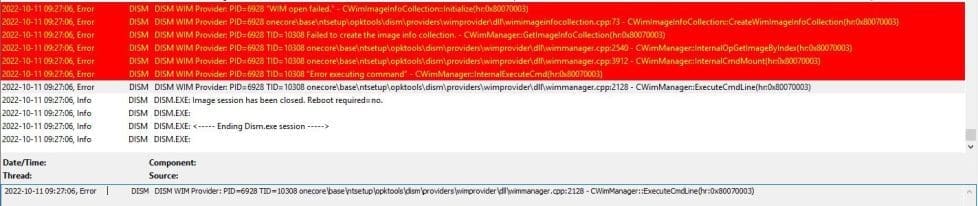
As you can see above, the error message is not descriptive enough. Now let’s locate the log file as described in the image above

Dismerrorloglocation

When you open the log as described via CMTrace, the following errors will be displayed
Wimerror

Note: This issue has nothing to do with the install.wim or boot.wim file. Therefore, you do not need to download a new ISO file to have the wim file extracted.

nonewwimfilerequired

Note: This has nothing to do with installing or repairing the Windows ADK. Shortly, I will be discussing the solution to this.

Note: Kindly avoid all manners of suggestions online and please pay attention to the errors prompted to you.

Reason and Solution

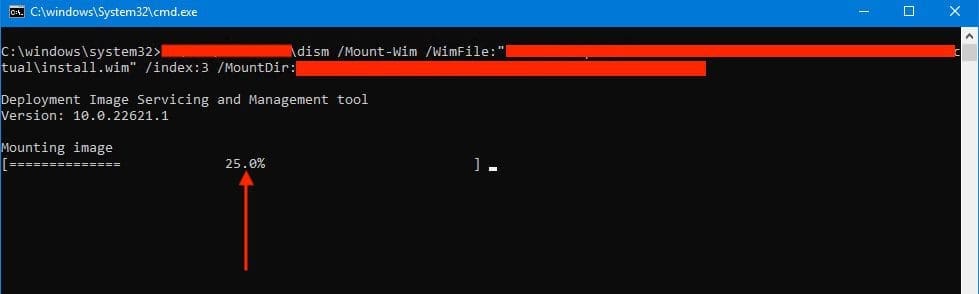
This isn’t a DISM or the installation file issue. The path to the Win file is incorrect as well. But the script included some line breaks in between. This may be hard to detect, therefore, I will advise copying it to a different text editor and copying it back to the original local and saving it.

Then run the command again, then it should work for you. If this does not fix your issue, then you must have a different and specific issue.

I urge you to pay more attention to your error than trying out every steps (solutions) on the internet.
solutioncheckurDISMcommand

I hope you found the steps to fix “DISM “Failed to open image” CWimImageInfo Mount(hr:0x8007000d): Fix Error DISM WIM Provider: PID=6928 TID=10308 onecore\base\ntsetup\opktools\dism\providers\wimprovider\dll\wimmanager (hr:0x80070003)” very useful. Please feel free to leave a comment below.

Rate this post

Thank you for reading this post. Kindly share it with others.

  • Click to share on X (Opens in new window) X
  • Click to share on Reddit (Opens in new window) Reddit
  • Click to share on LinkedIn (Opens in new window) LinkedIn
  • Click to share on Facebook (Opens in new window) Facebook
  • Click to share on Pinterest (Opens in new window) Pinterest
  • Click to share on Tumblr (Opens in new window) Tumblr
  • Click to share on Telegram (Opens in new window) Telegram
  • Click to share on WhatsApp (Opens in new window) WhatsApp
  • Click to share on Pocket (Opens in new window) Pocket
  • Click to share on Mastodon (Opens in new window) Mastodon
  • Click to share on Bluesky (Opens in new window) Bluesky
  • Click to share on Threads (Opens in new window) Threads
  • Click to share on Nextdoor (Opens in new window) Nextdoor
Windows, Windows Server

Post navigation

Previous Post: Change Active Directory Domain name from dot local to dot com
Next Post: How to create a Logic App for monitoring tweets

Related Posts

  • Printer
    How to rename a Printer in Windows 10 Windows
  • Lockout7
    Change Account Lockout Threshold for Local Accounts in Windows: The reference account is locked Windows
  • Featured image 3
    How to fix White Screen in Microsoft Teams Windows
  • Microsoft Enterprise Root Certification Authority and Forest Domain to Azure migration
    Migrate Microsoft Enterprise Root Certification Authority and Forest Domain to Azure AWS/Azure/OpenShift
  • Windows Logo
    Restrict IP Address Range on Windows PC Windows
  • Pluggin cable
    System check found some issues during MBAM encryption: Fail, the Power cable must be connected Windows

More Related Articles

Printer How to rename a Printer in Windows 10 Windows
Lockout7 Change Account Lockout Threshold for Local Accounts in Windows: The reference account is locked Windows
Featured image 3 How to fix White Screen in Microsoft Teams Windows
Microsoft Enterprise Root Certification Authority and Forest Domain to Azure migration Migrate Microsoft Enterprise Root Certification Authority and Forest Domain to Azure AWS/Azure/OpenShift
Windows Logo Restrict IP Address Range on Windows PC Windows
Pluggin cable System check found some issues during MBAM encryption: Fail, the Power cable must be connected Windows

Leave a Reply Cancel reply

You must be logged in to post a comment.

Microsoft MVP

VEEAMLEGEND

vexpert-badge-stars-5

Virtual Background

GoogleNews

Categories

veeaam100

sysadmin top30a

  • safari 1
    How to clear cookies history and cache in Safari Mac
  • screenshot 2020 04 02 at 23.27.20
    Cloud Protection Manager: N2WS Veeam CPM Guide Backup
  • fghj
    MDT deployment failed and Stuck at Command Prompt: Windows installation does not proceed via PXE boot Windows Server
  • Featured image Teams Whiteboard
    How to use Whiteboard in Microsoft Teams meetings Windows
  • Header picture 1
    Find BIOS Serial Number and System Information on Windows 11 Windows
  • virtualbox guest additions rcm480x270u
    How to install virtual machine Guest Addition Virtualization
  • mailx
    [MAILX ERROR: STATUS=BOUNCED] Fixing Mailx error when sending emails from Command line Linux
  • cockpit
    Installation and configuration of Cockpit on CentOS Linux Linux

Subscribe to Blog via Email

Enter your email address to subscribe to this blog and receive notifications of new posts by email.

Join 1,841 other subscribers
  • RSS - Posts
  • RSS - Comments
  • About
  • Authors
  • Write for us
  • Advertise with us
  • General Terms and Conditions
  • Privacy policy
  • Feedly
  • Telegram
  • Youtube
  • Facebook
  • Instagram
  • LinkedIn
  • Tumblr
  • Pinterest
  • Twitter
  • mastodon

Tags

AWS Azure Bitlocker Microsoft Windows PowerShell WDS Windows 10 Windows 11 Windows Deployment Services Windows Server 2016

Copyright © 2025 TechDirectArchive


Loading Comments...
 

You must be logged in to post a comment.