Skip to content

TechDirectArchive

Hands-on IT, Cloud, Security, Veeam & DevOps

  • Home
  • About
  • Advertise With US
  • Reviews
  • Tech News
  • Contact
  • Toggle search form

Fix long path names to files on SQL Server installation media error

Posted on 19/06/202524/06/2026 IT Expert By IT Expert No Comments on Fix long path names to files on SQL Server installation media error
  1. Home
  2. Oracle/MSSQL/MySQL
  3. Fix long path names to files on SQL Server installation media error
installer file too long fix

In this article, we will discuss how to fix long path names to files on SQL Server installation media error. This happens when installing Microsoft SQL Server on Windows Server. Despite installing SQL Server numerous times with the same installation media. I was prompted with the error that the installation media on a network share. Or in a custom folder can cause installation failure if the total length of the path exceeds 260 characters. Please, see how to download and install MSSQL 2019 Express Edition and SSMS, and how to upgrade Windows Admin Center 2306 – 2311: Run WACmg v2401.

SQL Server (MSSQL) is a relational database management system (RDBMS) developed by Microsoft that enables users interact with and manage data via Structured Query Language (SQL). Businesses widely use MSSQL for tasks like transaction processing, data warehousing, and business intelligence.

Also, see and how to upgrade Microsoft SQL Server 2019 to 2022, and how to create a Windows 11 Bootable USB drive. Here is how to create a Windows 10 or 11 bootable USB with UEFI support.

Reason for the long path names to files on SQL Server installation media error?

This error is prompted during SQL Server setup from 2019 which is the version I am installing today. This error also occurs in later versions when the installation media (extracted ISO or installation folder) contains long file paths. This is usually over 260 characters.

As you can see below, when you launch the SQL Server setup file. This will open up SQL Server Installation Center. When you click on “New SQL Server stand-alone installation or add features to an existing installation”.

Ideally, in the Global Rules page, setup automatically advances to the Microsoft Update page if there are no rule errors. Unfortunately, this is not the case for this setup as shown below.

To see more of this error, please click on “Failed” under the status tab.

long pathnmae to file on SQL Server media

Below is the detailed information about the failure. We are being instructed to use Net Use functionality or shorten the path name.

rule check result

Please, see How to encrypt Microsoft SQL Server Traffic, how to link a removable media to a Deployment Share: Replicate Deployment share to a removable device. Here is a guide on how to Install SQL Server Management Studio 21 on Windows Server.

Shorten Path Name

As you can see above, one of the steps we have to resolve this issue is to shorten the path name to SQL Server Setup.exe file.
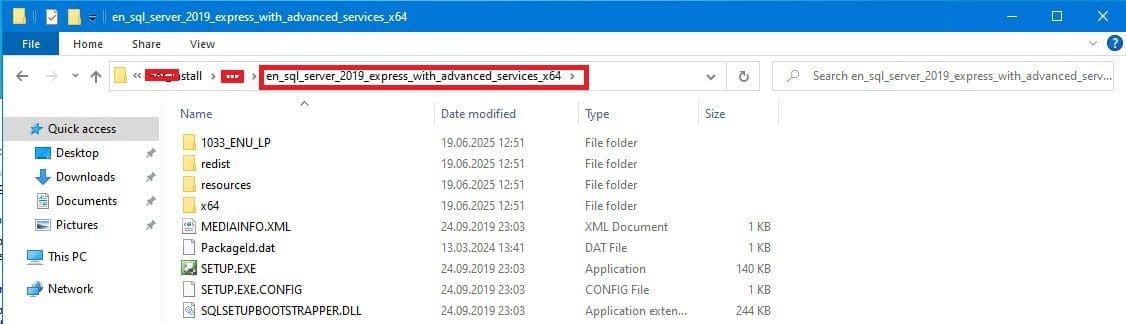
install path
You could also rename it on the parent folder as shown here.

But, decided to move the SQL Server installation folder to a different folder by coping and renaming it as shown below.

rename folder

As you can see, I have shorten the path name as recommended.

long path fixed

Please, see how to “Install SQL Server Management Studio 20 on Windows Server, and how to install Endpoint Configuration Manager on HyperV VM. Here is “how to uninstall Microsoft SQL Server Management Studio“.

Launch SQL Server Installation Again

When the path name is renamed, ensure to close all open SQL Server Installation Center. Then click on the SQL Server Setup file and when the SQL Server Installation Center opens up. Click on the first option as shown below to install SQL Server unto the server.

As you can see below, we are prompted right in the Install Rules page. Setup checks for potential problems that might occur while running Setup. As you can see below, there is no failure but only a warning message alone regarding Windows Firewall.

long path rule passed

To get more information about the warning message. Kindly click on the warning link under the status tab as shown below.

firewall warning

You should be able to install SQL Server going forward by following the steps or Windows prompted.

I hope you found this article very useful on how to Fix long path names to files on SQL Server installation media error. Please, feel free to leave a comment below.

5/5 - (1 vote)

Thank you for reading this post. Kindly share it with others.

  • Share on X (Opens in new window) X
  • Share on Reddit (Opens in new window) Reddit
  • Share on LinkedIn (Opens in new window) LinkedIn
  • Share on Facebook (Opens in new window) Facebook
  • Share on Pinterest (Opens in new window) Pinterest
  • Share on Tumblr (Opens in new window) Tumblr
  • Share on Telegram (Opens in new window) Telegram
  • Share on WhatsApp (Opens in new window) WhatsApp
  • Share on Mastodon (Opens in new window) Mastodon
  • Share on Bluesky (Opens in new window) Bluesky
  • Share on Threads (Opens in new window) Threads
  • Share on Nextdoor (Opens in new window) Nextdoor
Oracle/MSSQL/MySQL Tags:error SQL install media long path, file path exceeds limit SQL install, fix path too long during SQL Server setup, installation media error SQL Server, long path SQL Server installation, overcome long file path SQL installation, resolve long filename issue SQL Server, SQL, SQL Server install error path length, SQL Server setup file path fix, SQL setup error due to long path names, SQL setup media error path too long, troubleshoot SQL Server long file path issue, Windows path length limit SQL Server

Post navigation

Previous Post: Install SQL Server Management Studio 21 on Windows Server
Next Post: How to shrink and create new partition on Windows Server

Related Posts

  • Setup is unable to access the SQL UDP port 1434
    Setup is unable to access the SQL UDP Port 1434 on the specified SQL Server Oracle/MSSQL/MySQL
  • upgrade Microsoft SQL Server
    How to upgrade Microsoft SQL Server 2019 to 2022 Oracle/MSSQL/MySQL
  • Database Collation
    Change SQL Database Collation: ePO events DB and SQL server should match with ePO core collation Oracle/MSSQL/MySQL
  • Step to migrate from microsft SQl to PostgreSQL
    Migrate Veeam Configuration Database to PostgreSQL Server Backup
  • sql server
    Download and install MSSQL 2019 Express Edition and SSMS Oracle/MSSQL/MySQL
  • Uninstall SQL Server 2025
    Uninstall Microsoft SQL Server 2025 from Windows Oracle/MSSQL/MySQL

More Related Articles

Setup is unable to access the SQL UDP port 1434 Setup is unable to access the SQL UDP Port 1434 on the specified SQL Server Oracle/MSSQL/MySQL
upgrade Microsoft SQL Server How to upgrade Microsoft SQL Server 2019 to 2022 Oracle/MSSQL/MySQL
Database Collation Change SQL Database Collation: ePO events DB and SQL server should match with ePO core collation Oracle/MSSQL/MySQL
Step to migrate from microsft SQl to PostgreSQL Migrate Veeam Configuration Database to PostgreSQL Server Backup
sql server Download and install MSSQL 2019 Express Edition and SSMS Oracle/MSSQL/MySQL
Uninstall SQL Server 2025 Uninstall Microsoft SQL Server 2025 from Windows Oracle/MSSQL/MySQL

Leave a Reply Cancel reply

You must be logged in to post a comment.

Microsoft MVP

VEEAMLEGEND

vexpert-badge-stars-5

Virtual Background

GoogleNews

Categories

veeaam100

Veeam Vanguard

  • Create AWS RDS instance
    How to create an Amazon Relational Database Service Instance AWS/Azure/OpenShift
  • Banner
    Enabling and Configuring WinRM via GPO Windows
  • EC2 Public IP
    How to Allocate, Associate, Disassociate and Release Elastic IP Address from an EC2 Instance AWS/Azure/OpenShift
  • HyperV 2
    Fix no disks suitable for the cluster were found Windows Server
  • proxmox
    Clone a Proxmox Container: CT Restoration Guide Virtualization
  • lang2
    How to add languages to your Windows PC Windows
  • screenshot 2020 02 07 at 21.59.33
    Prerequisites for setting up a Single and Multi App Kiosk Windows
  • Featured image 4
    How to remove a Device from your Microsoft Account Microsoft Exchange/Office/365

Subscribe to Blog via Email

Enter your email address to subscribe to this blog and receive notifications of new posts by email.

Join 1,779 other subscribers
  • RSS - Posts
  • RSS - Comments
  • About
  • Authors
  • Write for us
  • Advertise with us
  • General Terms and Conditions
  • Privacy policy
  • Feedly
  • Telegram
  • Youtube
  • Facebook
  • Instagram
  • LinkedIn
  • Tumblr
  • Pinterest
  • Twitter
  • mastodon

Tags

Active Directory Azure Bitlocker Microsoft Windows PowerShell WDS Windows 10 Windows 11 Windows Deployment Services Windows Server 2016

Copyright © 2026 TechDirectArchive

Loading Comments...

You must be logged in to post a comment.