Skip to content

TechDirectArchive

Hands-on IT, Cloud, Security & DevOps Insights

  • Home
  • About
  • Advertise With US
  • Reviews
  • Contact
  • Toggle search form
Home » How to setup and configure Jitsi as SoftPhone
  • Package1
    Install Synaptic Package Manager: Handle packages in Ubuntu Linux
  • FileNotFoundError Errno 2 No such file or directory
    Fix FileNotFoundError: [Errno 2] No such file or directory Scripts
  • Manually resize your partition
    KB5034439 Windows Update Error: Resize WinRE Partition Windows Server
  • unnamed
    Upgrade ManageEngine Password Manager Pro Password Manager
  • squid proxy feature
    How to Set Up and Configure a Squid Proxy Server Linux
  • Manage Log Files via Logrotate
    How To Use Logrotate For Managing Log Files In Ubuntu Linux Linux
  • ip adress 1555395782 1024x576 1
    How to create and delete a DHCP reservation in Windows Server Windows Server
  • hyper v 1
    How to fix unable to create a new VM on HyperV Virtualization

How to setup and configure Jitsi as SoftPhone

Posted on 09/03/201821/03/2024 Christian By Christian No Comments on How to setup and configure Jitsi as SoftPhone

Jitsi is a Secure and Simple Video Conferencing and Instant Messaging application that can be run on Windows, Linux, Mac etc. This is a standalone application that supports instant messaging and telephony protocols (OTR and SIP etc.). In this article, you will learn how to set up and configure Jitsi as SoftPhone. Here are some interesting guides: How to remove pre-provisioned apps from Windows Image and how to determine Apps UWP and remove pre-provisioned appx in Windows. In this guide, you will learn how to get the list of installed programs locally or remotely in Windows.

Scenario: If you ever wish to run your VoIP telephone system as software because you do not have enough corded or cordless phones, then you can turn to Jitsi for help.

Setup and configure Jitsi as SoftPhone

Here are the steps to Install Jitsi as a smartphone to enable you to use your existing phone system without a corded phone.

  • Download the installer.
  • Download the latest version of Jitsi-latest-x64.msi  (2017 installer) as at the time of writing
  • Double-click on the MSI file and follow the prompt as shown below
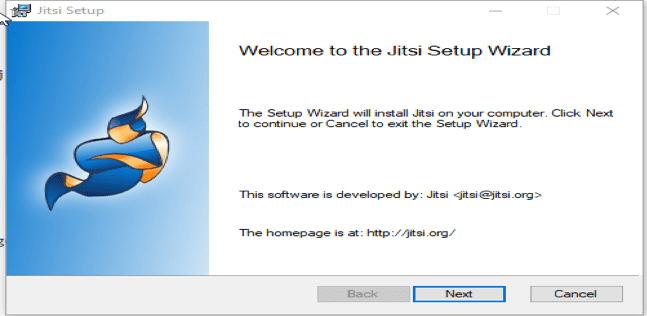
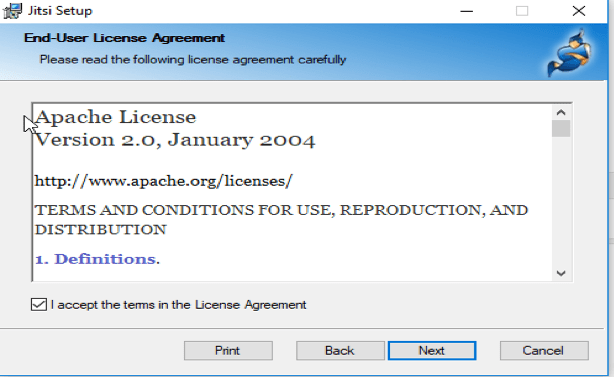
Click on next and accept the license
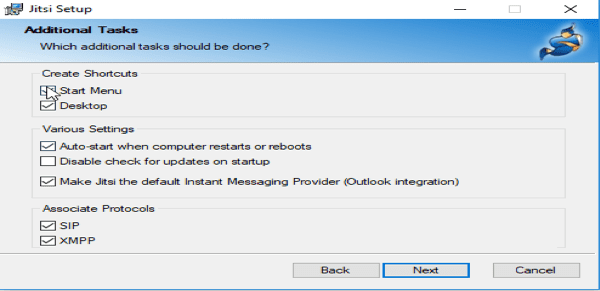
Click through the setup and additionally check “Auto start when the computer restarts or reboots and continue with the installation process by clicking on next
Finally, click on Install as shown below

Click on finish
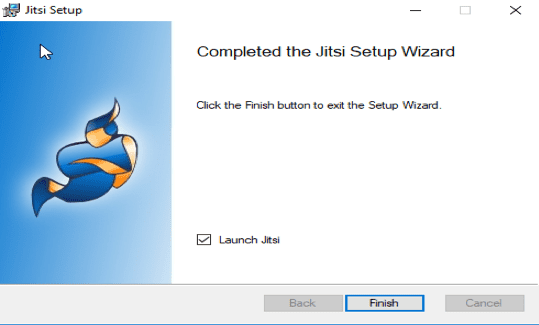
This will prompt the windows security Alert window as shown below, (Simply allow the Firewall Access)

Step 2: Configuring Jitsi

Close every other Open Window except this below
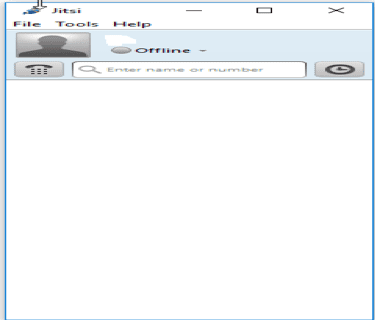
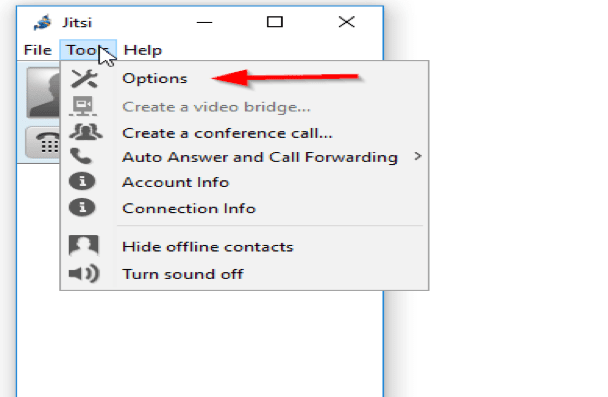
Click on Tools and Select Option. Now lets configure Jitsi to work with our telephone system
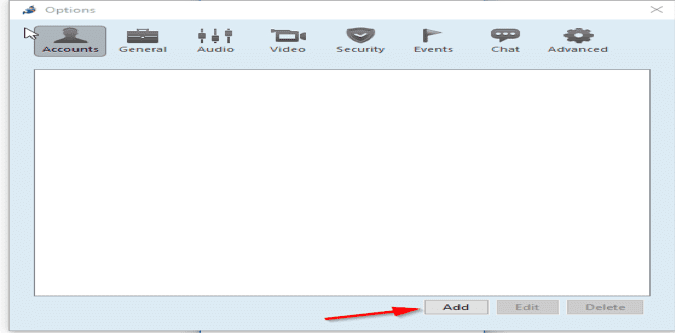
Click on Add
Select SIP under the network tab as shown below
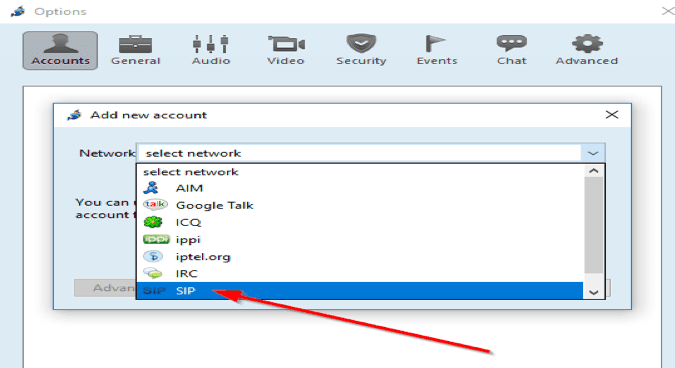
And enter the relevant details. 

I hope you found this blog post on how to setup and configure Jitsi as SoftPhone helpful. If you have any questions, please let me know in the comment session.

Rate this post

Thank you for reading this post. Kindly share it with others.

  • Click to share on X (Opens in new window) X
  • Click to share on Reddit (Opens in new window) Reddit
  • Click to share on LinkedIn (Opens in new window) LinkedIn
  • Click to share on Facebook (Opens in new window) Facebook
  • Click to share on Pinterest (Opens in new window) Pinterest
  • Click to share on Tumblr (Opens in new window) Tumblr
  • Click to share on Telegram (Opens in new window) Telegram
  • Click to share on WhatsApp (Opens in new window) WhatsApp
  • Click to share on Pocket (Opens in new window) Pocket
  • Click to share on Mastodon (Opens in new window) Mastodon
  • Click to share on Bluesky (Opens in new window) Bluesky
  • Click to share on Threads (Opens in new window) Threads
  • Click to share on Nextdoor (Opens in new window) Nextdoor
Network | Monitoring Tags:Windows 10

Post navigation

Previous Post: Access EC2 Linux Instance via the Password
Next Post: Configure failover for ManageEngine Password Manager Pro

Related Posts

  • WinRM and Kerberos Delegation troubleshooting
    Troubleshooting WinRM and Kerberos Delegation for WAC Network | Monitoring
  • hgbv
    Graphical Network Simulator: How to install GNS3 on macOS Network | Monitoring
  • Fixed Sysprep Generalize Copy
    How to Grant Local Admin Permissions to a Group [Part 1] Network | Monitoring
  • cisco ASA
    Common Cisco ASA Commands Network | Monitoring
  • image 29
    How to force your website to redirect from HTTP to HTTPS using a web.config file Network | Monitoring
  • Preliminary Active Directory Analysis
    Preliminary Guide for Active Directory and Initial Assessment Network | Monitoring

More Related Articles

WinRM and Kerberos Delegation troubleshooting Troubleshooting WinRM and Kerberos Delegation for WAC Network | Monitoring
hgbv Graphical Network Simulator: How to install GNS3 on macOS Network | Monitoring
Fixed Sysprep Generalize Copy How to Grant Local Admin Permissions to a Group [Part 1] Network | Monitoring
cisco ASA Common Cisco ASA Commands Network | Monitoring
image 29 How to force your website to redirect from HTTP to HTTPS using a web.config file Network | Monitoring
Preliminary Active Directory Analysis Preliminary Guide for Active Directory and Initial Assessment Network | Monitoring

Leave a Reply Cancel reply

You must be logged in to post a comment.

Microsoft MVP

VEEAMLEGEND

vexpert-badge-stars-5

Virtual Background

GoogleNews

Categories

veeaam100

sysadmin top30a

  • Package1
    Install Synaptic Package Manager: Handle packages in Ubuntu Linux
  • FileNotFoundError Errno 2 No such file or directory
    Fix FileNotFoundError: [Errno 2] No such file or directory Scripts
  • Manually resize your partition
    KB5034439 Windows Update Error: Resize WinRE Partition Windows Server
  • unnamed
    Upgrade ManageEngine Password Manager Pro Password Manager
  • squid proxy feature
    How to Set Up and Configure a Squid Proxy Server Linux
  • Manage Log Files via Logrotate
    How To Use Logrotate For Managing Log Files In Ubuntu Linux Linux
  • ip adress 1555395782 1024x576 1
    How to create and delete a DHCP reservation in Windows Server Windows Server
  • hyper v 1
    How to fix unable to create a new VM on HyperV Virtualization

Subscribe to Blog via Email

Enter your email address to subscribe to this blog and receive notifications of new posts by email.

Join 1,841 other subscribers
  • RSS - Posts
  • RSS - Comments
  • About
  • Authors
  • Write for us
  • Advertise with us
  • General Terms and Conditions
  • Privacy policy
  • Feedly
  • Telegram
  • Youtube
  • Facebook
  • Instagram
  • LinkedIn
  • Tumblr
  • Pinterest
  • Twitter
  • mastodon

Tags

AWS Azure Bitlocker Microsoft Windows PowerShell WDS Windows 10 Windows 11 Windows Deployment Services Windows Server 2016

Copyright © 2025 TechDirectArchive


Loading Comments...
 

You must be logged in to post a comment.