AWS Network Adapter: Redhat to Citrix PV and AWS PV Driver


Upgrading your EC2 instance’s performance? Explore the AWS Network Adapter (ENA) for enhanced throughput, low latencies, and optimal packet per second (PPS) performance. Follow this procedure for seamless in-place or Citrix-to-AWS PV driver upgrades. This task aims to upgrade from “Redhat to Citrix PV” and then from Citrix PV to AWS PV Drivers” Please refer to these articles on Driver Management on AWS, Windows clients, and servers. “How to remove a Printer from Windows 10 via PowerShell, Windows registry and Print Management, how to configure Windows instance using EC2 Launch for Server 2016, how to launch an EC2 instance, and how to apply Windows Updates from WSUS to the server using AWS RunCommand.
Pre-requisite for converting Redhat to Citrix PV and AWS PV Driver
Ensure you have the latest EC2Config services running on the server. Also, ensure you have PowerShell framework 2.0 installed (Windows Management Framework)
To upgrade Redhat drivers1. Connect to your instance and log in as the local administrator. For more information about connecting to your instance, see Connecting to Your Windows Instance.
2. In your instance, download the Citrix PV upgrade package.
3. Extract the contents of the upgrade package to a location of your choice.
4. Double-click the Upgrade.bat file. If you get a security warning, choose Run.

5. Review the information in the Upgrade Drivers dialog box and choose Yes if you are ready to start the upgrade.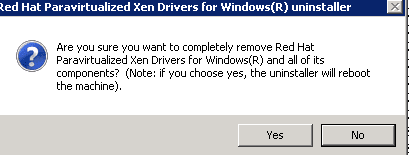
6. In the Red Hat Paravirtualized Xen Drivers for Windows uninstaller dialog box, choose Yes to remove the RedHat software. Your instance will be rebooted.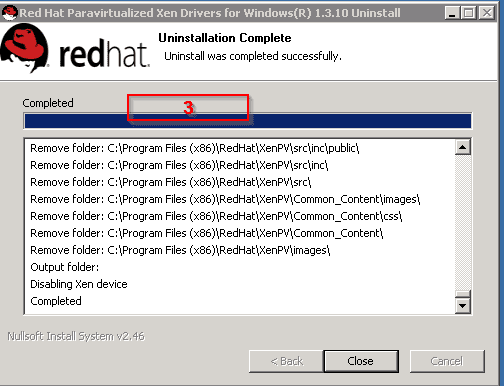
Select AWS Network Adapter from the Windows Taskbar
Note:- If you’re not presented with the uninstaller dialog box, opt for the AWS Network Adapter from the Windows taskbar, which suits the context.
Check that the instance has rebooted and is ready to be used. This can be verified from the EC2 console. To optimize your AWS Network Adapter, choose the Instances tab. Right-click on your desired instance and navigate to Instance settings. Then, proceed to Get System Log for insights.
Upgrading the AWS Network Adapter involves restarting the server 3 or 4 times. The frequency can be traced in the log file through the “Windows is Ready to use” message count.
7. Connect to your instance and log in as the local administrator.
8. Close the Red Hat Paravirtualized Xen Drivers for Windows uninstaller dialog box.
9. Confirm that the installation is complete. Navigate to the Citrix-WIN_PV folder that you extracted earlier, open the PVUpgrade.log file, and then check for the text installation is complete.
You can also verify this by checking on the device manager to see if the adapter has been installed.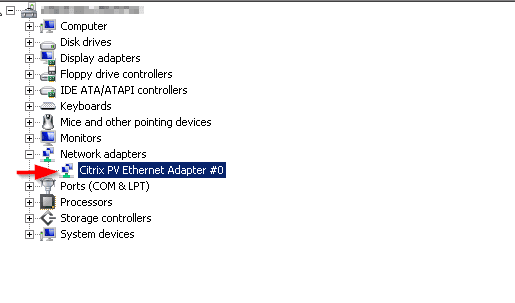
Upgrading from Citric PV driver to AWS PV drive Pre-requisite
Ensure you create an AMI of the instance first (For possible “rollback”). You have to ensure you have Microsoft .NET Framework 4.5 installed on the server. 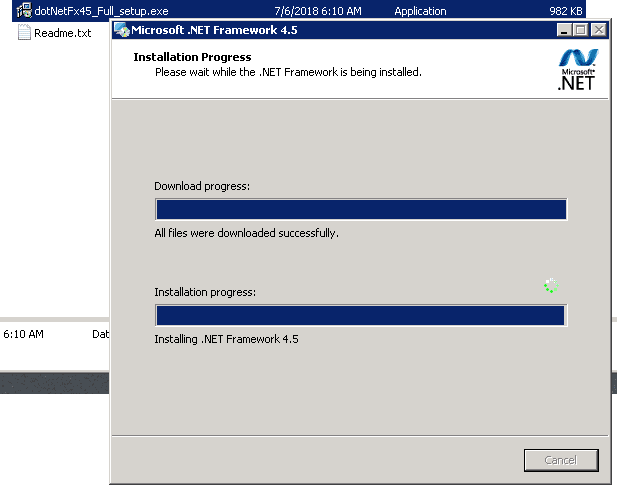
Step 2: Download the latest AWS PV drive
Ensure you download the latest AWS PV driver. Download the latest driver package to the instance, and extract the contents of the folder and then run AWSPVDriverSetup.msi.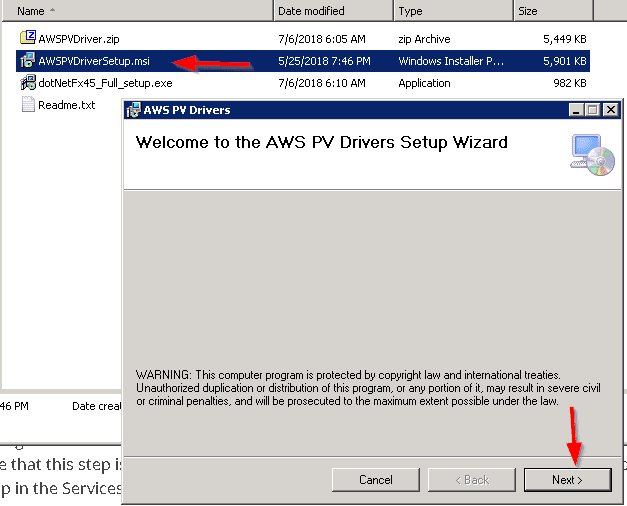
Then follow the instruction steps as it a next and select process (select “I am ready” and as well as “i agree” followed by the many next windows :).
Note: Upgrading your AWS Network Adapter is a seamless process. Once you initiate the MSI, the instance undergoes an automatic reboot to install the driver upgrade. The instance might be temporarily unavailable for about 15 minutes during this process.
Once the upgrade is successfully finished and the instance clears both health checks in the Amazon EC2 console, you can establish a Remote Desktop connection to the instance. This step allows you to confirm the successful installation of the new driver, ensuring enhanced performance.
In Device Manager, under Storage Controllers, locate AWS PV Storage Host Adapter. Verify that the driver version is the same as the latest version in the Driver Version History table.

I hope you found this blog post helpful. If you have any questions, please let me know in the comment session.
I hope you found this blog post on Redhat to Citrix PV and AWS PV Driver helpful. If you have any questions, please let me know in the comment session.