Skip to content

TechDirectArchive

Hands-on IT, Cloud, Security & DevOps Insights

  • Home
  • About
  • Advertise With US
  • Reviews
  • Contact
  • Toggle search form
Home » AWS/Azure/OpenShift » AWS Network Adapter: Redhat to Citrix PV and AWS PV Driver
  • windows 10 technical preview windows 10 logo microsoft 97543 1920x1080
    Windows Editions: Various Operating Systems available for Windows Windows
  • Chocolatey Packages
    Create Chocolatey Package: Upgrade Software with Chocolatey Scripts
  • wacxx
    Test Network Connection to Windows Admin Center Gateway Scripts
  • linuxnethero
    Adding a subnetwork interface to an existing network interface Linux
  • screenshot 2020 03 21 at 22.44.04 1
    How to create a Microsoft HyperV checkpoint Virtualization
  • maxresdefault
    How to stop Microsoft Edge from remembering your email ID Windows
  • FEATURE IMAGE BASE URL 1
    How to solve cannot find a valid base URL for repo: base/7/x86_64 Linux
  • Clone a Virtual Machine via Export and Import
    Clone a Virtual Machine via Export and Import: How to copy Virtual Hard Disk on Hyper-V Virtualization

AWS Network Adapter: Redhat to Citrix PV and AWS PV Driver

Posted on 06/07/201807/12/2023 Christian By Christian No Comments on AWS Network Adapter: Redhat to Citrix PV and AWS PV Driver
Network connectivity issues

Upgrading your EC2 instance’s performance? Explore the AWS Network Adapter (ENA) for enhanced throughput, low latencies, and optimal packet per second (PPS) performance. Follow this procedure for seamless in-place or Citrix-to-AWS PV driver upgrades. This task aims to upgrade from “Redhat to Citrix PV” and then from Citrix PV to AWS PV Drivers” Please refer to these articles on Driver Management on AWS, Windows clients, and servers. “How to remove a Printer from Windows 10 via PowerShell, Windows registry and Print Management, how to configure Windows instance using EC2 Launch for Server 2016, how to launch an EC2 instance, and how to apply Windows Updates from WSUS to the server using AWS RunCommand.

Pre-requisite for converting Redhat to Citrix PV and AWS PV Driver

Ensure you have the latest EC2Config services running on the server. Also, ensure you have PowerShell framework 2.0 installed (Windows Management Framework)

To upgrade Redhat drivers

1. Connect to your instance and log in as the local administrator. For more information about connecting to your instance, see Connecting to Your Windows Instance.
2. In your instance, download the Citrix PV upgrade package.
3. Extract the contents of the upgrade package to a location of your choice.
4. Double-click the Upgrade.bat file. If you get a security warning, choose Run.


5. Review the information in the Upgrade Drivers dialog box and choose Yes if you are ready to start the upgrade.
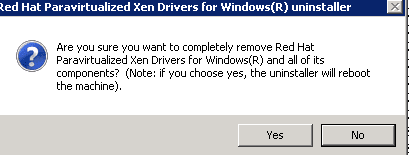
6. In the Red Hat Paravirtualized Xen Drivers for Windows uninstaller dialog box, choose Yes to remove the RedHat software. Your instance will be rebooted.
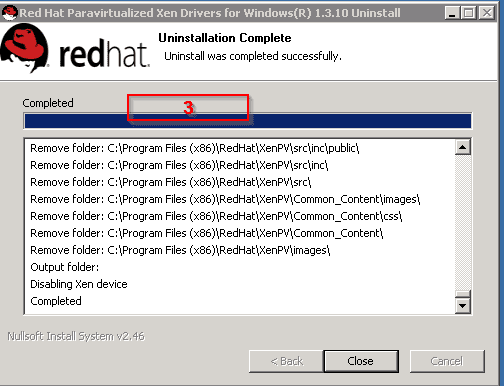
Select AWS Network Adapter from the Windows Taskbar

Note:- If you’re not presented with the uninstaller dialog box, opt for the AWS Network Adapter from the Windows taskbar, which suits the context.

Check that the instance has rebooted and is ready to be used. This can be verified from the EC2 console. To optimize your AWS Network Adapter, choose the Instances tab. Right-click on your desired instance and navigate to Instance settings. Then, proceed to Get System Log for insights.

Upgrading the AWS Network Adapter involves restarting the server 3 or 4 times. The frequency can be traced in the log file through the “Windows is Ready to use” message count.

7. Connect to your instance and log in as the local administrator.
8. Close the Red Hat Paravirtualized Xen Drivers for Windows uninstaller dialog box.
9. Confirm that the installation is complete. Navigate to the Citrix-WIN_PV folder that you extracted earlier, open the PVUpgrade.log file, and then check for the text installation is complete.

You can also verify this by checking on the device manager to see if the adapter has been installed.
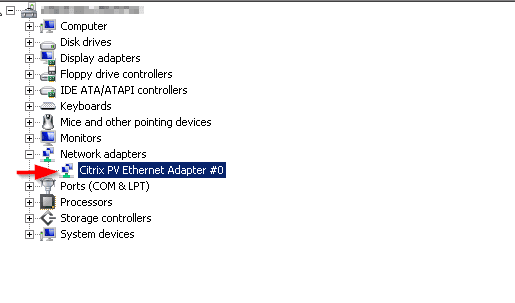

Upgrading from Citric PV driver to AWS PV drive
Pre-requisite

Ensure you create an AMI of the instance first (For possible “rollback”). You have to ensure you have Microsoft .NET Framework 4.5 installed on the server.
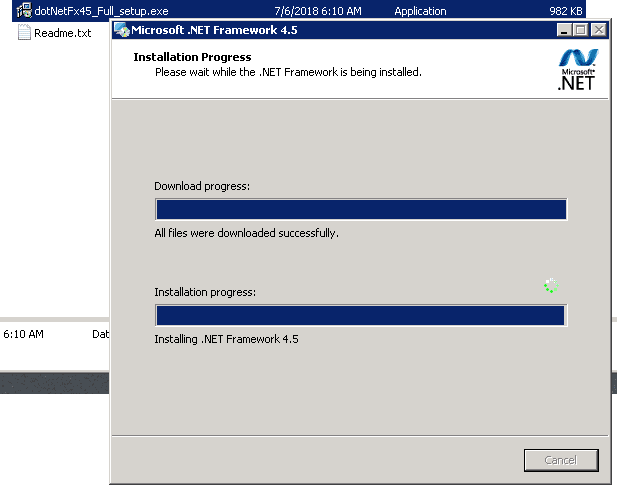
Step 2: Download the latest AWS PV drive

Ensure you download the latest AWS PV driver. Download the latest driver package to the instance, and extract the contents of the folder and then run AWSPVDriverSetup.msi.
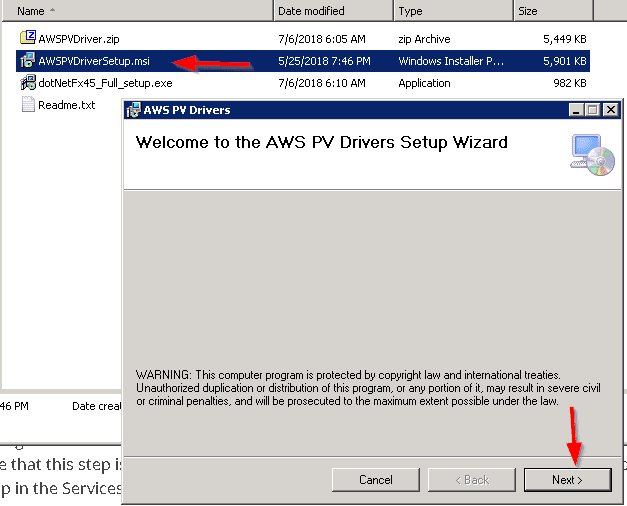
Then follow the instruction steps as it a next and select process (select “I am ready” and as well as “i agree” followed by the many next windows :).

Note: Upgrading your AWS Network Adapter is a seamless process. Once you initiate the MSI, the instance undergoes an automatic reboot to install the driver upgrade. The instance might be temporarily unavailable for about 15 minutes during this process.

Once the upgrade is successfully finished and the instance clears both health checks in the Amazon EC2 console, you can establish a Remote Desktop connection to the instance. This step allows you to confirm the successful installation of the new driver, ensuring enhanced performance.

In Device Manager, under Storage Controllers, locate AWS PV Storage Host Adapter. Verify that the driver version is the same as the latest version in the Driver Version History table.


I hope you found this blog post helpful. If you have any questions, please let me know in the comment session.


I hope you found this blog post on Redhat to Citrix PV and AWS PV Driver helpful. If you have any questions, please let me know in the comment session.

Rate this post

Thank you for reading this post. Kindly share it with others.

  • Click to share on X (Opens in new window) X
  • Click to share on Reddit (Opens in new window) Reddit
  • Click to share on LinkedIn (Opens in new window) LinkedIn
  • Click to share on Facebook (Opens in new window) Facebook
  • Click to share on Pinterest (Opens in new window) Pinterest
  • Click to share on Tumblr (Opens in new window) Tumblr
  • Click to share on Telegram (Opens in new window) Telegram
  • Click to share on WhatsApp (Opens in new window) WhatsApp
  • Click to share on Pocket (Opens in new window) Pocket
  • Click to share on Mastodon (Opens in new window) Mastodon
  • Click to share on Bluesky (Opens in new window) Bluesky
  • Click to share on Threads (Opens in new window) Threads
  • Click to share on Nextdoor (Opens in new window) Nextdoor
AWS/Azure/OpenShift Tags:AWS

Post navigation

Previous Post: How to get Windows PC specific Model information
Next Post: Fix Windows cannot check for updates in Windows 8, 7, and 10

Related Posts

  • VBAWS comprehensive guide
    Deep Dive into Protecting AWS EC2, RDS Instances and VPC AWS/Azure/OpenShift
  • CloudFrontAWS
    Serve Private S3 Bucket Contents Via CloudFront AWS/Azure/OpenShift
  • insufficientaccessright 1
    Azure AD Connect Permission issue: Error 8344 insufficient access rights to perform the operation AWS/Azure/OpenShift
  • sync
    AD Connect Sync Service Not Running: Start ADSync to Continue AWS/Azure/OpenShift
  • Cloud Cost
    How to Control Cloud Cost Using Azure VM AWS/Azure/OpenShift
  • azure logo 1
    How to use the built-in Azure Active Directory Connect tool AWS/Azure/OpenShift

More Related Articles

VBAWS comprehensive guide Deep Dive into Protecting AWS EC2, RDS Instances and VPC AWS/Azure/OpenShift
CloudFrontAWS Serve Private S3 Bucket Contents Via CloudFront AWS/Azure/OpenShift
insufficientaccessright 1 Azure AD Connect Permission issue: Error 8344 insufficient access rights to perform the operation AWS/Azure/OpenShift
sync AD Connect Sync Service Not Running: Start ADSync to Continue AWS/Azure/OpenShift
Cloud Cost How to Control Cloud Cost Using Azure VM AWS/Azure/OpenShift
azure logo 1 How to use the built-in Azure Active Directory Connect tool AWS/Azure/OpenShift

Leave a Reply Cancel reply

You must be logged in to post a comment.

Microsoft MVP

VEEAMLEGEND

vexpert-badge-stars-5

Virtual Background

GoogleNews

Categories

veeaam100

sysadmin top30a
 
  • windows 10 technical preview windows 10 logo microsoft 97543 1920x1080
    Windows Editions: Various Operating Systems available for Windows Windows
  • Chocolatey Packages
    Create Chocolatey Package: Upgrade Software with Chocolatey Scripts
  • wacxx
    Test Network Connection to Windows Admin Center Gateway Scripts
  • linuxnethero
    Adding a subnetwork interface to an existing network interface Linux
  • screenshot 2020 03 21 at 22.44.04 1
    How to create a Microsoft HyperV checkpoint Virtualization
  • maxresdefault
    How to stop Microsoft Edge from remembering your email ID Windows
  • FEATURE IMAGE BASE URL 1
    How to solve cannot find a valid base URL for repo: base/7/x86_64 Linux
  • Clone a Virtual Machine via Export and Import
    Clone a Virtual Machine via Export and Import: How to copy Virtual Hard Disk on Hyper-V Virtualization

Subscribe to Blog via Email

Enter your email address to subscribe to this blog and receive notifications of new posts by email.

Join 1,841 other subscribers
  • RSS - Posts
  • RSS - Comments
  • About
  • Authors
  • Write for us
  • Advertise with us
  • General Terms and Conditions
  • Privacy policy
  • Feedly
  • Telegram
  • Youtube
  • Facebook
  • Instagram
  • LinkedIn
  • Tumblr
  • Pinterest
  • Twitter
  • mastodon

Tags

AWS Azure Bitlocker Microsoft Windows PowerShell WDS Windows 10 Windows 11 Windows Deployment Services Windows Server 2016

Copyright © 2025 TechDirectArchive


Loading Comments...
 

You must be logged in to post a comment.