Skip to content

TechDirectArchive

Hands-on IT, Cloud, Security & DevOps Insights

  • Home
  • About
  • Advertise With US
  • Reviews
  • Contact
  • Toggle search form
Home » Windows » Fix Windows Can’t find the path: Please check the spelling and try again
  • Webp.net resizeimage 5
    How to Improve Website Response Using Traffic Manager AWS/Azure/OpenShift
  • fress install windows server 2025   downgrade of Windows Server datacenter to standard edition
    Convert Windows Server Datacenter to Standard: Install Windows Server via iDRAC Virtual Media Windows Server
  • Logon fsilure errors
    Logon Failure Reasons for Windows Event Viewer Windows Server
  • Enable Hyper V on Windows 11 Create a VM with PowerShell
    Run Hyper-V on Windows 11: Convert Physical PC to Hyper-V VM Virtualization
  • adfs
    Guide on federating ADFS with Azure Active Directory AWS/Azure/OpenShift
  • Add a second domain to your domain
    How to add a new Domain Controller to an Existing Domain Windows Server
  • linuxnethero
    Adding a subnetwork interface to an existing network interface Linux
  • Modernstanby
    Modern Standby: PC is automatically encrypted Windows

Fix Windows Can’t find the path: Please check the spelling and try again

Posted on 13/07/201826/01/2024 Christian By Christian No Comments on Fix Windows Can’t find the path: Please check the spelling and try again
Network storage

In the realm of modern data management, the Synology Disk Station stands as a pinnacle of network storage solutions. Yet, this advanced system occasionally hinders smooth file access, especially during integration with Windows 10. In this guide, we shall discuss how to “Fix Windows Can’t find the path: Please check the spelling and try again”. Please see How to Fix Spell Check Not Working in Microsoft Word, how to change the speller and proofing language in PowerPoint, and how to Disable Cloud-Based Spell Checker in Microsoft Edge and Google Chrome.

This challenge prompts us to explore the intricacies of the relationship between Synology Disk Station and the Windows 10 environment.

Resolving these access issues demands a comprehensive understanding of how Synology Disk Station interacts with the Windows ecosystem. Exploring multifaceted solutions enables users to bridge gaps, harmonize file access, and streamline workflows for fluid data exchange.

Bridging Synology Disk Station and Windows 10 Access Gap

In this exploration, we will tackle the “Unable to access files in Synology Disk Station from Windows 10” issue. This will empower users to unleash their storage infrastructure’s full potential and foster a synergistic union between Synology Disk Station and Windows 10.

The Synology DiskStation runs the Synology DSM OS, a network-attached storage (NAS) appliance. This pedestal/tower-embedded NAS appliance comes in configurations ranging from one to twelve bays within a single enclosure.

Below are the steps to resolve this. Synology NAS streamlines local network file storage and sharing, providing direct access to shared folders and files.” For example, you can store files on your Synology NAS with Windows Explorer, just like other network devices.

Here are some best practices to employ when working with Synology DiskStation. Here is a guide on Synology best practices.

When prompted with this error, follow the steps below.

Solution to Windows Can’t find the path: Please check the spelling and try again

Ensure these are enabled. Type Control Panel into the Search box, enable SMB Direct and SMB 1.0/CIFS File Sharing Support as shown below and click ok.
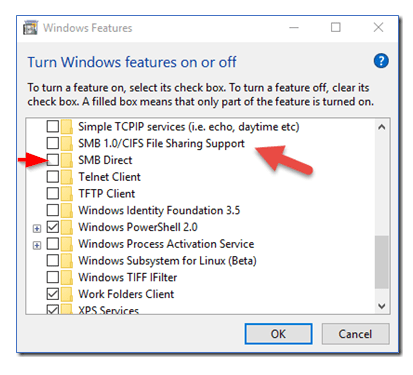
Sign out and into the Windows 10 system and check if the NAS is accessible.

Here are Other possible errors and solutions. Please see the Video on how to Fix Spell Check Not Working in Microsoft Word, and the Reasons for BitLocker Recovery Prompt: Query the number of BitLocker recovery request.

I hope you found this blog post on “Windows Can’t find the path: Please check the spelling and try again” very helpful. If you have any questions, please let me know in the comment session.

Rate this post

Thank you for reading this post. Kindly share it with others.

  • Click to share on X (Opens in new window) X
  • Click to share on Reddit (Opens in new window) Reddit
  • Click to share on LinkedIn (Opens in new window) LinkedIn
  • Click to share on Facebook (Opens in new window) Facebook
  • Click to share on Pinterest (Opens in new window) Pinterest
  • Click to share on Tumblr (Opens in new window) Tumblr
  • Click to share on Telegram (Opens in new window) Telegram
  • Click to share on WhatsApp (Opens in new window) WhatsApp
  • Click to share on Pocket (Opens in new window) Pocket
  • Click to share on Mastodon (Opens in new window) Mastodon
  • Click to share on Bluesky (Opens in new window) Bluesky
  • Click to share on Threads (Opens in new window) Threads
  • Click to share on Nextdoor (Opens in new window) Nextdoor
Windows Tags:disk, Windows 10

Post navigation

Previous Post: Fix Windows cannot check for updates in Windows 8, 7, and 10
Next Post: How to create an AMI using AWS console

Related Posts

  • How to Lock the Find My Device Option in Windows 11
    How to Lock the Find My Device Option in Windows 11 Windows
  • Lets Encryp
    How to install Let’s Encrypt Certificates with IIS on a Windows Server Windows
  • showdefenderupdate
    View Microsoft Defender Antivirus Update Details on Windows Image Windows
  • Hyper V Virtual Switch Copy
    How to Create VDI Collections on Windows Server 2022 Network | Monitoring
  • Featured image Chrome notification
    How to Disable Chrome Browser Notifications on Windows Windows
  • How to Install Windows Admin Center on Windows 10 11​
    Install Windows Admin Center on Windows 10 and Windows 11 Windows

More Related Articles

How to Lock the Find My Device Option in Windows 11 How to Lock the Find My Device Option in Windows 11 Windows
Lets Encryp How to install Let’s Encrypt Certificates with IIS on a Windows Server Windows
showdefenderupdate View Microsoft Defender Antivirus Update Details on Windows Image Windows
Hyper V Virtual Switch Copy How to Create VDI Collections on Windows Server 2022 Network | Monitoring
Featured image Chrome notification How to Disable Chrome Browser Notifications on Windows Windows
How to Install Windows Admin Center on Windows 10 11​ Install Windows Admin Center on Windows 10 and Windows 11 Windows

Leave a Reply Cancel reply

You must be logged in to post a comment.

Microsoft MVP

VEEAMLEGEND

vexpert-badge-stars-5

Virtual Background

GoogleNews

Categories

veeaam100

sysadmin top30a

  • Webp.net resizeimage 5
    How to Improve Website Response Using Traffic Manager AWS/Azure/OpenShift
  • fress install windows server 2025   downgrade of Windows Server datacenter to standard edition
    Convert Windows Server Datacenter to Standard: Install Windows Server via iDRAC Virtual Media Windows Server
  • Logon fsilure errors
    Logon Failure Reasons for Windows Event Viewer Windows Server
  • Enable Hyper V on Windows 11 Create a VM with PowerShell
    Run Hyper-V on Windows 11: Convert Physical PC to Hyper-V VM Virtualization
  • adfs
    Guide on federating ADFS with Azure Active Directory AWS/Azure/OpenShift
  • Add a second domain to your domain
    How to add a new Domain Controller to an Existing Domain Windows Server
  • linuxnethero
    Adding a subnetwork interface to an existing network interface Linux
  • Modernstanby
    Modern Standby: PC is automatically encrypted Windows

Subscribe to Blog via Email

Enter your email address to subscribe to this blog and receive notifications of new posts by email.

Join 1,841 other subscribers
  • RSS - Posts
  • RSS - Comments
  • About
  • Authors
  • Write for us
  • Advertise with us
  • General Terms and Conditions
  • Privacy policy
  • Feedly
  • Telegram
  • Youtube
  • Facebook
  • Instagram
  • LinkedIn
  • Tumblr
  • Pinterest
  • Twitter
  • mastodon

Tags

AWS Azure Bitlocker Microsoft Windows PowerShell WDS Windows 10 Windows 11 Windows Deployment Services Windows Server 2016

Copyright © 2025 TechDirectArchive


Loading Comments...
 

You must be logged in to post a comment.