
Clock synchronization is a form of synchronizing clock values between devices with the use of an external reference clock or internal clock value of the device. The Windows clock synchronizes with internet time once a week if it’s connected to the internet. Please see how to set a browser as default in macOS, and how to fix Google Chrome redirects: How to remove unwanted site redirects or pop-up from Google Chrome on Mac and Windows.
You can also manually force the clock to synchronize with internet time whenever you want. Thereby helping resolve any form of synchronization errors.
In this guide, I will show you how to sync your device clock with internet time in Windows settings and also by using the command line to describe how Windows Time service (W32Time) works.
Here are some guides relating to Google Chrome: How to set a browser as default in Windows and how to make Cortana use To your default web browser such as Google Chrome,. Also, see
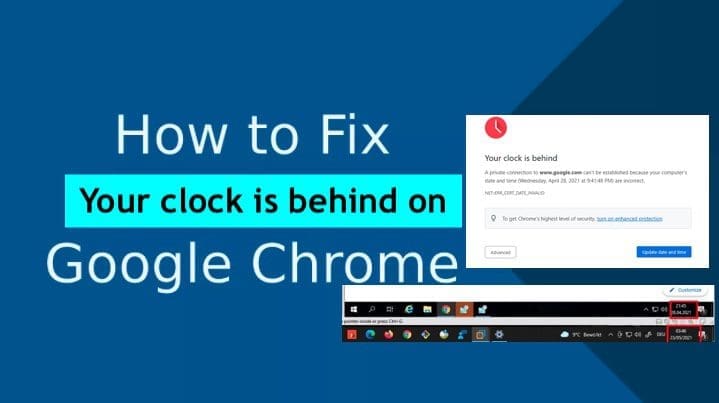
Why was the error “Google Chrome reports your clock is behind”prompted?
The following error below was displayed on Chrome when there were issues with your device’s time and date configuration.
There are other possible reasons why this can occur (such as certificate issues or Your clock is ahead etc). In this guide, I will fix the root issue and other issues will be taken care of.

You may want to see Kerberos error: Clock skew too great while getting initial credentials, Unspecified GSS failure: How to fix Clock skew too great, and how to fix Enable or disable Linux System’s Clock Sync with NTP Server.
Time Synchronization Settings
By default, computers synchronize their timeless frequently. Non-domain joined devices are configured to synchronize with time.windows.com. Therefore, it is impossible to guarantee time accuracy on computers that have intermittent or no network connections.
Network Time Protocol (NTP) is a networking protocol and the default time synchronization protocol used by the Windows Time service in the operating system.
Furthermore, NTP is a fault-tolerant, highly scalable time protocol and is the protocol used most often for synchronizing computer clocks by using a designated time reference. NTP time synchronization takes place over a period of time and involves the transfer of NTP packets over a network.
However, NTP packets contain timestamps that include a time sample from both the client and the server participating in time synchronization.
Moreover, NTP relies on a reference clock to define the most accurate time to be used. This reference clock (PC) synchronizes all clocks on a network to that reference clock. NTP uses Coordinated Universal Time (UTC) as the universal standard for the current time. UTC is independent of time zones and enables NTP to be used anywhere worldwide regardless of time zone settings.
As you can see below, there is a significant difference (discrepancy) between the host VM and the Virtual machines in my virtual environment. To fix this issue, please refer to the steps below.

Please see how to Synchronize your Domain Controller with an external time source, and how to schedule and join meetings with Microsoft Teams.
Solution “Fix Google Chrome reports your clock is behind”
Right-click the date on your computer’s taskbar and select ‘Adjust date/time’ as shown below. This is one of the quickest ways to access the date and time settings in Windows.

This will open the Date and Time wizard of the Windows Settings menu. If your device date and time are incorrect, please perform the following:
– Toggle on the ‘Set time automatically option.
– Under the ‘Set time and date automatically’ is switched on.

As you can see below, the time has been synchronised and now I can surf the net

Google Chrome reports your clock is behind
If you wish to implement this via the command line, please follow the steps described below. W32tm.exe is used to configure Windows Time service settings. It can also be used to diagnose problems with the time service.
W32tm.exe is the preferred command-line tool for configuring, monitoring or troubleshooting the Windows Time service.
Launch the Command Prompt as an Administrator. Type each one of the commands below and press enter. When you are done, you may have to restart your computer to test the issue again.
- net stop w32time- w32tm /unregister- w32tm /register- net start w32time- w32tm /resync
Note: If you have a server that is actually having this issue and it is not joined to the domain, you can create a scheduled task to ensure the time is frequently synchronized instead of waiting once a week to have it synced by default.
I hope you found this blog post helpful. If you have any questions, please let me know in the comment session.


