

Remote Server Administration Tool (RSAT) is a set of tools that help you manage the server remotely through a remote client. You want to see the following articles: Why use RSAT: How to Install RSAT on Windows 10, Remote Server Administration Tools: To install RSAT on Windows Server, and Group Policy Object: What is Group Policy Object and how can it be launched in Windows. In this article, you will learn how to fix the following issue “DNS manager console missing from RSAT tools on Windows 10”.
Using this tool, you can manage all your roles and features in Windows Server 2012 R2 to Windows Server 2022 from any device at the time of writing this article.
Here are some very exciting reasons to use RSAT: RSAT reduces the overhead and introduces best practices and security measures in protecting the domain controller. Also, when people log on to a server, more profiles get created, and this results in utilizing disk space.
Lastly, logging on to a server to perform a task means that people are more likely to do other things on the server as well and be a little less careful. This can lead to problems such as viruses getting onto the servers or someone accidentally shutting the server down because they forgot that they were on a DC.
Affected Windows version: Windows 10, version 2004, Windows 10, version 1909, Windows 10, version 1803, Windows 10, version 1709.
Install RSAT Tool
Before proceeding to discuss how to install and uninstall RSAT Tools, I will be discussing how to resolve some missing tools such as the “DNS Manager Console”. The console is neither available from Cortana nor MMC on Windows 10 at the time of writing this article. The following workaround below fixed the issue for me. I will also append some links. The following steps below resolved my issue by providing alternative steps to install the RSATClient so that all tools are installed correctly.
1: Make sure that update KB 2693643 isn’t already installed on the computer. If the update is installed, uninstall the update by using these steps:
- Press Win key+R, type appwiz.cpl and then press Enter.- Select View Installed Updates.- Locate and uninstall the update.- Restart the computer if it prompts.
2: Create a new directory. For example, temp.
3: For x64 versions of Windows, create files unattend_x64.xml and installx64.bat. For x86 versions of Windows, create files unattend_x86.xml and installx86.bat.4: Download the WindowsTH-RSAT_WS_1709-x64.msu package for x64 versions of Windows or the WindowsTH-RSAT_WS_1709-x86.msu package for x86 versions of Windows, and save the package in the new directory.
5: Start a command prompt with administrative permissions and browse to the temp directory.
6: Run installx64.bat for x64 versions of Windows or run installx86.bat for x86 versions of Windows.
7: After installation, you can clear the contents of the temp directory and most times. No restart is required unless you are prompted. Alternatively, if these steps are a bit too much to follow. Kindly upgrade your device outside the versions mentioned that happen to have this bug.
Please see How to create a Mapped Drive via GPO Preferences, How to fix the “Error: Access denied to the hard-drive and the security tab missing under properties“, and how to fix “Windows Installation: Windows deployment cannot continue, the operating system is missing via MDT deployment“.
Alternative RSAT Install Method
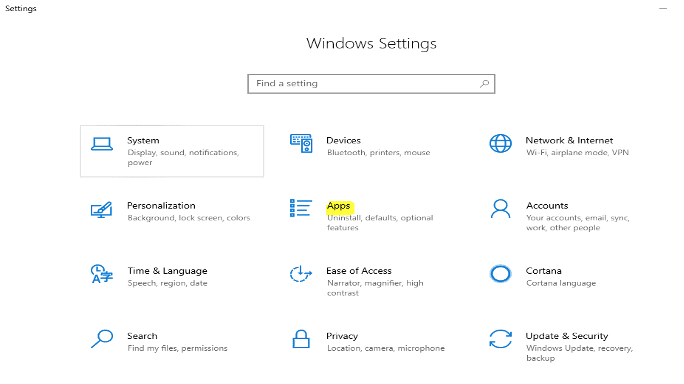
You can install RSAT Tools with the following steps from Windows Settings.
From Windows 10 1909, you do not have to install the RSAT tool to have this tool installed on your PC.
Launch the “Windows Settings” or via Win+I on your keyboard. Click on Apps
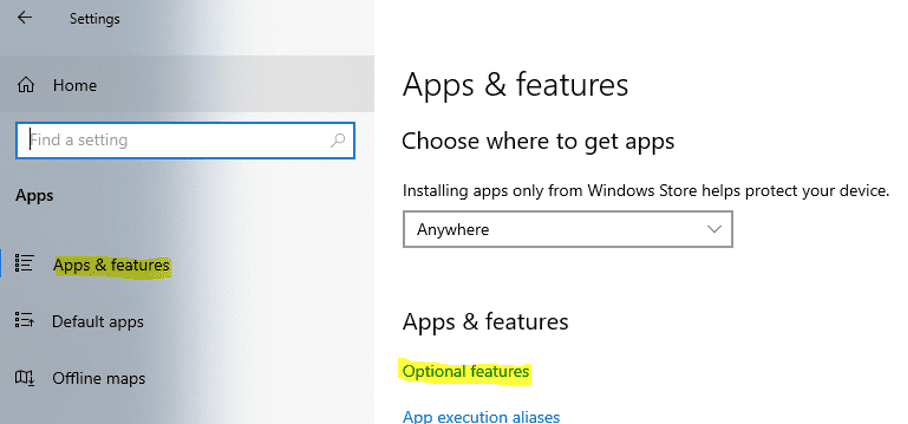
Click on Apps and Features and click on optional features as shown below
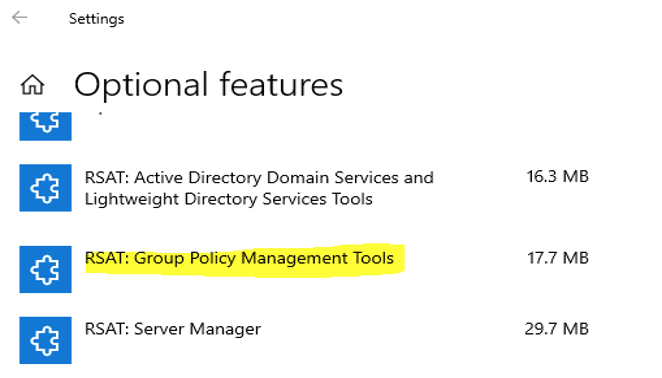
Under Optional features. Select RSAT: Group Policy Management Tools
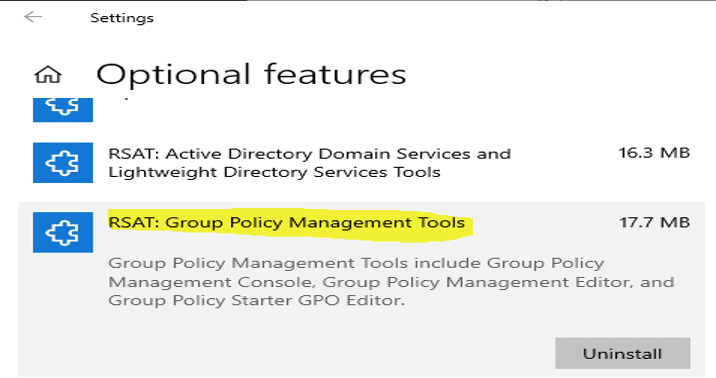
Uninstall RSAT Tool
Click on it and select Install. In my case I have it installed already so it prompts me to uninstall it. This is how to have the tool uninstalled also from your Device (PC).
With Group Policy Object, administrators can administer (control) the number of PCs. A set of Group Policy configurations is called a Group Policy Object (GPO). The Group Policy Editor is used to enforce GPOs and modify policies in standalone computers.
Note: When you modify a Group Policy object, these changes are automatically applied to Registry. But, when you modify the registry values while the Group Policy is enforced, the value will be overwritten to its original state until the Group Policy Editor specifically makes the changes.
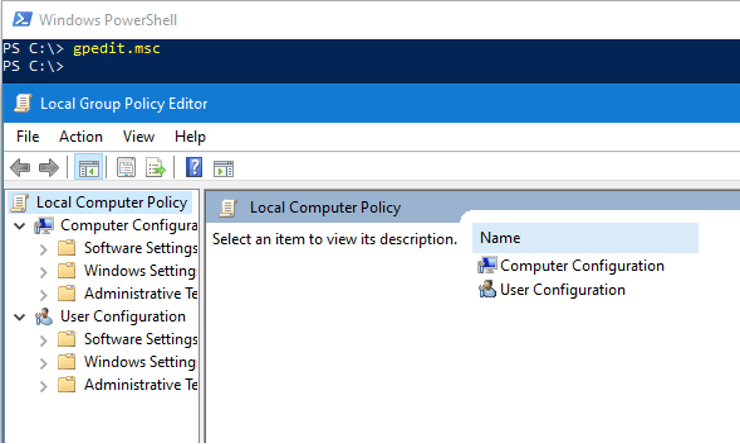
Group policy on Windows 10 periodically refreshes the Registry at certain intervals. This help to keep the Registry values in check at all times which is an interval of 90 minutes. GPO can also be launched from PowerShell and Command Prompt as shown below.
I hope you found this blog post helpful. If you have any questions, please let me know in the comment session.


