Skip to content

TechDirectArchive

Hands-on IT, Cloud, Security & DevOps Insights

  • Home
  • About
  • Advertise With US
  • Reviews
  • Contact
  • Toggle search form
Home » Windows » Remote Desktop can not find the computer FQDN and this might mean that FQDN does not belong to the specified network

Remote Desktop can not find the computer FQDN and this might mean that FQDN does not belong to the specified network

Posted on 07/02/202019/09/2023 Christian By Christian 1 Comment on Remote Desktop can not find the computer FQDN and this might mean that FQDN does not belong to the specified network
Remote Desktop,

Remote Desktop Protocol or just RDP is a special network protocol that allows a user to establish a connection between two computers and access the Desktop of a remote host. For every connection made to a remote PC, the RDP client in Windows (mstsc.exe) saves the computer name or an IP Address and also the username used to log on. See the following guide on how to remove saved RDP credentials in Windows 10. For other topics on RDP, see the following hyperlinks: How to allow saved credentials for RDP connection, how to remove saved RDP credentials entries in Windows 10, How to prevent the saving of Remote Desktop Credentials in Windows, Remote Desktop can not find the computer FQDN and this might mean that FQDN does not belong to the specified network, and how to disconnect a Remote Desktop User.

Remote Desktop Protocol, or just RDP is a special network protocol which allows a user to establish a connection between two computers and access the Desktop of a remote host. or a similar error, see "Remote Desktop cannot find the computer this might mean that does not belong to the specified network: Verify the computer name and domain that you are trying to connect to".

For other topics on RDP, see the following hyperlinks below
– How to allow saved credentials for RDP connection.
– How to remove saved RDP credentials entries in Windows 10.
– https://techdirectarchive.com/2020/03/17/how-to-remove-entries-histories-from-the-remote-desktop-connection/
– How to prevent the saving of Remote Desktop Credentials in Windows.
– How to disconnect a Remote Desktop User.
– However, How to resolve we could not connect to the remote PC with error code 0x204 and make sure the PC is turned on and connected to the network.

Error: Remote Desktop can’t find the computer “FQDN”.  This might mean that “FQDN” does not belong to the specified network. Verify the computer name and domain that you are trying to connect to.
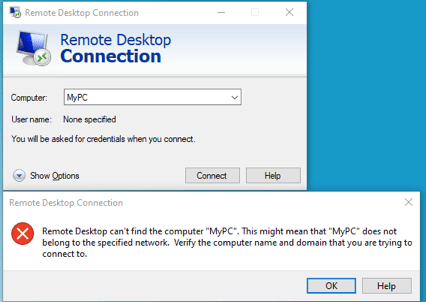
FQDN

Solution:  This could be as a result of many reasons. Here are some possible fix
– First, the right computer-name wasn’t used
– If this fails then the error is DNS related (that is the name you are trying to use is not resolvable). To troubleshoot this, use the nslookup and ping utility to investigate further. Based on your findings, apply a fix 😉

I hope you found this blog post helpful. If you have any questions, please let me know in the comment session.

Rate this post

Thank you for reading this post. Kindly share it with others.

  • Share on X (Opens in new window) X
  • Share on Reddit (Opens in new window) Reddit
  • Share on LinkedIn (Opens in new window) LinkedIn
  • Share on Facebook (Opens in new window) Facebook
  • Share on Pinterest (Opens in new window) Pinterest
  • Share on Tumblr (Opens in new window) Tumblr
  • Share on Telegram (Opens in new window) Telegram
  • Share on WhatsApp (Opens in new window) WhatsApp
  • Share on Mastodon (Opens in new window) Mastodon
  • Share on Bluesky (Opens in new window) Bluesky
  • Share on Threads (Opens in new window) Threads
  • Share on Nextdoor (Opens in new window) Nextdoor
Windows Tags:FQDN, RDP, Remote Desktop, RemoteConnection

Post navigation

Previous Post: Check if Windows Updates were installed via the Registry Editor
Next Post: Disable the sleep mode in Windows to never turn off the display

Related Posts

  • Prevent Local Administrators from turning off BitLocker 1
    Prevent Local Administrators from managing BitLocker with the manage-bde command Windows
  • TrueCrypt to BitLocker
    How to Migrate from TrueCrypt to BitLocker Backup
  • xxxxxx
    How to move the Taskbar to a second screen in Windows Windows
  • screenshot 2020 03 15 at 00.43.16
    How to permit and run only certain apps in windows Windows
  • Featured image 6
    How to remove OneDrive from Windows Microsoft Exchange/Office/365
  • image 38
    How to Fix “Unknown hard error” on Windows Server and Windows 10 Windows

More Related Articles

Prevent Local Administrators from turning off BitLocker 1 Prevent Local Administrators from managing BitLocker with the manage-bde command Windows
TrueCrypt to BitLocker How to Migrate from TrueCrypt to BitLocker Backup
xxxxxx How to move the Taskbar to a second screen in Windows Windows
screenshot 2020 03 15 at 00.43.16 How to permit and run only certain apps in windows Windows
Featured image 6 How to remove OneDrive from Windows Microsoft Exchange/Office/365
image 38 How to Fix “Unknown hard error” on Windows Server and Windows 10 Windows

Comment (1) on “Remote Desktop can not find the computer FQDN and this might mean that FQDN does not belong to the specified network”

  1. Avatar photo SteveW says:
    01/03/2022 at 8:31 PM

    Sure, obvious first step, but what happens when Windows 10 nslookup resolves the fqdn, but Windows 10 rdp will not? What’s the next steps to resolve the problem? I’ve “ipconfig /flushdns” already. I’ve nothing in my hosts file. It seems as though Windows 10 RDP is using something other than a normal fqdn lookup, sadly.

    Log in to Reply

Leave a Reply Cancel reply

You must be logged in to post a comment.

Microsoft MVP

VEEAMLEGEND

vexpert-badge-stars-5

Virtual Background

GoogleNews

Categories

veeaam100

Veeam Vanguard

  • Reset folder view settings on File Explorer for Windows 11 and 10
    Reset folder view settings on File Explorer for Windows 11 and 10 Windows
  • FLUTTER Feature
    How to Set Up Flutter with Android Studio on Linux Linux
  • sdfdghjk
    How to fix “Job for Mattermost service failed” error Linux
  • jmeterimage
    Apache JMeter Load Testing: Test Mobile Apps on Windows Configuration Management Tool
  • main
    How to Move OneDrive Folder to a different location in Windows Windows
  • Azure AD Logo
    Integrating on-premise AD with Azure Active Directory and MFA AWS/Azure/OpenShift
  • images
    Lifecycle rules: Transition to Glacier still appears in s3 AWS/Azure/OpenShift
  • GitLabrunner 1 1
    There has been a runner system failure: failed to start the process exec “pwsh” Containers

Subscribe to Blog via Email

Enter your email address to subscribe to this blog and receive notifications of new posts by email.

Join 1,819 other subscribers
  • RSS - Posts
  • RSS - Comments
  • About
  • Authors
  • Write for us
  • Advertise with us
  • General Terms and Conditions
  • Privacy policy
  • Feedly
  • Telegram
  • Youtube
  • Facebook
  • Instagram
  • LinkedIn
  • Tumblr
  • Pinterest
  • Twitter
  • mastodon

Tags

Active Directory Azure Bitlocker Microsoft Windows PowerShell WDS Windows 10 Windows 11 Windows Deployment Services Windows Server 2016

Copyright © 2025 TechDirectArchive


Loading Comments...
 

You must be logged in to post a comment.