Skip to content

TechDirectArchive

Hands-on IT, Cloud, Security & DevOps Insights

  • Home
  • About
  • Advertise With US
  • Reviews
  • Contact
  • Toggle search form
Home » Windows » How to disable Lock Screen on Windows 10 via Registry Editor

How to disable Lock Screen on Windows 10 via Registry Editor

Posted on 08/02/202019/09/2023 Christian By Christian No Comments on How to disable Lock Screen on Windows 10 via Registry Editor
disable Lock Screen

Are you currently annoyed with the login screen and the frequent need to have your password entered in order to be granted access? This method will help you go directly to the login screen. To see how this is done via group policy, take a look at this article, and how Automatic login is enabled via the command prompt. Kindly refer to some of these guides: What are the benefits of Azure API Management, and how to create an API instance in Azure, Some Azure Hybrid use cases and benefits for production purposes, how to Add a User to the Sudoers List in Linux, and Azure Monitor: Performance and Diagnostics in Microsoft Cloud.

From the search menu, type Regedit and hit enter or double-click on it. If this prompts the UAC, simply select Yes as shown below.

How to disable Lock Screen on Windows

Windows 10

Or search for Run, in the run dialogue box, type Regedit and hit ok. This will open the registry editor.

  • – Expand HKEY_LOCAL_MACHINE in the left pane.
  • – Double-click to expand SOFTWARE
  • – Double-click to expand Policies.
  • – Double-click to expand Microsoft.


– Now, don’t double-click but right-click Windows. Note: When the Personalisation folder isn’t available, then you can follow these steps

– Click New and then click Key.
– Rename New Key #1 that you just created as Personalisation and hit Enter
– On the Personalisation folder,
– Right-click in the right pane of the Registry Editor,  
– Select New and then select DWORD (32-bit) Value.
– You will see a new item pop-up in
– On the right pane of the Registry Editor, titled New Value #1.
– Rename it as NoLockScreen and hit Enter.

Note: In my case, this folder is already available.
– select New and then select DWORD (32-bit) Value.
– In the right pane of the Registry Editor, titled New Value #1.
– Rename it  as NoLockScreen and hit Enter.
– Under Value data, change the value from 0 to 1 and click OK.

Lock Screen removal

That is all that needs to be configured 😉 To see how this is performed via group policy, see the following link, and how this is done via the command prompts (user account).

Rate this post

Thank you for reading this post. Kindly share it with others.

  • Share on X (Opens in new window) X
  • Share on Reddit (Opens in new window) Reddit
  • Share on LinkedIn (Opens in new window) LinkedIn
  • Share on Facebook (Opens in new window) Facebook
  • Share on Pinterest (Opens in new window) Pinterest
  • Share on Tumblr (Opens in new window) Tumblr
  • Share on Telegram (Opens in new window) Telegram
  • Share on WhatsApp (Opens in new window) WhatsApp
  • Share on Mastodon (Opens in new window) Mastodon
  • Share on Bluesky (Opens in new window) Bluesky
  • Share on Threads (Opens in new window) Threads
  • Share on Nextdoor (Opens in new window) Nextdoor
Windows Tags:Microsoft Windows

Post navigation

Previous Post: How to disable Lock Screen on Windows 10
Next Post: Prevent on-screen keyboard from starting automatically and from appearing at login

Related Posts

  • csdfg
    What is Cortona: How to disable Cortana via the registry or GPO Windows
  • main
    How to Move OneDrive Folder to a different location in Windows Windows
  • Screenshot 2020 06 15 at 21.08.38
    How to allow saved credentials for RDP connection Windows
  • Synergy software kvm
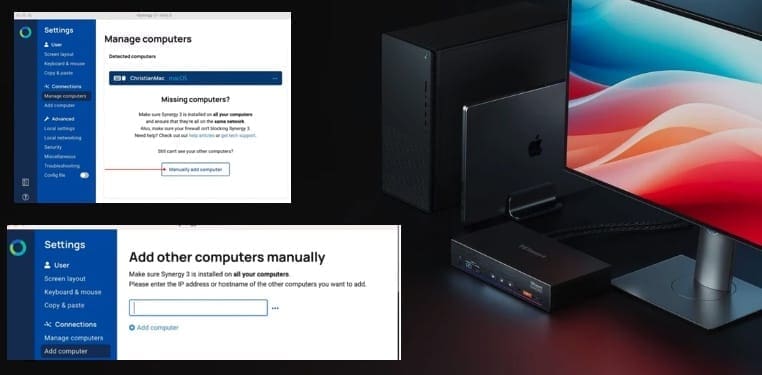
    Why Software KVMs such as Synergy is replacing Hardware KVMs Linux
  • Remove Bing Chat Button from Edge Sidebar
    How to Remove Bing Chat Button from Edge Sidebar Windows
  • screenshot 2020 02 09 at 21.47.28
    How to find Computer Model and Serial Number Windows

More Related Articles

csdfg What is Cortona: How to disable Cortana via the registry or GPO Windows
main How to Move OneDrive Folder to a different location in Windows Windows
Screenshot 2020 06 15 at 21.08.38 How to allow saved credentials for RDP connection Windows
Synergy software kvm Why Software KVMs such as Synergy is replacing Hardware KVMs Linux
Remove Bing Chat Button from Edge Sidebar How to Remove Bing Chat Button from Edge Sidebar Windows
screenshot 2020 02 09 at 21.47.28 How to find Computer Model and Serial Number Windows

Leave a Reply Cancel reply

You must be logged in to post a comment.

Microsoft MVP

VEEAMLEGEND

vexpert-badge-stars-5

Virtual Background

GoogleNews

Categories

veeaam100

Veeam Vanguard

  • winSEARCH
    Hide or Remove Search Button from Windows 10 Taskbar Windows
  • maxresdefault
    How to stop Microsoft Edge from remembering your email ID Windows
  • extend proxmox local container instance
    How to extend Proxmox Local Container Storage Virtualization
  • Screenshot 2020 05 16 at 17.41.31
    Tomcat Keystore Update: How to rebind Tomcat Keystore with a new Certificate Web Server
  • ADaccountexpiration
    How to set an account expiration date in Active Directory Windows Server
  • sdf
    What is GPO and how can it be launched in Windows Windows Server
  • 785509289 780x439
    How to configure Pleasant Password MsSQL SSO Password Manager
  • How to Disable the Firefox Password Manager in Windows 11
    How to Disable the Firefox Password Manager in Windows 11 Password Manager

Subscribe to Blog via Email

Enter your email address to subscribe to this blog and receive notifications of new posts by email.

Join 1,817 other subscribers
  • RSS - Posts
  • RSS - Comments
  • About
  • Authors
  • Write for us
  • Advertise with us
  • General Terms and Conditions
  • Privacy policy
  • Feedly
  • Telegram
  • Youtube
  • Facebook
  • Instagram
  • LinkedIn
  • Tumblr
  • Pinterest
  • Twitter
  • mastodon

Tags

Active Directory Azure Bitlocker Microsoft Windows PowerShell WDS Windows 10 Windows 11 Windows Deployment Services Windows Server 2016

Copyright © 2025 TechDirectArchive


Loading Comments...
 

You must be logged in to post a comment.