Skip to content

TechDirectArchive

Hands-on IT, Cloud, Security & DevOps Insights

  • Home
  • About
  • Advertise With US
  • Reviews
  • Contact
  • Toggle search form
Home » Mac » Package Manager for macOS: How to install Homebrew on macOS
  • automatepythonsinwindows
    Python Automation in Windows with Visual Studio Code Version Control System
  • WPScan Banner
    How to scan WordPress Websites With WPScan For Security Vulnerabilities Security | Vulnerability Scans and Assessment
  • EC2
    How to Add and Format a New Virtual Disk to an EC2 Instance AWS/Azure/OpenShift
  • How to Manage Azure Virtual Machines with Windows Admin Center and Serial Console​
    Manage Azure Virtual Machine with Windows Admin Center and Serial Console AWS/Azure/OpenShift
  • Route53AWS
    Set up and configure Route 53 for your Domain in AWS AWS/Azure/OpenShift
  • How to Change Active Directory Group Scope
    How to change Active Directory Group Scope Windows Server
  • maxresdefault 2 5
    Why am I unable to ping the Public IP Address of an EC2 instance AWS/Azure/OpenShift
  • youtube cover blue
    How to use the Azure Cloud Shell or Azure CLI and Azure PowerShell AWS/Azure/OpenShift

Package Manager for macOS: How to install Homebrew on macOS

Posted on 20/03/202019/09/2023 Christian By Christian No Comments on Package Manager for macOS: How to install Homebrew on macOS
Package Manager

A package manager or package-management system is a collection of software tools that automates the process of installing, upgrading, configuring, and removing computer programs for a computer’s operating system in a consistent manner. Homebrew is the preferred package manager for macOS and the installation is pretty straight forward. How to add a new partition to an existing Linux server, How to setup and configure a lamp stack, ESXI 6.7 ALARM: Seat disk exhaustion on 10, how to setup up WatchGuard Log and Report Server in a VM, how to encrypt a partition with Cryptsetup on Linux and how to disable RC4 Cipher Algorithms support in SSH Server.

Homebrew is package manager for Macs which makes installing lots of different software like Git, Ruby, and Node simpler etc. Homebrew keeps its standard commands simple and installs only single-file applications through its default brew command-line interface.

Launch the iTerm terminal (Terminal emulator for macOS) on your macOS
– Navigate to the website https://brew.sh/ and paste the command below in the terminal

/bin/bash -c "$(curl -fsSL https://raw.githubusercontent.com/Homebrew/install/master/install.sh)"

This will continue the installation of Homebrew on your macOS. This will at some point prompt for a password to allow the installation to continue.
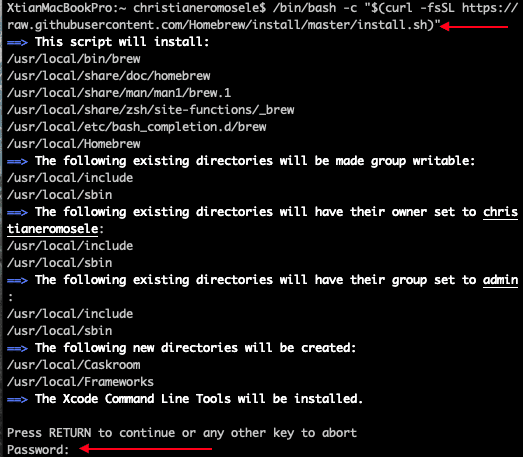
macOS
install Homebrew

Now, Homebrew package manager has been successfully installed on your device as shown above. See the following how-to article to see if Homebrew is installed on your device.

Furthermore, I hope you found this blog post helpful. However, Please let me know in the comment session if you have any questions.

Rate this post

Thank you for reading this post. Kindly share it with others.

  • Share on X (Opens in new window) X
  • Share on Reddit (Opens in new window) Reddit
  • Share on LinkedIn (Opens in new window) LinkedIn
  • Share on Facebook (Opens in new window) Facebook
  • Share on Pinterest (Opens in new window) Pinterest
  • Share on Tumblr (Opens in new window) Tumblr
  • Share on Telegram (Opens in new window) Telegram
  • Share on WhatsApp (Opens in new window) WhatsApp
  • Share on Pocket (Opens in new window) Pocket
  • Share on Mastodon (Opens in new window) Mastodon
  • Share on Bluesky (Opens in new window) Bluesky
  • Share on Threads (Opens in new window) Threads
  • Share on Nextdoor (Opens in new window) Nextdoor
Mac

Post navigation

Previous Post: How to check if homebrew is installed on macOS
Next Post: How to install and uninstall PowerShell on macOS via Homebrew

Related Posts

  • Ping 4
    Perform continuous ping on OSes and network Appliances Mac
  • Bluetooth
    Cannot open Bluetooth preference pane because it is not available Mac
  • VLC Media Player pcgh b2article artwork
    How to Set Quicktime or VLC as a default player on macOS Mac
  • chrome feature image light blue
    Set Chrome as default: How to set a browser as default on macOS Mac
  • Norton360
    Download and install Norton 360 Anti-Virus on your Mac device Mac
  • smart
    Application in bin: You can not open this application Mac

More Related Articles

Ping 4 Perform continuous ping on OSes and network Appliances Mac
Bluetooth Cannot open Bluetooth preference pane because it is not available Mac
VLC Media Player pcgh b2article artwork How to Set Quicktime or VLC as a default player on macOS Mac
chrome feature image light blue Set Chrome as default: How to set a browser as default on macOS Mac
Norton360 Download and install Norton 360 Anti-Virus on your Mac device Mac
smart Application in bin: You can not open this application Mac

Leave a Reply Cancel reply

You must be logged in to post a comment.

Microsoft MVP

VEEAMLEGEND

vexpert-badge-stars-5

Virtual Background

GoogleNews

Categories

veeaam100

sysadmin top30a

  • automatepythonsinwindows
    Python Automation in Windows with Visual Studio Code Version Control System
  • WPScan Banner
    How to scan WordPress Websites With WPScan For Security Vulnerabilities Security | Vulnerability Scans and Assessment
  • EC2
    How to Add and Format a New Virtual Disk to an EC2 Instance AWS/Azure/OpenShift
  • How to Manage Azure Virtual Machines with Windows Admin Center and Serial Console​
    Manage Azure Virtual Machine with Windows Admin Center and Serial Console AWS/Azure/OpenShift
  • Route53AWS
    Set up and configure Route 53 for your Domain in AWS AWS/Azure/OpenShift
  • How to Change Active Directory Group Scope
    How to change Active Directory Group Scope Windows Server
  • maxresdefault 2 5
    Why am I unable to ping the Public IP Address of an EC2 instance AWS/Azure/OpenShift
  • youtube cover blue
    How to use the Azure Cloud Shell or Azure CLI and Azure PowerShell AWS/Azure/OpenShift

Subscribe to Blog via Email

Enter your email address to subscribe to this blog and receive notifications of new posts by email.

Join 1,836 other subscribers
  • RSS - Posts
  • RSS - Comments
  • About
  • Authors
  • Write for us
  • Advertise with us
  • General Terms and Conditions
  • Privacy policy
  • Feedly
  • Telegram
  • Youtube
  • Facebook
  • Instagram
  • LinkedIn
  • Tumblr
  • Pinterest
  • Twitter
  • mastodon

Tags

AWS Azure Bitlocker Microsoft Windows PowerShell WDS Windows 10 Windows 11 Windows Deployment Services Windows Server 2016

Copyright © 2025 TechDirectArchive


Loading Comments...
 

You must be logged in to post a comment.