Skip to content

TechDirectArchive

Hands-on IT, Cloud, Security & DevOps Insights

  • Home
  • About
  • Advertise With US
  • Reviews
  • Contact
  • Toggle search form
Home » Linux » [MAILX ERROR: STATUS=BOUNCED] Fixing Mailx error when sending emails from Command line
  • cimInstance wmi
    How to fix Get-CimInstance Access PermissionDenied Windows
  • Authentication failed   invalid credential Veeam VSA
    Fix Authentication failed: Invalid credential after installing VSA Backup
  • Featured image 4
    How to enable or fix the missing fast startup option on Windows 11 Windows
  • Route53AWS
    Set up and configure Route 53 for your Domain in AWS AWS/Azure/OpenShift
  • dd featured 1
    How to delete obsolete drivers from the Driver Store in Windows Windows
  • Fix error Microsoft Outlook cannot sign or encrypt this message when sending email.
    How to fix error “Microsoft Outlook cannot sign or encrypt this message” when sending email? Network | Monitoring
  • group
    How to update PowerShell and Package Management via Group Policy Object Windows Server
  • How to Make More Space Available on the Windows 11 Taskbar
    How to Make More Space Available on the Windows 11 Taskbar Windows

[MAILX ERROR: STATUS=BOUNCED] Fixing Mailx error when sending emails from Command line

Posted on 06/09/202024/09/2024 Christian By Christian No Comments on [MAILX ERROR: STATUS=BOUNCED] Fixing Mailx error when sending emails from Command line
Mailx troubleshooting

Mailx is an intelligent mail processing system, which has a command syntax reminiscent of ed(1) with lines replaced by messages. It is based on Berkeley Mail 8.1, is intended to provide the functionality of the POSIX mailx command, and offers extensions for MIME, IMAP, POP3, SMTP, and S/MIME. In this article, we will learn how to fix “[MAILX ERROR: STATUS=BOUNCED] Fixing Mailx error when sending emails from Command line”. Please see How to uninstall AWS CLI in Windows, and Hhow to install WSUS on Windows Server 2022.

Mailx provides enhanced features for interactive use, such as caching and disconnected operation for IMAP, message threading, scoring, and filtering. It is also usable as a mail batch language, both for sending and receiving mail.

While trying to send an email from CLI on a local server to an external email address, you can come across the error log below.

echo -e "testing email via yourisp.com from command line\n\nsent on: $(date)" | mailx -r "Test-Email <[email protected]>" -s "test cli email $(date)" -- [email protected]
Email sending issues

Also, see How to change Windows 11 and 10 default mail app to Outlook, how to “Prevent Microsoft Edge from sending your Search data to Microsoft“, and “How to fix error “Microsoft Outlook cannot sign or encrypt this message” when sending email?“.

Fixing Mailx error when sending emails

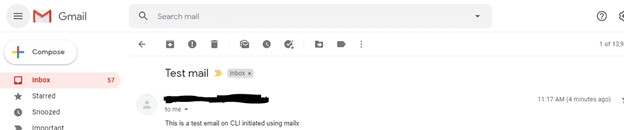
To fix this, make sure you have the SMTP server address (either Gmail or your ISP) and also authentication to log in (Some ISP’s allow anonymous) then use the command below

echo "This is a test email on CLI initiated using mailx" | mailx -vvv -s "Test mail" -r "[email protected]" -S smtp="your smtp server address" [email protected]
Command line email errors

USING GMAIL AS THE EMAIL SERVER

Establish a certificate directory for secure storage. Include new certificates and keys – a step toward fixing Mailx error when sending emails.

mkdir ~/.certs
certutil -N -d ~/.certs

Download the certificate from Gmail and import the cert file into the new database.

echo -n | openssl s_client -connect smtp.gmail.com:465 | sed -ne '/-BEGIN CERTIFICATE-/,/-END CERTIFICATE-/p' > ~/.certs/gmail.crt
certutil -A -n "Google Internet Authority" -t "C,," -d ~/.certs -i ~/.certs/gmail.crt

Add configurations into the mailx config file (/etc/mail.rc)

 
account gmail {
set smtp-use-starttls
set ssl-verify=ignore
set smtp-auth=login
set smtp=smtp://smtp.gmail.com:587
set from="[email protected]"
set [email protected]
set smtp-auth-password=jjdeuen@SGY^
set ssl-verify=ignore
set nss-config-dir=/home/path/to/.certs
}

Test Email.

echo -e " body " | mailx -A gmail -s "Subject" [email protected]

I hope you found this blog post on “[MAILX ERROR: STATUS=BOUNCED] Fixing Mailx error when sending emails from Command line” helpful. If you have any questions, please let me know in the comment session.

5/5 - (1 vote)

Thank you for reading this post. Kindly share it with others.

  • Click to share on X (Opens in new window) X
  • Click to share on Reddit (Opens in new window) Reddit
  • Click to share on LinkedIn (Opens in new window) LinkedIn
  • Click to share on Facebook (Opens in new window) Facebook
  • Click to share on Pinterest (Opens in new window) Pinterest
  • Click to share on Tumblr (Opens in new window) Tumblr
  • Click to share on Telegram (Opens in new window) Telegram
  • Click to share on WhatsApp (Opens in new window) WhatsApp
  • Click to share on Pocket (Opens in new window) Pocket
  • Click to share on Mastodon (Opens in new window) Mastodon
  • Click to share on Bluesky (Opens in new window) Bluesky
  • Click to share on Threads (Opens in new window) Threads
  • Click to share on Nextdoor (Opens in new window) Nextdoor
Linux Tags:email

Post navigation

Previous Post: Replicating MDT Deployment Share: How to Create a Selection Profile and Link MDT Deployment Shares
Next Post: How to link a removable media to a Deployment Share: Replicate Deployment share to a removable device

Related Posts

  • Screenshot 2020 05 14 at 19.28.50
    How to install and configure Rancid Linux
  • Linux basic commands Linux
  • 2FA For SSH in Linux
    Set Two-Factor Authentication for SSH in Linux Linux
  • image 129
    Using Awx to deploy, schedule and run playbooks Linux
  • linux tux minimalism 4k 42 2560x1700 1 1
    Warning useradd: the home directory already exists. Not copying any file from skel director into it Linux
  • fimage2
    How to install and configure JIRA on Linux Linux

More Related Articles

Screenshot 2020 05 14 at 19.28.50 How to install and configure Rancid Linux
Linux basic commands Linux
2FA For SSH in Linux Set Two-Factor Authentication for SSH in Linux Linux
image 129 Using Awx to deploy, schedule and run playbooks Linux
linux tux minimalism 4k 42 2560x1700 1 1 Warning useradd: the home directory already exists. Not copying any file from skel director into it Linux
fimage2 How to install and configure JIRA on Linux Linux

Leave a Reply Cancel reply

You must be logged in to post a comment.

Microsoft MVP

VEEAMLEGEND

vexpert-badge-stars-5

Virtual Background

GoogleNews

Categories

veeaam100

sysadmin top30a

  • cimInstance wmi
    How to fix Get-CimInstance Access PermissionDenied Windows
  • Authentication failed   invalid credential Veeam VSA
    Fix Authentication failed: Invalid credential after installing VSA Backup
  • Featured image 4
    How to enable or fix the missing fast startup option on Windows 11 Windows
  • Route53AWS
    Set up and configure Route 53 for your Domain in AWS AWS/Azure/OpenShift
  • dd featured 1
    How to delete obsolete drivers from the Driver Store in Windows Windows
  • Fix error Microsoft Outlook cannot sign or encrypt this message when sending email.
    How to fix error “Microsoft Outlook cannot sign or encrypt this message” when sending email? Network | Monitoring
  • group
    How to update PowerShell and Package Management via Group Policy Object Windows Server
  • How to Make More Space Available on the Windows 11 Taskbar
    How to Make More Space Available on the Windows 11 Taskbar Windows

Subscribe to Blog via Email

Enter your email address to subscribe to this blog and receive notifications of new posts by email.

Join 1,841 other subscribers
  • RSS - Posts
  • RSS - Comments
  • About
  • Authors
  • Write for us
  • Advertise with us
  • General Terms and Conditions
  • Privacy policy
  • Feedly
  • Telegram
  • Youtube
  • Facebook
  • Instagram
  • LinkedIn
  • Tumblr
  • Pinterest
  • Twitter
  • mastodon

Tags

AWS Azure Bitlocker Microsoft Windows PowerShell WDS Windows 10 Windows 11 Windows Deployment Services Windows Server 2016

Copyright © 2025 TechDirectArchive


Loading Comments...
 

You must be logged in to post a comment.