Skip to content

TechDirectArchive

Hands-on IT, Cloud, Security & DevOps Insights

  • Home
  • About
  • Advertise With US
  • Reviews
  • Contact
  • Toggle search form
Home » Windows Server » Resolve DISM unspecified error when removing preinstalled packages(Error code 15601)

Resolve DISM unspecified error when removing preinstalled packages(Error code 15601)

Posted on 14/09/202030/09/2023 Christian By Christian No Comments on Resolve DISM unspecified error when removing preinstalled packages(Error code 15601)
resolve DISM unspecified error

Deployment Image Servicing and Management (DISM) is a command-line tool that is used to mount and service Windows images before deployment. See the following guides for articles relating to WDS “how to install Dynamic Host Configuration Protocol on Windows Server 2019″, and “how to configure Post-deployment of Dynamic Host Configuration Protocol“. When prompted with the following error above, most times, you may find little or no information in the log file. Here are some possible errors you can encounter while resolving this issue Error 0xc1570103: The license file was not found in the specified path, and how to fix error 0xc1510114: The wim file needs to be remounted.

This error was prompted when I wanted to mount packages to install.wim file using DISM. 
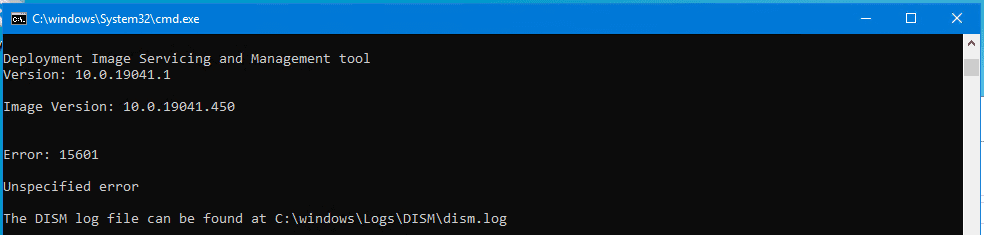
To resolve this DISM unspecified error, you would have to know what the meaning of the Error code: 15601 means. This error means
-ERROR_INSTALL_PACKAGE_NOT_FOUND
– 15601 (0x3CF1) Package was not found.

Solution: This could be due to the path not correct etc. Go through your script to have this issue corrected.
- You can also get this error if you wish to remove provisioned packages that are not available.

Run DISM to get features to see the package ID (GUID) name and compare this that has changed in the mounted image. See this article on how to get an application GUID. Also see, Application User Model ID: How to find the AUMID of an installed UWP App
– Note, These GUID changes from one Windows version to another. For a list of other Error Code, see the following link. See how to resolve “Error 740: Elevated permissions are required to run DISM“.

That’s how you can resolve DISM unspecified error. I hope you found this blog post helpful. If you have any questions, please let me know in the comment session.

Rate this post

Thank you for reading this post. Kindly share it with others.

  • Share on X (Opens in new window) X
  • Share on Reddit (Opens in new window) Reddit
  • Share on LinkedIn (Opens in new window) LinkedIn
  • Share on Facebook (Opens in new window) Facebook
  • Share on Pinterest (Opens in new window) Pinterest
  • Share on Tumblr (Opens in new window) Tumblr
  • Share on Telegram (Opens in new window) Telegram
  • Share on WhatsApp (Opens in new window) WhatsApp
  • Share on Mastodon (Opens in new window) Mastodon
  • Share on Bluesky (Opens in new window) Bluesky
  • Share on Threads (Opens in new window) Threads
  • Share on Nextdoor (Opens in new window) Nextdoor
Windows Server Tags:DISM, Microsoft Deployment Toolkit (MDT), WDS

Post navigation

Previous Post: Fix Error 0xc1420127: The specified image in the specified wim is already mounted for read and write access
Next Post: Error 0x80070002: When trying to mount an image file

Related Posts

  • DC creation as recommended by Microsoft
    Setup a Domain Controller as Recommended by Microsoft Windows Server
  • banner
    How to Back Up and Restore the Windows Registry Windows
  • RDP Certificate Issues
    Connecting to the RDP host: Fix the Certificate could not be verified back to the root certificate Mac
  • drivelock 1
    How to activate DriveLock License on Windows Server Windows Server
  • How to install and configure a Standalone DNS Server
    How to Install and Configure a Standalone DNS Server Windows Server
  • fhgjk
    Replicating MDT Deployment Share: How to Create a Selection Profile and Link MDT Deployment Shares Windows Server

More Related Articles

DC creation as recommended by Microsoft Setup a Domain Controller as Recommended by Microsoft Windows Server
banner How to Back Up and Restore the Windows Registry Windows
RDP Certificate Issues Connecting to the RDP host: Fix the Certificate could not be verified back to the root certificate Mac
drivelock 1 How to activate DriveLock License on Windows Server Windows Server
How to install and configure a Standalone DNS Server How to Install and Configure a Standalone DNS Server Windows Server
fhgjk Replicating MDT Deployment Share: How to Create a Selection Profile and Link MDT Deployment Shares Windows Server

Leave a Reply Cancel reply

You must be logged in to post a comment.

Microsoft MVP

VEEAMLEGEND

vexpert-badge-stars-5

Virtual Background

GoogleNews

Categories

veeaam100

sysadmin top30a

  • Screenshot 2020 11 09 at 11.26.54
    The logon attempt failed for the remote desktop connection Windows Server
  • DeleteAzureVM
    Remove Azure VM: How to delete a Virtual Machine via the Azure Portal AWS/Azure/OpenShift
  • fghj
    How to enable or disable DotNet Framework (NetFx3) via PowerShell, Control Panel, and DISM in Windows Windows
  • Feature image OCS inventory
    Install and use OCS inventory on Windows Windows
  • article 1280x720.192a2586 1
    Veles Software: MPA Tools Review and Product Details Reviews
  • hgbv
    Graphical Network Simulator: How to install GNS3 on macOS Network | Monitoring
  • Windows11
    Windows 11 System Requirements Windows
  • Bluetooth
    Cannot open Bluetooth preference pane because it is not available Mac

Subscribe to Blog via Email

Enter your email address to subscribe to this blog and receive notifications of new posts by email.

Join 1,823 other subscribers
  • RSS - Posts
  • RSS - Comments
  • About
  • Authors
  • Write for us
  • Advertise with us
  • General Terms and Conditions
  • Privacy policy
  • Feedly
  • Telegram
  • Youtube
  • Facebook
  • Instagram
  • LinkedIn
  • Tumblr
  • Pinterest
  • Twitter
  • mastodon

Tags

AWS Azure Bitlocker Microsoft Windows PowerShell WDS Windows 10 Windows 11 Windows Deployment Services Windows Server 2016

Copyright © 2025 TechDirectArchive


Loading Comments...
 

You must be logged in to post a comment.