Skip to content

TechDirectArchive

Hands-on IT, Cloud, Security & DevOps Insights

  • Home
  • About
  • Advertise With US
  • Reviews
  • Contact
  • Toggle search form
Home » Windows Server » Log Off: How to sign out of Windows Server 2012

Log Off: How to sign out of Windows Server 2012

Posted on 24/10/202006/09/2023 Christian By Christian No Comments on Log Off: How to sign out of Windows Server 2012
WinServer

Windows Server 2012 is an operating system built by Microsoft and is the successor of Windows Server 2008 R2. In this guide, I will be showing you where you can find the “sign out” option in Windows Server 2012. Here is how to install Windows Server 2019, how to perform an in-place upgrade for Windows Server 2012 to 2019, and how to install Windows Server 2016 Operating System, how to install the Windows Subsystem for Linux (WSL) on Windows Server via Server Manager and PowerShell, how to download and install Windows Server 2016. kindly refer to the following articles on how to Log Off WS2012: How to sign out of Windows Server 2012, and how to install Windows Server 2016 Operating System.

We can logoff a user session by clicking on the Logoff button and also from command prompt(CMD) too using shutdown command.

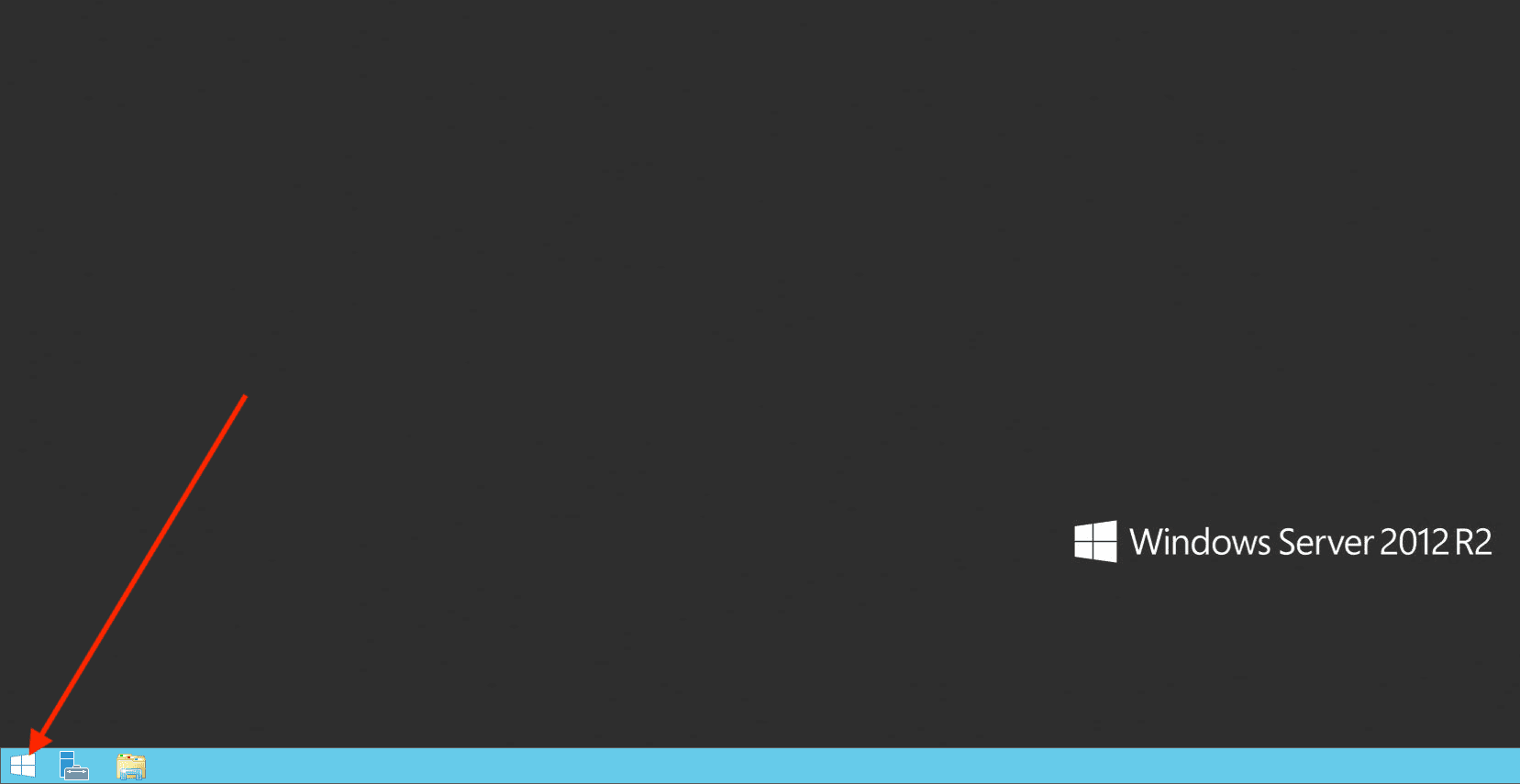
To sign out of Windows Server 2012, you will have to click on the Windows Start Menu as shown below.
– This will open the Metro Style Screen as shown in the second image below.
sign out

In this Metro Style window, you will have to click on your “User Account” Icon at the Top Right Corner of your Screen and
– This will reveal the Sign out options as shown below.

Windows Server 2012

Simply click on Sign out and you are done!
– Alternatively, you could use the following keyboard shortcut to sign out of Windows Server 2012.

Press Ctrl-Alt-Delete then select Sign Out

I hope you found this blog post helpful. If you have any questions, please let me know in the comment session.

Rate this post

Thank you for reading this post. Kindly share it with others.

  • Share on X (Opens in new window) X
  • Share on Reddit (Opens in new window) Reddit
  • Share on LinkedIn (Opens in new window) LinkedIn
  • Share on Facebook (Opens in new window) Facebook
  • Share on Pinterest (Opens in new window) Pinterest
  • Share on Tumblr (Opens in new window) Tumblr
  • Share on Telegram (Opens in new window) Telegram
  • Share on WhatsApp (Opens in new window) WhatsApp
  • Share on Mastodon (Opens in new window) Mastodon
  • Share on Bluesky (Opens in new window) Bluesky
  • Share on Threads (Opens in new window) Threads
  • Share on Nextdoor (Opens in new window) Nextdoor
Windows Server

Post navigation

Previous Post: Error 0xc1420117: The directory could not be completely unmounted
Next Post: Adding a subnetwork interface to an existing network interface

Related Posts

  • microsoft confirms some pcs freeze after windows 10 2
    Information on BOOTP Vendor Extensions and DHCP Options Windows Server
  • acctlockout 1
    Configure Local Administrators Account lockout Windows
  • create a Mapped Drive via GPO
    How to create a Mapped Drive via GPO Preferences Windows
  • Featured image WSL2 installation
    How to install WSL2 on Windows Server Linux
  • appp
    How to automatically reopen Windows Apps and Folders upon Startup Windows
  • find my device banner
    How to Enable Find My Device on Windows 11 Windows

More Related Articles

microsoft confirms some pcs freeze after windows 10 2 Information on BOOTP Vendor Extensions and DHCP Options Windows Server
acctlockout 1 Configure Local Administrators Account lockout Windows
create a Mapped Drive via GPO How to create a Mapped Drive via GPO Preferences Windows
Featured image WSL2 installation How to install WSL2 on Windows Server Linux
appp How to automatically reopen Windows Apps and Folders upon Startup Windows
find my device banner How to Enable Find My Device on Windows 11 Windows

Leave a Reply Cancel reply

You must be logged in to post a comment.

Microsoft MVP

VEEAMLEGEND

vexpert-badge-stars-5

Virtual Background

GoogleNews

Categories

veeaam100

Veeam Vanguard

  • Trellix Invalid credential
    Fix unable to login to Trellix ePO with Windows authentication Windows Server
  • powershell commands lede 1024x276 1
    Enable WinRM on Windows Servers and Windows PCs Scripts
  • centos feature
    How to change the system time zone under RedHat and CentOS Linux
  • powershell
    How to install the Microsoft PSWindowsUpdate module silently Scripts
  • VMware vSphere
    Differences between vSphere and ESXi and vCenter Virtualization
  • Create Alarm
    How to create Alarm rules in VMware vSphere Virtualization
  • ext
    How to install a standalone DriveLock Encryption software on Windows Security | Vulnerability Scans and Assessment
  • windows deployment services imagen destacada blog redigit
    How to create a capture image on Windows Deployment Services Windows Server

Subscribe to Blog via Email

Enter your email address to subscribe to this blog and receive notifications of new posts by email.

Join 1,819 other subscribers
  • RSS - Posts
  • RSS - Comments
  • About
  • Authors
  • Write for us
  • Advertise with us
  • General Terms and Conditions
  • Privacy policy
  • Feedly
  • Telegram
  • Youtube
  • Facebook
  • Instagram
  • LinkedIn
  • Tumblr
  • Pinterest
  • Twitter
  • mastodon

Tags

Active Directory Azure Bitlocker Microsoft Windows PowerShell WDS Windows 10 Windows 11 Windows Deployment Services Windows Server 2016

Copyright © 2025 TechDirectArchive


Loading Comments...
 

You must be logged in to post a comment.