Logoff or Restart or Shutdown Windows PC remotely

In this article, we shall discuss how to Logoff or Restart or Shutdown Windows PC remotely. There are times you (the system Administrator) may want to reboot your PC due to undesired behavior on your PC. During and after the installation of new programs (software and hardware), most times, you may need to restart your device. This will shut off all processes so that the Kernal can be re-established with the new software or hardware. Please see Handy Shutdown commands available in Windows, and how to use command prompt to shutdown and restart your computer.
Mac is a Unix environment, everything is cleared during the “shut down” and ‘restart” process, thereby clearing all processes, cache, and memory and, giving the device a complete start.
Note: Shutting down a computer is a way to power down all processes of the machine. “It’s very similar to a restart but with the exception that your computer won’t turn back on again until someone powers it up. The ways to shut down Windows 10 are similar to the restart options.
Why is a restart needed when completing a new install or uninstall?
And why is a computer restart during Windows Operating System updates needed?
Shutting down a Windows computer actually creates a deep hibernation file that the PC later leverages to allow for Fast Startup.
- A restart, on the other hand, completely kills all processes, clears the RAM, and clears the processor cache.
- Shutting down a computer is a more energy-efficient and environmentally friendly-way to leave a PC unattended.
Leaving a PC in sleep mode results in some power usage by the RAM and from the storage of open files and programs
Here are the steps to have your device shut down and restarted: Windows has various ways to shut down and restart remote computers natively via the Command Prompt as shown below.
Also, see How to prevent a remote shutdown and restart in Windows, and How to prevent users from shutting down in a Virtual Machine.
1: Restart Your Windows Device With a Custom Message
Open the command prompt, and type the following commands below.
shutdown /m \techdA101 /r /c “Demonstration purpose"
I used multiple switches in this command e.g.
– /m is for remote Servers. RemoteServerName needs to be replaced by the name of my server above (techdara101) which you wish to.
– /r is for restart it can be replaced by /s if you want to shut down the server.
– To add a comment, use the switch /c followed by the message as shown below and press Enter on your keyboard when done.

2: Shutdown Windows PC remotely
The Server remotely: By using the command below, another dialogue box will open up as shown below, enter a comment, and press ok.
shutdown -i

3: Restart Windows PC remotely
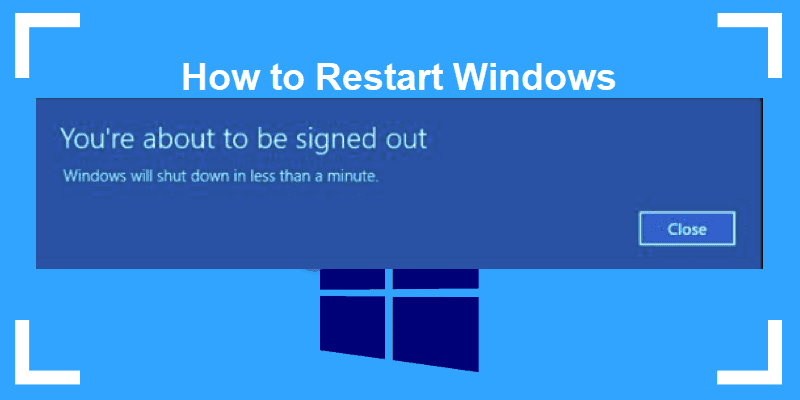
By default, this will prompt the remote computer and give it about a minute before it restarts.
shutdown /r /m \techdA101
4: Immediate Restart no Countdown: of Windows PC
If you want to immediately restart with no countdown or message use this command.
shutdown /r /m \techdA101 /t 0
5: Log User off on Remote Computer
If you just want to log a user off, use the remote computer command.
shutdown /l /m\\techdA101
Restart, Shutdown Windows PC remotely via PowerShell
You can use PowerShell in a similar faction as CMD to have your remote PC restarted or shut down. Follow the steps discussed below.
1: Restart a computer
This command will immediately restart a remote computer. The -Force option will force a restart even if a user is logged on.
Restart-Computer -ComputerName techdA101 -Force
2: Shutdown a Windows PC Remotely via PowerShell
This command will shut down a remote computer. Use the -Force to force a shutdown as shown below even if a user is logged on
Stop-Computer -ComputerName techdA101 -Force
3: Restart a list of computers
This is handy if you have several computers to restart. Just list all the computers you want in a text file and save it somewhere on your PC and add that to the PowerShell command as shown below.
restart-computer (get-content C:\Users\Christian\Desktop\listofcomputers.txt)

4: Shutdown two devices
Us the following commands to have this task done.
Stop-Computer -ComputerName "techdA101", "techdA102"
Here are the various switches you’ll want to use in conjunction with this command to control the behavior. For a full list of commands, you can type the command below.
shutdown /?
This will output several options including the following most commonly used options: The most common switches to use are the /r (to reboot) or /s (to shutdown).
/i   Display the graphical user interface (GUI). This must be the first option.
/m   \computer Specify the target computer.
/c   Print comment to screen of computer before rebooting or shutting down.
/l   Log off. This cannot be used with /m.
/s   Shutdown the computer.
/sg  Shutdown the computer. On the next boot, restart any registered applications.
/r   Full shutdown and restart (reboot) the computer.
/g   Full shutdown and restart (reboot) the computer.
     After the system is rebooted, restart any     registered applications.
/a   Abort (cancel) a system shutdown.
/p   Turn off the computer with no time-out or warning.
/h   Hibernate the computer.
/fw  Combine with a shutdown option to cause the next boot to go to the firmware user interface.
/e   Document the reason for an unexpected shutdown of a computer.
/t xxx     Set the time-out period before shutdown to xxx seconds.
/f   Force running applications to close without forewarning users.
I want to point out that you’ll need the Remote Registry service enabled and started on the remote computer and the Windows Management Instrumentation (WMI) firewall rule enabled on the remote computer for this to work.
You’ll also need to ensure your user account has administrator permissions on the remote computer or the command will fail. See this guide for “Windows Active Directory Administrative tools Shortcut command Keys” and this guide for “Windows 10 Administrative Shortcut command keys.
I hope you found this blog post helpful. You have learned how to Logoff or Restart or Shutdown Windows PC remotely. If you have any questions, please let me know in the comment session.