Self-hosted translator: How to install and uninstall SYSTRAN 6 translator on Windows

In this article, we will learn How to install and uninstall SYSTRAN 6 translator on Windows SYSTRAN Translator and Dictionary is a Windows gadget that relies on a powerful translation engine, with support for multiple languages. This utility supports up to 52 language combinations. There are two different options, “Translate” and “Lookup”. The first one especially addressed large pieces of text, while the latter is more appropriate for single terms. Please see how to Deploy MVC Application to AWS EC2 Using RDP Connection and Web Deploy.
I am testing with version 6, there are other versions such as SYSTRAN 7 and 8 Translator at the time of writing this article. Kindly see how to install Windows Server 2022 on VMware Workstation.
SYSTRAN facilitates language translation allowing an organization’s legal team and its outside counsel to search across large data sets and translate non-English documents to English or any language. This means client data will be translated behind your organization’s firewall and never leaves your premises.
Why would you need SYSTRAN Translator Program? Because the process of traditional translation remain very expensive and time consuming. Having a self hosted or installed translation program is vital and often required by law in matters where non-English document review is needed.
SYSTRAN Translation Solutions Overview
You can benefit from the state-of-the-art translation technology with the SYSTRAN suite from their server solution to their free online translator and translation API as discussed below. Please visit this Systransoft Site for more information. I will be discussing some features of the available SYSTRAN suite as shown below.
1: SYSTRAN Pure Neural Server
SYSTRAN Pure Neural Server is designed to meet and exceed corporate expectations for quality, enhanced collaboration, cost-effectiveness, and productivity.
2: The SYSTRAN Translate Pro
The SYSTRAN Translate Pro provides advanced professional translation features such as document translation (including PDF) and customization with your own linguistic resources, via our Web Interface or REST API, with all the flexibility of our cloud-based translation solution and pay-per-use plans. You can use SYSTRAN Translate PRO to translate your business domain into more than 55 languages and 140 language combinations.
3: Free translation platform
With the free translation platform to translate text, in 50+ languages, which included in-domain adaptations.
SYSTRAN installation requirements: Of course, as with all software installation, there are decisions you will need to make as you proceed. In order to use SYSTRAN Translator, your system must meet the following minimum requirements:
- Processor: Minimum Intel 2.5Ghz or equivalent, recommended Intel® Core™ i5 3.33 GHz or equivalent
- Memory: 1 language pair requires a minimum of 1 GB RAM, recommended 2GB (500 MB per additional language pair)
- With several language pairs: min 2 GB and 500 MB per additional language pair
- Disk Space: 4 GB (and 1 GB per additional language pair)
- Operating System: Windows 10 (32 or 64-bit) Note: You must also have the following products installed on your PC to use the Office plugins and the SYSTRAN Extension:
- Microsoft Office: 32-bit or 64-bit versions of Microsoft Office whether used with a license or an Office 365 subscription
- Web browsers: Chrome, or Mozilla Firefox, etc.
Part A – SYSTRAN Installation:
You can initiate the installation of SYSTRAN using either a purchased DVD or an executable application (downloaded product) purchased online.
You will need a valid serial number to install your SYSTRAN product. If you purchased your SYSTRAN product in DVD format your serial number will be found inside the packaged DVD, and if you purchased your SYSTRAN product online your serial number will be sent to you via email.
Keep your serial number in a safe place in case you need to reinstall your SYSTRAN product.
Note: Prior to installing any SYSTRAN product, you should ensure that your Windows installation is fully up-to-date.
Ensure that you have installed the Microsoft Office Compatibility Pack for Word, Excel, and PowerPoint File Formats pack, which allows these older versions of Office to open and save files created in the newer Microsoft Office formats (.docx, .xlsx, and .pptx).

For non-administrators, You must right click on the installer and select Run as administrator as shown below

If you have the UAC setup, this will be prompted. Just click on Yes to proceed.
User Account Control (UAC) can help prevent unauthorized changes to your computer.

You will be required to select the language as shown below

SYSTRAN will prepare the setup as shown below, when complete, you can now proceed with the setup.

Click on Next to continue in order to proceed with the installation

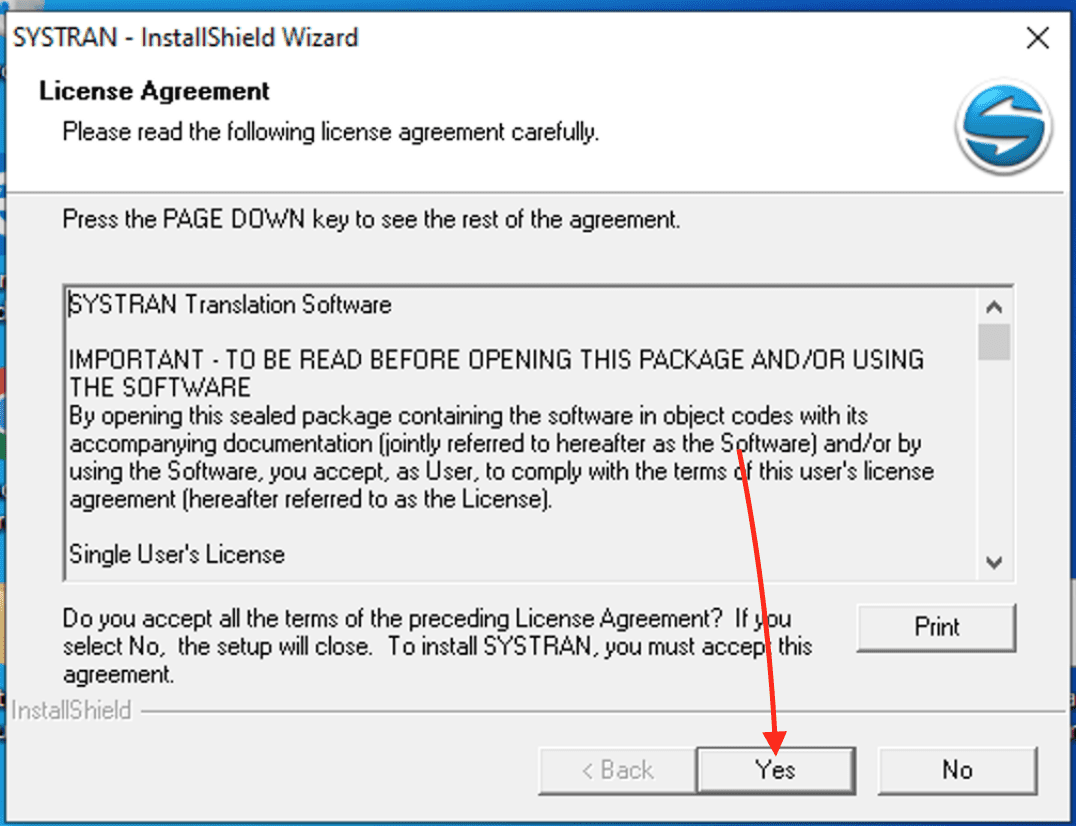
Accept the License agreement as shown below by clicking on “Yes”
Also, see PowerShell Script: Uninstalling Applications Made Easy, how to forcefully remove Language Pack on Windows 10 and 11, and How to Generate SSH Keys in Windows 10
Enter the Customer Information
Enter the username, company name and serial number as shown below.

Select your setup type as shown below. You can optionally choose a different folder for the installation if you wish. I will leave this as default.

I have a couple of screenshoots below showing the various step status steps


On the product registration window, click on close. But if you wish to register your SYSTRAN product in order to receive valuable updates, then it is fine.
I left this option since this installation is being performed in a LAB environment.

Next, click on finish to complete the SYSTRAN installation.

As you can see on my Desktop, SYSTRAN 6 Translator has been installed on my device.

Click the SYSTRAN Toolbar, and the window below will prompt you.
Click on allow access in order to unblock the SYSTRAN features block by Windows Defender Firewall. You will have to do this also for the translating engine. Do not worry, you will get this pop-up.

Additionally, you have the SYSTRAN translator fully operational as shown below.
Your information will no longer be transmitted online but reside in your network. Furthermore, Below is an example of how effortless this translation system works.


Let’s click on the SYSTRAN dictionary. Therefore, To learn how to install and uninstall SYSTRAN 6 translator, click on allow access in order to unblock the SYSTRAN features block by Windows Defender Firewall.

You can create a new dictionary in the following ways below.

Nevertheless, for the SYSTRAN Translation Project Manager which is used in managing translation, you will have to permit the program access.
Therefore, Click on it as shown below and allow the firewall access in order to unlock some features.

How to install and uninstall SYSTRAN 6 translator
Similarly, Profiles and linguistic resources enable users to fine-tune the manner in which SYSTRAN 6 Translator performs translations. Nonetheless, Use the SYSTRAN Language Manager to learn how to install and uninstall SYSTRAN 6 Translator effectively.
- Define translation profiles
- Consequently, View and manage the list of linguistic resources (which are edited through SYSTRAN Dictionary Manager)
- View and manage the list of licenses and installed language pairs.

Part B – Uninstall SYSTRAN 6 Translator Via Windows Settings
These steps are very straightforward. In addition, See how to uninstall the built-in program. Also, see how to uninstall an application using PowerShell Script.

Uninstall SYSTRAN 6 Translator Via Control Panel
However, This process is also very straightforward, especially when you need to know how to install and uninstall SYSTRAN 6 translator. – Launch the Windows Control Panel.
Moreover, See this guide for more on how to query a list of installed programs in Windows via Windows Settings, Control Panel, WMIC, PowerShell and Windows Registry.

Furthermore, I hope you found this blog post helpful. If you have any questions about how to install and uninstall SYSTRAN 6 translator, please let me know in the comment session.


