Skip to content

TechDirectArchive

Hands-on IT, Cloud, Security & DevOps Insights

  • Home
  • About
  • Advertise With US
  • Reviews
  • Contact
  • Toggle search form
Home » Windows Server » Download and install Fujitsu DeskUpdate & DeskUpdate Manager
  • Panic failed
    Panic: Failed to register the GitLab-runner, you may be having network issues Version Control System
  • windows update 03
    How to automate Windows Update with PowerShell Scripts
  • 2FA For SSH in Linux
    Set Two-Factor Authentication for SSH in Linux Linux
  • How to Disable UAC with Group Policy and enable PIN in Windows Hello
    How to Disable UAC with Group Policy and enable PIN in Windows Hello Windows
  • Enable TPM and ecure boot on HyperV to run windoows 11
    How to run Windows 11 on HyperV Virtualization
  • article 1280x720.192a2586 1 1
    No valid offer received: WDS PXE-E16 error when booting clients Windows Server
  • Distributed File System DFS
    All About Distributed File System Windows
  • 785509289 780x439
    Errors associated with Pleasant Password Password Manager

Download and install Fujitsu DeskUpdate & DeskUpdate Manager

Posted on 09/02/202123/03/2024 Christian By Christian No Comments on Download and install Fujitsu DeskUpdate & DeskUpdate Manager
Fujitsu DeskUpdate and DeskUpdate Manager

DeskUpdate Manager enables you to prepare and sort drivers suitable for your Fujitsu Client operating system (OS). In this article, we will discuss how to Download and install Fujitsu DeskUpdate & DeskUpdate Manager. You can install these drivers using your software distribution system, such as SCCM, and so on. Please see how to determine the version and type of a Printer Driver, how to import drivers in .exe format into Microsoft Deployment Toolkit, and how to update Printer Drivers on your Windows device.

The DeskUpdate Manager functions by connecting to the Fujitsu driver inventory and gathers the drivers and installation tools and thus be downloaded and stored in a driver repository.

Afterwards, you can use your software installation system to distribute and install the drivers automatically with the DeskUpdate command-line tool DUCMD. The individual client devices do not need Internet access.

Please see these guides for some related content I have written around Windows Driver management “How to automate drivers using SCConfigMgr Driver Automation Tool, how to install SCConfigMgr Driver Automation Tool, how to delete obsolete drivers from the Driver Store in Windows 10.

How does DeskUpdate Manager Work?

The figure below shows the basic operation of the DeskUpdate Manager. As you can see, Internet connection is very vital.
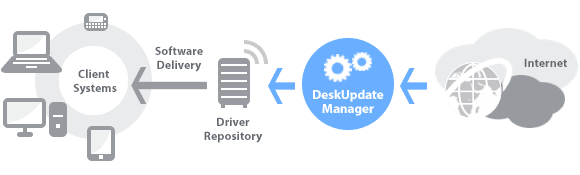
DeskUpdate Manager

DeskUpdate: Desktupdate searches the Fujitsu database (driver repository) for new drivers, bios updates, and system-specific software packages for your system. You can select the packages it finds and have DeskUpdate install them.

DeskUpdate is an application for automatic software installation (drivers and utilities). This software is only for systems from Fujitsu.

Please refer to these articles on Driver Management on AWS, Windows clients, and servers. “How to remove a Printer from Windows 10 via PowerShell, Windows registry and Print Management, how to install ENA Driver, and how to upgrade AWS Network Adapter from Redhat to Citrix PV and then to AWS PV driver.

Install DeskUpdate Manager

Part A: Download and install the DeskUpdate Manager.

Click on Download DeskUpdate Manager as shown below.

Download Desk Update Manager

You will be redirected to the following page. Now select and download from one of the operating systems as shown below.

Select your Device

Click on download on the Direct Download as shown below.

Click on Direct Download

You’ll receive a prompt to accept the License Terms, after which you should click on “Download File,” as indicated below.

Accept the terms and Download the Desk Update Manager

Now extract the DeskUpdate software as shown below. You can also use 7-Zip etc

Extract the files

Double click on the extracted DeskUpdate Manager as shown below. Just double click on the executable file as shown below.

Double Click the Desk Update Manager.exe file

Since this is a test VM, I will create a shortcut on my desktop for easy accessibility.

Create a desktop Shortcut

Upon double-clicking on the DesktopUpdateManager.exe, the DesktopUpdateManager window will open up. Click on Next.

Click on Next

This will open up the project selection Window. Click on New

click on New

Enter a project name and description and click on OK.

Enter a project name and click on OK

Now that the system has loaded, you can choose the system and operating systems for which you want to create a driver repository. Afterward, click “Next” and proceed by following the prompts.

Note: You always open the created project in the future.

select a system and operating systems you wish to create a driver repository for and click on Next and follow the prompts

Install DeskUpdate

Part B: Installation of the DeskUpdate: Note: DeskUpdate is available for free on our Fujitsu client computing devices. 

Requirements: Ensure you adhere to the capability requirements for the respective operating systems.

Ensure that at least one network driver has to be installed and it is connected to the internet. Without the DeskUpdate Manager connecting to the internet, it will not be able to download the needed drives to the Drivers repository.

High-speed internet connection (download > 1 MBit) is recommended. Do not run DeskUpdate with a modem or ISDN connection.

Download DeskUpdate Software

Download the DeskUpdate software. You may be prompted to accept the license condition and then have the DeskUpdate downloaded as shown below.

Accept the terms amd download Desk Update software

Depending on the resolution of your desktop device, scroll to the top of the page, and click on the “Direct Download as shown below”

Click on Direct download

Click on I have read the license terms and click to download the file.

Accept terms and download file

Now the file has been download. There is no separate installation necessary. Start the “DeskUpdate.exe“ file and follow the instructions.

Start the Dek Update. exe file

Upon double-clicking of the Downloaded file, the following window “Fujitsu Desktop Update” will open up. Click on Start Desktop Update

Start Desk Update

Accept the license terms and condition and click on ok as shown below

Accept Terms and Click on OK

Click on “Start search”. The DeskUpdate will start searching the Fujitsu database for new Drivers and BIOS updates etc.

Click on "Start search"

Note: You can also search from a repository if you have one set up already as described in Part 1 above. In this scenario, you will have to click on the Extract button and select your desired repository afterward.

Click on Extract

Note: Only Fujitsu systems are supported. If your system is not a Fujitsu device, the installation will fail and display “Your system is currently not supported. We are sorry about this 🙂

You can also download Fujitsu Deskupdate 4.15.3859 and this includes the config.ini file etc. Also, the Fujitsu Deskupdate 5.02.0026 has the DeskUpdate.exe.config. 
Fujitsu DeskUpdate 4.15.3859Download
Screenshot 2021 02 17 at 13 28 05
Older version of Fujitsu DeskUpdate 4.15

I hope you found this blog post on how to Download and install Fujitsu DeskUpdate & DeskUpdate Manager helpful. If you have any questions, please let me know in the comment session.

Rate this post

Thank you for reading this post. Kindly share it with others.

  • Click to share on X (Opens in new window) X
  • Click to share on Reddit (Opens in new window) Reddit
  • Click to share on LinkedIn (Opens in new window) LinkedIn
  • Click to share on Facebook (Opens in new window) Facebook
  • Click to share on Pinterest (Opens in new window) Pinterest
  • Click to share on Tumblr (Opens in new window) Tumblr
  • Click to share on Telegram (Opens in new window) Telegram
  • Click to share on WhatsApp (Opens in new window) WhatsApp
  • Click to share on Pocket (Opens in new window) Pocket
  • Click to share on Mastodon (Opens in new window) Mastodon
  • Click to share on Bluesky (Opens in new window) Bluesky
  • Click to share on Threads (Opens in new window) Threads
  • Click to share on Nextdoor (Opens in new window) Nextdoor
Windows Server

Post navigation

Previous Post: Install and configure BigBlueButton on Ubuntu Linux
Next Post: Install Microsoft Edge Browser on Ubuntu Linux

Related Posts

  • Internet Explorer
    How to uninstall Internet Explorer from your Windows Device Windows
  • xxxxxx 1
    Active Directory Administrative Tools shortcut Windows Server
  • Configure Windows Server with Sconfig
    How to Configure Windows Server Core using SConfig Windows
  • Lockout7
    Change Account Lockout Threshold for Local Accounts in Windows: The reference account is locked Windows
  • Fixed drives not encrypted by BitLocker via MBAM
    Why is BitLocker unable to encrypt Removable Drives via MBAM? Windows
  • Trellix Invalid credential
    Fix unable to login to Trellix ePO with Windows authentication Windows Server

More Related Articles

Internet Explorer How to uninstall Internet Explorer from your Windows Device Windows
xxxxxx 1 Active Directory Administrative Tools shortcut Windows Server
Configure Windows Server with Sconfig How to Configure Windows Server Core using SConfig Windows
Lockout7 Change Account Lockout Threshold for Local Accounts in Windows: The reference account is locked Windows
Fixed drives not encrypted by BitLocker via MBAM Why is BitLocker unable to encrypt Removable Drives via MBAM? Windows
Trellix Invalid credential Fix unable to login to Trellix ePO with Windows authentication Windows Server

Leave a Reply Cancel reply

You must be logged in to post a comment.

Microsoft MVP

VEEAMLEGEND

vexpert-badge-stars-5

Virtual Background

GoogleNews

Categories

veeaam100

sysadmin top30a
 
  • Panic failed
    Panic: Failed to register the GitLab-runner, you may be having network issues Version Control System
  • windows update 03
    How to automate Windows Update with PowerShell Scripts
  • 2FA For SSH in Linux
    Set Two-Factor Authentication for SSH in Linux Linux
  • How to Disable UAC with Group Policy and enable PIN in Windows Hello
    How to Disable UAC with Group Policy and enable PIN in Windows Hello Windows
  • Enable TPM and ecure boot on HyperV to run windoows 11
    How to run Windows 11 on HyperV Virtualization
  • article 1280x720.192a2586 1 1
    No valid offer received: WDS PXE-E16 error when booting clients Windows Server
  • Distributed File System DFS
    All About Distributed File System Windows
  • 785509289 780x439
    Errors associated with Pleasant Password Password Manager

Subscribe to Blog via Email

Enter your email address to subscribe to this blog and receive notifications of new posts by email.

Join 1,841 other subscribers
  • RSS - Posts
  • RSS - Comments
  • About
  • Authors
  • Write for us
  • Advertise with us
  • General Terms and Conditions
  • Privacy policy
  • Feedly
  • Telegram
  • Youtube
  • Facebook
  • Instagram
  • LinkedIn
  • Tumblr
  • Pinterest
  • Twitter
  • mastodon

Tags

AWS Azure Bitlocker Microsoft Windows PowerShell WDS Windows 10 Windows 11 Windows Deployment Services Windows Server 2016

Copyright © 2025 TechDirectArchive


Loading Comments...
 

You must be logged in to post a comment.