How to Create Service Accounts, Organisation Units and Active Directory Security Groups

A service account is a user account created explicitly to provide a security context for services running on Windows Server operating systems. The security context determines the service’s ability to access local and network resources. Furthermore, the Windows operating systems rely on services to run various features. Therefore, you can configure these services through the applications, the Services snap-in, or Task Manager, or by using Windows PowerShell. You may also want to visit the following interesting articles. What are the merits and demerits of Local System Account and Service Logon Account, how to delete and restore objects using Active Directory Administrative Center, and what are the differences between an Active Directory contact and a user account object?
A service account is a user account that is created to isolate a service or application. Services accounts use the principle of least privilege: The principle of least privilege is giving the user only the minimum required amount of access. For example, if a user only requires access to certain files then they should only have access to those files.
This article describes how you can create and use service accounts in your organization. In addition, the advantage of creating a service account is to help limit the extent of damage that can occur if the user account becomes comprised. When used with service accounts, one service account should be created for each service or application. If you share the same service account between services and applications, and this service account stop working, this will affect all software using this service account. Please see these related articles. How to Transfer User Profile to another User in Windows and Windows Cached Credentials: How does cached domain logon work?
Note: The following below is very vital if you are responsible for creating service accounts in your organization.
Service Account Lockout
When you change the password for a service account, you’ll need to update the password in all locations that use the service account. A user account can become locked after too many wrong password attempts. When you use the service account in multiple locations and don’t update the password in all locations, you’ll still have to use the old password. After Windows Server 2003 with Service Pack 1, Active Directory will check the last two passwords used. If there is a match, this will lock the service account.
Service Account expires
Note that if a service account password was to expire, you won’t be able to use the user account until there’s a password change.
First, we will have to create a Container (Organisation Unit) to house our security Groups and Service accounts. Thus, to create an Organisation Unit (OU), you will have to launch the Server Manager as shown below. Then, click on the Start Menu and Click on Server Manager.

This will open the Server Manager as shown below. Afterward, click on the Tools menu and select “Active Directory Users and Computers”.

Right-click on your DC and select New and then select Organisation Unit.

This will open the New-Object – Organisation Unit window. Then, enter your desired OU name. Furthermore, ensure you check the Protect container from accidental deletion. You can check this in its default state.
You may want to see this article on how to delete OUs (Organisational Unit) or Container in Active Directory

As you can see below, I’ve created the container (OU). I will place these service accounts and security groups I will create later on in this container.

Service Account Creation
To create a service account, Run Active Directory Users and Computers.
Right-click the OU where you want to create the user. Please refer to the following how-to guides for related content. How to add or delete users and set permissions in Azure Active Directory, and how to create a contact in Active Directory.

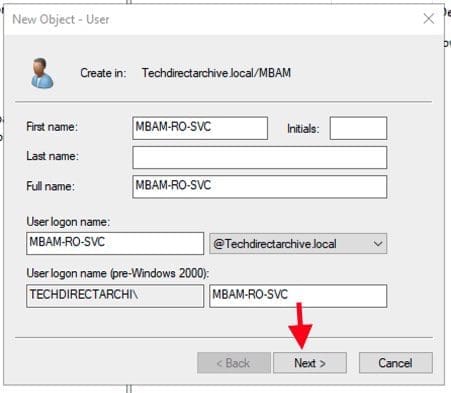
This will open the New Object wizard. Populate the interface with your desired information as shown below.
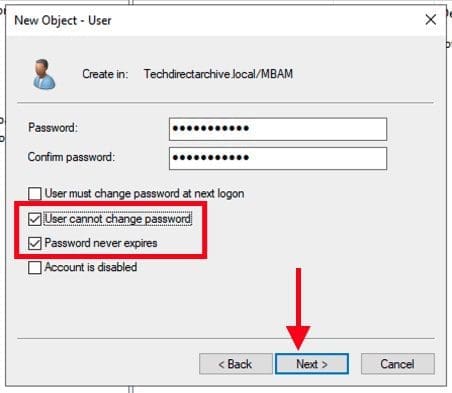
When prompted, ensure the user must change the password at the next logon is not ticked. This will prevent the service account from being used until the password has been changed. To prevent the password for the service account from expiring, tick the tick box password never expires.
Finally, click on Next to proceed with the service account (SA) creation.
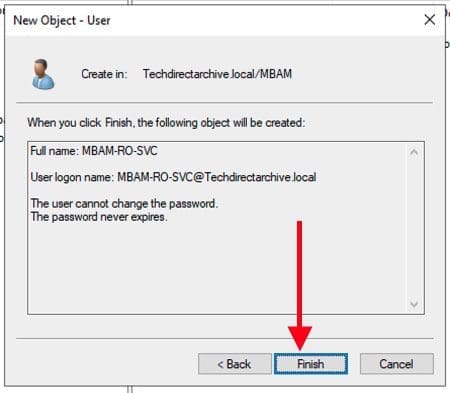
Click on Finish to complete the service account creation.
Security group (SG)
Since I am creating these security groups for the purpose of MBAM deployment. Please refer to this article “how to deploy Microsoft BitLocker Administration and Monitoring – MBAM”. I do not need to remove the Domain Users Group. A domain user account is sufficient for my MBAM deployment.
Domain Local Group is a type of group in a Microsoft Windows Server-based network.Groups can have different scopes or levels of functionality. The scope of a group can be a single domain, a group of domains connected by trust relationships, or the entire network.

Domain local groups are restricted to the specific domain in which they are defined. Domain local groups are used to provide users with access to network resources and to assign permissions to control access to these resources. Kindly refer to this article on the differences between Universal, Global, and Domain Local Group Scopes.
To create a SG, kindly follow the steps below. Run Active Directory Users and Computers and right-click the OU where you want to create the user. Select New
– Select Group

This will open the new object group. Please enter the Group name and scope as shown below and click on OK

As you can see below, the Domain Group has been created.

That is all that is needed to create a Security group in Windows Active Directory environment.
But if you wish to implement advanced security for your service accounts, you may need to create a domain group and place the service account in that group. Because by default, the service account will be part of the Domain User Group. See the optional step below for more information.
Optional:
For my lab need, these steps were not needed. I had to configure this to show how you can create a dedicated group to enhance your Service Accounts. Kindly refer to this article on the differences between Universal, Global, and Domain Local Group Scopes.
To ensure the utmost (additional) security for your service account, you can create a domain group and place the service account in that group. Because by default, the service account will be part of the Domain Group (local or Global). Once the service account has been added to this group, you can remove all other group members. I have quickly created a service account and will be removing the domain user account.

To improve the security of my environment (SAs), I removed the Domain user Group and added the newly created service account group above. This is to ensure the service account does not have any permissions, not even Domain User permissions unless they are allocated to the service account.
Do not forget to set the new “service account” group as the Primary Group. Else you will never be able to remove the Domain User Group.


As you can see below, we now have the service account as a member of this security group only.

I hope you found this blog post helpful. If you have any questions, please let me know in the comment session.


