Windows 11 System Requirements

In this article, we will discuss Windows 11 System Requirements. Why does Microsoft require additional system requirements, and how to check if Secure Boot and TPM are enabled. Windows 11 enables security by design from the chip to the cloud. The security baselines with new built-in hardware security requirements have been announced. This will give customers the confidence that they are even more protected from the chip to the cloud on certified devices. Please see How to fix unable to find compatible TPM, and How to create a Password Policy via GPO.
This operating system is redesigned for hybrid work and security with built-in hardware-based isolation, proven encryption, and our strongest protection against malware.
Also, Windows 11 makes it easier for customers to get the most protection from these advanced attacks out of the box with the requirement of a TPM 2.0 chip to help ensure they benefit from security backed by a hardware root-of-trust.
You may want to see Measured Boot, Secure Boot, Trusted Boot, and Early Launch Anti-Malware: How to secure the Windows 10 boot process, and Windows 11 Feature-specific, Hardware and Software Requirements: How to upgrade to Windows 11 from Windows 10 as a Windows Insider.
System Requirements for Windows 11
This Operating System (Windows 11) focuses on increasing security, improving reliability, and ensuring compatibility. This is what driving factor for the updated system requirements.
As of the time of writing this piece, the minimum system requirements for Windows 11 are currently eliminated for Windows Insiders in order for feedback to be provided to Microsoft. By providing preview builds to the diverse systems in our Windows Insider Program, we will learn how Windows 11 performs across CPU models more comprehensively, informing any adjustments we should make to our minimum system requirements in the future.
Win11 out-of-the-box support for Azure-based Microsoft Azure Attestation (MAA) bringing hardware-based Zero Trust to the forefront of security, allowing customers to enforce Zero Trust policies when accessing sensitive resources in the cloud with supported mobile device management (MDMs) like Intune or on-premises.
Designed and built as a complete set of experiences, unlocking the full power of the device customers can rely on including areas like security, reliability, compatibility, video conferencing, multitasking, playing, creating, building, learning, and more.
We need a minimum system requirement that enables us to adapt software and hardware to keep pace with people’s expectations, and needs and harness the true value and power of the PC to deliver the best experiences, now and in the future.
To ensure this, we are guided by the following principles (Security, Reliability, and compatibility).Windows Security
This operating system raises the bar for security by requiring hardware that can enable protections like Windows Hello, Device Encryption, virtualization-based security (VBS), hypervisor-protected code integrity (HVCI), and Secure Boot.
The combination of these features has been shown to reduce malware by 60% on tested devices. To meet the principle, Windows 11-supported CPUs have embedded TPM support, secure boot, and support VBS and specific VBS capabilities. All these components work together in the background to help keep users safe without sacrificing quality, performance, or experience.
Please see how to fix There was an error opening the Trusted Platform Module snap-in: You do not have permission to open the Trusted Platform Module Console, and learn more about Windows 11 Hardware and Software Requirements: Upgrade to Windows 11.
Reliability
Devices upgraded to Windows 11 will be in a supported and reliable state. By choosing CPUs that have adopted the new Windows Driver model and are supported by our OEM and silicon partners who are achieving a 99.8% crash-free experience.
Compatibility
The system (Windows 11) is designed to be compatible with the apps you use. It has the fundamentals of >1GHz, 2-core processors, 4GB memory, and 64GB of storage. Aligning with our minimum system requirements for Office and Microsoft Teams.
Using the principles above, we are confident that devices running on Intel 8th generation processors and AMD Zen 2, as well as Qualcomm 7 and 8 Series, will meet the principles around security and reliability and minimum system requirements for Windows 11.
As we release to Windows Insiders and partner with our OEMs, we will test to identify devices running on Intel 7th generation and AMD Zen 1 that may meet our principles. We’re committed to sharing updates with you on the results of our testing over time, as well as sharing additional technical blogs.
you may also want to see BitLocker System Partition: Detailed steps to troubleshoot and fix System Partition not available or large enough [Part 2], how to Create an S3 Bucket with Terraform, and how to View RDP Configuration Settings: Connect automatically on an RDP session.
How to determine if your device can run Windows 11
Since the PC Health Check app is temporarily disabled by Microsoft, there are other ways we can check to see if we are meeting the minimum system requirements of Windows 11.
1: Trusted Platform Module (TPM)
The Trusted Platform Module (TPM) is a chip that is either integrated into your device. It is not available on all PCs’ motherboards but can be added separately to the CPU.
TPM is purpose is to help protect encryption keys, user credentials, and other sensitive data behind a hardware barrier so that malware and attackers can’t access or tamper with that data. Method A – Check if TPM is enabled
Ensure you have the “TPM chipset 2.0” enabled and activated on your device. There are numerous ways to determine this. You can check this via the following basic steps;
- Device Manager,
- TPM Management snap-in (tpm.msc), and
- Windows Settings as shown below.
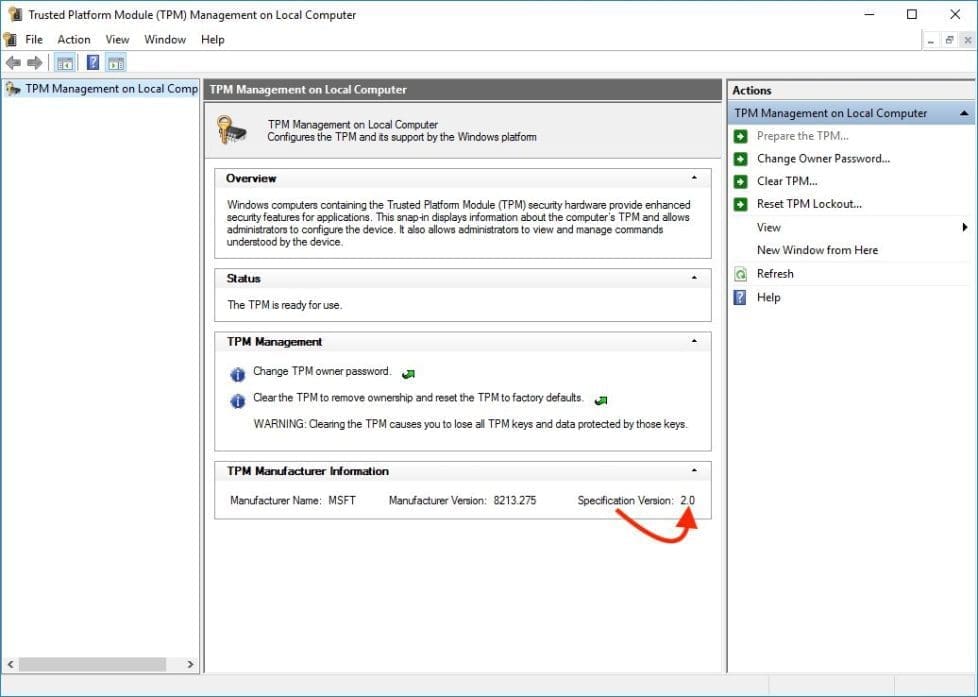
If you see a “Compatible TPM cannot be found” message instead. This means, your computer does not have a TPM or it’s turned off in the BIOS/UEFI.

Method B – Check if TPM is enabled
To check if your device has TPM via the Command Prompt, follow the steps below. Open the elevated Command Prompt and run the following command below. You could also use the command “get-tpm” to get your desired result.
wmic /namespace:\\root\cimv2\security\microsofttpm path win32_tpm get * /format:tpmlist.xsl
Most times as you can see in the above diagrams. It is possible to quickly determine if you have a TPM enabled. But it does not necessarily verify if the device supports the security feature. This is because it could be present but disabled on the UEFI settings.
Confirm and enable a trusted platform module via the UEFI settings, use the steps below.
- Open
Settings. - Click on Update & Security.
- Click on Recovery, and under the “
Advanced Startup” section, click theRestartnow button as shown below.

Click the UEFI Firmware Settings option as shown below. If you have a legacy BIOS, this option will not be available.


Hit the Restart button

Open the security settings page, and confirm the Trusted Platform Module (TPM) is present.
- If “TPM” is present, select the TPM option, choose the
Enabledoption, and pressEnter. - Exit the UEFI settings.
- Confirm the changes to restart the computer.
2: Support for UEFI and Secure Boot
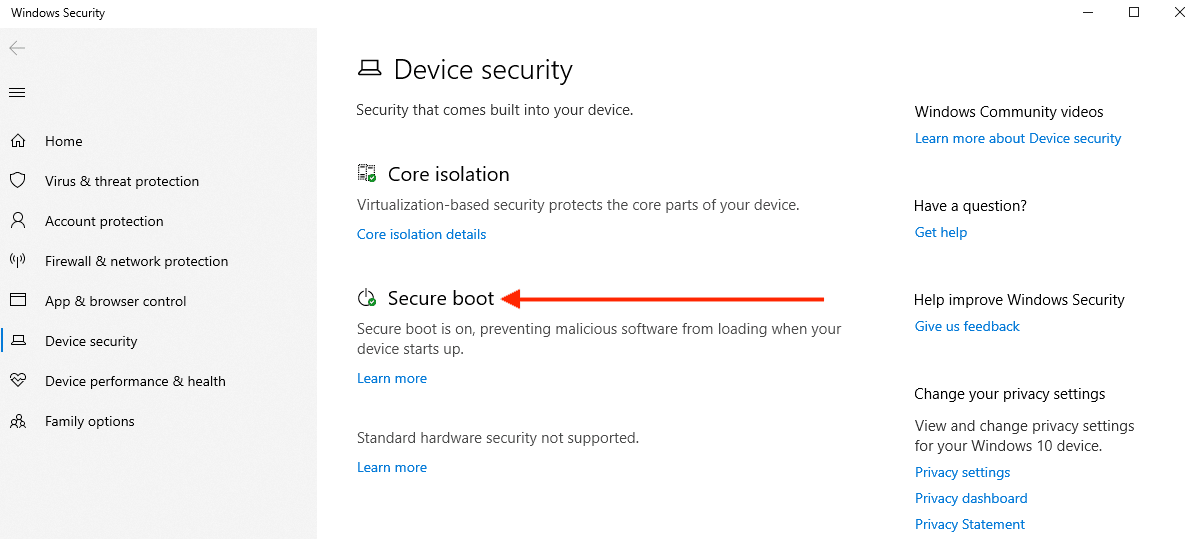
Notee: PCs with UEFI firmware and a Trusted Platform Module (TPM) can be configured to load only trusted operating system bootloaders.
Below is an image showing Secure Boot is currently running on my Lab device.
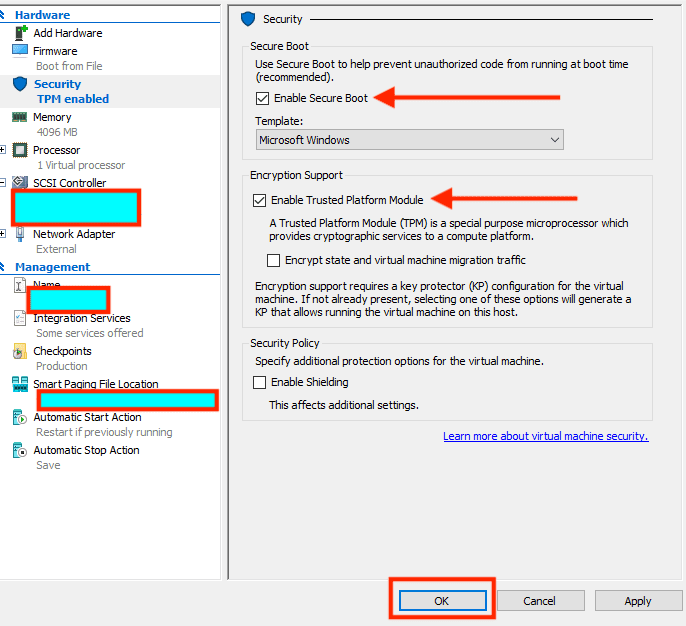
You can also enable Secure Boot and TPM on most hypervisor platforms. Below is an example of how this can be achieved on a HyperV VM. Therefore, it is possible if you wish to upgrade a VM from Windows 10 to Windows 11.
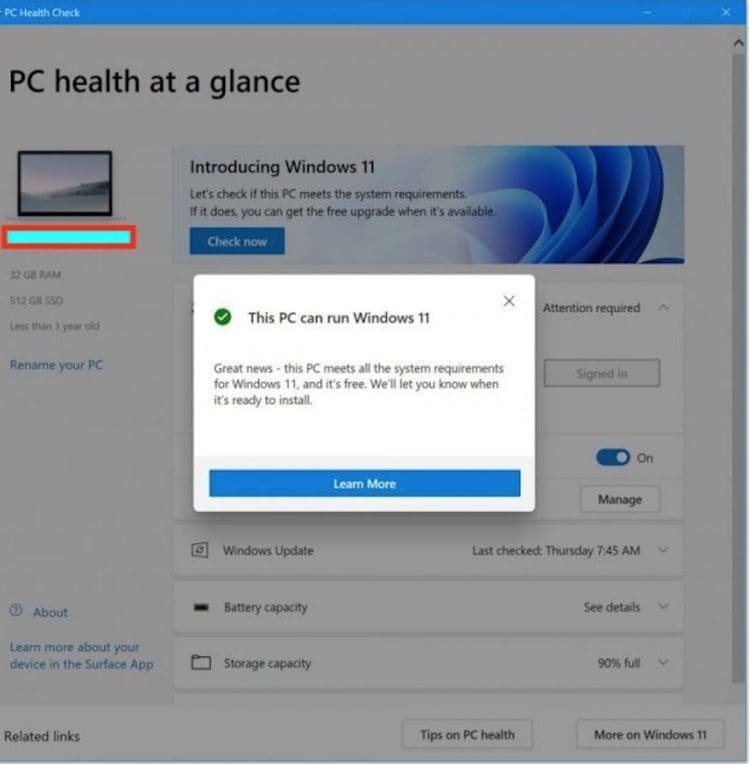
At the time of writing this guide, the PC Health Check App is needed to help customers check if their current Windows 10 PC could upgrade to Windows 11 has been temporarily disabled. This will be brought back online in preparation for general availability this fall (2021).
In the meantime, you can visit the minimum system requirements page for more information. The figure below is what the PC Health Check App looks like.
If your PC is not capable enough to run Windows 11, you can still run Windows 10. Windows 10 continues to be a great version of Windows.
The team is committed to supporting Windows 10 through October 2025.I hope you found this blog post helpful. In this guide, we have discussed Windows 11 System Requirements, why Microsoft require additional system requirements, and how to check if Secure Boot and TPM are enabled. If you have any questions, please let me know in the comment session.