Skip to content

TechDirectArchive

Hands-on IT, Cloud, Security & DevOps Insights

  • Home
  • About
  • Advertise With US
  • Reviews
  • Contact
  • Toggle search form
Home » Virtualization » Quarantine state in Windows Failover Clusters: How to resolve quarantined Cluster Node on Hyper-V

Quarantine state in Windows Failover Clusters: How to resolve quarantined Cluster Node on Hyper-V

Posted on 15/07/202110/04/2024 Christian By Christian 2 Comments on Quarantine state in Windows Failover Clusters: How to resolve quarantined Cluster Node on Hyper-V
Windows Failover Clusters

In this artilce, we shall discuss “Quarantine state in Windows Failover Clusters: How to resolve quarantined Cluster Node on Hyper-V”. Windows Server 2016 introduced some “Node states” and one of which is the Quarantine state. Please see  A boot image was not found for HyperV Virtual Machine, and Pass-Through Authentication Authentication and ADFS environment setup on Hyper-V for Hybrid Identity integration.

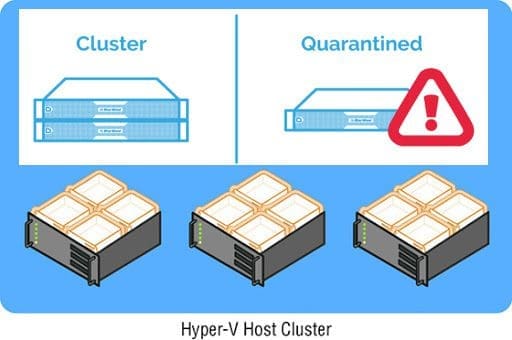
The Quarantined nodes are roles that are drained to other nodes in the cluster and they are not allowed to rejoin the cluster for about two hours.  The notion behind this is to stop failing nodes from bouncing up and down (flapping), joining, and leaving the cluster over and over again causing performance issues.

Here is the error message that is being generated "Cluster node '%1' has been quarantined. The node experienced '%2' consecutive failures within a short amount of time and has been removed from the cluster to avoid further disruptions. The node will be quarantined until '%3' and then the node will automatically attempt to re-join the cluster. Refer to the System and Application event logs to determine the issues on this node. When the issue is resolved, quarantine can be manually cleared to allow the node to rejoin with the 'Start-ClusterNode –ClearQuarantine' Windows PowerShell cmdlet. 

See the following guide on how to install and configure iSCSI Target Server and iSCSI Initiator on a Windows Server, Below are some related HyperV guides: HyperV – Unable to create a new VM, Unable to shutdown a HyperV Virtual Machine, Backup: How to create a HyperV checkpoint, and Unable to PXE boot a HyperV VM: F12 key does not work anymore, 

Enhancing Virtual Machine Resilience: Understanding the Quarantine Feature in WS 2016

As discussed before, this is a new feature which was implemented in WS 2016 and relates to Virtual Machine Compute Resiliency. Basically, after 3 failure events, the problem node becomes quarantined instead of isolated. QuarantineThreshold is configurable meaning, by default, it is 3.

During cluster flapping, the cluster restricts quarantining to a maximum of 25% nodes.  The exception to this rule is if you have a 2 or 3 node cluster. In that case, the cluster will allow quarantining one node.

The screenshot below displays: Node Name – %1, Consecutive cluster membership losses – %2, Automatic quarantine clearance time – %3. For all Failover Clustering system log events.

Quarantine Cluster Node

In cluster events, you can see the following event details.

When the node experience disruption three (3) times which is the default value of QuarantineThreshold within consecutive failures in an hour.The cluster removes the node to prevent disruptions and provides an automatic quarantine clearance timestamp.

Solution to resolve quarantined Cluster Node on Hyper-V

To view force clear a quarantined node, we can use the Failover Cluster Manager or PowerShell as shown below.

Failover Cluster

Click on the Node as shown below, right click on the Quanrantined node and select “More Actions” and Click on Start Cluster Service.

Hyper-V

Power Shell

You can also clear the Quantine node via the PowerShell with the following command below. View and change the default 2-hour setting using PowerShell commands.

Import-Module FailoverClusters Start-ClusterNode –ClearQuarantine
Screenshot-2021-07-13-at-02.49.51

I hope you found this blog post on “Quarantine state in Windows Failover Clusters: How to resolve quarantined Cluster Node on Hyper-V” helpful. Furthermore, If you have any questions, please let me know in the comment session.

Rate this post

Thank you for reading this post. Kindly share it with others.

  • Share on X (Opens in new window) X
  • Share on Reddit (Opens in new window) Reddit
  • Share on LinkedIn (Opens in new window) LinkedIn
  • Share on Facebook (Opens in new window) Facebook
  • Share on Pinterest (Opens in new window) Pinterest
  • Share on Tumblr (Opens in new window) Tumblr
  • Share on Telegram (Opens in new window) Telegram
  • Share on WhatsApp (Opens in new window) WhatsApp
  • Share on Mastodon (Opens in new window) Mastodon
  • Share on Bluesky (Opens in new window) Bluesky
  • Share on Threads (Opens in new window) Threads
  • Share on Nextdoor (Opens in new window) Nextdoor
Virtualization Tags:Microsoft Windows, Windows 10, Windows Server 2016

Post navigation

Previous Post: Install and configure iSCSI Target Server and iSCSI Initiator on a Windows Server
Next Post: Domain Name System: How to create a DNS record

Related Posts

  • apply and install Veeam NFR Licence
    How to apply and install Veeam NFR License Backup
  • VMware Tech Showcase
    Great details on VMware Tech Showcase Virtualization
  • Fix this PC cannot run Windows 11
    Bypass unsupported CPU and Processor by upgrading to Windows 11 via Windows Update Virtualization
  • Windows Server 2019
    The virtual machine has terminated unexpectedly during startup with exit code 1 (1×0): Failed to open a session for the virtual machine Windows Server 2019 Virtualization
  • images 3
    Install Minimal Container Templates on Proxmox Server Virtualization
  • Enable Nexted Virtualization on VirtualBox
    ESXi VMB 411 Halting: Virtualbox Nested VT-X/AMD-V greyed out Virtualization

More Related Articles

apply and install Veeam NFR Licence How to apply and install Veeam NFR License Backup
VMware Tech Showcase Great details on VMware Tech Showcase Virtualization
Fix this PC cannot run Windows 11 Bypass unsupported CPU and Processor by upgrading to Windows 11 via Windows Update Virtualization
Windows Server 2019 The virtual machine has terminated unexpectedly during startup with exit code 1 (1×0): Failed to open a session for the virtual machine Windows Server 2019 Virtualization
images 3 Install Minimal Container Templates on Proxmox Server Virtualization
Enable Nexted Virtualization on VirtualBox ESXi VMB 411 Halting: Virtualbox Nested VT-X/AMD-V greyed out Virtualization

Comments (2) on “Quarantine state in Windows Failover Clusters: How to resolve quarantined Cluster Node on Hyper-V”

  1. Avatar photo Nitin Pandey says:
    01/03/2022 at 11:11 AM

    Nicely explained. Thanks mate.

    Log in to Reply
    1. chris Christian says:
      12/03/2022 at 7:20 AM

      You are welcome!

      Log in to Reply

Leave a Reply Cancel reply

You must be logged in to post a comment.

Microsoft MVP

VEEAMLEGEND

vexpert-badge-stars-5

Virtual Background

GoogleNews

Categories

veeaam100

Veeam Vanguard

  • defdfd
    The password has expired: Update your password and try again AWS/Azure/OpenShift
  • How To Backup Your WordPress Database banner
    How to Backup and Restore your WordPress Files and Database Backup
  • ansible logo600 591x296 1 1
    Ansible error: Server unreachable, ssl: auth method ssl requires a password Configuration Management Tool
  • git default branch min
    Git config –global init.defaultBranch: Error cannot lock ref ‘refs/remotes/origin/windows’, not a directory Version Control System
  • Feature image 1
    Configure and validate Exclusions for Microsoft Defender Antivirus scans Anti-Virus Solution
  • Chocolatey Packages
    Create Chocolatey Package: Upgrade Software with Chocolatey Scripts
  • HP driver
    Printer Driver Information: How to determine the version and type of a Printer Driver Windows
  • images copy
    HA-Proxy Configuration File: Copy Between Nodes on Proxmox VE Virtualization

Subscribe to Blog via Email

Enter your email address to subscribe to this blog and receive notifications of new posts by email.

Join 1,813 other subscribers
  • RSS - Posts
  • RSS - Comments
  • About
  • Authors
  • Write for us
  • Advertise with us
  • General Terms and Conditions
  • Privacy policy
  • Feedly
  • Telegram
  • Youtube
  • Facebook
  • Instagram
  • LinkedIn
  • Tumblr
  • Pinterest
  • Twitter
  • mastodon

Tags

Active Directory Azure Bitlocker Microsoft Windows PowerShell WDS Windows 10 Windows 11 Windows Deployment Services Windows Server 2016

Copyright © 2025 TechDirectArchive


Loading Comments...
 

You must be logged in to post a comment.