Skip to content

TechDirectArchive

Hands-on IT, Cloud, Security & DevOps Insights

  • Home
  • About
  • Advertise With US
  • Contact
  • Reviews
  • Toggle search form
Home » AWS/Azure/OpenShift » How to deploy an Angular App to AWS S3
  • Slide4
    How to install Let’s Encrypt on Apache Web Server Linux
  • fix IP addressed blocked Synology
    IP Address blocked on Synology NAS due to forgotten Password Storage
  • Smartscreen defender blocking application
    Unable to run downloaded Programs due to Defender SmartScreen Windows
  • Razer
    Administrative rights gained through Razer devices on Windows 10 Security | Vulnerability Scans and Assessment
  • Bluetooth
    Cannot open Bluetooth preference pane because it is not available Mac
  • screenshot 2020 04 09 at 02.57.27
    Import certificates into Trusted Root and Personal certificate store Windows Server
  • Resolvederror MBAM
    MBAM Policy was detected: Verify the OU used for pre-deployment does not apply MBAM policy Windows Server
  • Reset folder view settings on File Explorer for Windows 11 and 10
    Reset folder view settings on File Explorer for Windows 11 and 10 Windows

How to deploy an Angular App to AWS S3

Posted on 31/08/202120/12/2023 Temitope Odemo By Temitope Odemo No Comments on How to deploy an Angular App to AWS S3
Angular App

In this article, we are going to learn how easy it is to deploy an Angular web app to AWS S3 as quickly as possible. We shall be using VS Code as our IDE for our Angular source code. This deployment is very seamless when you put the right things in place and you do the right thing. Please see Deploy a Static Website to Azure Storage from VSCode, how to Get your free Microsoft 365 E5 Sandbox today, and a Video on how to Fix Spell Check Not Working in Microsoft Word.

AWS (Amazon Web Services) is a complete public cloud computing platform provided by Amazon which has a mixture of infrastructure as a service (IaaS), Platform as a Service (PaaS), and Software as a Service (SaaS). This cloud solution provides you with computing, storage, networking capacity, and many other computing services you can think about.

Take a look at what we shall be covering in this article:

  • We shall create a simple Angular App
  • We shall configure an S3 bucket for static web hosting
  • We will be deploying to AWS Cloud

Prerequisites for deploying an Angular App to AWS S3

Below are the prerequisites for deploying an Angular App to AWS S3

  • Create an AWS Account
  • Install Angular CLI and all dependencies
  • Setup your Angular App

Creating an Angular application

It is now time to create your simple Angular project. You need to first install the latest version of Angular CLI by running this command npm install -g @angular/CLI

AWS S3
npm installation

Then run the CLI command ng new and supply the name you want to use for the app.

ng new techdirectarchive

During the creation of the Angular App you will be prompted to answer these questions:

1) Would you like to add Angular routing? Yes/No
2) Which stylesheet format would you like to use?

For this project, we are adding Angular routing and CSS format for the style sheet. The Angular CLI will install all the npm packages needed to create the Angular App.

deploy
Angular App Installation

In addition, After the App is created, change the directory to the app folder and run the server in the app directory.

cd techdirectarchive
ng serve
deployment process
Angular App Installation

It is now time to serve the application on the http://localhost:4200/

AWS S3
Angular App Successfully setup

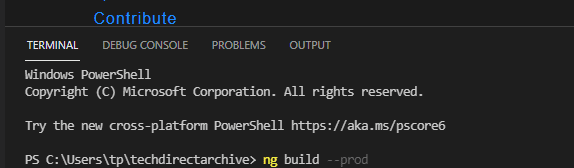
However, we can build the application and generate the output folder “dist\techdirectarchive” that will be needed for the deployment to AWS. Moreover, The below command will generate build files and the output folder specified inside angular.json.

ng build –prod
deploy
Building your App

Furthermore, You can see the path configured under the angular.json file
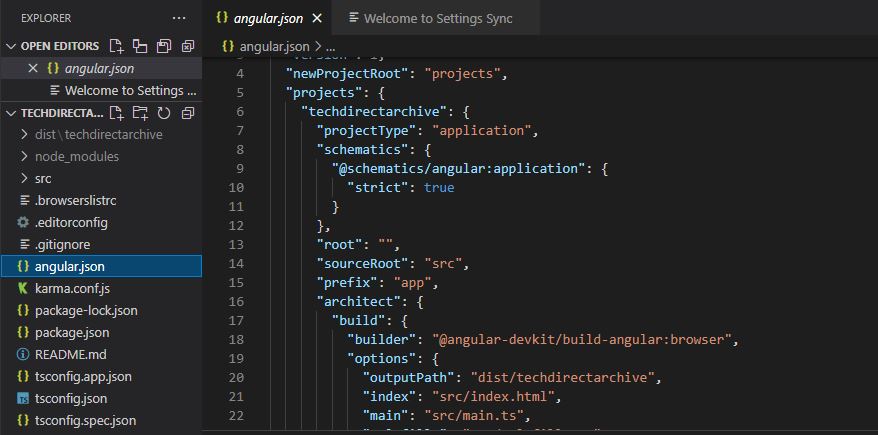
deployment process
Successful build of your App

Additionally, After successfully building the application, dist/techdirectarchive will output the files as we have it below:

Angular App
Successful build of your App

Setting up your AWS Account

Create an account via https://portal.aws.amazon.com/billing/signup

AWS S3
AWS Account Setup

Log in to the AWS management console: https://signin.aws.amazon.com/
deploy
AWS Account Setup

After successfully creating an AWS account and logging in, navigate to S3 under the services→storage option. Therefore, The next step is to create an S3 Bucket name.
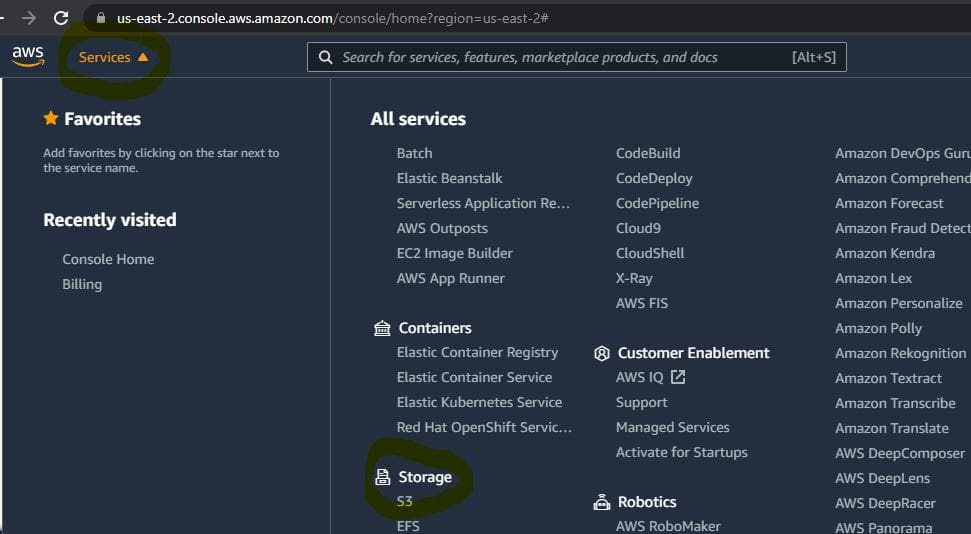
deployment process
S3 Account Configuration

Similarly, Please note that the bucket name must be unique across all AWS accounts and not contain spaces or uppercase letters. Nevertheless, You must enter a unique name for your bucket name, which is always displayed like this:

[BUCKET NAME HERE].s3-website.[BUCKET ZONE HERE].amazonaws.com

Moreover, You may be wondering what exactly a bucket is. Buckets are containers for data stored in S3.

In addition, After you enter your desired bucket name, you then select your desired region. Nonetheless, Selecting a region closer to the application user is recommended, which will, in effect, increase the application’s performance.

Check the below configuration setting for our project bucket. Consequently, The main setting is the bucket name and the region. You can decide to leave others on default.

Angular App
Creating a Bucket

Furthermore, click on the Create button to create our project S3 bucket. However, Once the bucket is successfully created, you will find the overview page like the one below.

image-56
Bucket Overview Page

Configuring Properties for Your New S3 Bucket

Now click on your new S3 bucket and then click on the properties tab. Additionally, You will see a list of properties you can work with.

Therefore, we need the “Static website hosting” property right now. Please go ahead and click on Edit.

image-57
Static Web Hosting

Nevertheless, select Enable and define your application’s entry and error pages.

image-58
Static Web Hosting

Nonetheless, There are two hosting options but select the “Use the bucket endpoint as the web address” option. Consequently, On this page, you will define the index and error document as index.html.

After you are done, click on Save Changes.

image-59
Setting up your App URL

In addition, After saving the changes, you will see the endpoint URL, which will launch the application in the browser.

image-60
Setting up your App URL

Furthermore, Now click on the given endpoint URL. However, You will notice that the page with 403 forbidden errors will open. Moreover, The singular reason for this is that all S3 bucket policies, by default, are private, which will make the application not accessible to all the users.
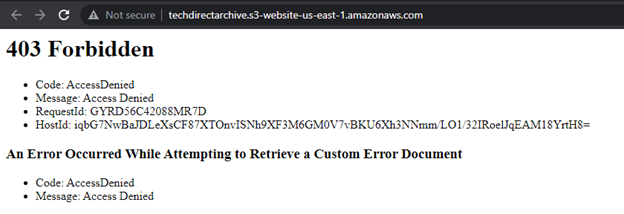
image-61
403 Forbidden – AccessDenied

Nonetheless, what you can do is manage the bucket policy, which is under the “Bucket Policy” tab, and grant public access to all the users.

Consequently, go to the Permissions tab and click the Edit button. Here, you will see the Block public access (bucket settings) all set to ON. Similarly, Make sure they are all set to OFF by unchecking them.

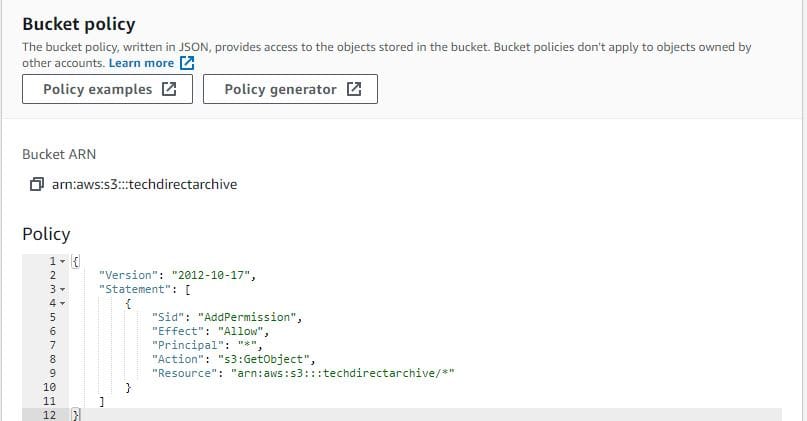
Nevertheless, What you need to do next is to apply a policy that will grant anonymous users access to your data. Therefore, You can add the following policy under the manage bucket policy section. Additionally, But make sure you change the bucket name to yours.
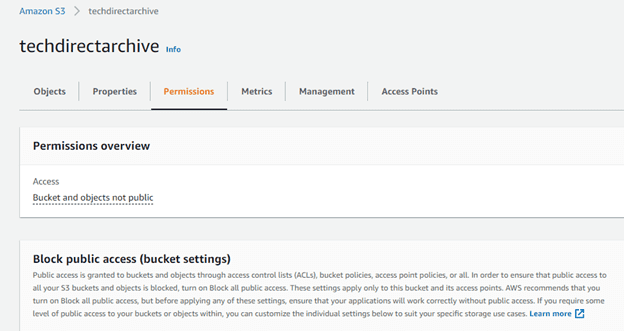
image-62
Now Setting Bucket Policy
image-63
Setting Bucket Policy
policy2
Setting Bucket Policy

Time to the Angular Project to AWS S3

In addition, You can now copy the angular build on your local system Angular App dist/techdirectarchive path and upload it in S3.

image-65
Angular Files Upload
image-66
When Angular Files Upload
image-67
Angular files Uploading Status
image-68
Files Uploaded
image-69
Bucket Objects Overview

However, Once all the files have been uploaded successfully. Furthermore, you can navigate to the S3 endpoint URL to confirm if the application will display on the browser via the AWS platform to show it up and running.

image-70
Finally, your App is on AWS S3!!!

Congratulations Your Angular App has been deployed successfully to AWS S3.

Rate this post

Thank you for reading this post. Kindly share it with others.

  • Click to share on X (Opens in new window) X
  • Click to share on Reddit (Opens in new window) Reddit
  • Click to share on LinkedIn (Opens in new window) LinkedIn
  • Click to share on Facebook (Opens in new window) Facebook
  • Click to share on Pinterest (Opens in new window) Pinterest
  • Click to share on Tumblr (Opens in new window) Tumblr
  • Click to share on Telegram (Opens in new window) Telegram
  • Click to share on WhatsApp (Opens in new window) WhatsApp
  • Click to share on Pocket (Opens in new window) Pocket
  • Click to share on Mastodon (Opens in new window) Mastodon
  • Click to share on Bluesky (Opens in new window) Bluesky
  • Click to share on Threads (Opens in new window) Threads
  • Click to share on Nextdoor (Opens in new window) Nextdoor
AWS/Azure/OpenShift Tags:AWS, AWS s3

Post navigation

Previous Post: How to deploy your Angular App to Azure from Visual Studio Code
Next Post: Azure CI/CD: Configuring Email Notifications in Azure DevOps

Related Posts

  • azure
    Enter connection information for your on-premise directory or forests: Azure AD connect unable to connect directory, forest not available AWS/Azure/OpenShift
  • Remove Custom Domain from Entra ID and Azure tenant
    Delete Azure Tenant: Remove Custom Domain from Entra ID AWS/Azure/OpenShift
  • youtube cover blue
    How to use the Azure Cloud Shell or Azure CLI and Azure PowerShell AWS/Azure/OpenShift
  • banner
    Various ways to restart an AWS EC2 instance AWS/Azure/OpenShift
  • image 190
    Creating Profiles for your AWS Access Credentials for AWS Toolkit in Visual Studio AWS/Azure/OpenShift
  • feature functionapp
    Deploy a function app from Visual Studio to Azure Platform AWS/Azure/OpenShift

More Related Articles

azure Enter connection information for your on-premise directory or forests: Azure AD connect unable to connect directory, forest not available AWS/Azure/OpenShift
Remove Custom Domain from Entra ID and Azure tenant Delete Azure Tenant: Remove Custom Domain from Entra ID AWS/Azure/OpenShift
youtube cover blue How to use the Azure Cloud Shell or Azure CLI and Azure PowerShell AWS/Azure/OpenShift
banner Various ways to restart an AWS EC2 instance AWS/Azure/OpenShift
image 190 Creating Profiles for your AWS Access Credentials for AWS Toolkit in Visual Studio AWS/Azure/OpenShift
feature functionapp Deploy a function app from Visual Studio to Azure Platform AWS/Azure/OpenShift

Leave a Reply Cancel reply

You must be logged in to post a comment.

Microsoft MVP

VEEAMLEGEND

vexpert-badge-stars-5

Virtual Background

GoogleNews

Categories

veeaam100

sysadmin top30a

  • Slide4
    How to install Let’s Encrypt on Apache Web Server Linux
  • fix IP addressed blocked Synology
    IP Address blocked on Synology NAS due to forgotten Password Storage
  • Smartscreen defender blocking application
    Unable to run downloaded Programs due to Defender SmartScreen Windows
  • Razer
    Administrative rights gained through Razer devices on Windows 10 Security | Vulnerability Scans and Assessment
  • Bluetooth
    Cannot open Bluetooth preference pane because it is not available Mac
  • screenshot 2020 04 09 at 02.57.27
    Import certificates into Trusted Root and Personal certificate store Windows Server
  • Resolvederror MBAM
    MBAM Policy was detected: Verify the OU used for pre-deployment does not apply MBAM policy Windows Server
  • Reset folder view settings on File Explorer for Windows 11 and 10
    Reset folder view settings on File Explorer for Windows 11 and 10 Windows

Subscribe to Blog via Email

Enter your email address to subscribe to this blog and receive notifications of new posts by email.

Join 1,839 other subscribers
  • RSS - Posts
  • RSS - Comments
  • About
  • Authors
  • Write for us
  • Advertise with us
  • General Terms and Conditions
  • Privacy policy
  • Feedly
  • Telegram
  • Youtube
  • Facebook
  • Instagram
  • LinkedIn
  • Tumblr
  • Pinterest
  • Twitter
  • mastodon

Tags

AWS Azure Bitlocker Microsoft Windows PowerShell WDS Windows 10 Windows 11 Windows Deployment Services Windows Server 2016

Copyright © 2025 TechDirectArchive


Loading Comments...
 

You must be logged in to post a comment.