Skip to content

TechDirectArchive

Hands-on IT, Cloud, Security & DevOps Insights

  • Home
  • About
  • Advertise With US
  • Reviews
  • Contact
  • Toggle search form
Home » Windows » How to end a program via the Task Manager in Windows 11
  • redirects3endpoint
    How to redirect requests for your bucket’s website endpoint to another bucket or domain AWS/Azure/OpenShift
  • Uninstall SQL Server 2025
    Uninstall Microsoft SQL Server 2025 from Windows Oracle/MSSQL/MySQL
  • article 1280x720.13392821
    How to use command prompt to shutdown and restart your computer Windows
  • login keyboard feature
    Sign-In Method Not Allowed: Contact Network Administrator Windows Server
  • needthetools
    Fix no BitLocker Recovery tab in Active Directory Windows Server
  • Featured image 5
    How to uninstall and prevent the installation of Microsoft Teams on Windows Windows
  • original 1
    Install Wim: How to Add Packages to Windows image Using the DISM Tool Windows Server
  • Permit a Blocked File or App in Windows Security
    How to Permit a Blocked File or App in Windows Security Manually Windows

How to end a program via the Task Manager in Windows 11
Posted on 05/11/202130/09/2023 Christian By Christian No Comments on How to end a program via the Task Manager in Windows 11
Windows 11 Task manager

Task Manager, previously referred to as Windows Task Manager, is a task manager, system monitor, and startup manager included with Microsoft Windows systems. The Task Manager is a very vital tool that helps everyone that uses Windows in dealing with resources utilizing the CPU, RAM, disk, or network resources. As at the time of writing this guide, you cannot open the Task Manager in Windows 11 just by right-clicking on the Taskbar.

This post will show you how to end a program via the Task Manager in Windows 11. You may want to see this guides on how to open and access the Task Manager “how to add access, pin the Task Manager on Windows 11” and “how to enable and disable automatic startup in Windows 11“. Kindly refer to these related guides: How to enable and disable automatic startup in Windows 11, how to view or change programs that run on startup, , how to stop Cisco Webex Meetings from starting up automatically on macOS, how to stop Zoom App from launching automatically at startup on Mac,

The Task Manager is one of the oldest Windows programs and one of the best if you want to control which programs and processes are active on your system and which resources they bind.The Task Manager is a professional tool that sometimes requires a lot of PC experience to utilize all that it has to offer.

How to end a program with Task Manager

To launch the Task Manager, click on start or search for the Task Manager as shown below. Alternatively, you can press Ctrl + Alt + Delete, then click Task Manager.

Search and select Task Manager

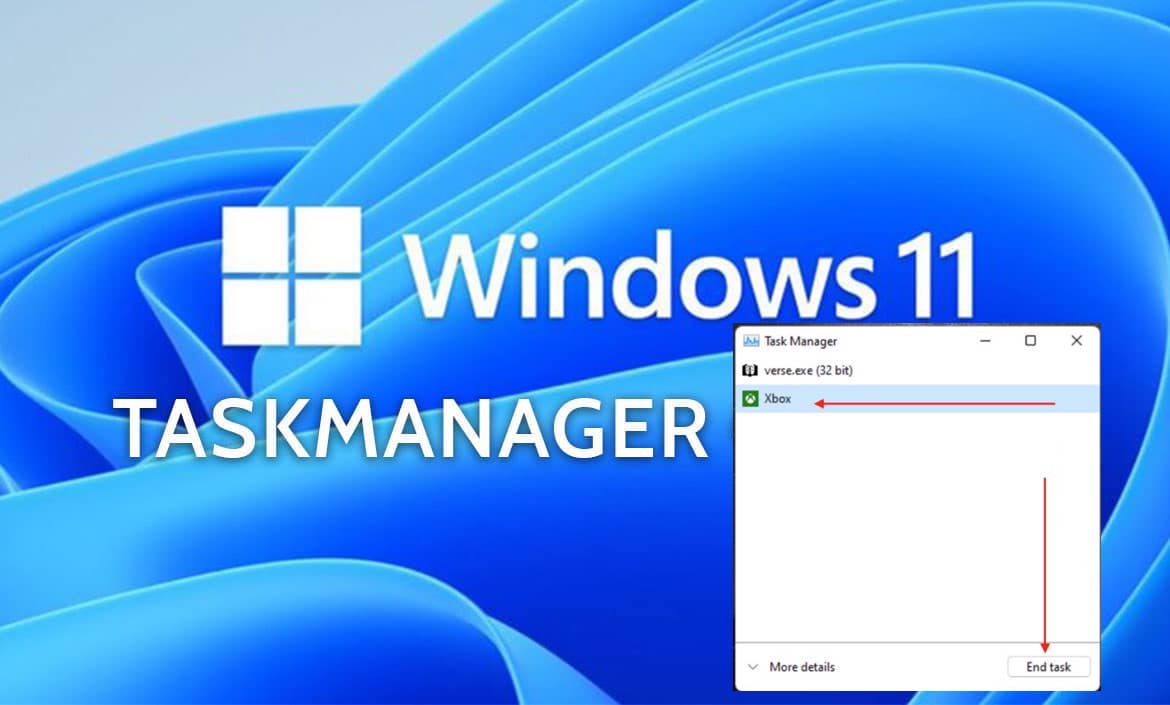
This will open the Task Manager. Since I wish to show you how to end (stop) and application from running. Select the application from the list of apps and click on End Task.

Click on End Task

You may also want to determine the CPU utilization, and Memory etc. Then all you need to do is to click on the “More details” as shown in the image above. You can also launch the resource monitor and this provides a quick summary of overall CPU, disk, network and memory utilization.

Click on Resource monitor

Note: The easiest and quickest way to close a locked up or frozen program when running Windows 11 is with the traditional keyboard shortcut of Alt+F4. When pressed simultaneously, they should immediately close down a non-responsive application. Kindly refer to these related guides: Process Explorer: Replace built-in Task Manager, how to enable and disable automatic startup in Windows 11, Various methods on how to launch Windows Task Manager, how to Launch macOS Activity Monitor (Task Manager) from the Utility and Terminal (Command Line), how to forcefully kill or stop a process in Windows, and how to view or change programs that run on startup.

I hope you found this blog post on ending a program via the Task Manager helpful. If you have any questions, please let me know in the comment session.

Rate this post

Thank you for reading this post. Kindly share it with others.

  • Click to share on X (Opens in new window) X
  • Click to share on Reddit (Opens in new window) Reddit
  • Click to share on LinkedIn (Opens in new window) LinkedIn
  • Click to share on Facebook (Opens in new window) Facebook
  • Click to share on Pinterest (Opens in new window) Pinterest
  • Click to share on Tumblr (Opens in new window) Tumblr
  • Click to share on Telegram (Opens in new window) Telegram
  • Click to share on WhatsApp (Opens in new window) WhatsApp
  • Click to share on Pocket (Opens in new window) Pocket
  • Click to share on Mastodon (Opens in new window) Mastodon
  • Click to share on Bluesky (Opens in new window) Bluesky
  • Click to share on Threads (Opens in new window) Threads
  • Click to share on Nextdoor (Opens in new window) Nextdoor
Windows Tags:Microsoft Windows, Task Manager, Windows 10, Windows 11, Windows Server 2016

Post navigation

Previous Post: Create Task Manager Shortcuts: How to add access, pin the Task Manager on Windows 11
Next Post: How to use the Azure Cloud Shell or Azure CLI and Azure PowerShell

Related Posts

  • Featured image DNS Server settings
    Do not use Public DNS in Prod: Change DNS Server in Windows Network | Monitoring
  • Featured image widgets
    How to use the Widgets feature on Windows 11 Windows
  • windows 10 lock screen
    How to reset your lost or forgotten Windows 10 Password Windows
  • wsl5678uh
    Various methods to install Windows Subsystem for Linux Windows
  • Featured image TeamsGif.
    How to fix Microsoft Teams GIFs or Images not working Windows
  • screenshot 2020 03 14 at 22.47.56
    How to block apps from running in Windows Windows

More Related Articles

Featured image DNS Server settings Do not use Public DNS in Prod: Change DNS Server in Windows Network | Monitoring
Featured image widgets How to use the Widgets feature on Windows 11 Windows
windows 10 lock screen How to reset your lost or forgotten Windows 10 Password Windows
wsl5678uh Various methods to install Windows Subsystem for Linux Windows
Featured image TeamsGif. How to fix Microsoft Teams GIFs or Images not working Windows
screenshot 2020 03 14 at 22.47.56 How to block apps from running in Windows Windows

Leave a Reply Cancel reply

You must be logged in to post a comment.

Microsoft MVP

VEEAMLEGEND

vexpert-badge-stars-5

Virtual Background

GoogleNews

Categories

veeaam100

sysadmin top30a

  • redirects3endpoint
    How to redirect requests for your bucket’s website endpoint to another bucket or domain AWS/Azure/OpenShift
  • Uninstall SQL Server 2025
    Uninstall Microsoft SQL Server 2025 from Windows Oracle/MSSQL/MySQL
  • article 1280x720.13392821
    How to use command prompt to shutdown and restart your computer Windows
  • login keyboard feature
    Sign-In Method Not Allowed: Contact Network Administrator Windows Server
  • needthetools
    Fix no BitLocker Recovery tab in Active Directory Windows Server
  • Featured image 5
    How to uninstall and prevent the installation of Microsoft Teams on Windows Windows
  • original 1
    Install Wim: How to Add Packages to Windows image Using the DISM Tool Windows Server
  • Permit a Blocked File or App in Windows Security
    How to Permit a Blocked File or App in Windows Security Manually Windows

Subscribe to Blog via Email

Enter your email address to subscribe to this blog and receive notifications of new posts by email.

Join 1,836 other subscribers
  • RSS - Posts
  • RSS - Comments
  • About
  • Authors
  • Write for us
  • Advertise with us
  • General Terms and Conditions
  • Privacy policy
  • Feedly
  • Telegram
  • Youtube
  • Facebook
  • Instagram
  • LinkedIn
  • Tumblr
  • Pinterest
  • Twitter
  • mastodon

Tags

Active Directory AWS Azure Bitlocker Microsoft Windows PowerShell WDS Windows 10 Windows 11 Windows Server 2016

Copyright © 2025 TechDirectArchive


Loading Comments...
 

You must be logged in to post a comment.